AI Workers overview
AI Workers are teammates in your workspace that happen to be AI. You talk to them in plain words, and they read and change your issues, documents, chat and more, the same way a colleague would. They join the workspace as members, so you can message them, @mention them and assign them issues.
There are two kinds of worker:
- Maxima is the coordinator. Give it a goal, and it plans the steps, brings in the right specialists and keeps you posted. Most workspaces need just one.
- Minima are specialists, each good at one kind of work: a Researcher, a Writer, a Project Manager, a Software Developer and many more.
A quick tour
Section titled “A quick tour”Open AI Workers from the left rail (the robot icon). You start in Chat, your conversation with Maxima.
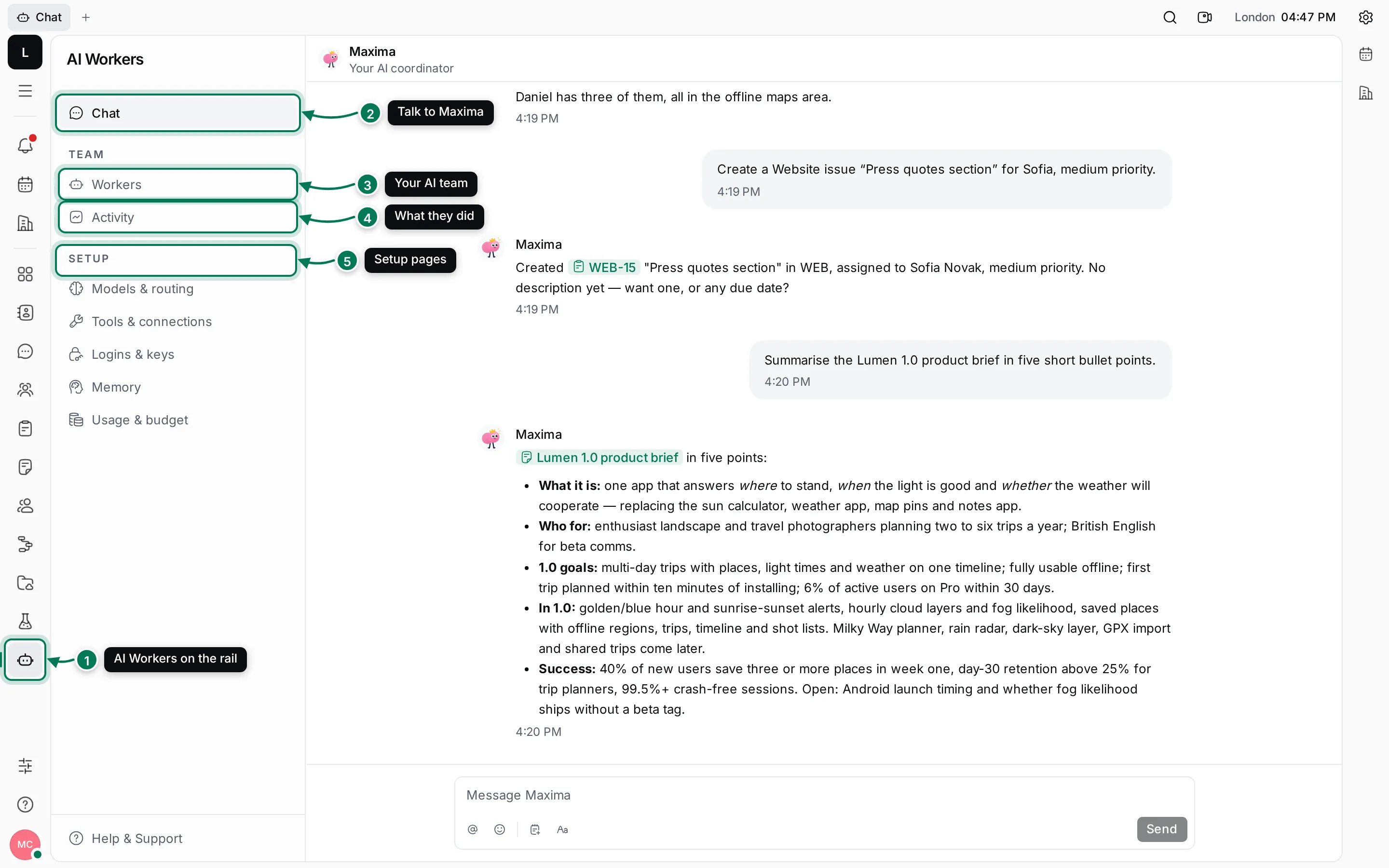
- AI Workers on the left rail opens the module.
- Chat is your conversation with Maxima. See Chat with Maxima.
- Workers is your AI team: add, edit, pause or switch off workers. See Set up your AI team.
- Activity shows what the workers are doing now and everything they did. See Activity and memory.
- Setup holds Models & routing, Tools & connections, Logins & keys, Memory and Usage & budget.
Here is Maxima answering a question about the work in progress:
Where workers help
Section titled “Where workers help”You don’t have to open AI Workers to use them. Workers answer wherever you mention them:
- In Chat with Maxima, for questions, plans and tasks.
- In a comment on an issue: type @ and pick the worker.
- In a channel or thread: the worker answers in a thread under your message.
- On an issue assigned to a worker: it picks the issue up and reports back in the comments.
See Mention and assign workers.
What workers can do, and with whose permission
Section titled “What workers can do, and with whose permission”Workers use tools: find and update issues, read and write documents, post in chat, book meetings, add to-dos, search the web and more. A workspace owner chooses which tools are on in Tools & connections.
Workers always act as themselves, and only where the person asking may. If you can’t see a private document, a worker you ask can’t read it for you either. Before a worker sends an email or changes something through an outside service set to ask first, it waits for your explicit yes.
Who sees what
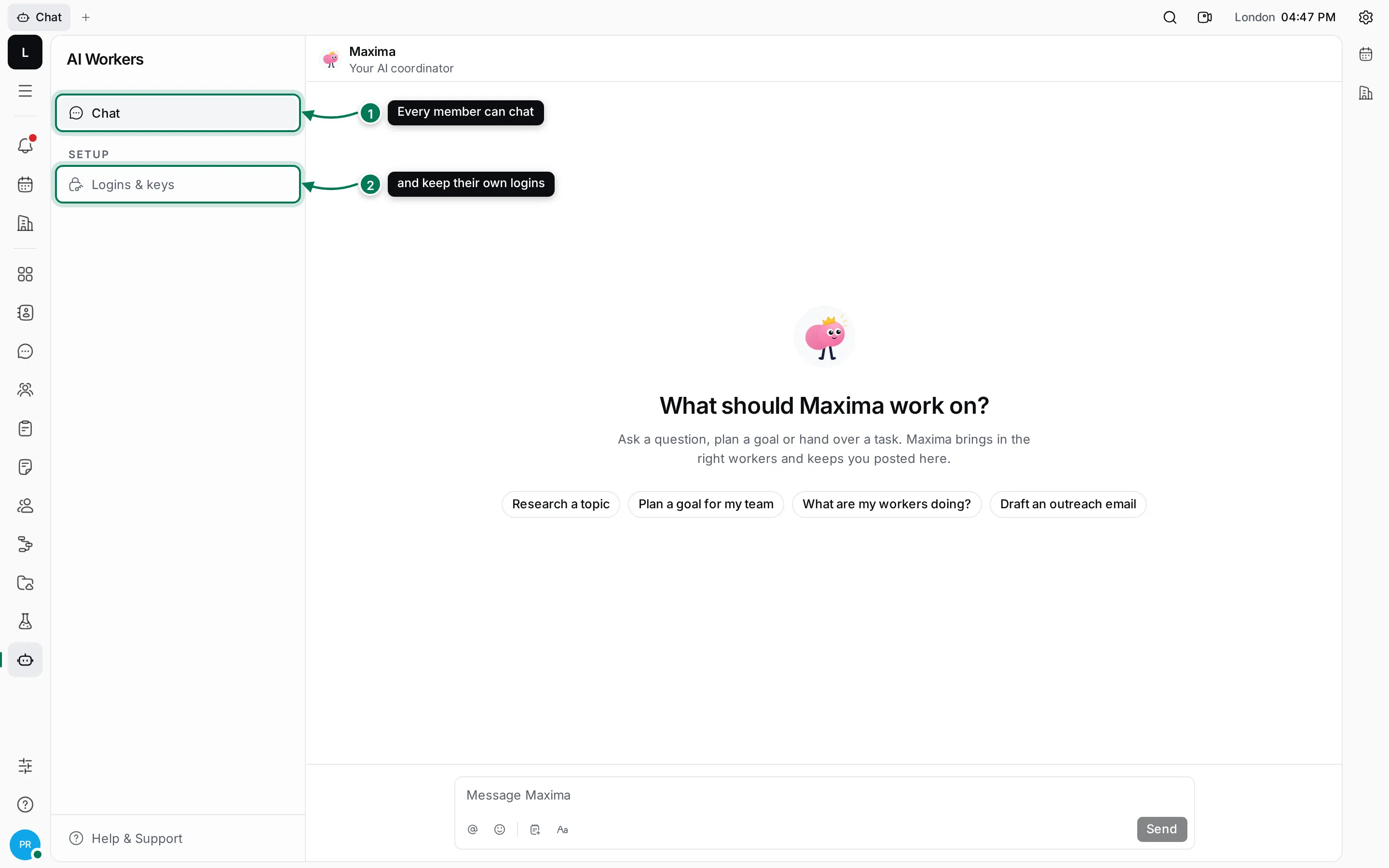
Section titled “Who sees what”Workspace owners see every AI Workers page. Other members see Chat and Logins & keys only, so they can talk to Maxima and keep their own logins for the workers to use.