Calendar events
Events are meetings, calls and other appointments. They sit on your schedule next to your time slots, in blue. Everyone you invite gets the event in their own calendar.
Create an event
Section titled “Create an event”- In the Planner, drag down an empty part of the schedule, from the start time to the end time. The times snap to 15 minutes.
- The New event dialog opens with those times. Type a Title.
- Add participants, a location, a description and reminders if you need them.
- Click Create.
You can also click New event (the calendar button above the schedule) or press Ctrl K and choose New event. The event starts at the next quarter hour and lasts an hour.
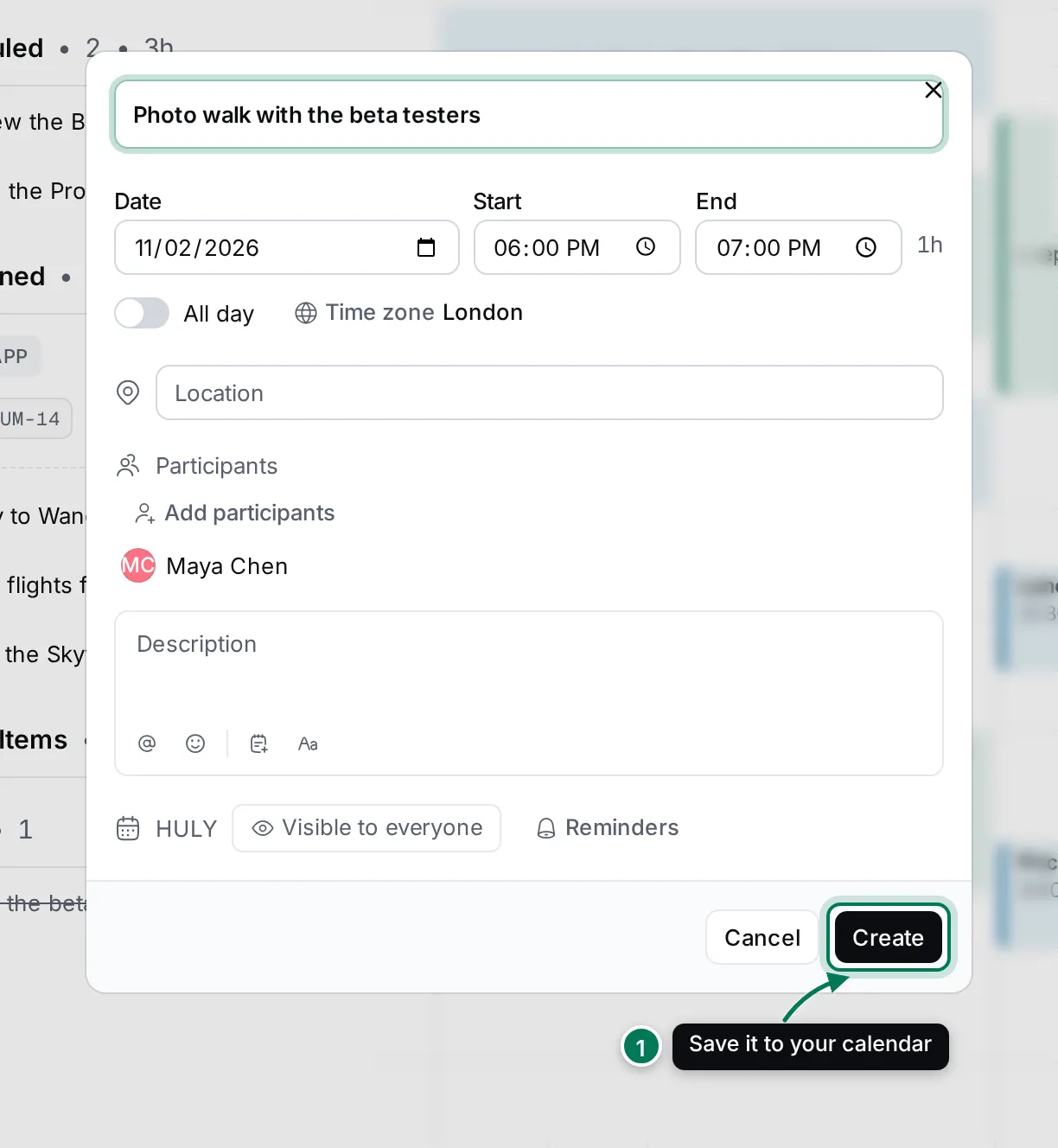
New events go to your primary calendar, with you as a participant. To pick a different calendar for new events, open Settings › Calendar (see Choose your primary calendar).
Event details
Section titled “Event details”Click an event on the schedule to open it.
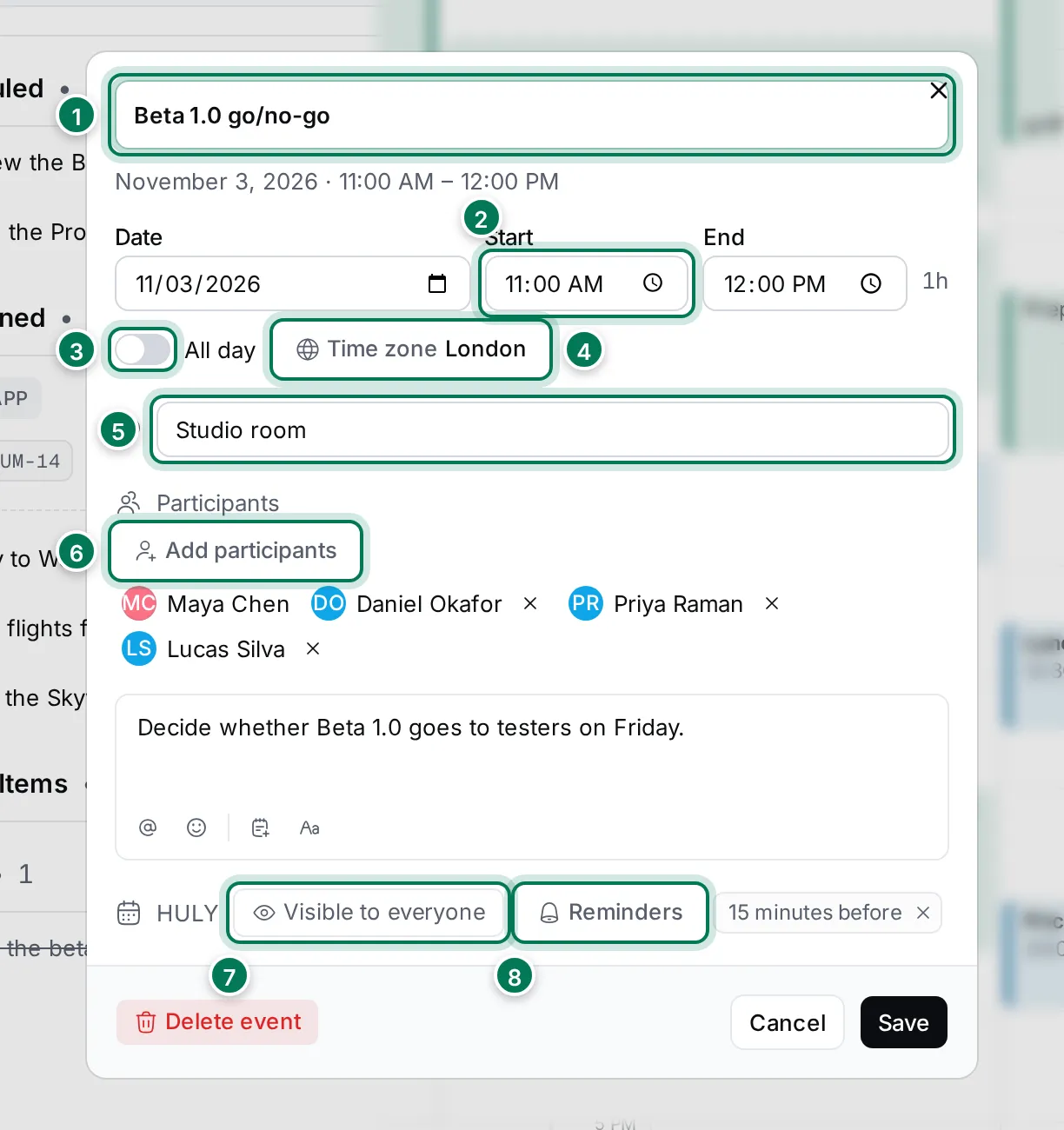
- Title, and under it the date and times as they read in your time zone.
- Date, Start and End. The length shows at the end.
- All day turns the event into a day-long one. It then shows in the All day row at the top of the schedule.
- Time zone: the zone the times are entered in (see below).
- Location: a room, an address or a link.
- Add participants: invite people (see below). Click × next to a name to remove them.
- Visibility: Visible to everyone, FreeBusy or Only visible to you.
- Reminders: one or more notifications before the event starts.
Change what you need and click Save. To remove the event, click Delete event and confirm; it’s removed for every participant.
If someone else invited you, the event opens read-only, and a note says that only the organiser can change it.
Invite people
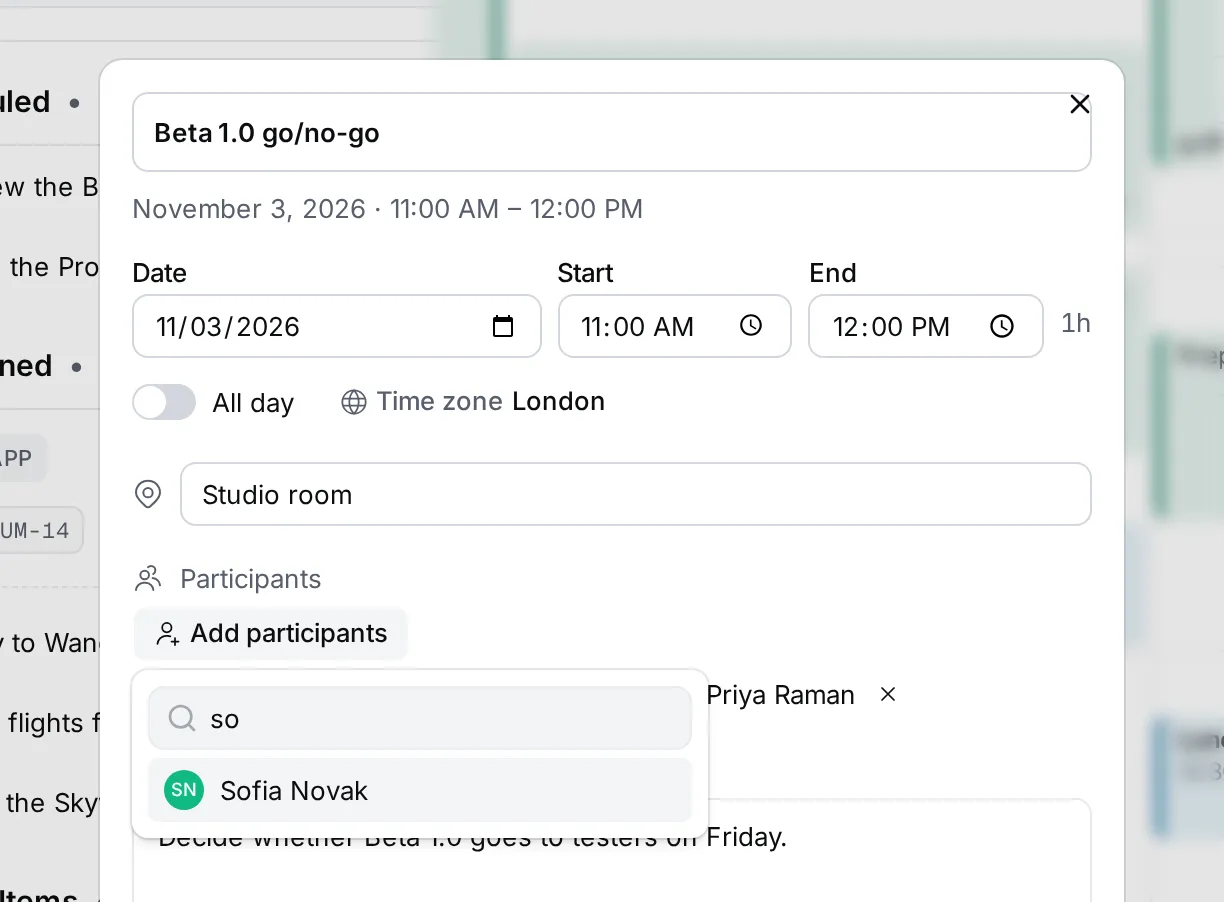
Section titled “Invite people”- Click Add participants.
- Type a name to find people in the workspace, and click each person to add them.
- To invite someone outside the workspace, type their e-mail address and choose Invite followed by the address.
Set the time zone
Section titled “Set the time zone”Use a time zone when an event happens somewhere else, such as a call with a partner abroad.
- Click Time zone.
- Search for a city, or pick one from the list.
- Enter the date and times as they are in that time zone, and save.
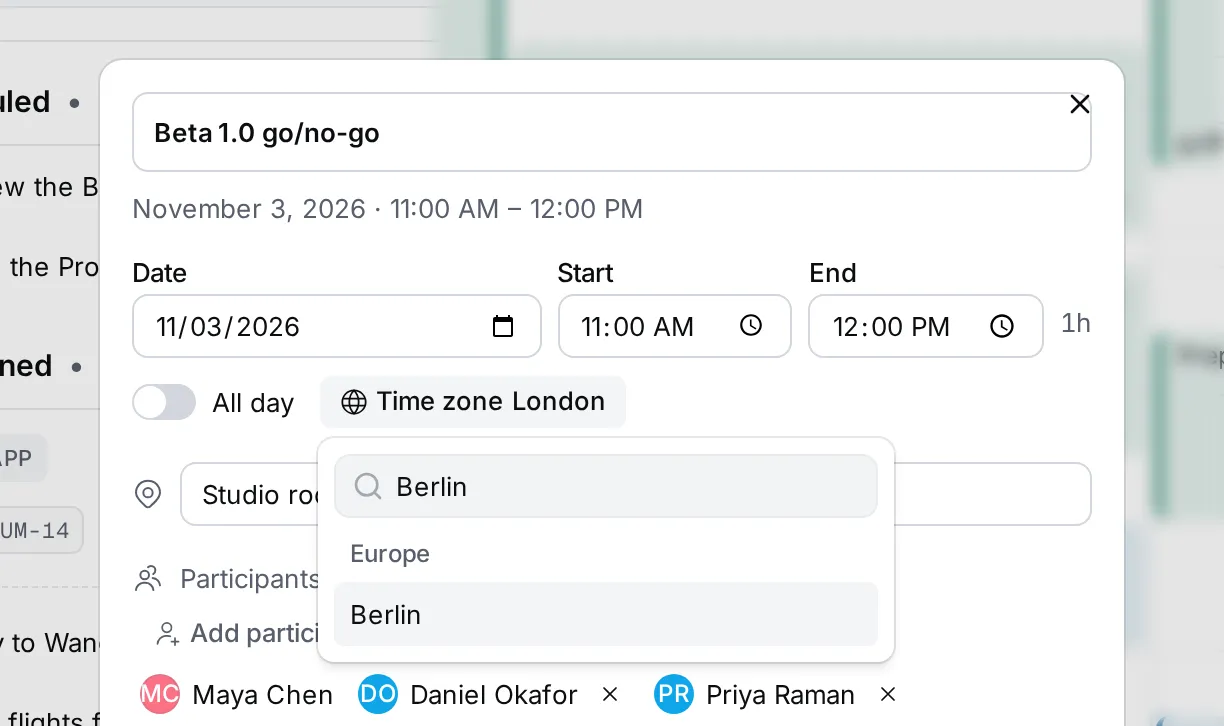
The event then shows at the right time on everyone’s schedule, in their own time zone.
Recurring events
Section titled “Recurring events”An event that repeats shows its rule, such as Every week on Mon, under the times.
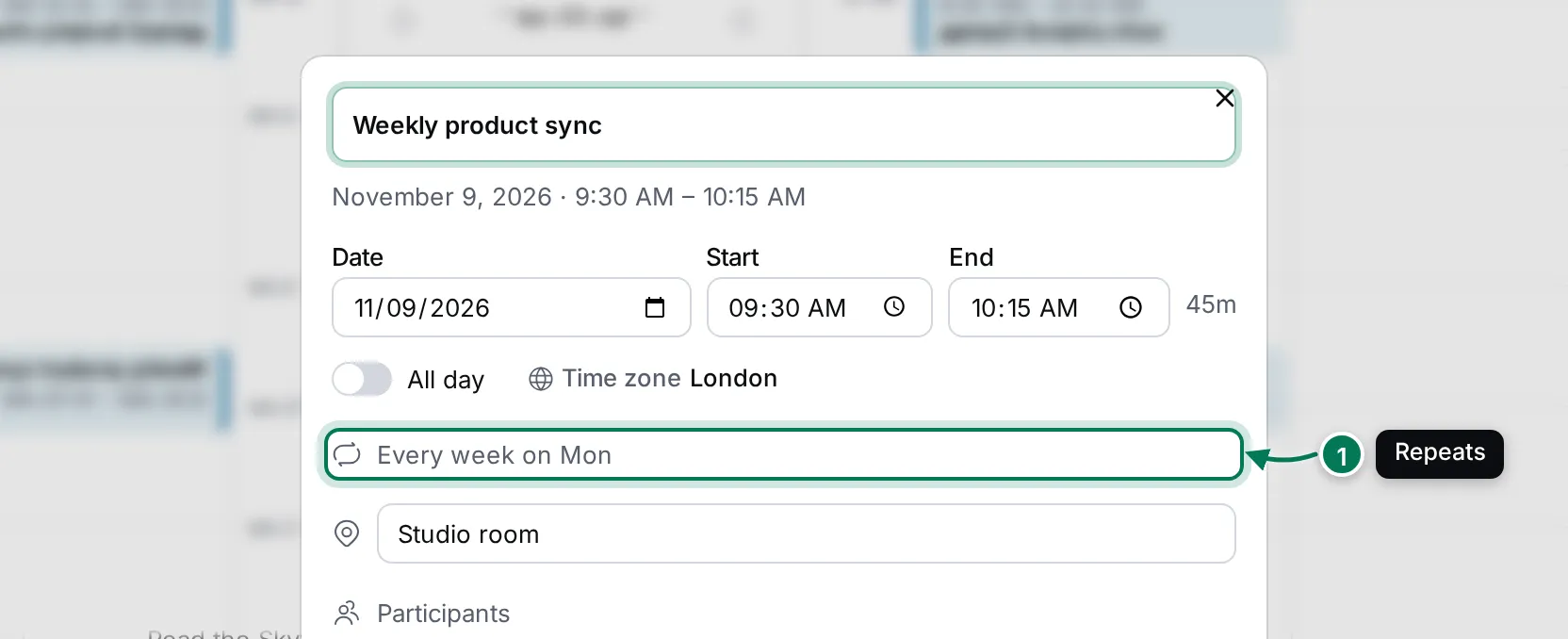
When you save a change to one occurrence, or delete it, the Planner asks which events you mean:
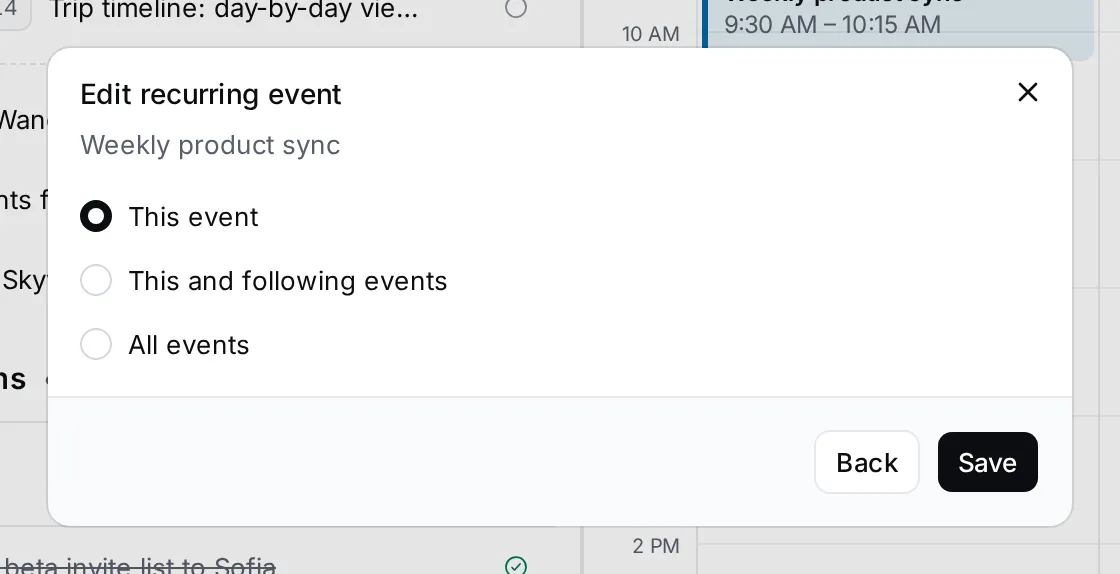
- This event changes or deletes only this occurrence.
- This and following events ends the series before this one and starts a new series from it with your change.
- All events changes or deletes the whole series. A new time moves every occurrence by the same amount.
Click Back to return to the event without saving.