Sub-issues and relations
Big pieces of work are easier to share out and track when they’re split up. A sub-issue is a full issue with its own status, assignee and comments that belongs to a parent issue. Relations link issues that aren’t parent and child: one can block another, or two can simply be related.
Add a sub-issue
Section titled “Add a sub-issue”-
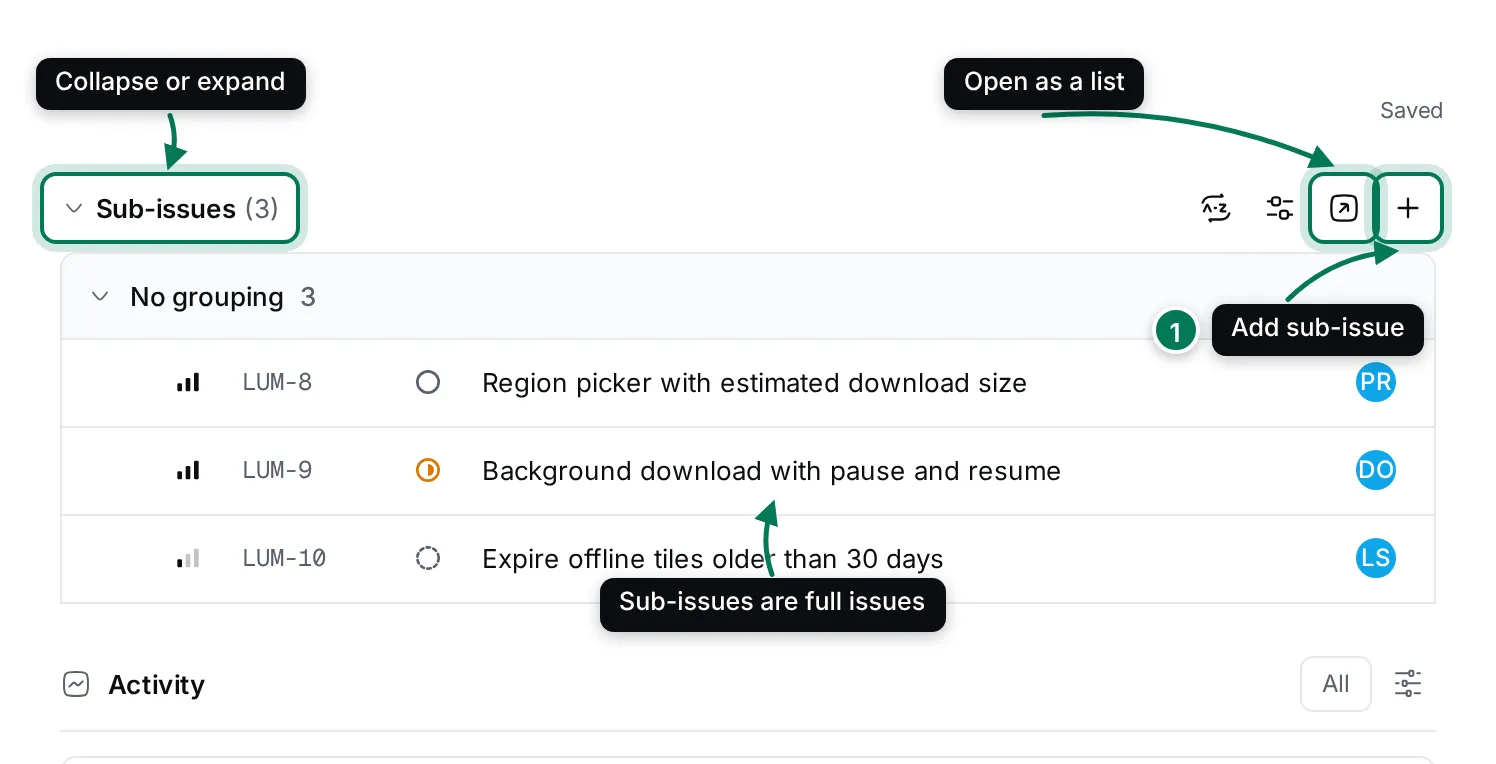
Open the parent issue and click + (Add sub-issue) next to Sub-issues (1).
-
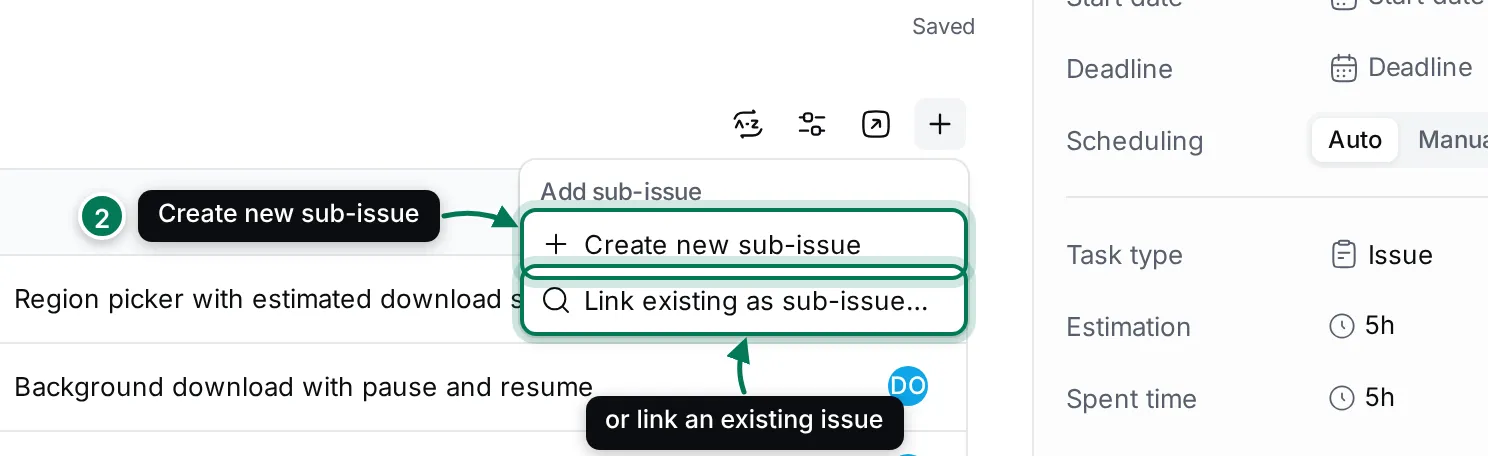
Choose Create new sub-issue (2). To make an issue you already have a sub-issue, choose Link existing as sub-issue… and search for it.
-
In the New issue dialog, the parent is already set. Type a title, set what you need and click Create issue.
You can also right-click an issue in a list and choose Add sub-issue….
The sub-issues show as a list on the parent’s page, with the same inline pickers as any list. Use the two buttons beside the heading to group, order and choose columns for this list, and Open sub-issues to see them as a full list of their own.
In lists, a parent shows a progress chip such as 0/3: how many of its sub-issues are done. Hover over or click it to see them by status. Sub-issues show their parent’s title after their own.
Give an issue a parent
Section titled “Give an issue a parent”-
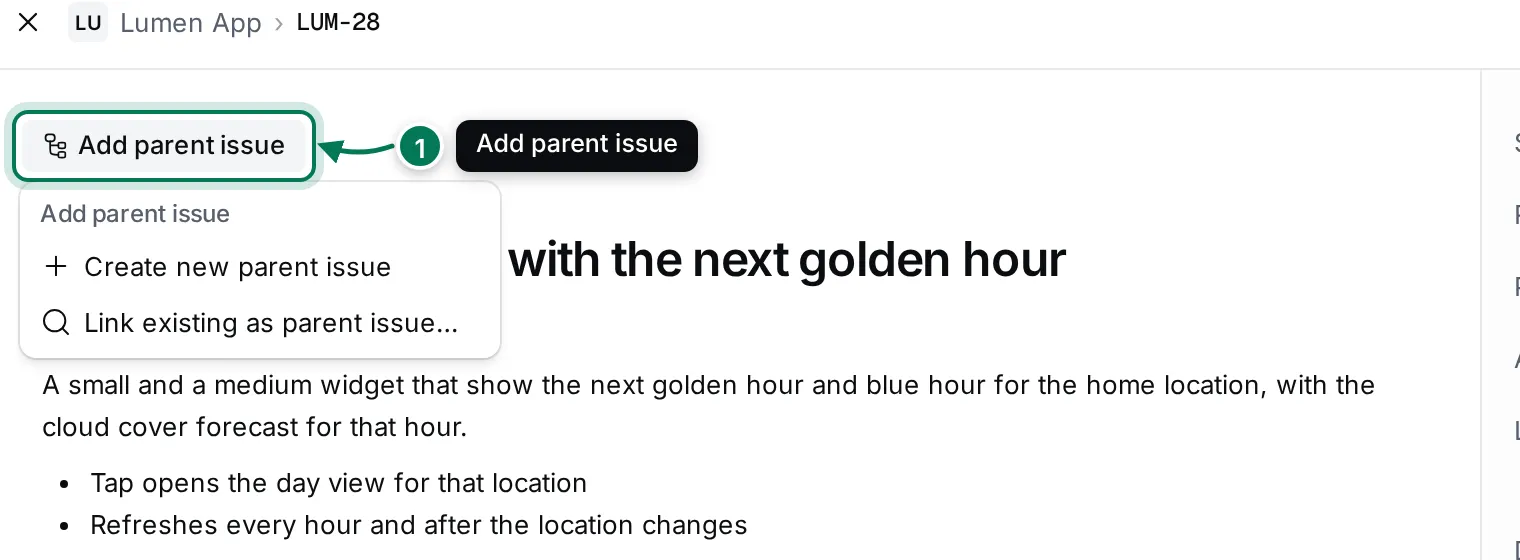
Open the issue and click Add parent issue above its title (1).
-
Choose Create new parent issue to make a new issue above this one, or Link existing as parent issue… to pick one. Only issues of the same project are offered.
Once an issue has a parent, a card with the parent’s ID and title sits above the title.
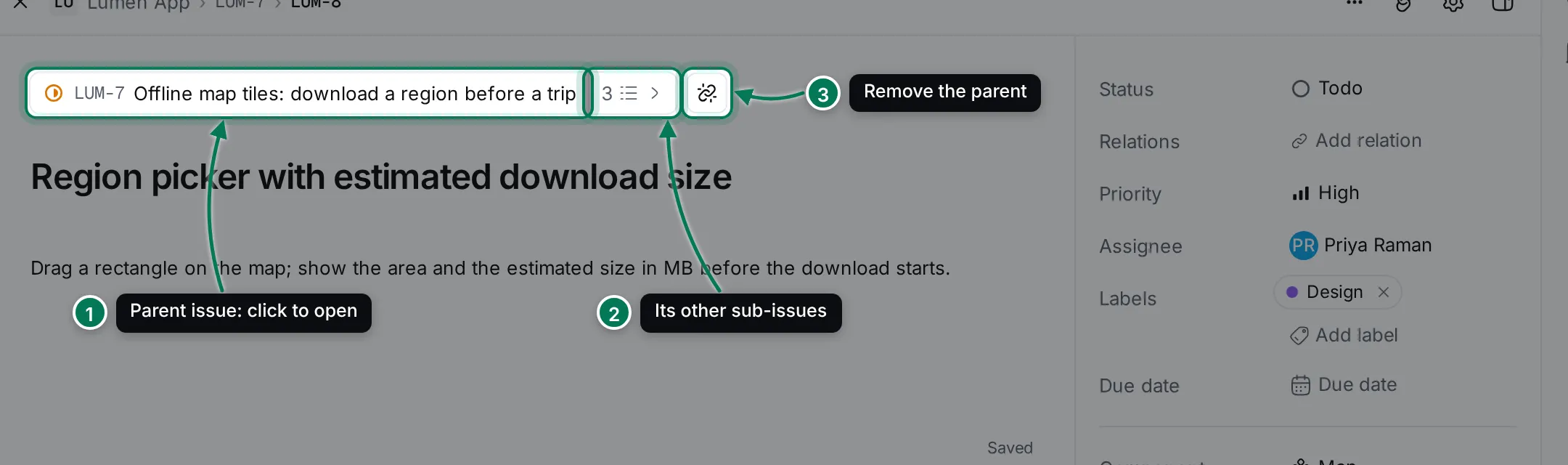
- Click the parent to open it.
- Click the number to see the parent’s other sub-issues.
- Click Unset parent issue to make the issue stand on its own again.
Link related and blocking issues
Section titled “Link related and blocking issues”-
Open the issue and click Add relation on the right (1). It’s also in the issue’s … menu.
-
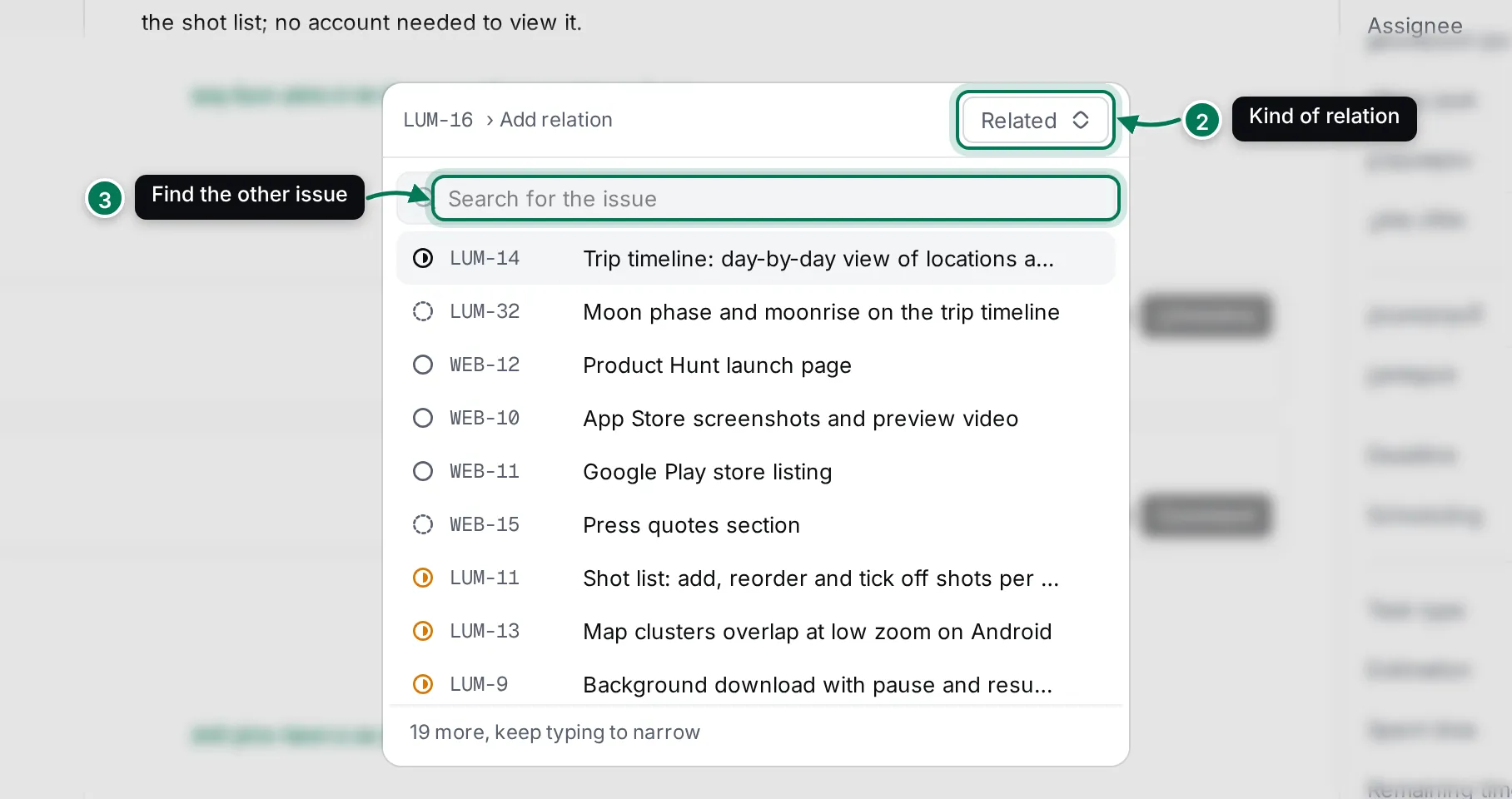
Choose the kind of relation (2): Blocked by, Blocks or Related.
-
Search for the other issue (3) and click it. The relation is added at once.
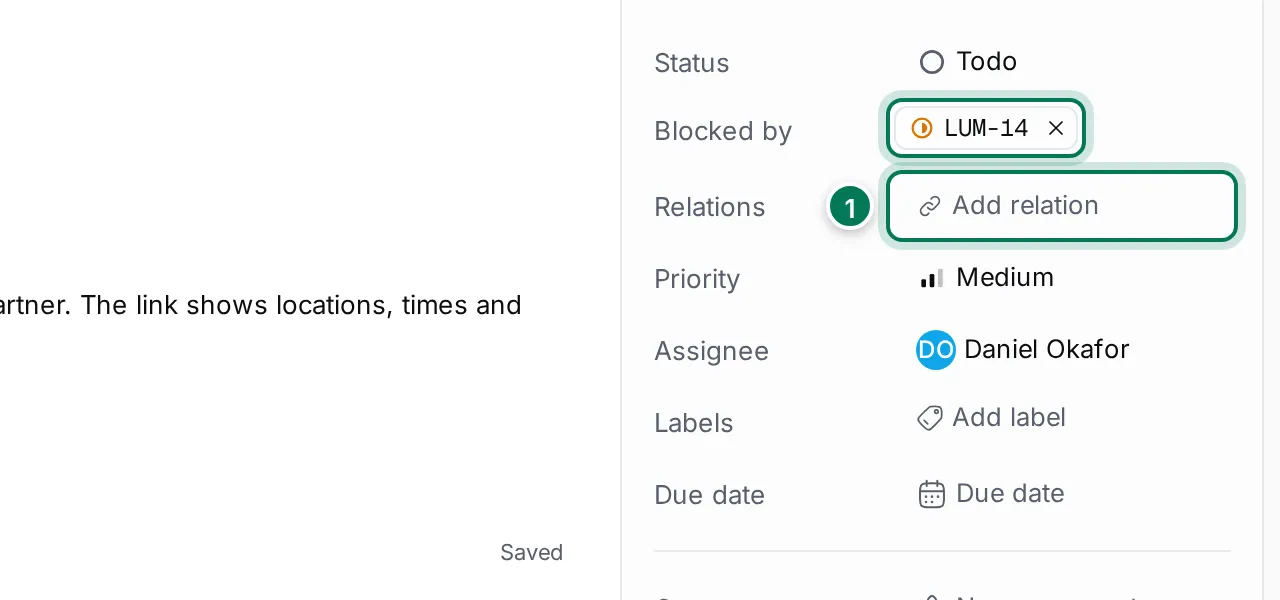
Linked issues appear as chips in Blocked by, Blocks and Related rows on both issues; click × on a chip to remove the relation. In a list, right-click an issue and open Relations for Mark as blocked by…, Mark as blocking… and Reference another issue….
To create a new issue that is related to the current one, choose New related issue in the issue’s menu. The New issue dialog opens with a related to chip.