Search, filters and saved views
Search finds issues by their words; filters narrow a list by properties such as priority or milestone. When you use the same filters often, save them as a view that’s one click away in the navigator.
Search
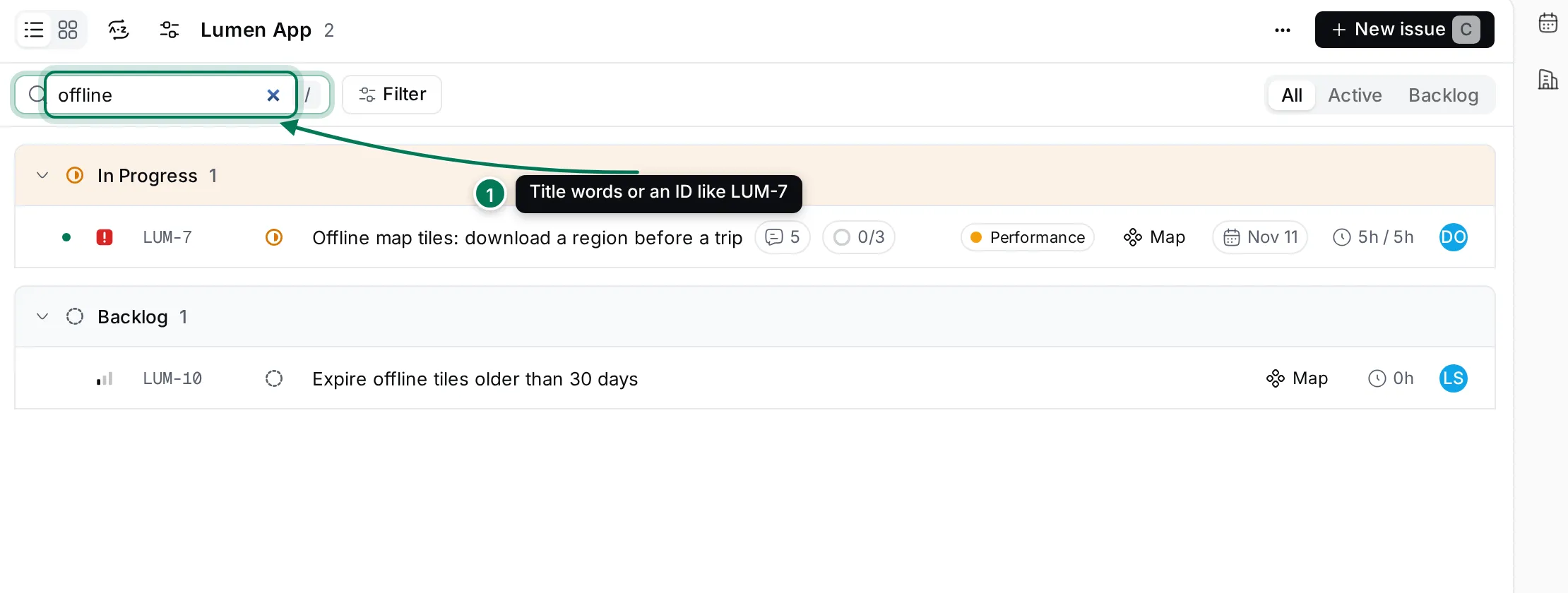
Section titled “Search”Click Search issues above the list, or press /, and type (1). The list narrows as you type and keeps its groups. Type an ID such as LUM-7 to find that issue. Click × in the field to clear it.
Filter a list
Section titled “Filter a list”-
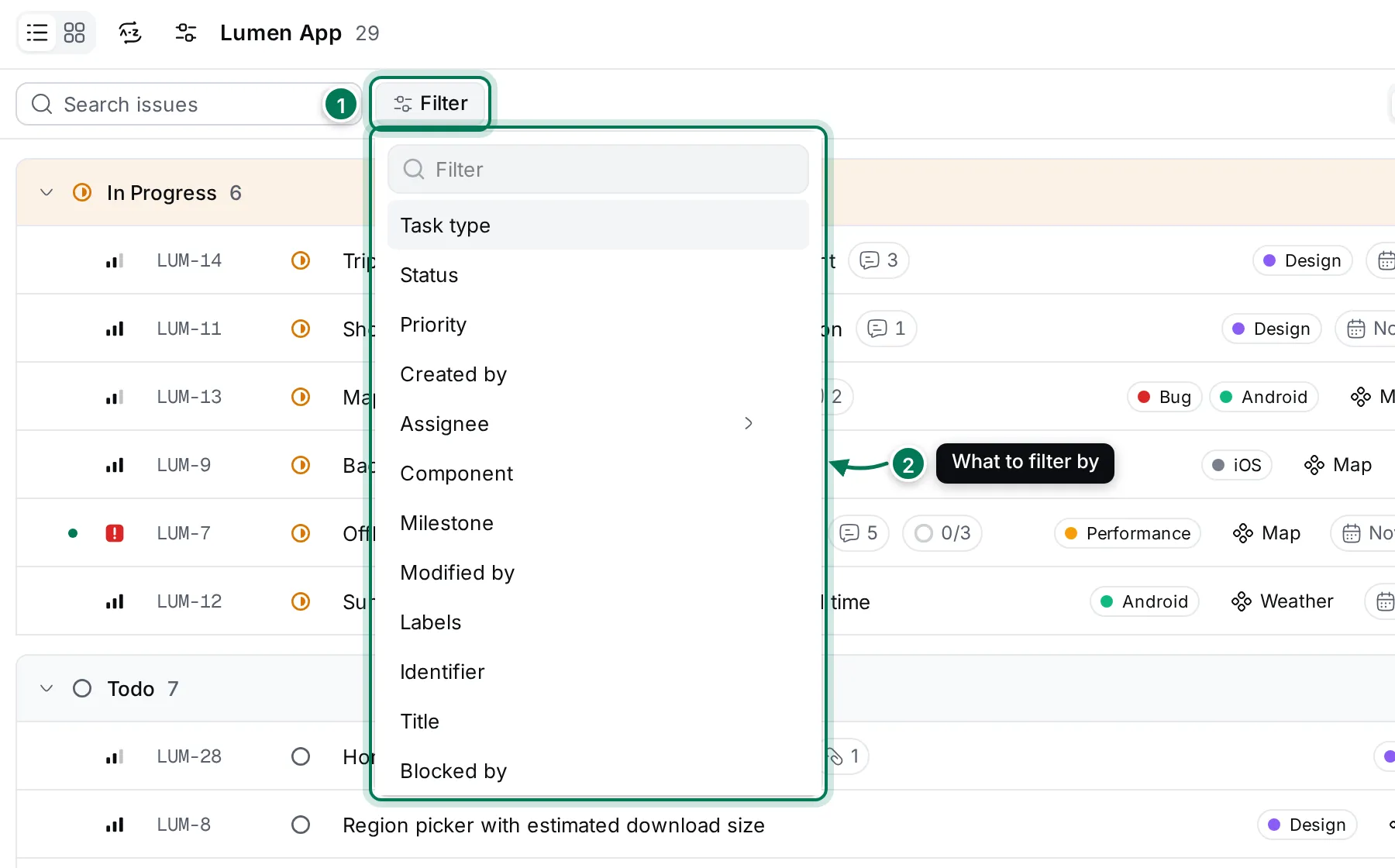
Click Filter (1).
-
Pick what to filter by (2), for example Priority, Assignee, Labels or Due date. Type in the field at the top to find one quickly.
-
Tick one or more values (3). The list updates as you tick. Press Esc when you’re done.
-
To add another filter, click Add filter and repeat. Issues must match every filter.
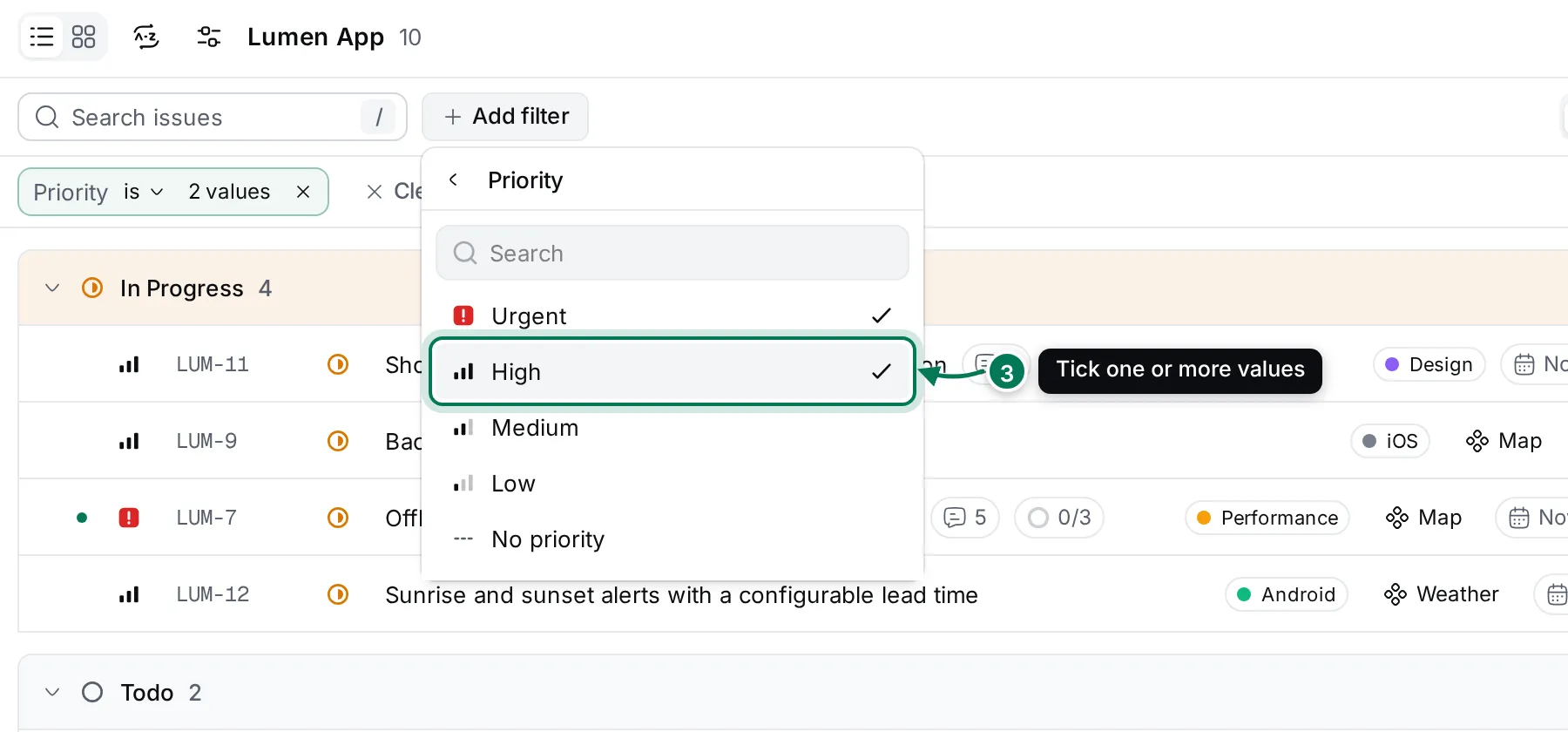
Applied filters sit in a bar under the search field.
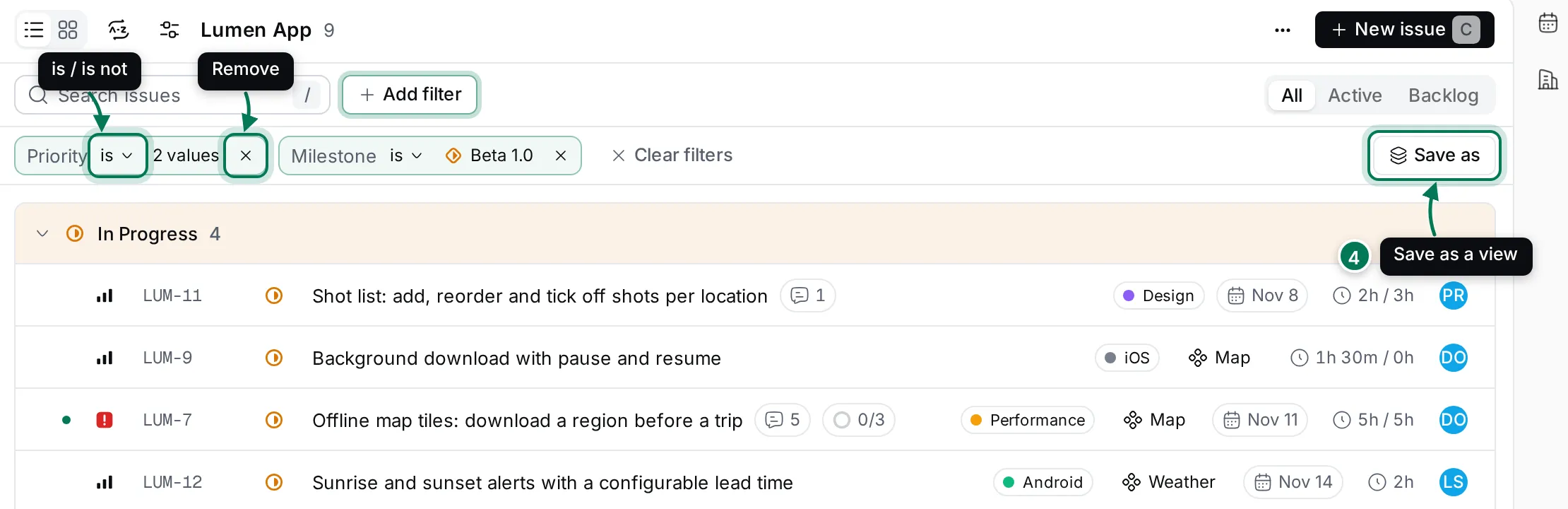
- Click is to switch to is not and show everything except those values.
- Click the values to change them.
- Click × to remove one filter, or Clear filters to remove them all.
What you can filter by
Section titled “What you can filter by”- Status, Priority, Assignee, Component, Milestone, Labels, Task type and Project (outside a project): tick values. No component, No milestone and Unassigned find issues without one.
- Created by and Modified by: tick people.
- Assignee ›: filter by the assignee’s own details, such as their name, location or title.
- Identifier and Title: type text the field must contain, then click Apply.
- Blocked by and Related to: search for an issue. See sub-issues and relations.
- Created date, Modified date and Due date: Today, This week, This month, an exact date, before or after a date, or between two dates. Due date also has Overdue, Next week, Next month and Not specified.
Filters and search are part of the page address, so you can share a filtered list by copying the link.
Save a filtered view
Section titled “Save a filtered view”-
Set up the filters, search, tab and view options you want to keep.
-
Click Save as at the right of the filter bar (4).
-
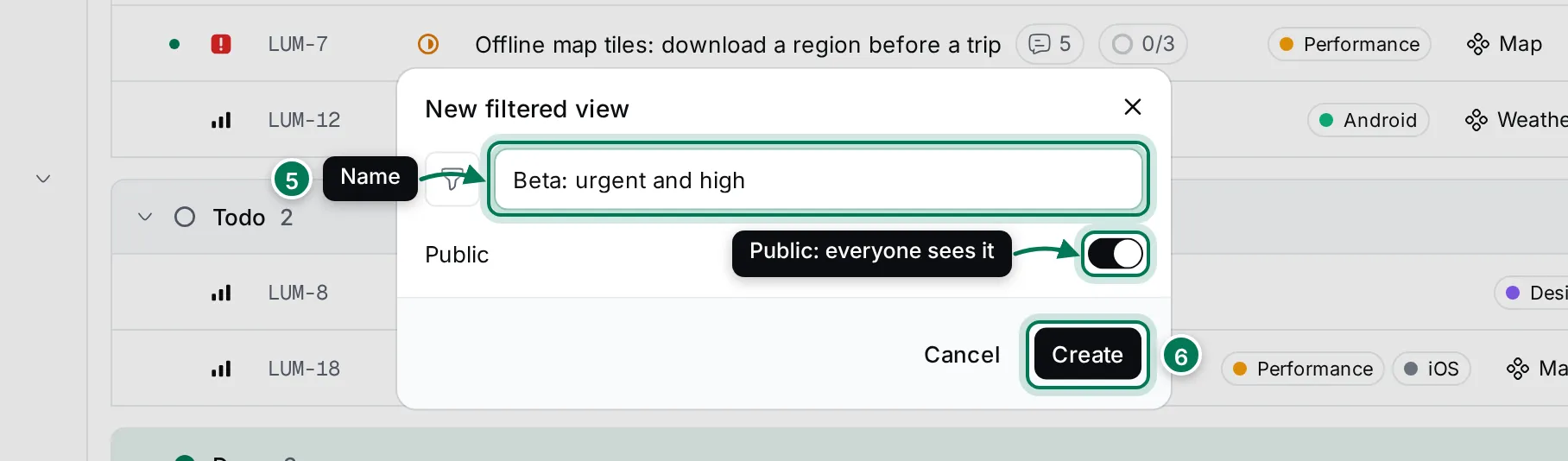
Name the view (5). Leave Public on to share it with everyone in the workspace, or turn it off to keep it for yourself.
-
Click Create (6).
The view appears under Filtered views in the navigator. Opening it brings back its filters, search, tab and view options.
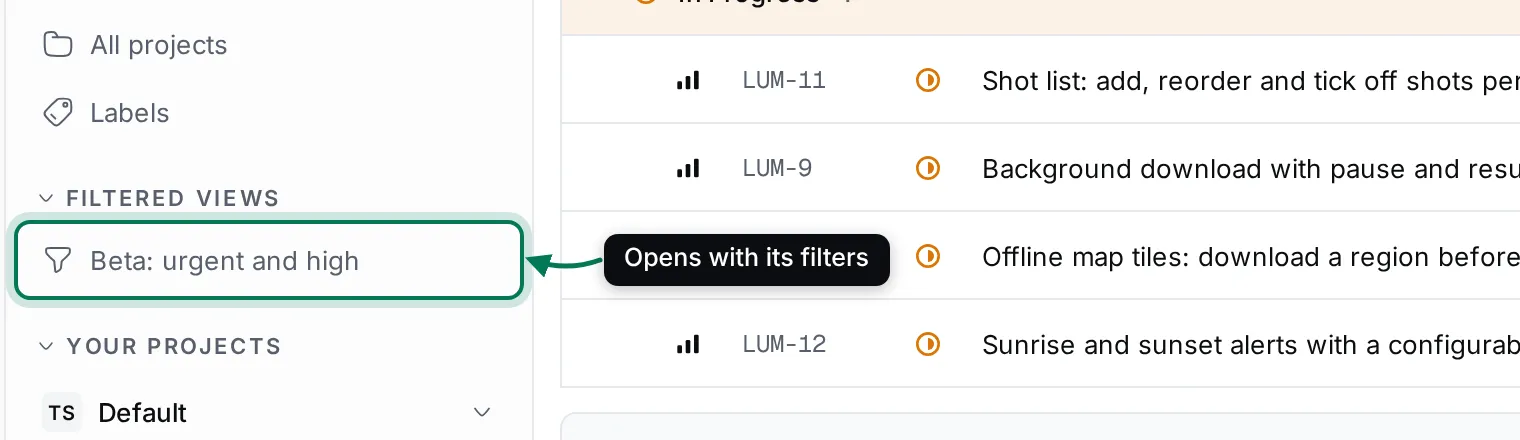
Hover over a saved view to see its buttons. Copy link copies a link to the view; others can open it while the view is public. Click … to tick or untick Public, or to choose Rename… or Delete….
My issues
Section titled “My issues”My issues gathers your work from every project.
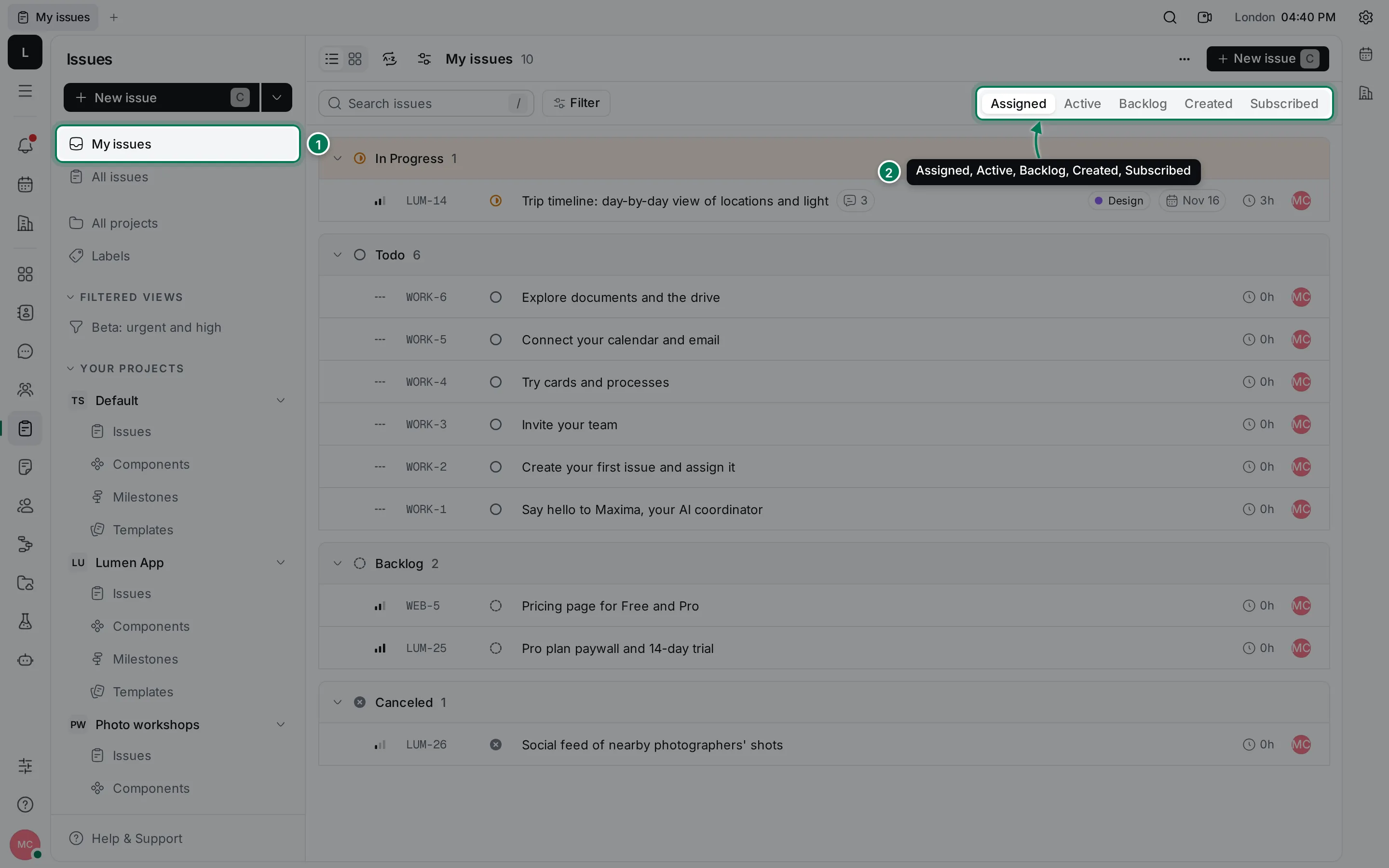
- Click My issues in the navigator.
- Pick a tab:
- Assigned: issues assigned to you.
- Active: your assigned issues in Todo or In Progress.
- Backlog: your assigned issues in Backlog.
- Created: issues you created, whoever works on them.
- Subscribed: issues you collaborate on and get updates about.