Work // Test management
Link tests to issues
When a test fails, the fix usually happens in the Tracker. Create the issue from the test result, and the issue and the result stay linked: the developer sees which test found the bug, and the tester can follow the fix.
Create an issue from a failed result
Section titled “Create an issue from a failed result”- Open the failed result, for example from the run’s list.
- Click ⋯ and choose New related issue.
- Fill in the issue as usual: title, description, priority and assignee. The issue is marked as related to the result.
- Click Create issue.
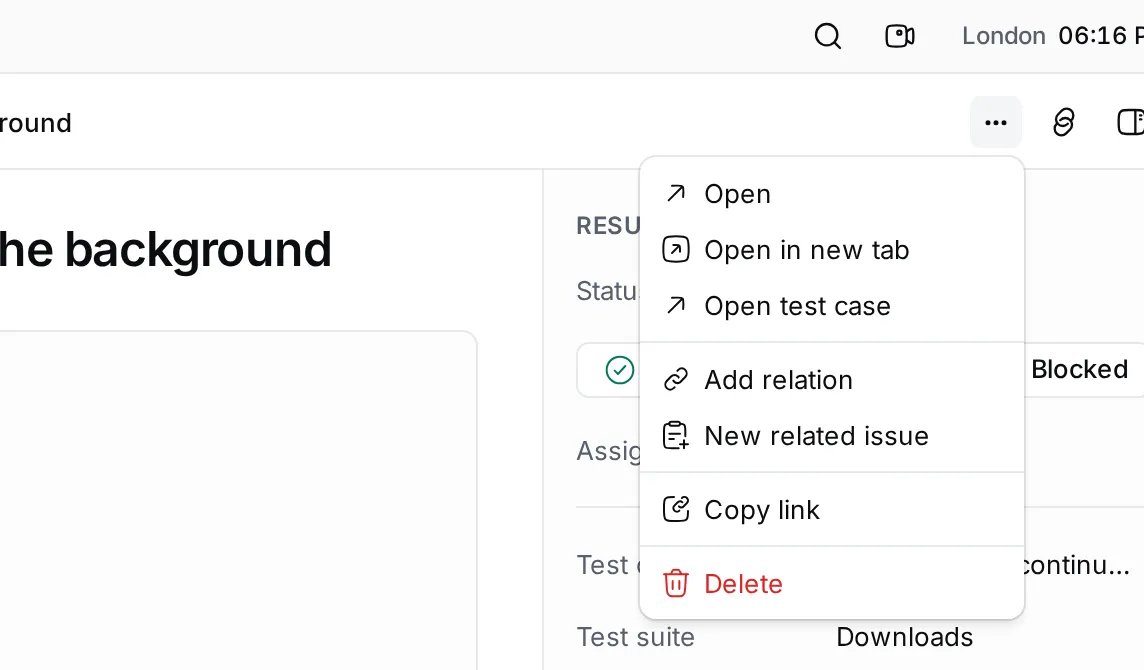
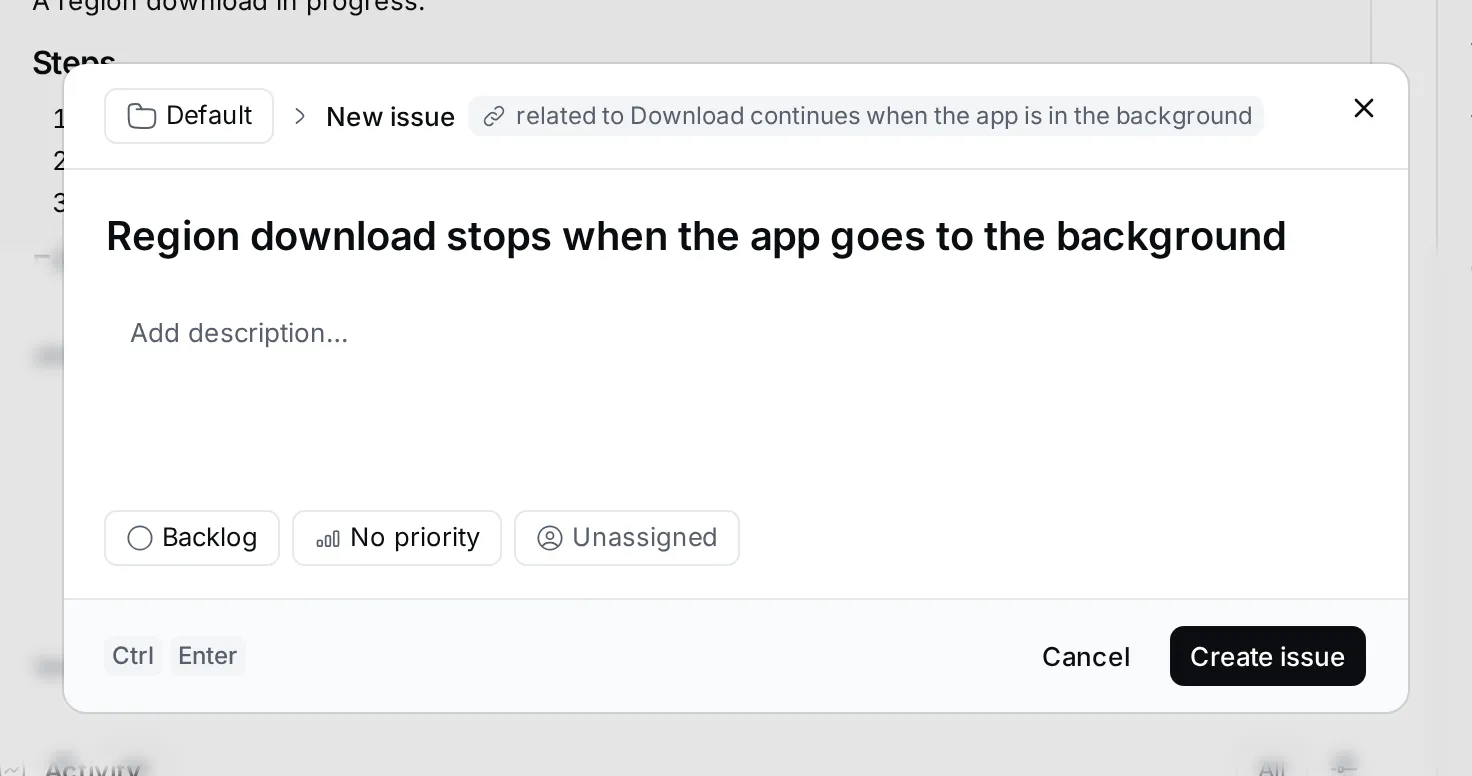
You can do the same from a test case or a test suite, through their ⋯ menus or by right-clicking them in a list.
Choose where new issues go
Section titled “Choose where new issues go”Each test project can send its related issues to a Tracker project of your choice.
- Hover the test project in the navigator, click ⋯ and choose Configure related issue default projects.
- Pick the Tracker project, or No project.
- Click Ok.
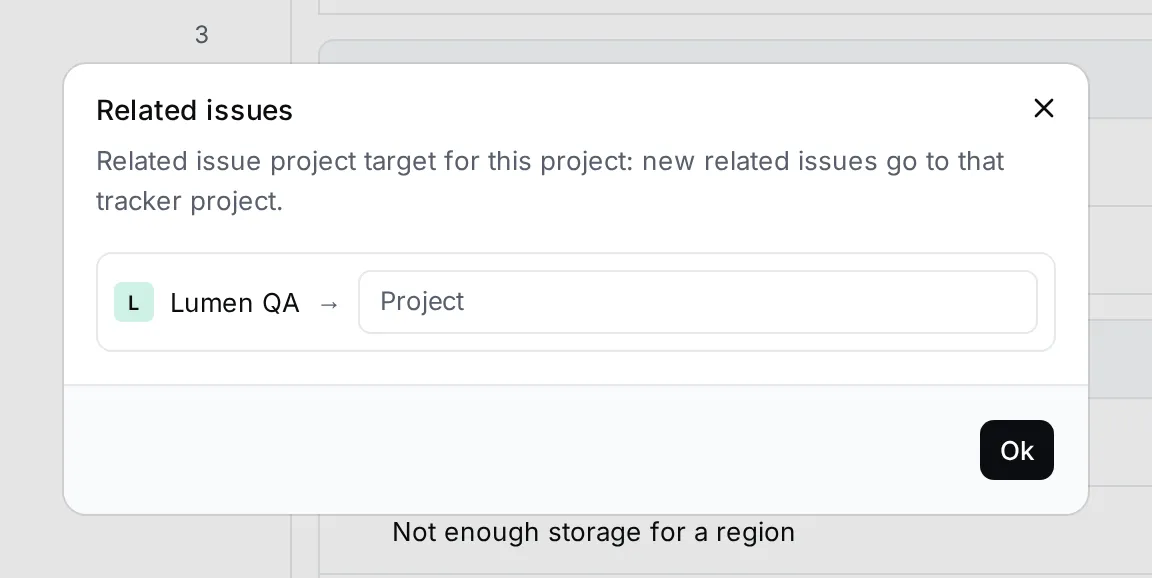
New related issues from that project’s suites, cases and results then start in the chosen Tracker project. Workspace owners can see every such rule in Settings › Related issues.
Link to other work
Section titled “Link to other work”Add relation in the same menus links a suite, case or result to any other item, such as an existing issue or a document. The link shows on both items.