Triggers and actions
Each transition of a process has one trigger and any number of actions. The trigger decides when the card moves to the next state. The actions run, in order, when it does.
Open a transition
Section titled “Open a transition”In the process editor, click a transition in the Transitions card. Its page shows the trigger and the actions.
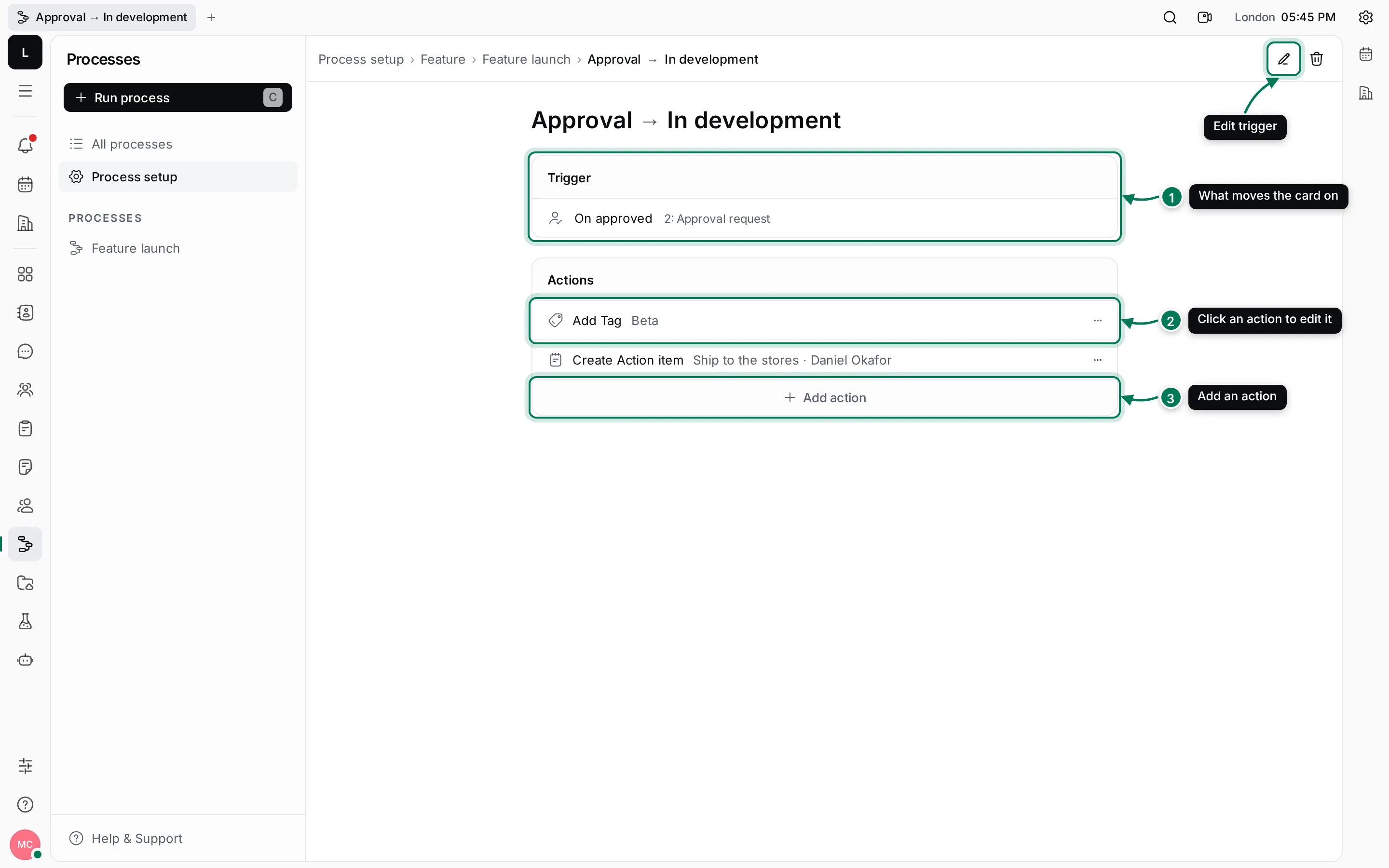
- Trigger shows what moves the card on. Click it, or Edit trigger in the header, to change it.
- Click an action to edit its settings in the side panel.
- Add action adds an action at the end. Use an action’s ⋯ menu to move it up or down or delete it.
An action whose settings are incomplete shows a red warning sign until you fill them in.
Triggers
Section titled “Triggers”| Trigger | The card moves on when… |
|---|---|
| On execution start | The process starts. Only the first transition uses it. |
| When action item done | The person finishes an action item created earlier in the process. |
| When action item is cancelled | That action item is cancelled instead. |
| On approved | An approval request created earlier is approved. |
| On rejected | That approval request is rejected. |
| When field changes | A property of the card changes to match the condition you set. |
| When card matches | The card matches a set of conditions, checked whenever it changes. |
| When required fields are filled | Every required property of the card has a value. |
| On sub processes done | Every process this one started has finished. |
| When subprocess matches | All, any or none of the processes it started reach the states you pick. |
| Wait until | A date and time is reached, either fixed or taken from the process. |
Conditions compare a property with a value: equals, does not equal, contains, greater or less than, between, or is set. For lists of values you can ask for all, any or none of them, or compare the list’s size.
Actions
Section titled “Actions”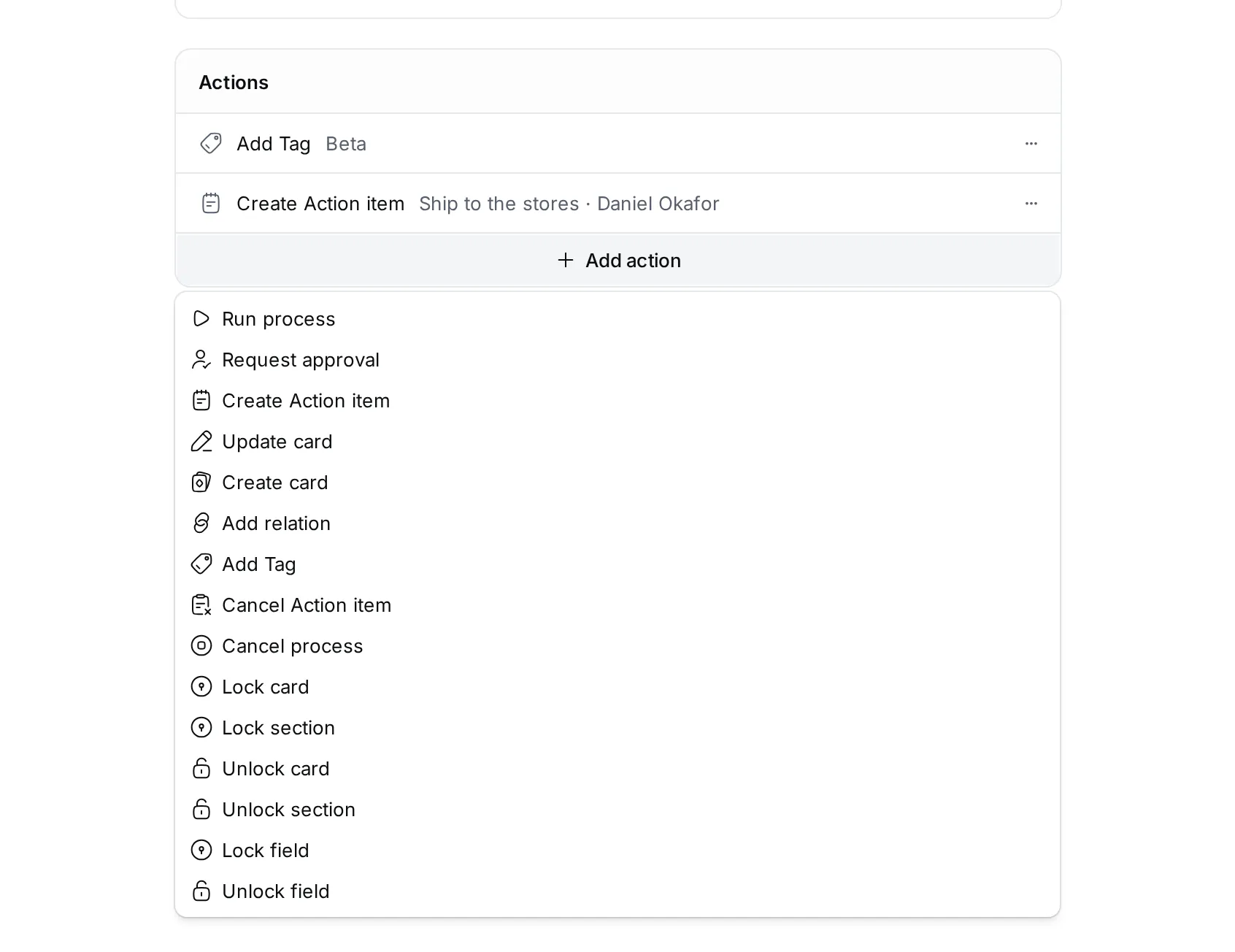
| Action | What it does |
|---|---|
| Create Action item | Gives a person a to-do with a title and due date. They can be asked to fill in results when they close it. |
| Request approval | Asks one or more people to approve or reject. Turn on Review for a review instead of an approval. |
| Update card | Sets properties of the card. |
| Create card | Creates a new card of a type you pick. |
| Add relation | Links the card to other cards through one of its type’s relations. |
| Add Tag | Adds one of the type’s tags to the card. |
| Run process / Cancel process | Starts another process, or cancels one. |
| Cancel Action item | Cancels an action item created earlier. |
| Lock card / Unlock card | Stops or allows changes to the whole card. |
| Lock section / Unlock section | Stops or allows changes to the type’s or a tag’s properties. |
| Lock field / Unlock field | Stops or allows changes to chosen properties. |
Set up an action item
Section titled “Set up an action item”- Open the transition, click Add action and choose Create Action item. Its panel opens on the right.
- Enter the Title of the to-do, for example Write the spec.
- Pick the Employee who should do it. Click + next to the field to take the value from somewhere else instead, such as the card’s Owner.
- Click Save.
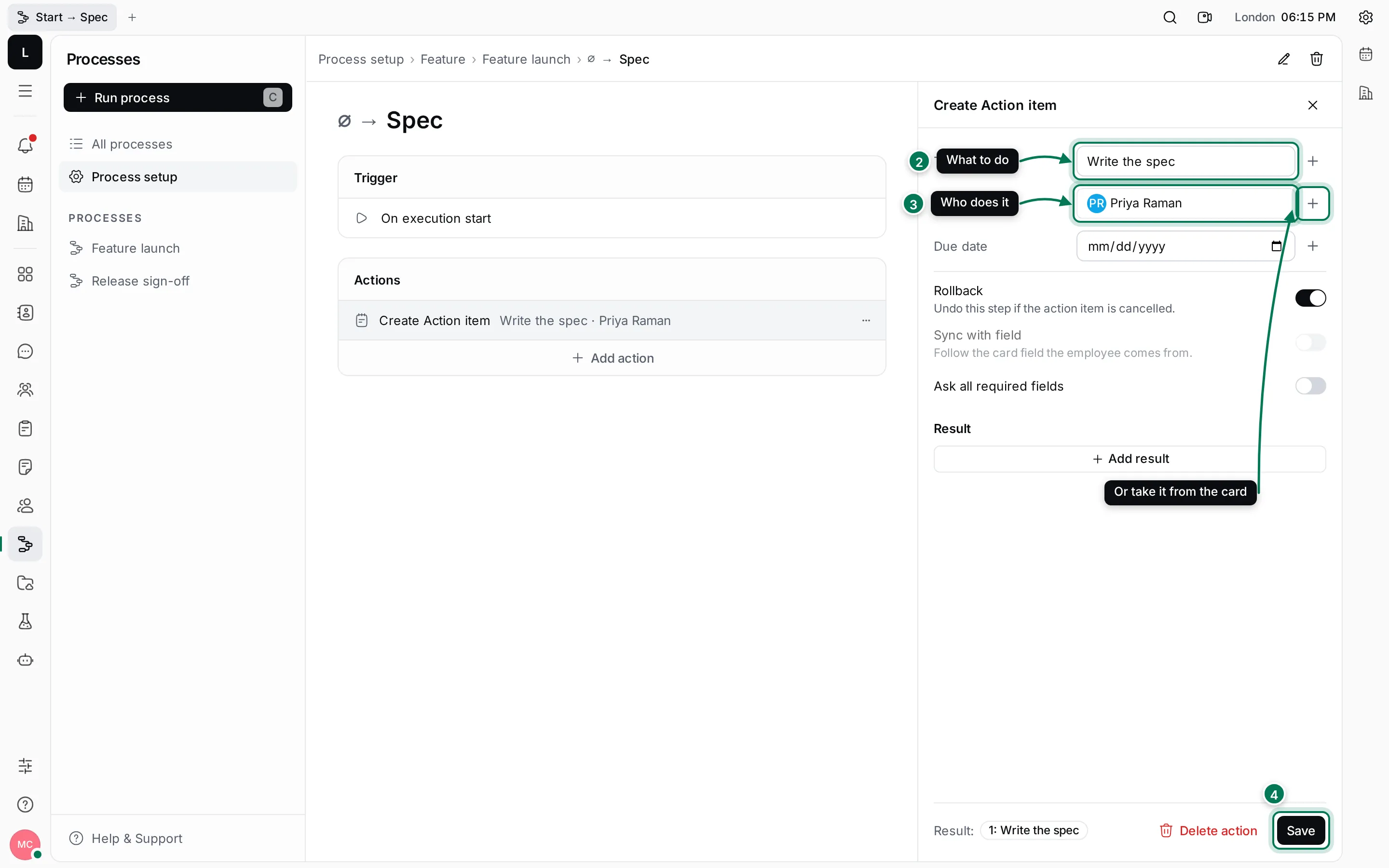
The panel also has a Due date, Rollback (on by default: undo this step if the action item is cancelled), Ask all required fields, and Add result for values the person fills in when closing the to-do. A result can be saved to a property of the card or kept in the process for later steps.
Take values from the card or the process
Section titled “Take values from the card or the process”Every value in an action can be fixed or taken from somewhere else. Click + next to a field to choose where it comes from.
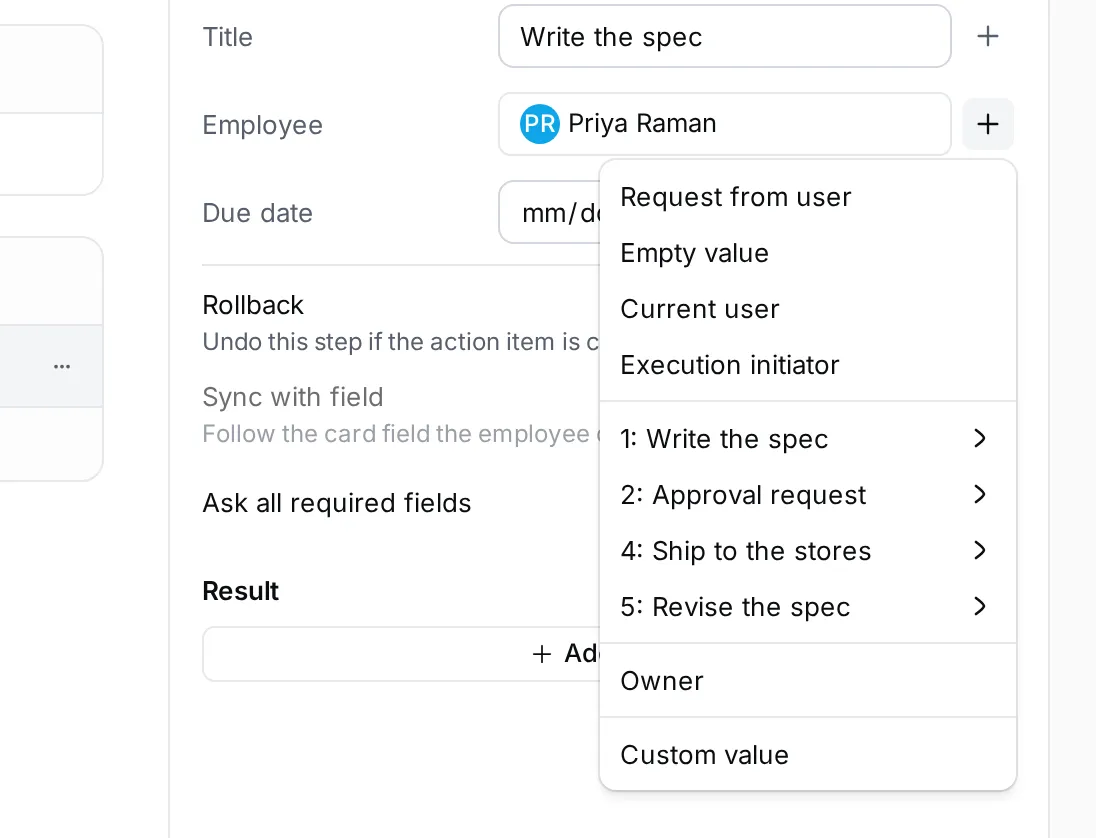
- Request from user asks the person who starts the process to enter the value.
- Current user and Execution initiator fill in the person who is acting or who started the process. Date fields offer the current date the same way.
- The numbered entries use what an earlier step produced, such as the person who closed 1: Write the spec.
- A card field, such as Owner, takes the value from the card.
- Empty value clears the field, and Custom value goes back to a fixed value.
After you pick one, the value shows as a chip. Its menu adds functions such as Append, Replace or date offsets, marks it Required, or gives it a fallback value.
See what each step produces
Section titled “See what each step produces”Click Data in the editor’s header to list what the steps create, numbered in order: action items, approval requests, cards and relations. Triggers and later actions refer to them by these numbers, for example 1: Write the spec.
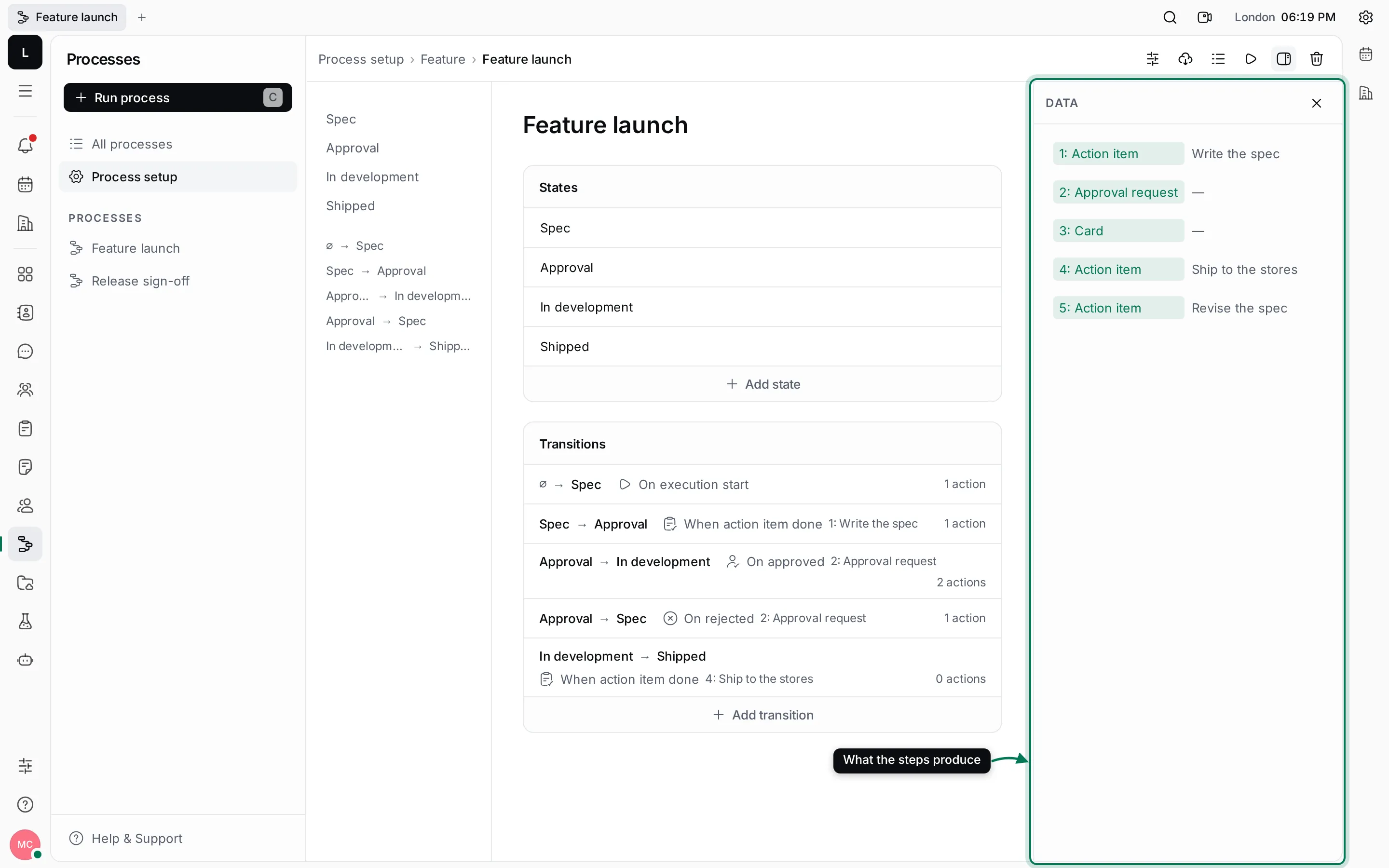
Click an entry to open the transition that creates it.