Link cards with relations
A relation links two cards and names the link from each side. In Lumen Labs, a Release card lists the features it Includes, and each Feature card shows the release it was Shipped in. You add a link once, and it shows on both cards.
Which cards can be linked is decided by the relations set up on their card types. If a card shows no relation sections, its type has none yet.
Link a card from a relation section
Section titled “Link a card from a relation section”- Open the card and scroll to the relation’s section, for example Includes on a release. The section strip at the right edge jumps there.
- Click + in the section’s header.
- Search for the card to link and pick it. Only cards of the other type are offered.
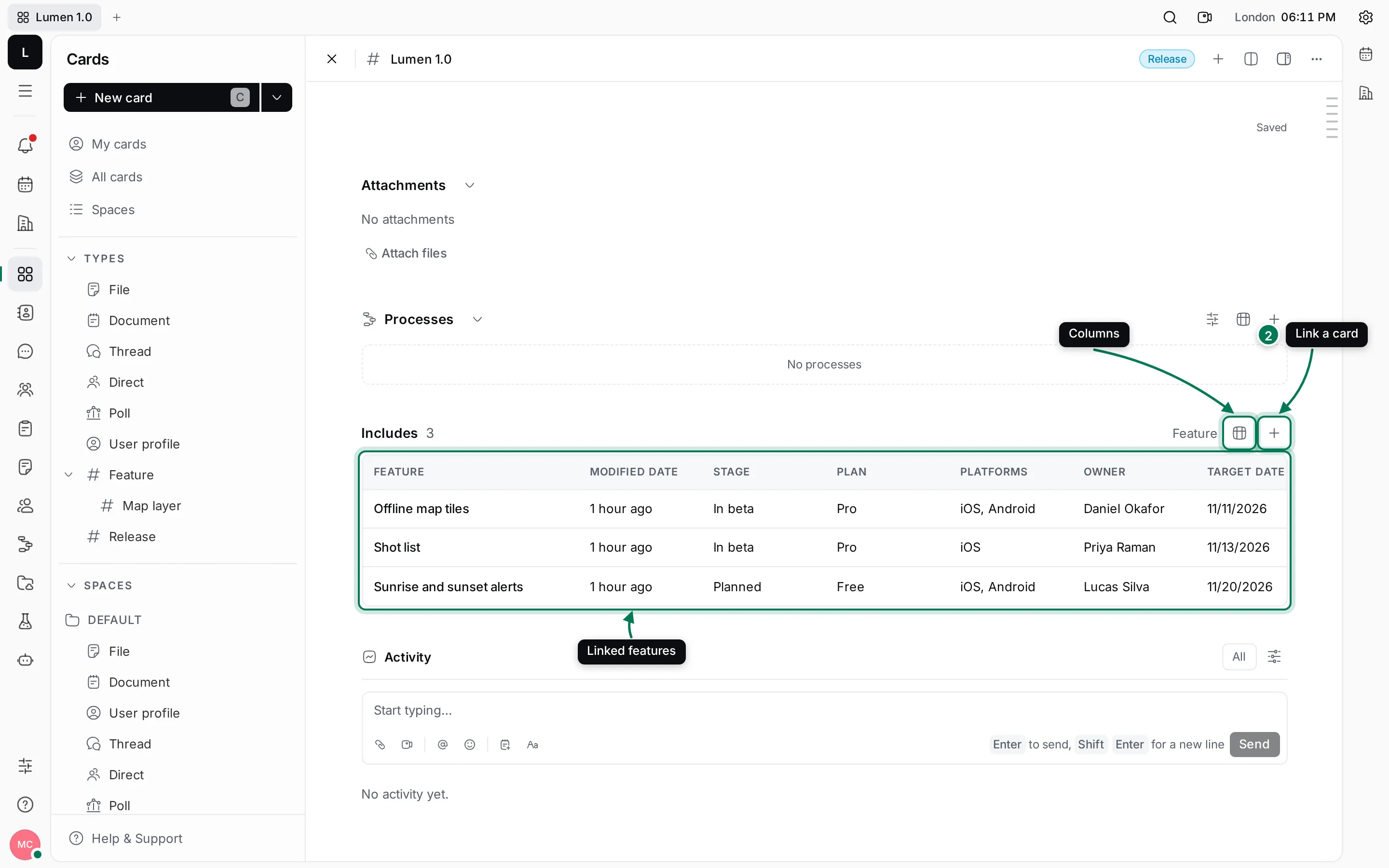
Each section is a table of the linked cards with their properties. Click a column header to sort, and use the columns button in the section’s header to choose the columns. Click a linked card to open it.
To remove a link, hover the row and click ×, then confirm. Only the link is removed; both cards stay.
Link a card from the menu
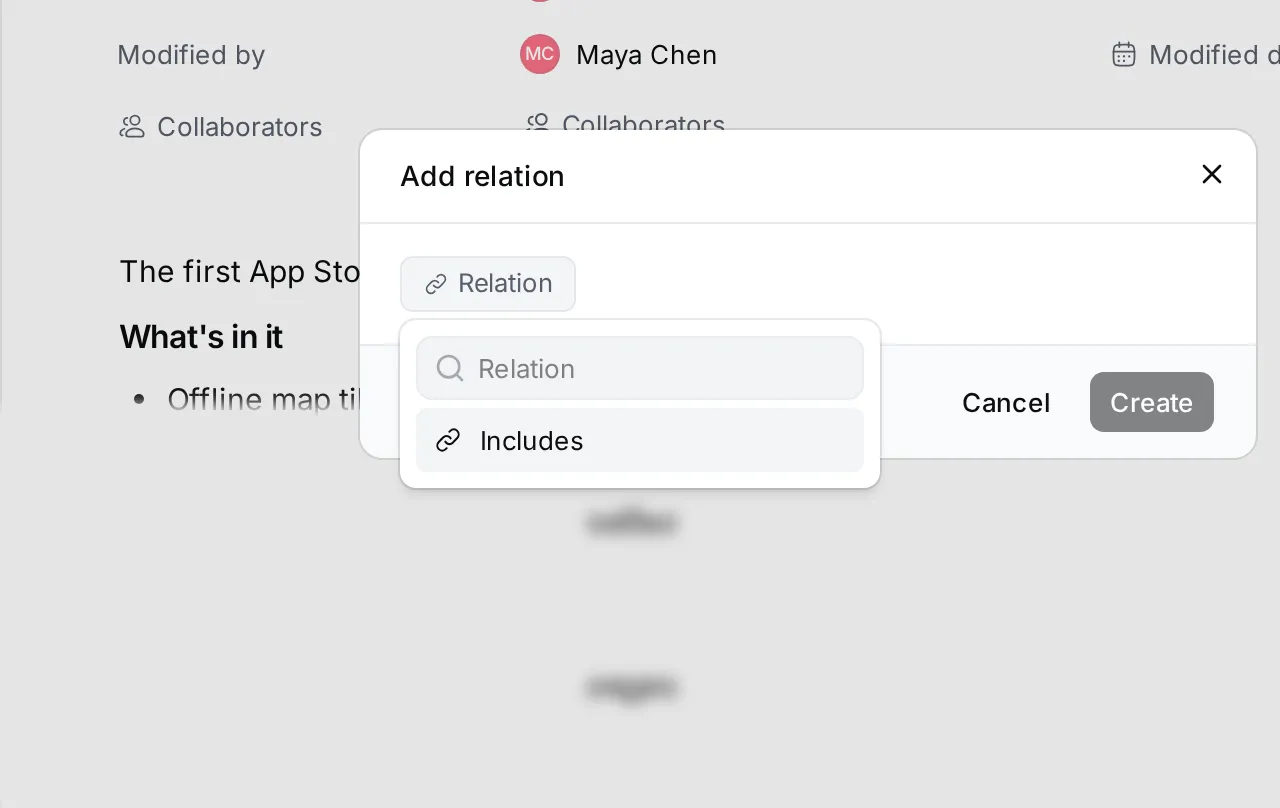
Section titled “Link a card from the menu”- Open the card and click ⋯ › Add relation, or right-click the card in a list.
- Click Relation and pick one, such as Includes, then pick the card to link.
- Click Create. The link appears in the relation’s section on both cards.
Parent and child cards
Section titled “Parent and child cards”Parent and child cards are a different kind of link: a child card belongs under its parent. Use them to break one card into parts, and relations to connect cards that stand on their own. See Split a card into child cards.
Link cards to issues
Section titled “Link cards to issues”Click ⋯ › New related issue on a card to create a Tracker issue that is linked to it. The issue lists the card as related, so engineers can find the feature or release the work belongs to. See Sub-issues and relations.