Google Calendar and Gmail
Google Calendar and Gmail are personal: each person connects their own Google account, and nobody else sees it. Calendar syncs your events and tasks with Google Calendar in both directions. Gmail lets Maxint Work send, receive and manage your email.
Connect your Google account
Section titled “Connect your Google account”-
Open Settings › Integrations and click Connect on the Calendar or Gmail card.
-
Read the dialog and click Connect.
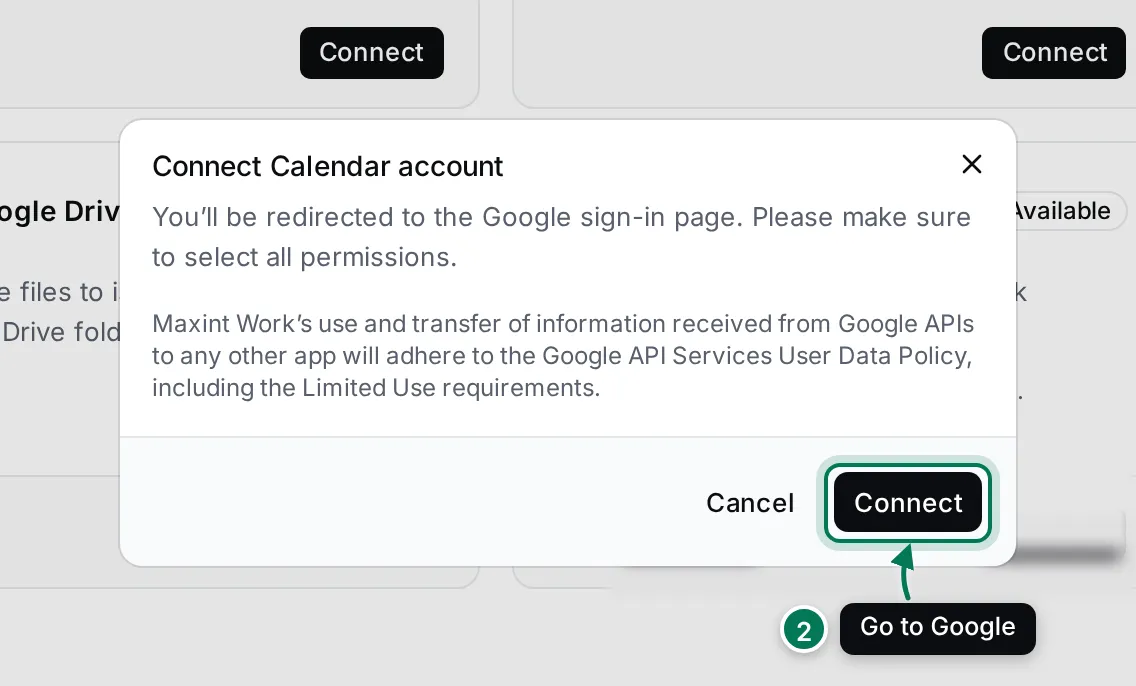
-
Sign in to Google and allow every permission it asks for. Leaving one out stops the sync from working.
-
Google sends you back to Settings. The card now says Integrated.
To connect another Google account, do the same again. Configure on the card lists your connected accounts; click Disconnect next to one to stop syncing it. What was already synced stays.
Choose your primary calendar and who sees it
Section titled “Choose your primary calendar and who sees it”Settings › Calendar lists your calendars: the built-in Maxint Work calendar and those of each connected Google account.
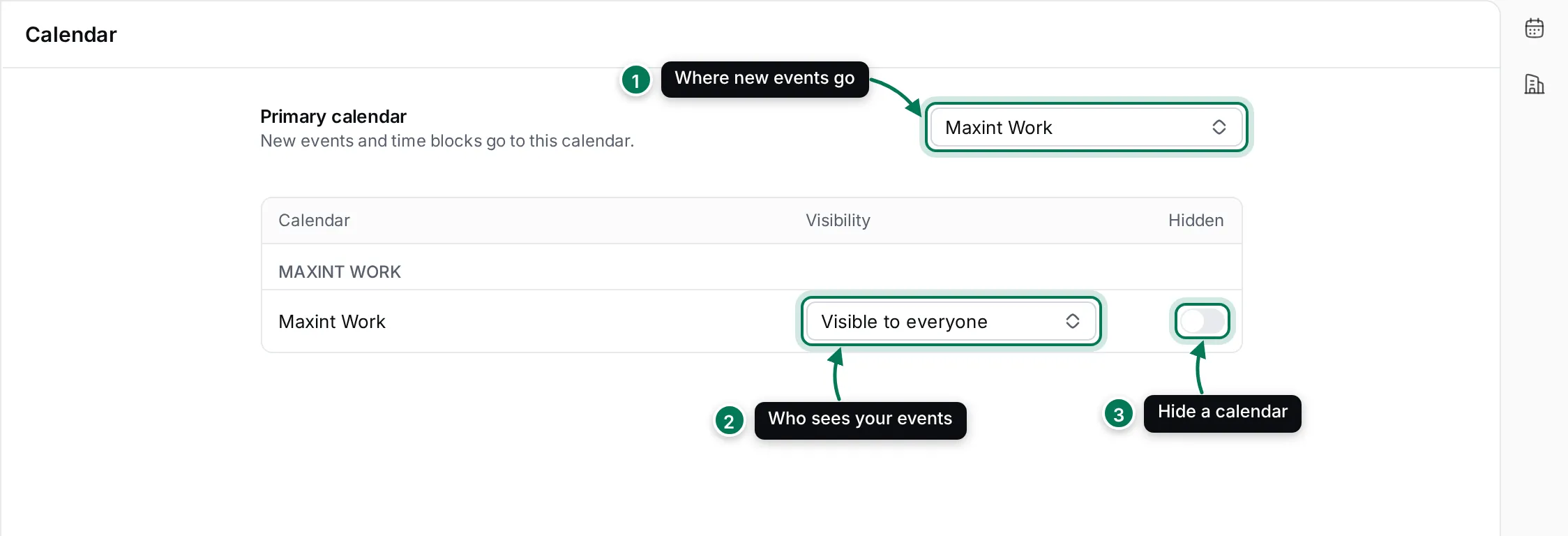
- Primary calendar: new events and time blocks go to this calendar.
- Visibility sets what others see of a calendar’s events: Visible to everyone, Free/busy only or Only visible to you.
- Hidden hides a calendar’s events from your own views. The primary calendar can’t be hidden.
The Planner and the calendar in the right-hand panel show these calendars.