Tools and connections
Workers get things done with tools: each tool is one thing a worker can do, such as finding issues, creating a document or booking a meeting. Tools & connections is where a workspace owner decides which tools the workers may use, and adds tools from outside services over MCP (Model Context Protocol).
Built-in tools
Section titled “Built-in tools”Built-in tools are grouped by area. A switch turns a whole group, or a single tool, off for every worker in the workspace.
Open AI Workers › Tools & connections, then:
- Click a group, for example Issues and projects, to see its tools.
- Switch the group off to stop every worker from using any of its tools.
- Or leave the group on and switch off single tools, such as Create issue or Comment on issue.
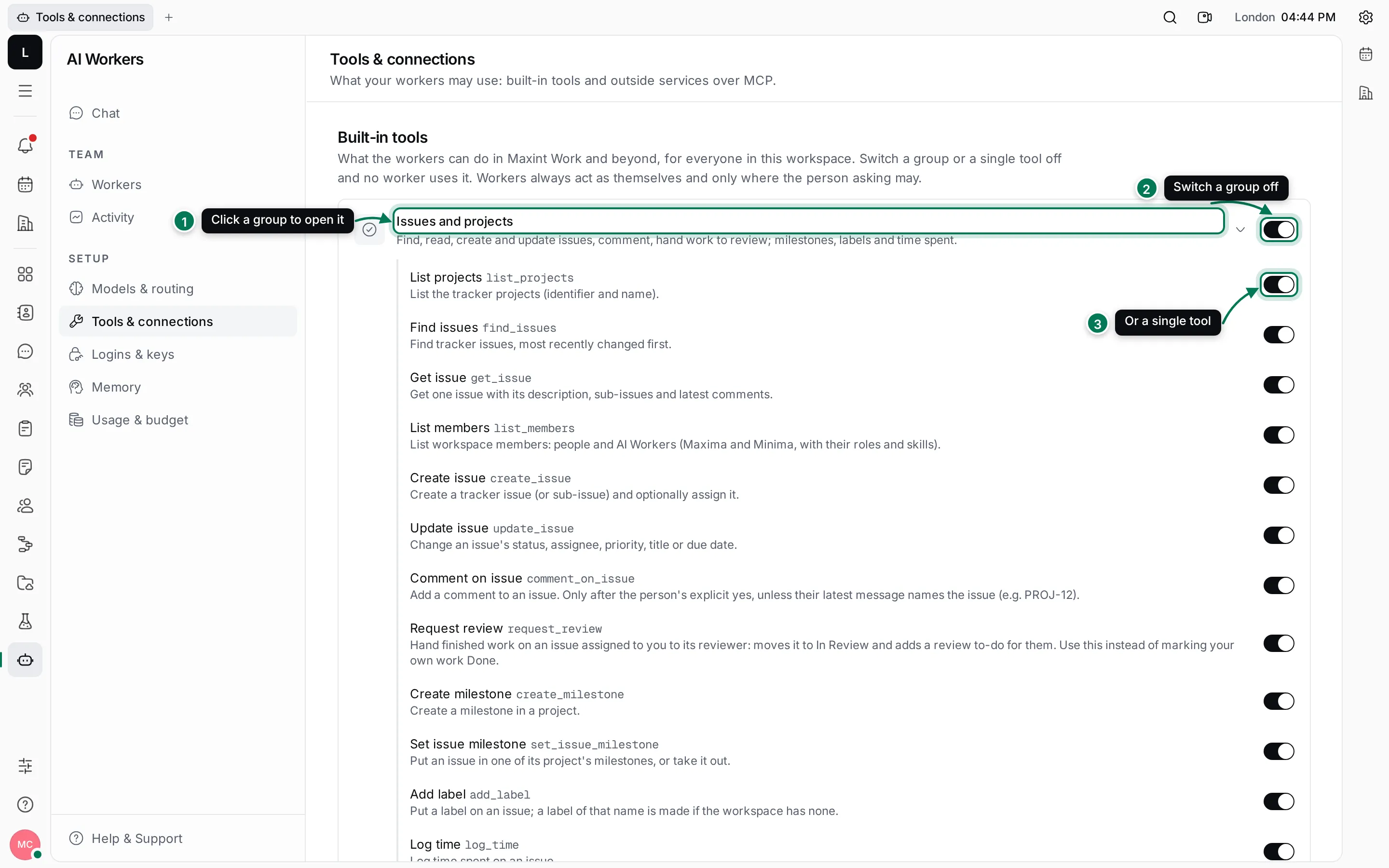
The groups are:
| Group | What workers can do |
|---|---|
| Issues and projects | Find, read, create and update issues, comment, hand work to review; milestones, labels and time spent. |
| Documents | Read, create, edit and move documents; create teamspaces. |
| Cards | Find, read, create and update cards of the workspace’s card types. |
| Chat | Post in channels and threads, and create channels. |
| Files | Browse drives, create folders, save text and Markdown files. |
| Search | Search everything in the workspace the person can see. |
| Calendar | Read calendars, find free time, book and cancel meetings. |
| Planner | Add to-dos to people’s planners and block time for them on the calendar. |
| Processes | Start processes on cards and close process tasks. |
| Send email from a mailbox kept in Logins & keys, after the person’s yes. | |
| Contacts | Add people and organizations to Contacts. |
| Time off | File time-off requests for the person asking, or for a member of a department they lead. |
| Test management | Find and write test cases, start test runs and record their results. |
| Memory | Remember notes and recall past work. |
| Web | Search the web and read public pages. |
| Goals and plans (Maxima only) | Plan a goal, get it approved and hand tasks to the workers. |
| Team and organization (Maxima only) | Workers, departments and members: invite, roles, rename, remove. |
A group shows Off when all its tools are off, and 3 of 8 on (for example) when only some are.
What workers are allowed to do
Section titled “What workers are allowed to do”Tools decide what a worker can do. Permissions decide where:
- Workers always act as themselves, and only where the person asking may. A worker you ask can only read the issues, documents and channels you can read, and only change what you can change.
- Some tools wait for an explicit yes. Comment on issue runs without asking only when your latest message names the issue; Email always asks; and a worker asks before creating more than three issues in one go.
- A worker’s own Skills (on the Workers page) narrow things further: a worker without Calendar doesn’t book meetings, even when the Calendar group is on.
Connect an outside service over MCP
Section titled “Connect an outside service over MCP”Many services offer an MCP server: a web address that gives AI tools access to that service. Add one here and the workers can use its tools, in chat and on their own computers.
- If the server needs a key, first add it under Logins & keys as a workspace API token (or OAuth client) for the server’s site.
- In MCP servers, click Add MCP server.
- Paste the server’s Address. It starts with
https://and usually ends in/mcp. - Check the Name. It is filled in from the address; keep it short and lowercase.
- Pick its Key from Logins & keys, or keep None: the server needs no key.
- Under Workers, tick who may use it. With none ticked, every worker may.
- Choose where it works: In chat, In computer runs, and whether to Ask before changing things.
- Click Add and test. The server is added and its tools are listed.
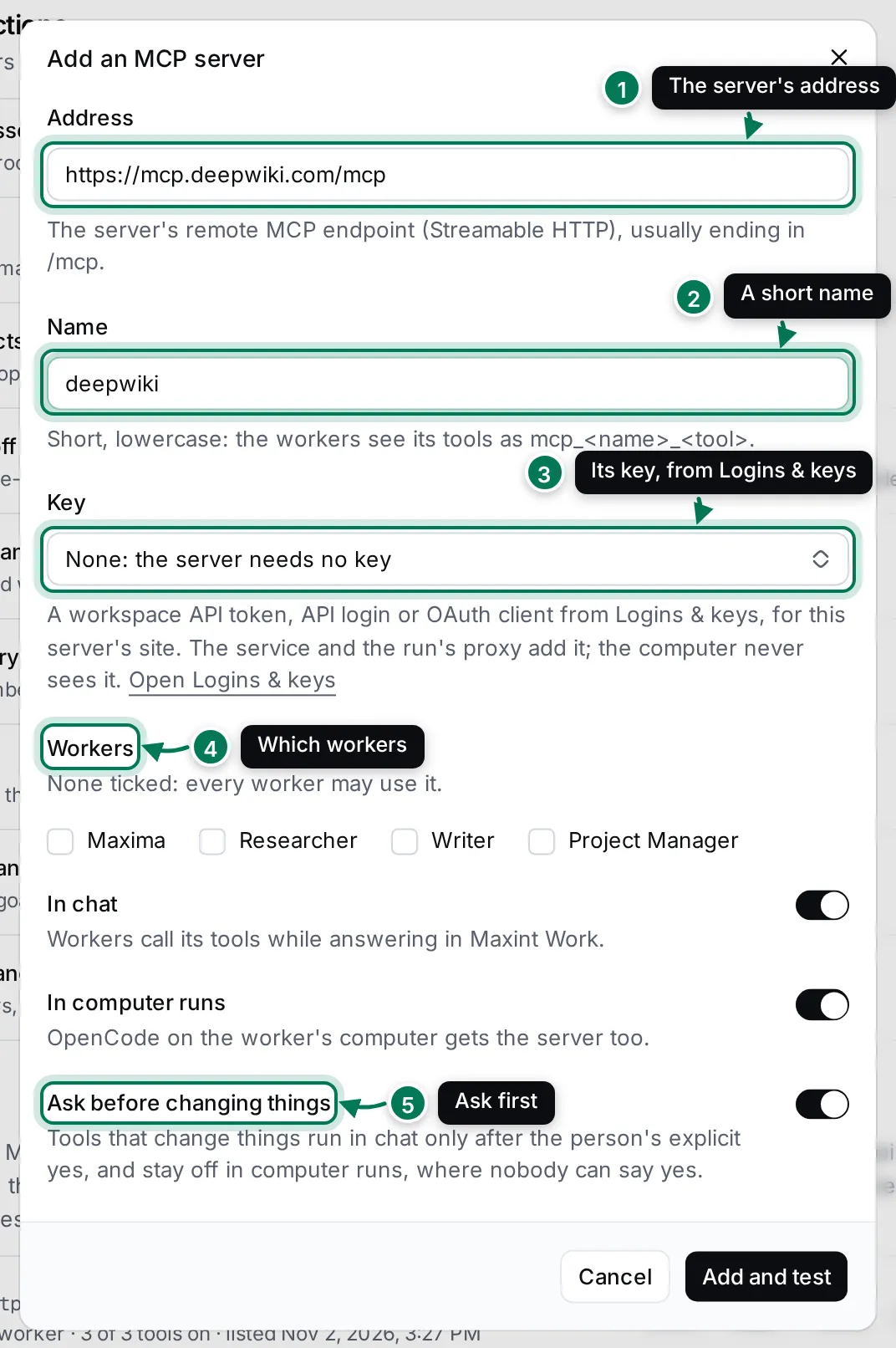
- Address: the server’s remote MCP endpoint.
- Name: workers see its tools as
mcp_<name>_<tool>. - Key: a workspace API token, API login or OAuth client from Logins & keys, or none.
- Workers: who may use it.
- Ask before changing things: tools that change things run in chat only after the person’s explicit yes, and stay off in computer runs, where nobody can say yes.
Once added, the server has a row of its own:
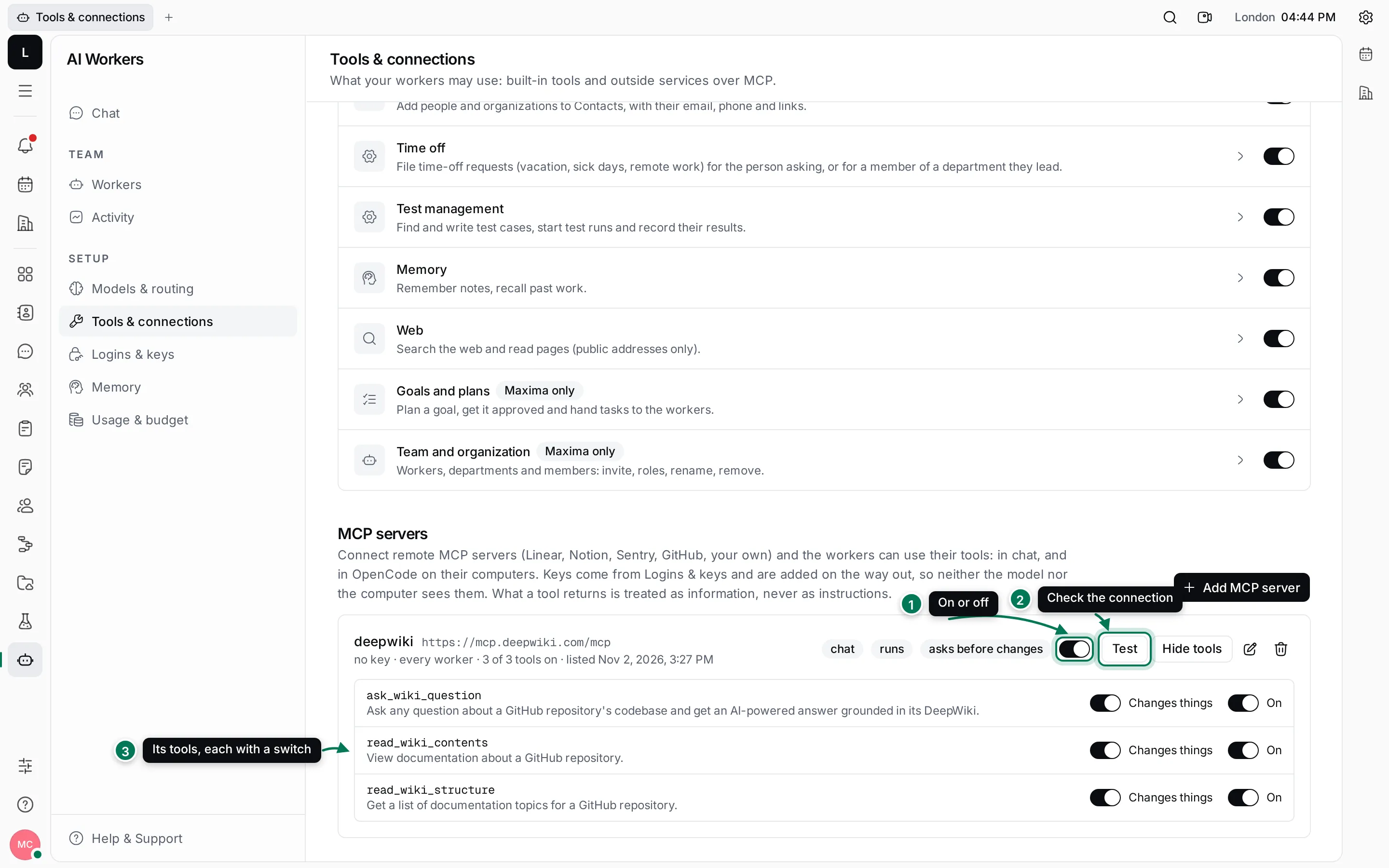
- The switch turns the server on or off for the workers.
- Test checks the connection again and refreshes the list of tools.
- Tools shows each tool. Switch off On to hide a tool from the workers, and switch Changes things off for tools that only read, so they run without asking.
The pencil button edits the server and the bin deletes it. When you delete a server, the workers lose its tools in chat and in new computer runs.