Mentions, links and backlinks
Documents rarely stand alone. Mention a teammate to ask them something, point to the issue a spec belongs to, or link to another document. Each document also shows its backlinks: the places where someone mentioned it.
Mention a person, issue or document
Section titled “Mention a person, issue or document”- Type @ in the text, followed by the first letters of a name, title or issue ID.
- Pick from the list. It is grouped into Employees, Documents, Meeting minutes, Cards and Issues. Use the arrow keys and Enter, or click.
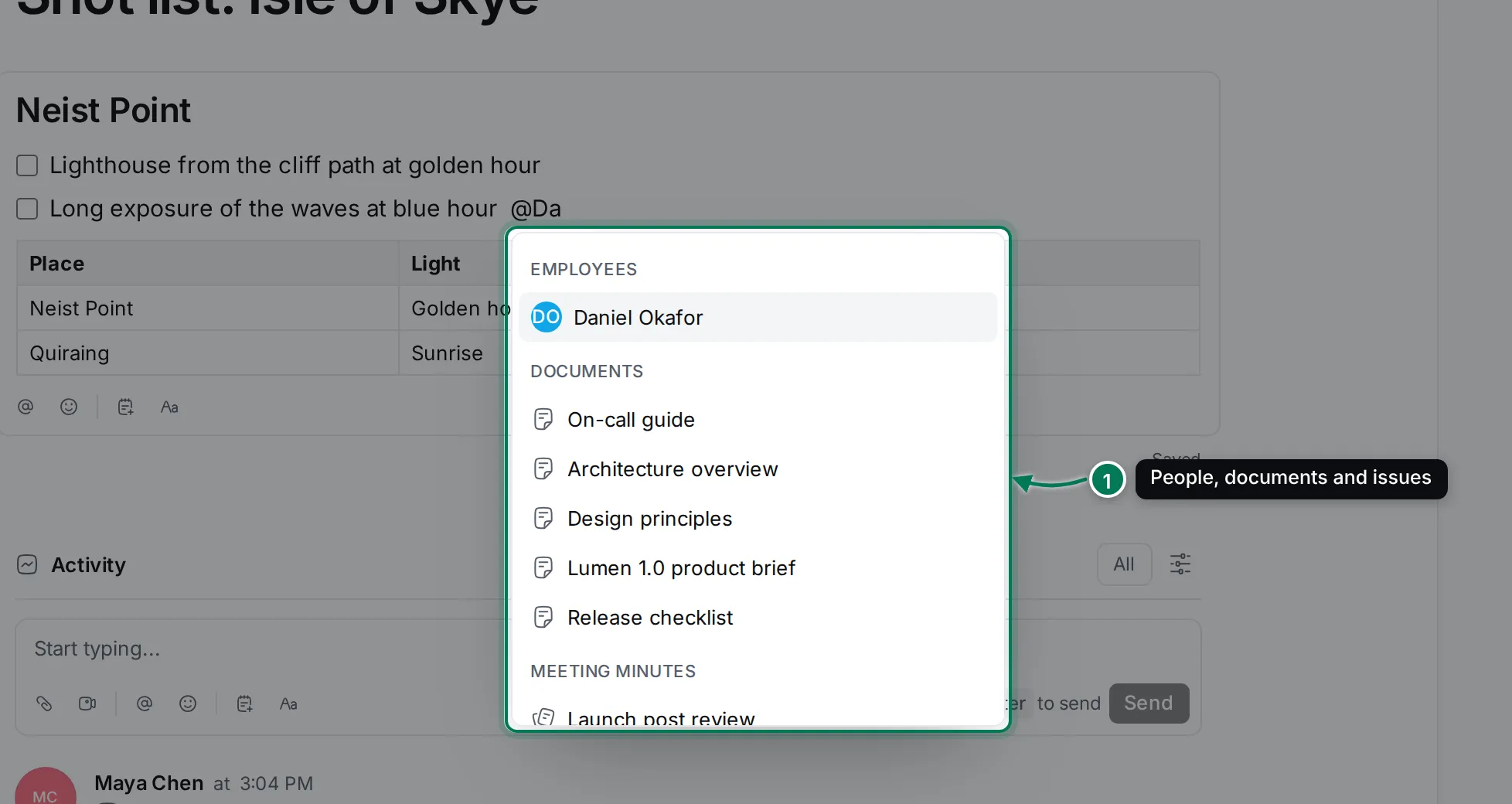
The mention becomes a chip in the text. Press Esc to close the list and keep what you typed as plain text.
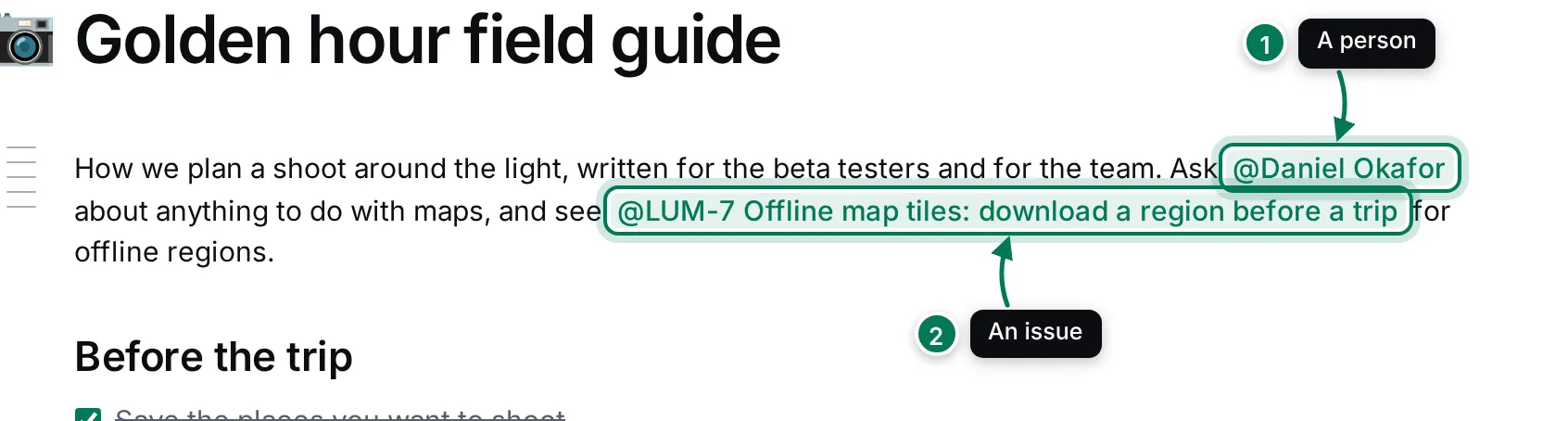
- A person mention. The person is notified that you mentioned them.
- An issue mention shows the issue ID and title. Click it to open the issue.
You can use mentions the same way in comments, in issue descriptions and in chat.
Add a web link
Section titled “Add a web link”- Select the text you want to link.
- Click Link in the formatting toolbar.
- Type or paste the address and click Save.
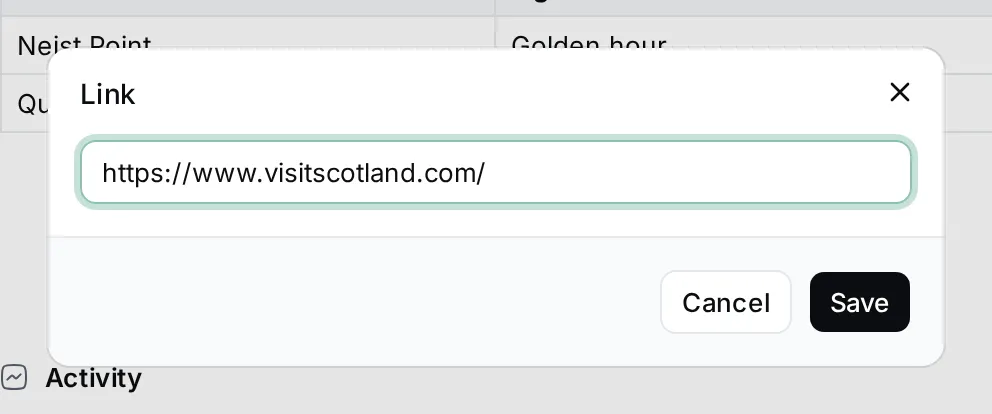
To change or remove a link, select it and click Link again; the dialog then also has Remove. You can also just paste or type an address followed by a space, and it turns into a link by itself.
See where a document is mentioned
Section titled “See where a document is mentioned”Click Backlinks at the top right of a document. A panel lists every comment and document that mentions this one, with who wrote it, where, when, and the sentence around the mention.
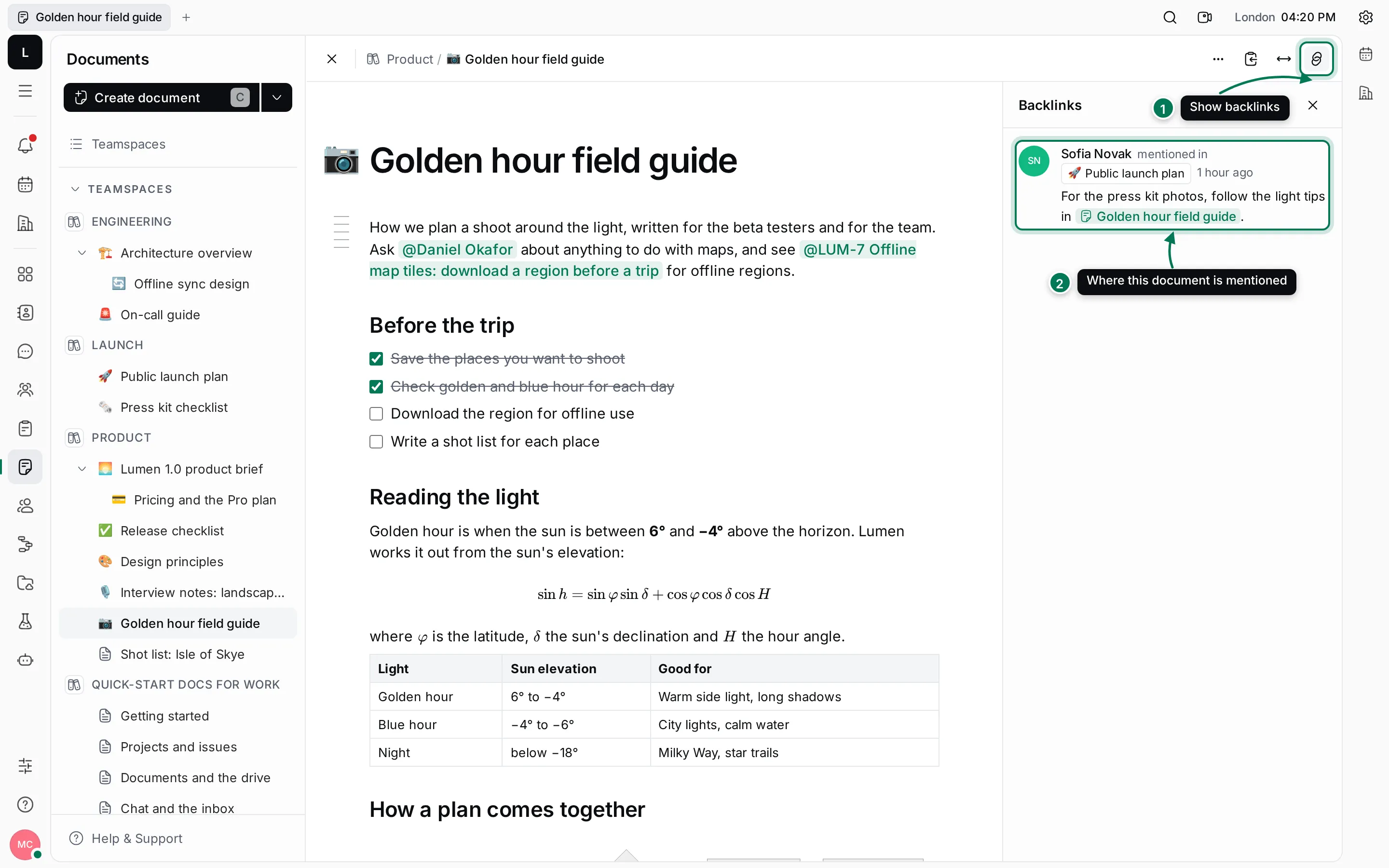
- Backlinks opens and closes the panel.
- Each entry shows where the document was mentioned. Click the source to go there.
When nothing mentions the document yet, the panel says No backlinks. The panel stays open as you move between documents until you close it.
Jump to a heading
Section titled “Jump to a heading”Long documents get a table of contents: a short line for each heading, beside the text at the top left. Click the lines to open Table of contents, then click a heading to scroll to it.
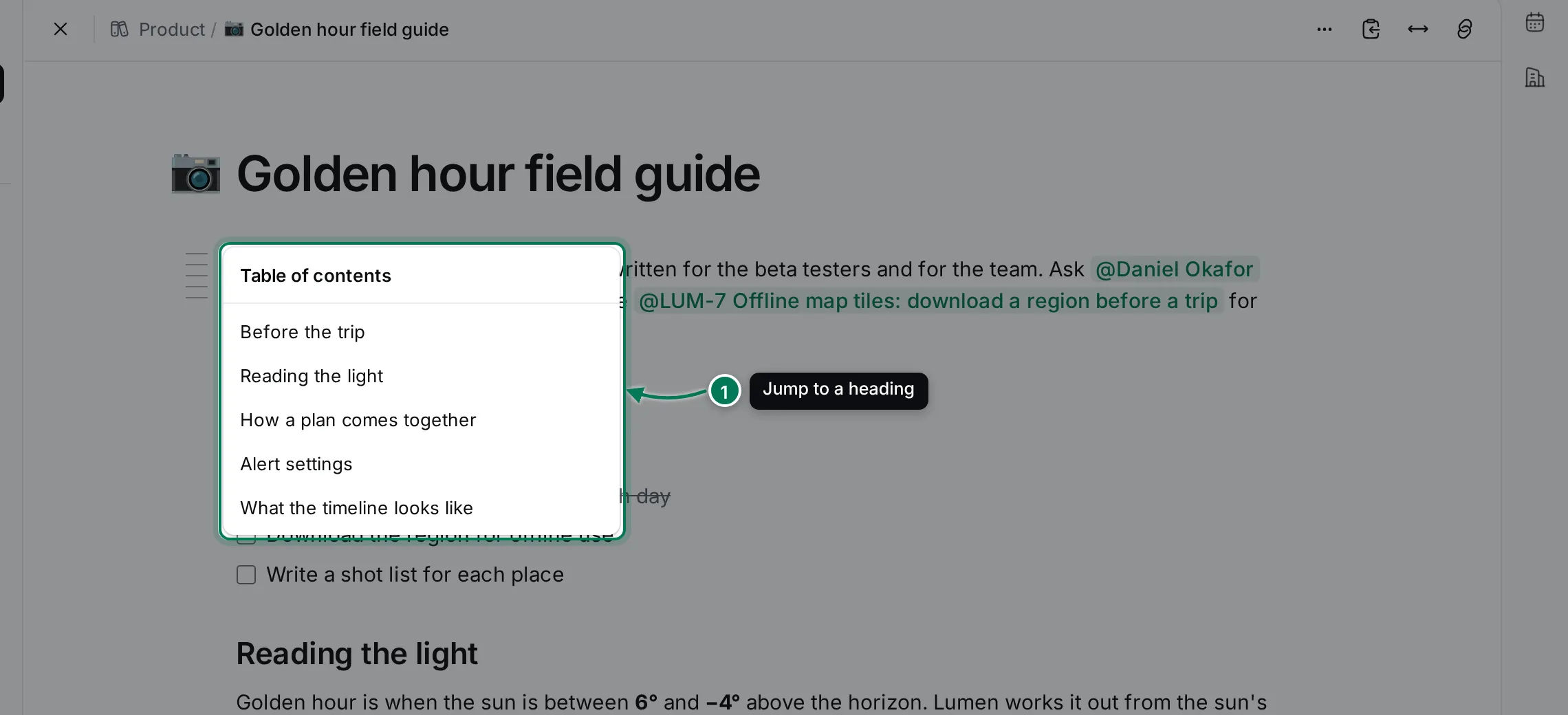
The list follows your edits, so new headings appear in it as soon as you type them.
Next: work together on a document.