Set up your AI team
The Workers page is your AI team. Workspace owners add workers here, shape how each one works, and switch them on and off. Start with one Maxima, the coordinator, then add specialists (Minima) for the work your team does most.
Add Maxima
Section titled “Add Maxima”- Open AI Workers › Workers.
- Click Add Maxima.
- Keep the name Maxima, or give it another one. People @mention and message the worker by this name.
- Optional: describe your team under Character, for example what you build and how you like answers.
- Click Add Maxima. A message confirms that Maxima joined your AI team.
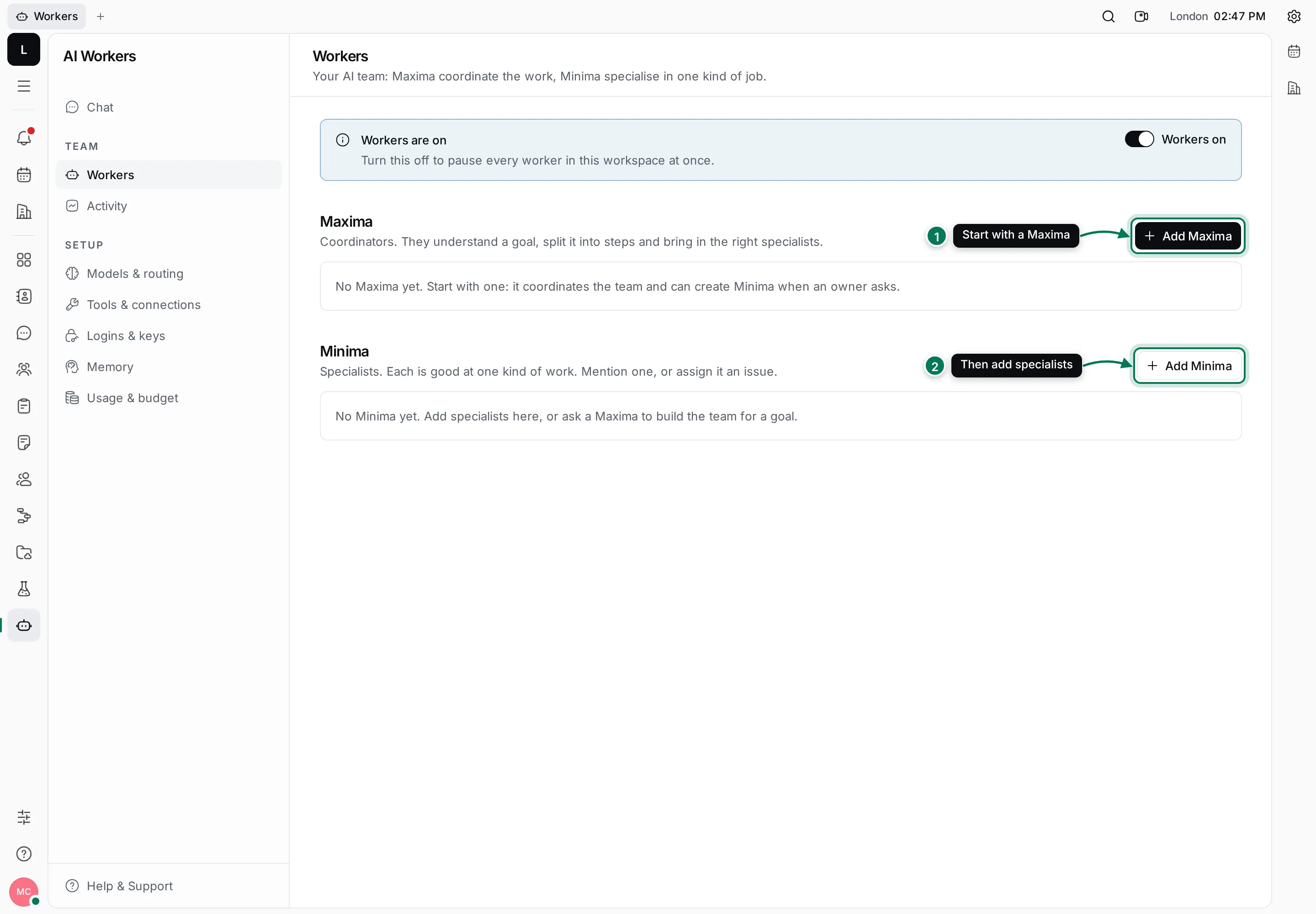
- Add Maxima adds a coordinator. Start here.
- Add Minima adds a specialist, once your Maxima is in place.
Add a specialist
Section titled “Add a specialist”- Click Add Minima.
- Pick a role. The most used roles are tiles; All roles lists every role by category.
- Check the Name. It follows the role (for example Researcher) until you type your own. If you have several workers with one role, give each its own name.
- Under Skills, tick what this worker may use. The role sets sensible defaults.
- Optional: fill in Character with the worker’s domain, focus, working style and tone.
- Click Add Minima.
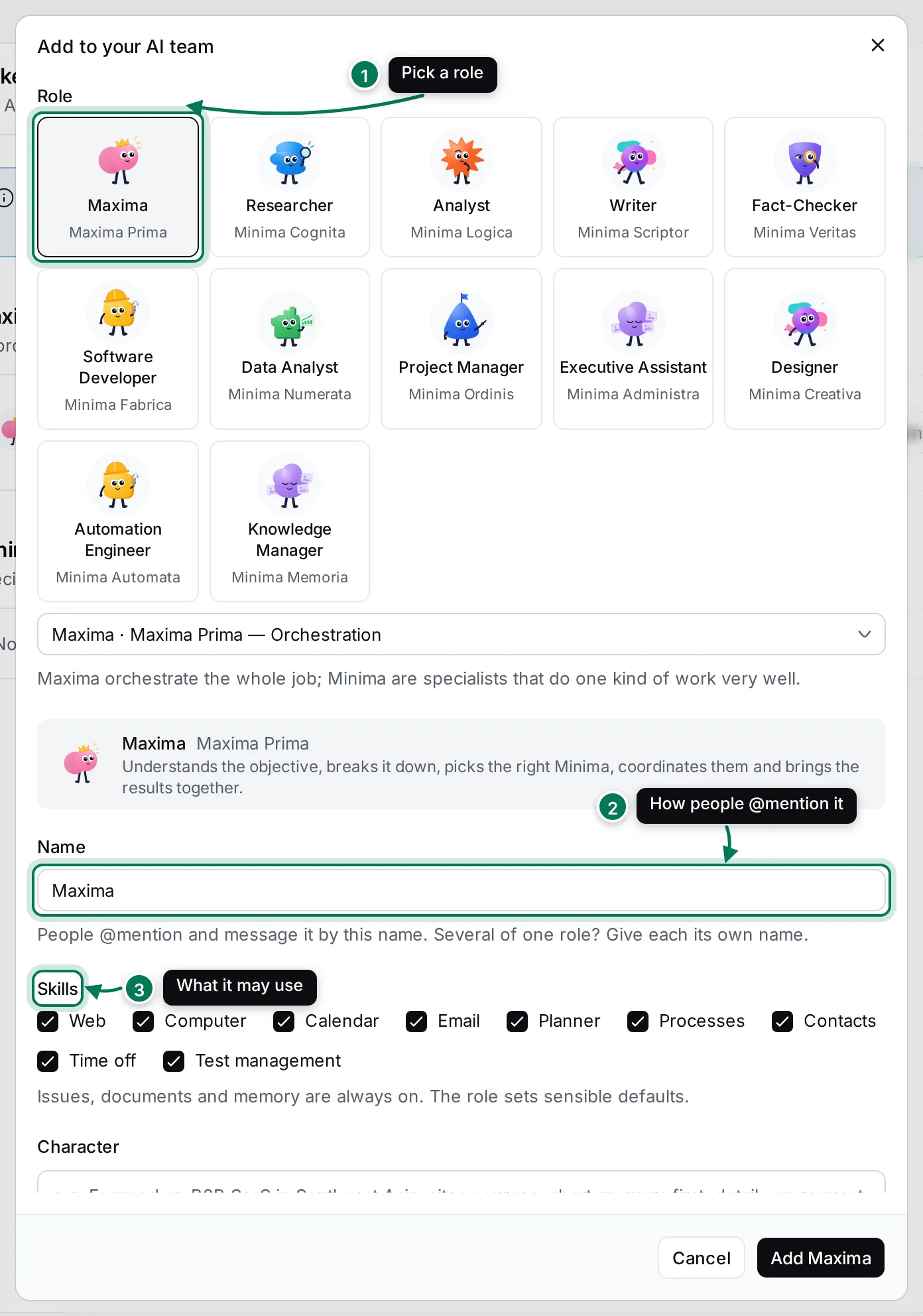
- Role: Maxima, or a specialist such as Researcher, Analyst, Writer, Fact-Checker, Software Developer, Data Analyst, Project Manager, Executive Assistant, Designer, Automation Engineer or Knowledge Manager. All roles has more, from Editor and QA Tester to Marketing Specialist, HR & Recruiting Specialist and Custom.
- Name: how people mention and message the worker.
- Skills: Web, Computer, Calendar, Email, Planner, Processes, Contacts, Time off and Test management. Issues, documents and memory are always on.
Each new worker joins the workspace as a member: it can be @mentioned, messaged and assigned issues.
Manage your workers
Section titled “Manage your workers”Each worker has a row on the Workers page with its role, character, and how many tokens and events it used in the last seven days.
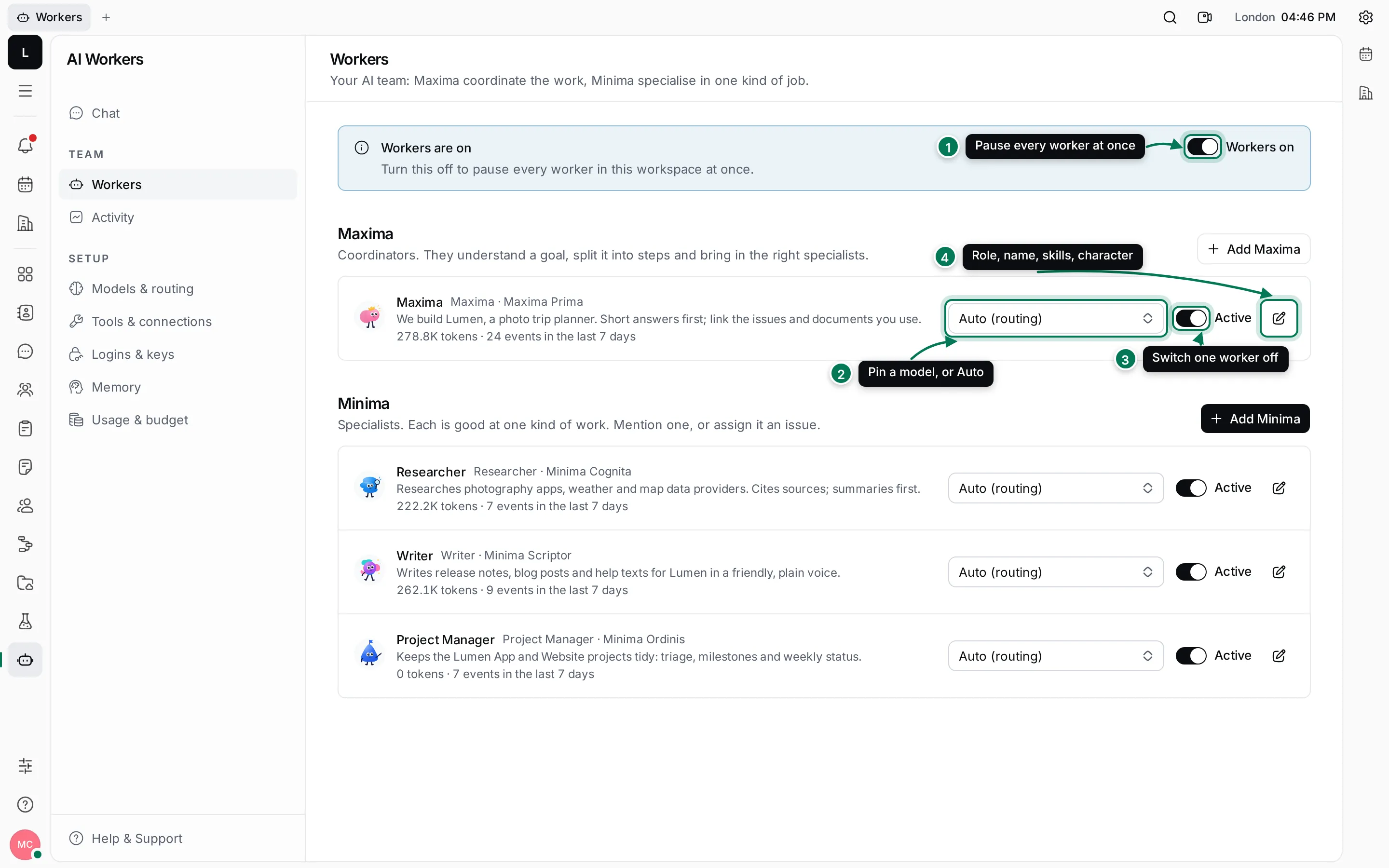
- Workers on pauses every worker in the workspace at once.
- The model picker pins one worker to a model. Auto (routing) uses the workspace’s routing.
- Active switches one worker on or off.
- The pencil button opens Edit: change the name, skills and character. A Maxima stays a Maxima, and a Minima can change to another specialist role.
Pause or switch off workers
Section titled “Pause or switch off workers”- To stop one worker, switch off Active in its row. It stops reading and replying until you switch it back on.
- To stop all of them, switch off Workers on and confirm Pause all. The page then says All workers are paused: they read nothing and reply to nobody until you switch Workers on again.
Write a good character
Section titled “Write a good character”The character is a short brief the worker reads before every job. Keep it to a few sentences:
- What your team does: We build Lumen, a photo trip planner for landscape photographers.
- What to focus on: Research weather and map data providers.
- How to answer: Short answers first; cite sources; link the issues and documents you use.
Free plan limits
Section titled “Free plan limits”On the Free plan, one Maxima and one Minima can be active at a time. To add or start another, switch one off first, or upgrade under Settings › Billing. Workers that think with your own model provider keep working after the free tokens are used up.