Invite employees and guests
Employees are the members of your workspace. Guests are outside people, such as a client or a freelancer, who see only what’s shared with them. You invite both from Contacts. For the other ways in, such as an invite link from the workspace menu, see Invite your team; roles are explained in Members and roles.
Invite an employee
Section titled “Invite an employee”- Open Contacts and click Employee in the navigator.
- Click + Employee (or press C).
- Type their First name, Last name and Email (1).
- Click Create.
- Copy the link that appears with Copy link and send it to that e-mail address.
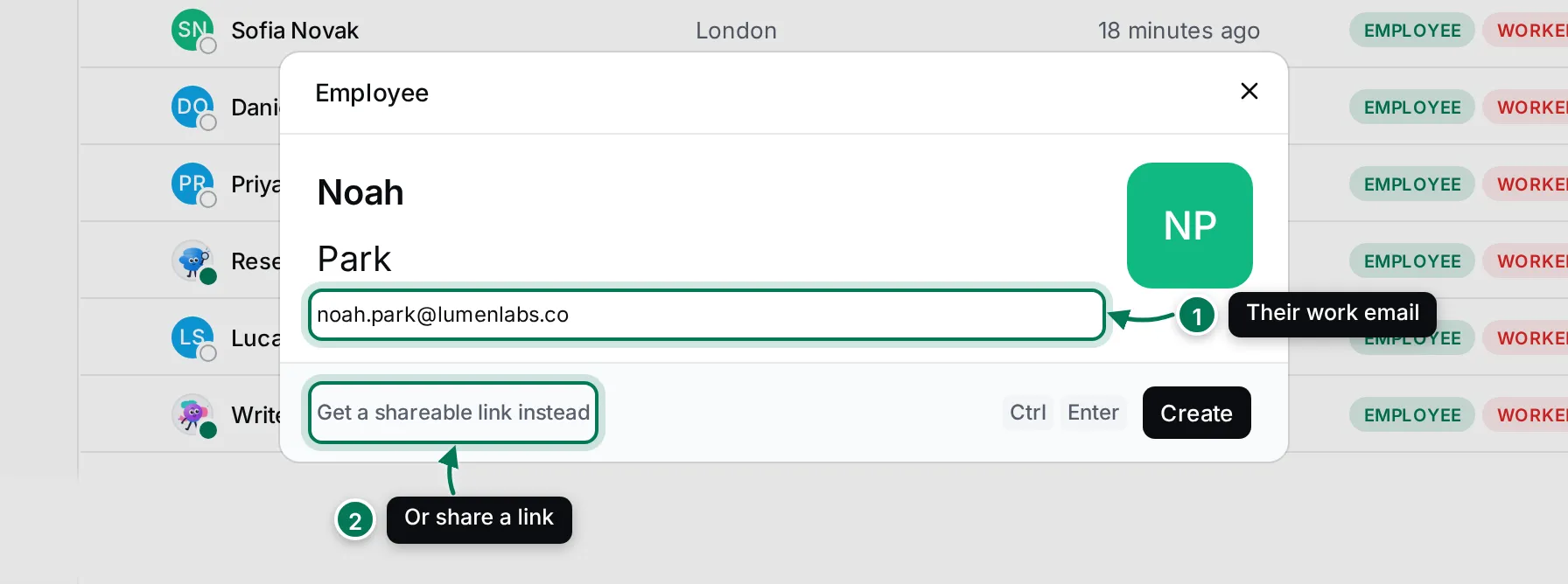
The link is personal: only that e-mail address can use it, once. The dialog says when it expires. Click Invite another to invite the next person, or Done to close.
The new colleague appears in the Employee view once they join.
Invite a guest
Section titled “Invite a guest”- Click Guest in the navigator, then + Guest.
- Fill in the name and Email in the Add guest dialog.
- Click Create and send the link to your guest.
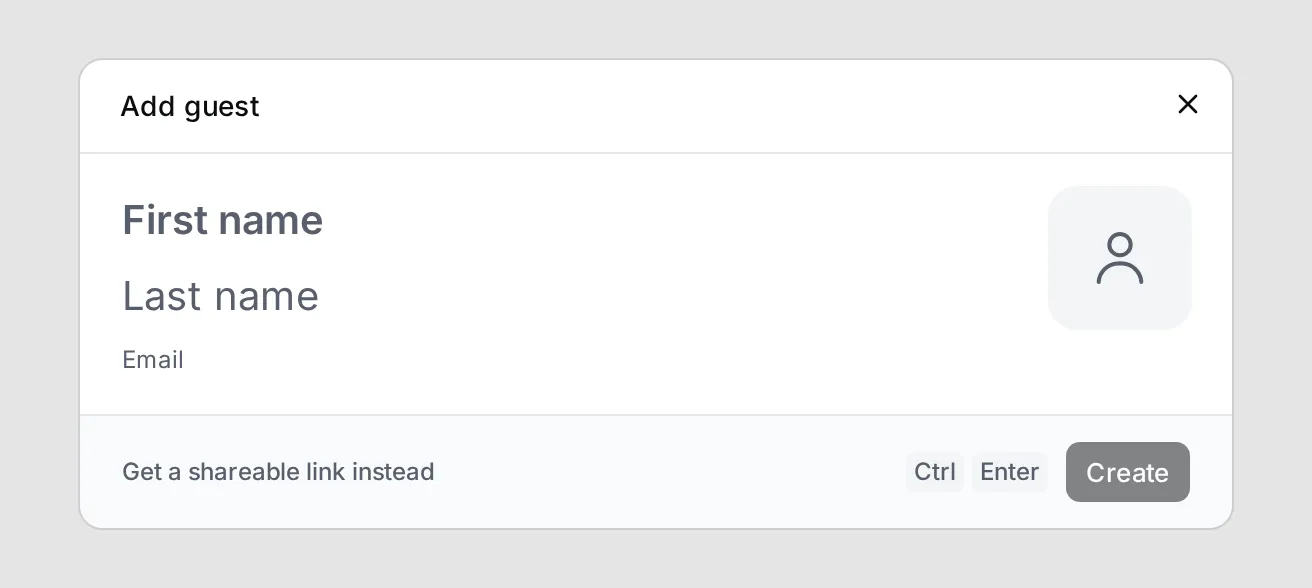
Guests only see what you share with them. You can change what guests may do in Settings.
Share a link instead
Section titled “Share a link instead”To invite several people at once, click Get a shareable link instead (2) in either dialog. It opens the workspace invite, where you create a link that anyone with it can use. See Members and roles.
Remove an employee
Section titled “Remove an employee”Workspace owners and maintainers can remove someone from the workspace. Right-click the employee in the list and choose Kick employee, then confirm. This can’t be undone; you can invite them again later.