Models, usage and billing
Workers think with AI models. Models & routing decides which model does which job and where the models run. Usage & budget and the billing statement show what the workers spent, and caps make sure they don’t spend too much.
Routing
Section titled “Routing”Routing picks the model for each kind of job:
- Chat: answers in messages, comments and documents.
- Computer runs: long work on a worker’s computer, such as files, research and browsing.
- Code: runs that change a repository and open a pull request.
Auto (cheapest that fits) picks the cheapest enabled model strong enough for the job, and switches to another provider if one fails. Pick a model in the list to use it for that job instead.
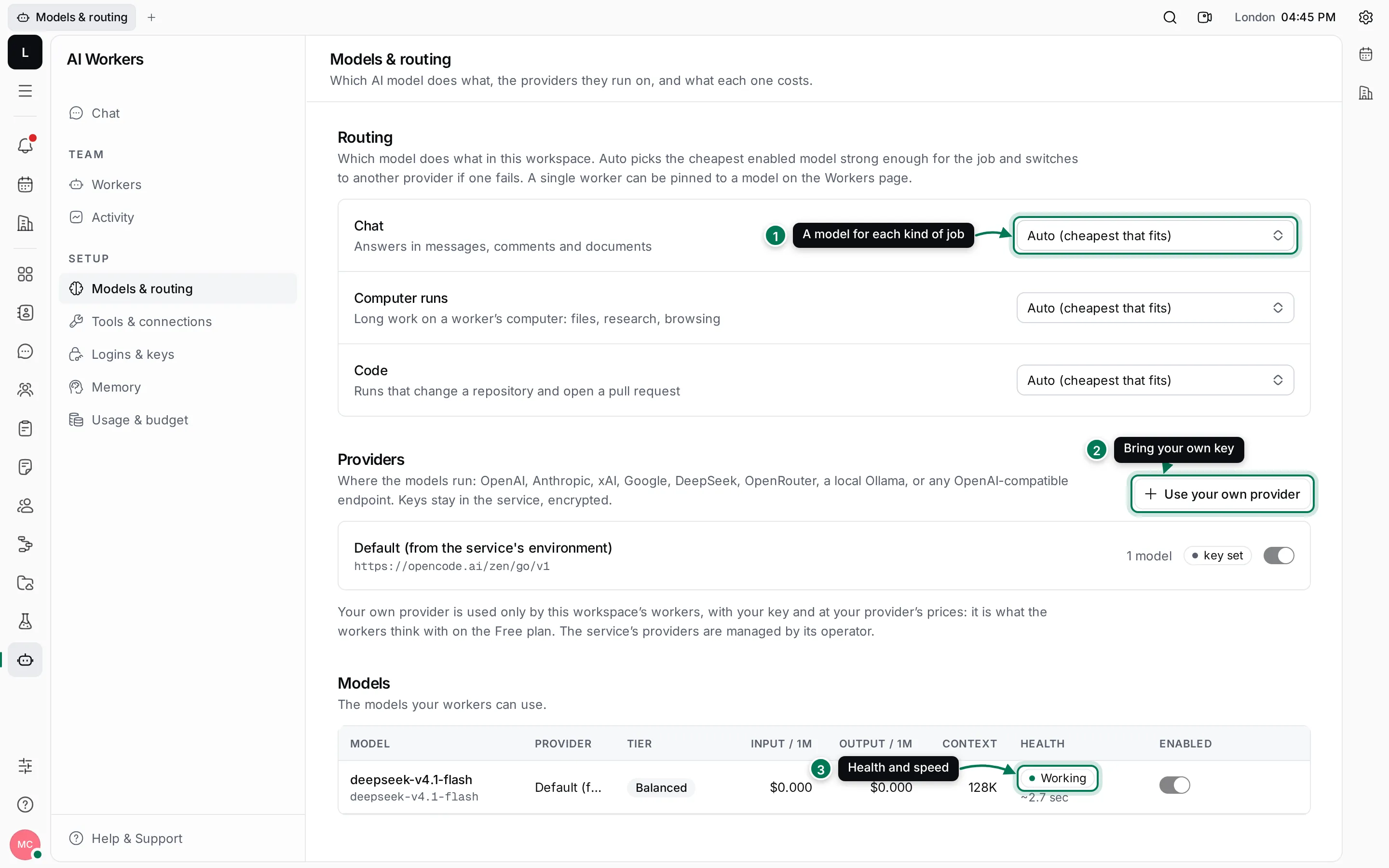
- The model for each kind of job.
- Use your own provider connects your own model provider and key.
- Each model’s Health shows Working or Unavailable, with its typical answer time.
To pin a single worker to a model, use the model list in its row on the Workers page.
Models and tiers
Section titled “Models and tiers”The Models table lists every model the workers can use, with its provider, tier, prices per million tokens, context size and health. Tiers tell routing what a model is good for:
- Fast: quick, cheap answers.
- Balanced: everyday chat and runs.
- Strong: code and hard problems.
Switch off Enabled to stop routing from ever picking a model, even for workers pinned to it.
Use your own provider
Section titled “Use your own provider”The service comes with models managed by its operator. You can also connect your own provider (OpenAI, Anthropic, xAI, Google, DeepSeek, OpenRouter, a local Ollama, or any OpenAI-compatible endpoint). Your own provider is used only by this workspace’s workers, with your key and at your provider’s prices. On the Free plan, it is what keeps a worker going after the free tokens are used up.
- Click Use your own provider.
- Pick the Provider. The Name and Endpoint fill in; for anything else pick
Other OpenAI-compatible endpoint and type the endpoint, usually ending in
/v1. - Paste your API key. It is encrypted and never shown again. Leave it empty for keyless endpoints such as Ollama.
- Click Connect.
- Click Add your model, type the Model name exactly as the provider’s API names it, pick its Tier and its prices, and save. Then click Test on the provider to check that it answers.
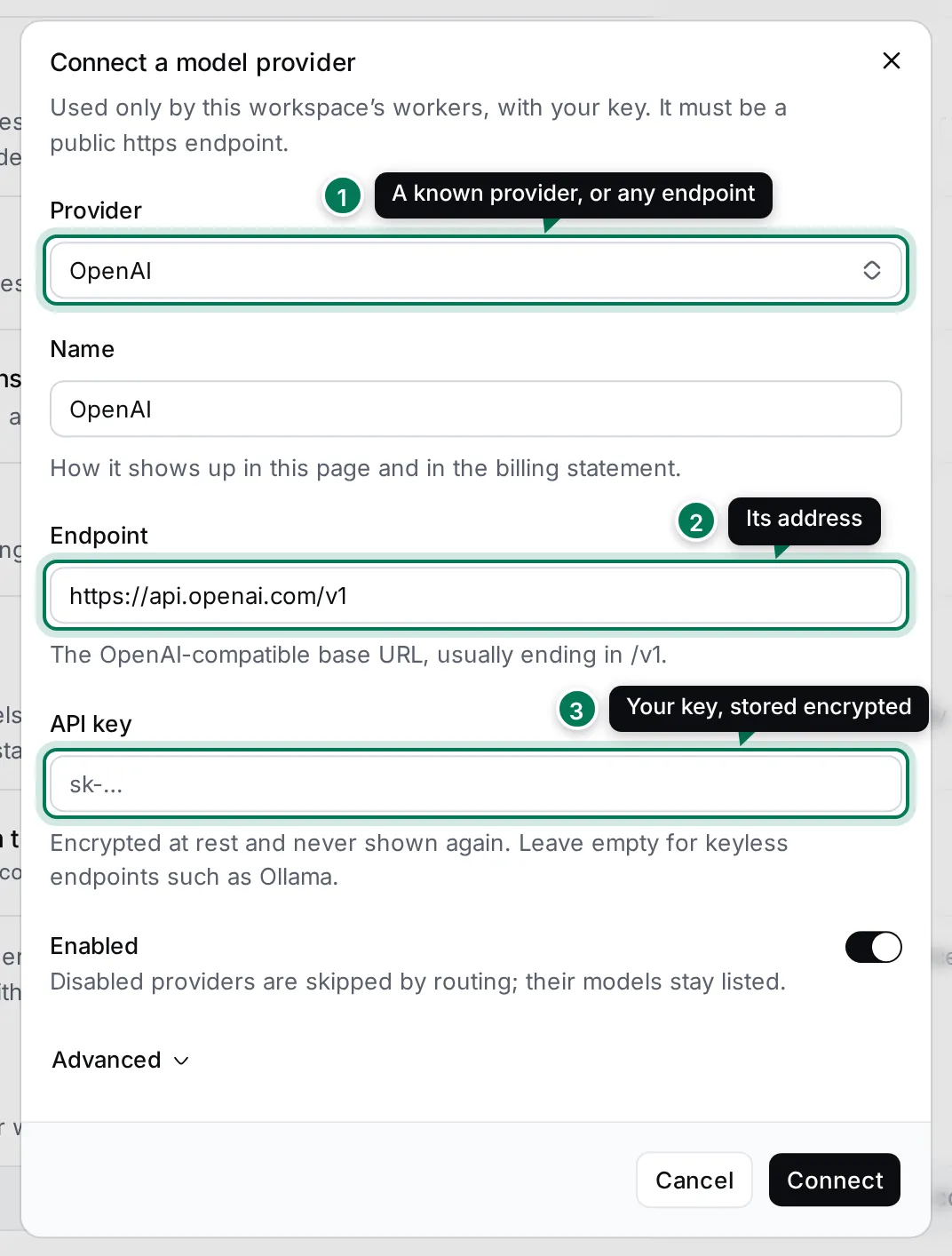
- Provider: a known provider, or Other OpenAI-compatible endpoint.
- Endpoint: the provider’s address.
- API key: your key, encrypted at rest.
The endpoint must be a public https address. Advanced has an Id and Extra headers for providers that
need them.
Usage and budget
Section titled “Usage and budget”Usage & budget shows this month at a glance: the spend, model calls, tokens, computer minutes and web searches, and the caps in place.
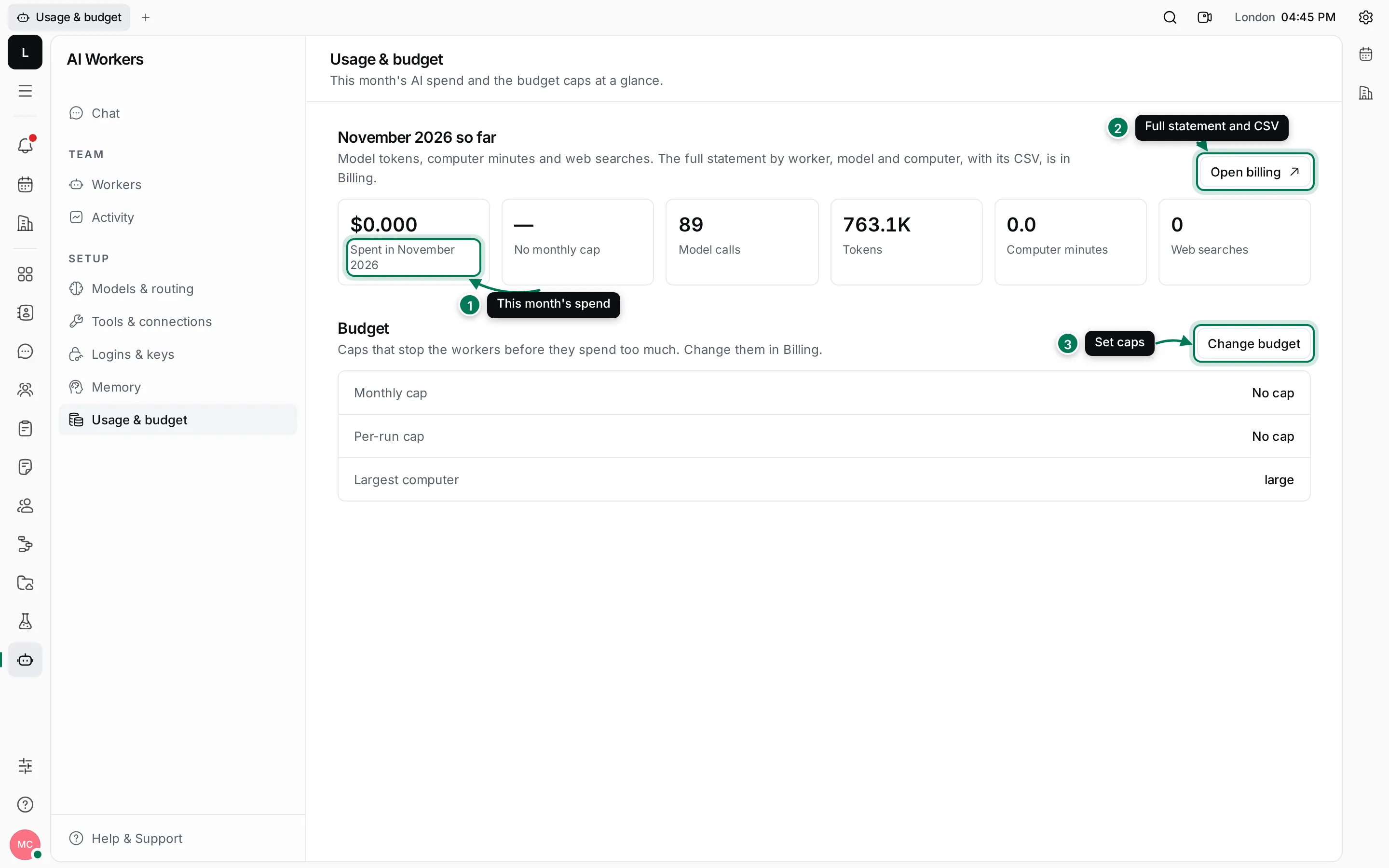
- What the workers spent this month, at price.
- Open billing opens the full statement.
- Change budget opens the caps.
The billing statement
Section titled “The billing statement”The full statement is in Settings › Billing › AI workers: spend by worker and by model, computer time by size, and a Download CSV for your records. Pick a Month to see an earlier one.
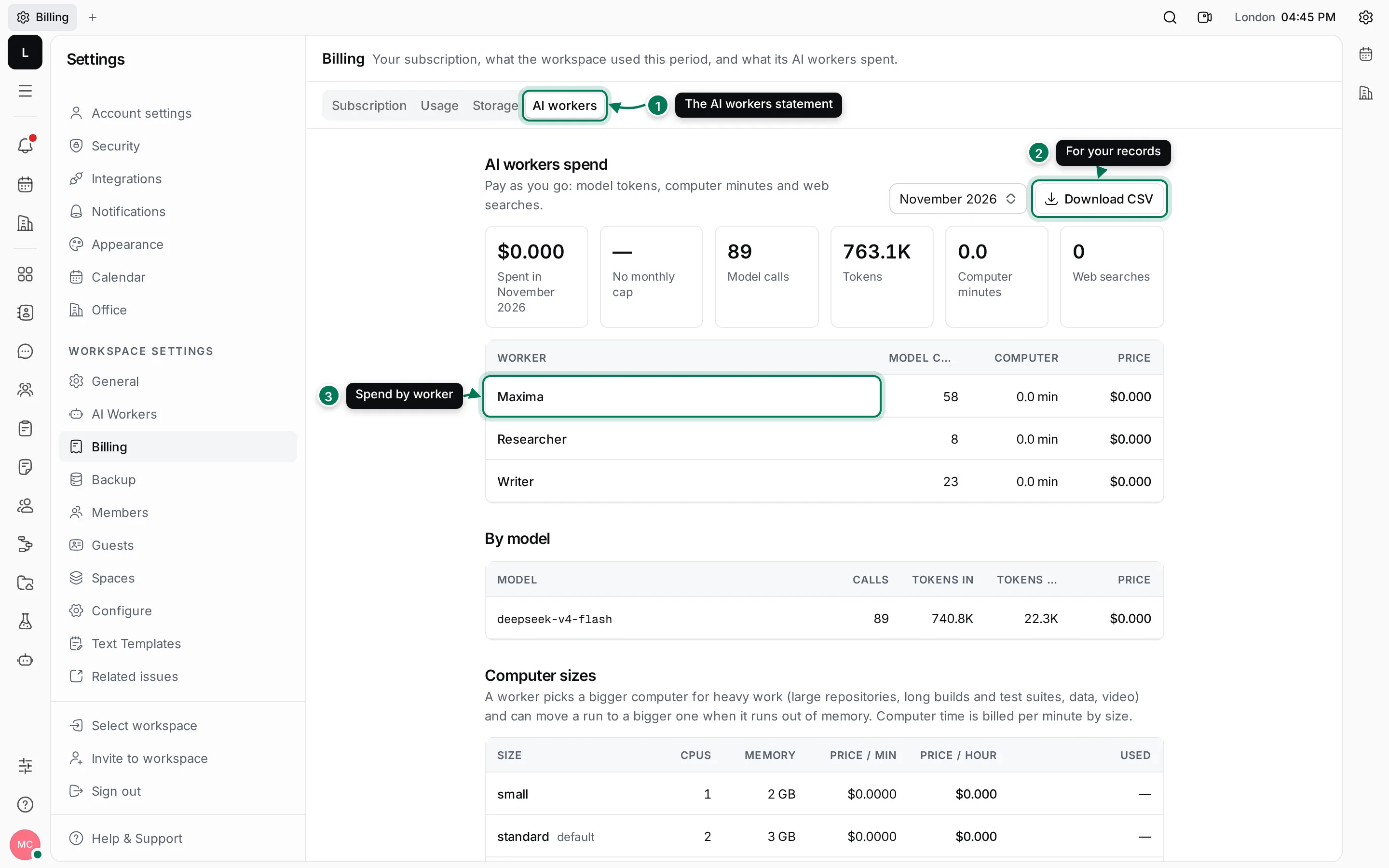
- The AI workers tab of Settings › Billing.
- Download CSV saves the month’s statement.
- Spend by worker: model calls, computer time and price. By model below breaks it down by model.
Set caps
Section titled “Set caps”Scroll to Caps on the same page (or click Change budget on Usage & budget), then:
- Set a Monthly cap. When it is reached, the workers stop taking new work until next month or a higher cap. Maxima messages the owners at 80% and 100% of it.
- Set a Per-run cap. A computer run that reaches it pauses and asks the person who started it. Optionally pick the Largest computer a worker may ask for.
- Click Save caps.
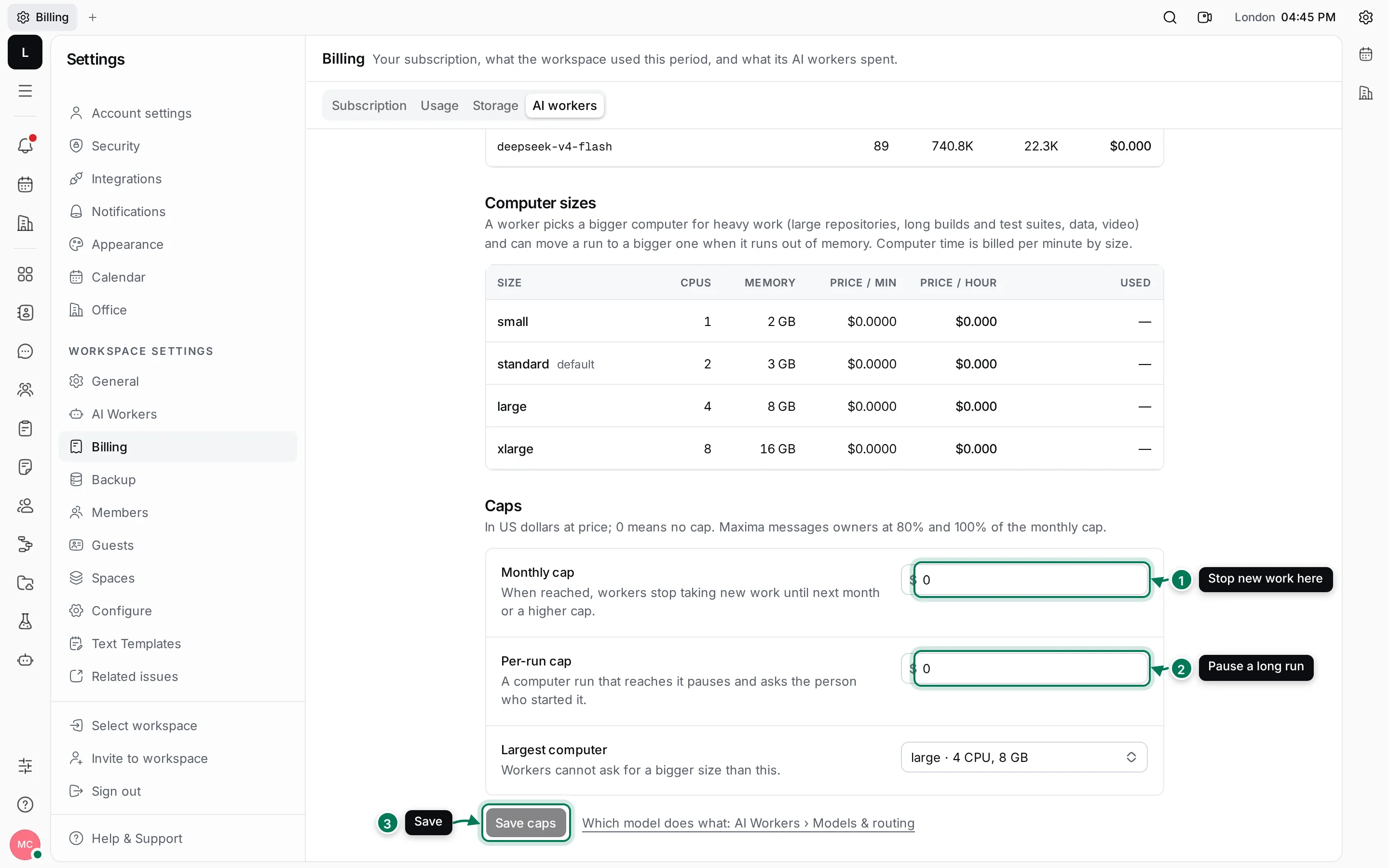
Caps are in US dollars at price; 0 means no cap.