Team planner overview
The Team planner shows what everyone in a project has planned: the time slots they set aside for their action items and the events in their calendars. Use it to see who is free, who is in meetings, and what the team is working on today and tomorrow.
Open it from Team in the left rail, then pick a project.
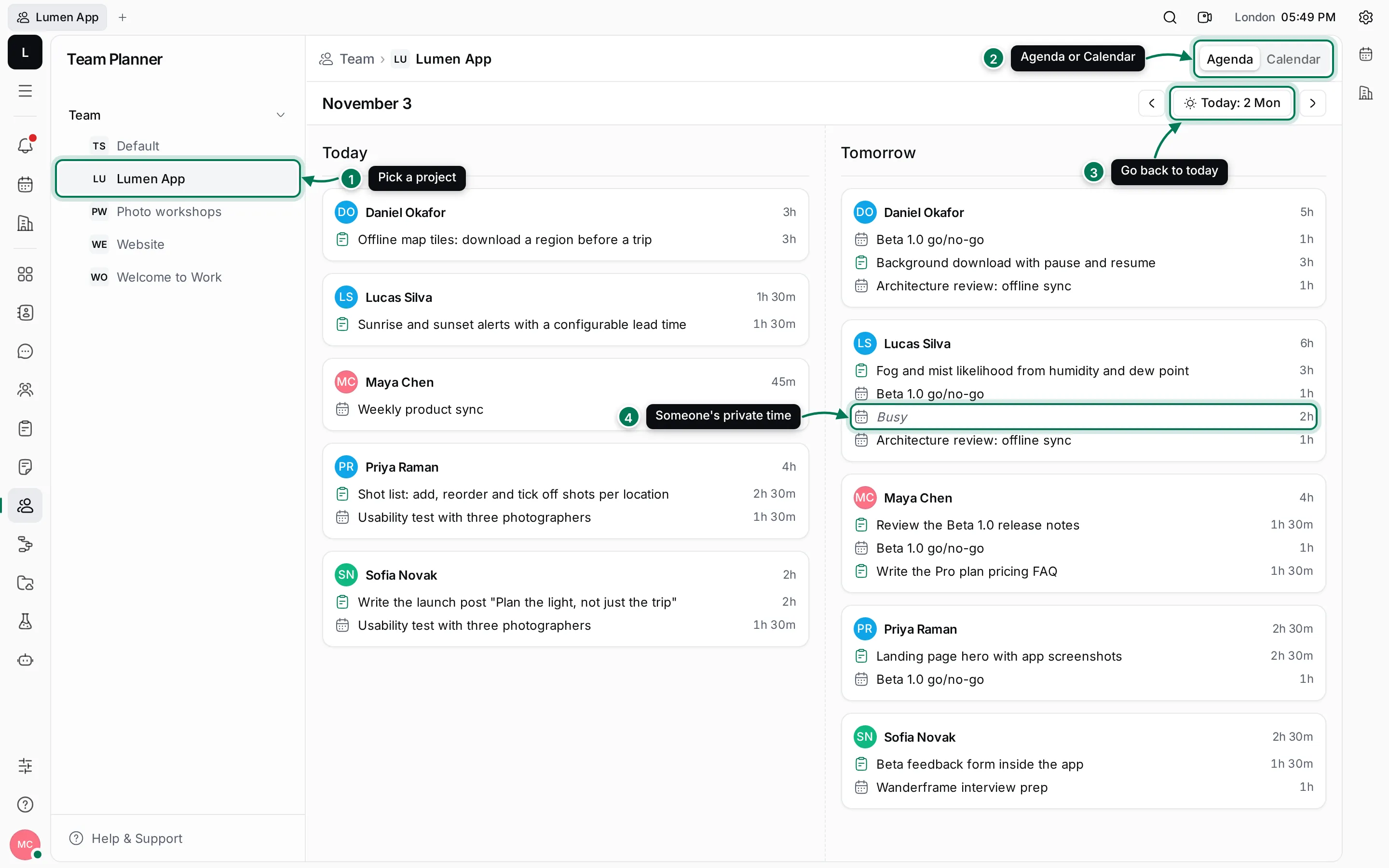
- Pick a project: the navigator lists the projects under Team. The planner shows the members of the project you pick.
- Agenda or Calendar: two ways to look at the same plans.
- Today comes back to today; ‹ and › move a day (or a week) at a time.
- Busy: an item a teammate keeps to themselves. You see that they’re busy, but not what they’re doing.
See your team’s plan
Section titled “See your team’s plan”- Click Team in the left rail.
- Under Team in the navigator, click a project, such as Lumen App.
- The Agenda shows the day before and the selected day. Click › to look ahead.
- Switch to Calendar to see the plans on a timeline or across the week.
What you can see
Section titled “What you can see”The Team planner reads the same schedules people keep in their own Planner. Who sees what depends on the visibility each person chose:
- Visible to everyone: you see the title of the slot or event.
- FreeBusy: you see Busy and how long, but not the title.
- Only visible to you: it doesn’t appear in the Team planner at all.
The Team planner is for looking. To change a slot or an event, its owner opens it in their own Planner.
Pages in this section
Section titled “Pages in this section”The AgendaWho has what planned, person by person, for two days.
Day and week calendarA timeline of everyone's day, or a week with planned time and activity.