Roles and permissions
Every member of a workspace has one role. It decides what they can change in the workspace and its settings. Projects, teamspaces, drives and card spaces can add their own space roles on top. Owners and maintainers set roles in Settings › Members (see Members and roles).
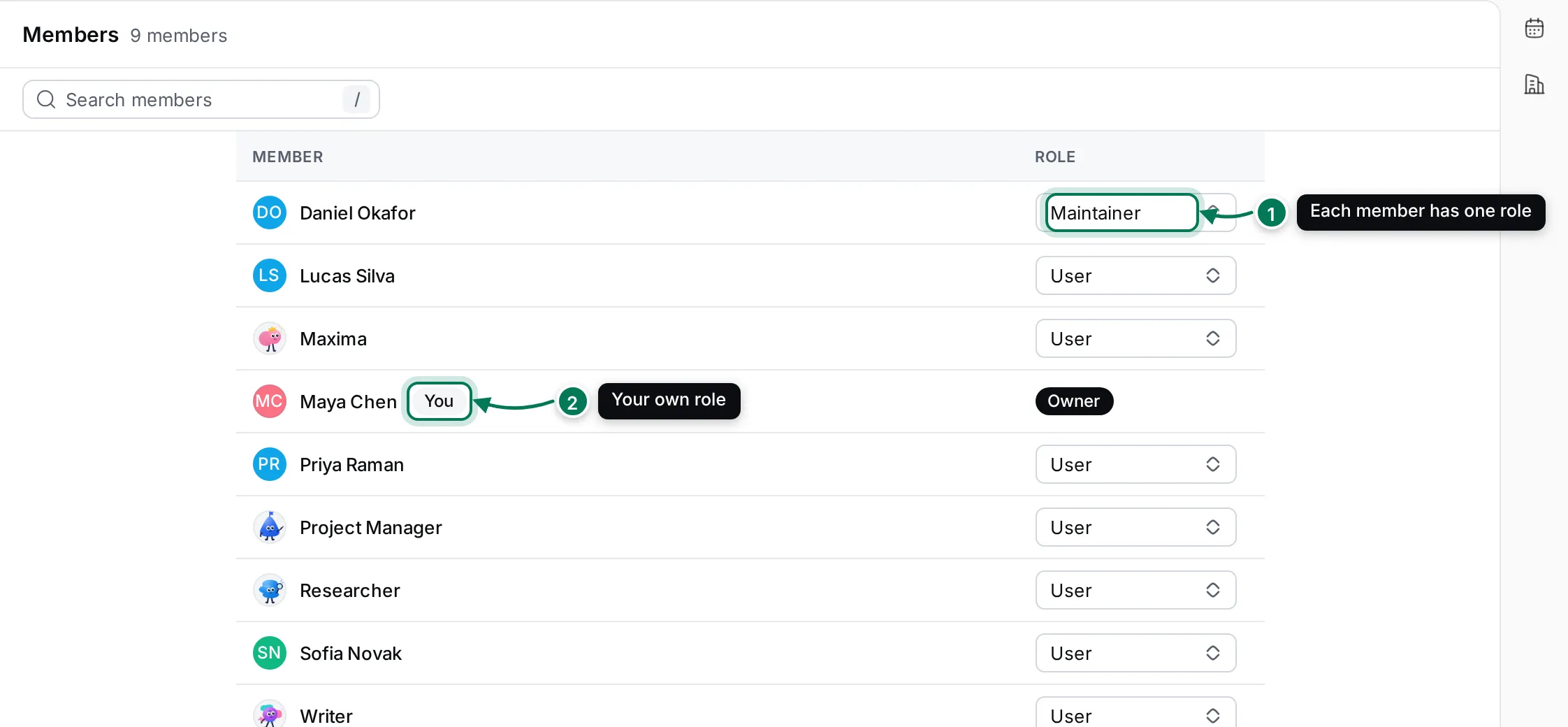
- Each member’s role, with a menu to change it.
- Your own row is marked You. You can’t change your own role.
The workspace roles
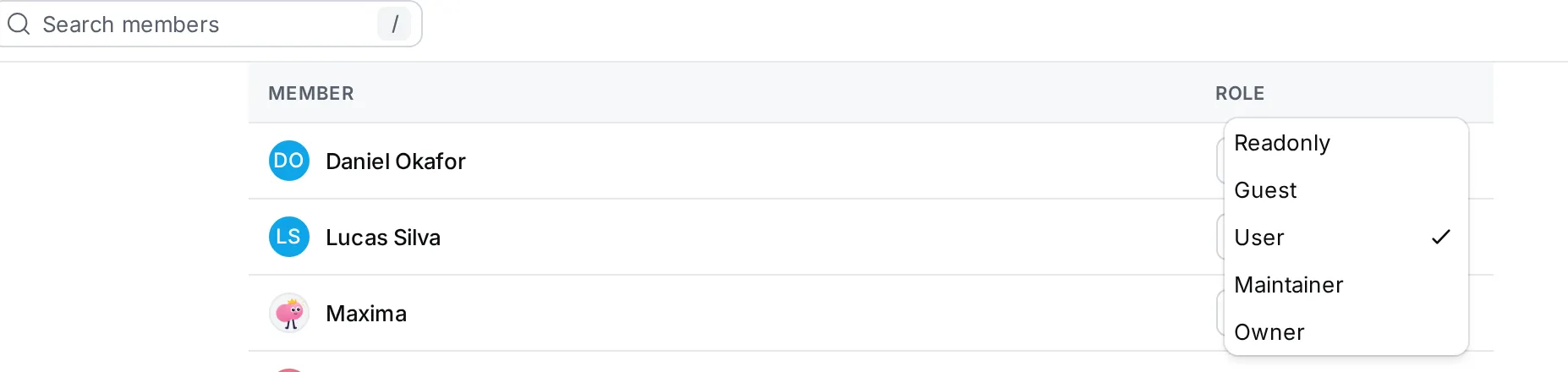
Section titled “The workspace roles”From most to least access:
| Role | Who it’s for |
|---|---|
| Owner | The people responsible for the workspace: billing, backups, guests, modules and deleting the workspace. |
| Maintainer | Team leads who run the workspace day to day: its name, invite settings, classes, relations and space admins. |
| User | Everyone on the team. Works in every app and manages their own integrations and API tokens. |
| Guest | People from outside, such as clients or contractors. Use only the apps and spaces they are given. |
| Readonly | People who only look. Anonymous visitors get this role when the workspace allows them in. |
AI Workers are members too and have the User role.
What each role can do
Section titled “What each role can do”| Task | Owner | Maintainer | User | Guest | Readonly |
|---|---|---|---|---|---|
| Read what they have access to | ✓ | ✓ | ✓ | ✓ | ✓ |
| Create and edit issues, documents, messages and files | ✓ | ✓ | ✓ | Limited | – |
| Create invite links (by default) | ✓ | ✓ | ✓ | – | – |
| Create API tokens | ✓ | ✓ | ✓ | – | – |
| Text templates, enums, custom emojis, related issues | ✓ | ✓ | ✓ | – | – |
| Rename the workspace | ✓ | ✓ | – | – | – |
| Change roles | Any role | Up to Maintainer | – | – | – |
| Invite settings, classes, relations, space admins, office settings, card types | ✓ | ✓ | – | – | – |
| Billing, backups, guest permissions, modules (Configure) | ✓ | – | – | – | – |
| Turn role-based access control off, delete the workspace | ✓ | – | – | – | – |
A few rules on top:
- You can give a role up to your own. A workspace always keeps at least one owner, so the last owner can’t be made anything else.
- Which roles may create invite links is a setting: by default Users, Maintainers and Owners. See Invite settings.
- A token made in Settings › API Tokens acts with its creator’s role. Restoring a backup needs an owner’s token.
Settings pages by role
Section titled “Settings pages by role”Pages a role can’t use are hidden from its Settings navigator. Here is the navigator for an Owner, Maya, next to a User, Priya:
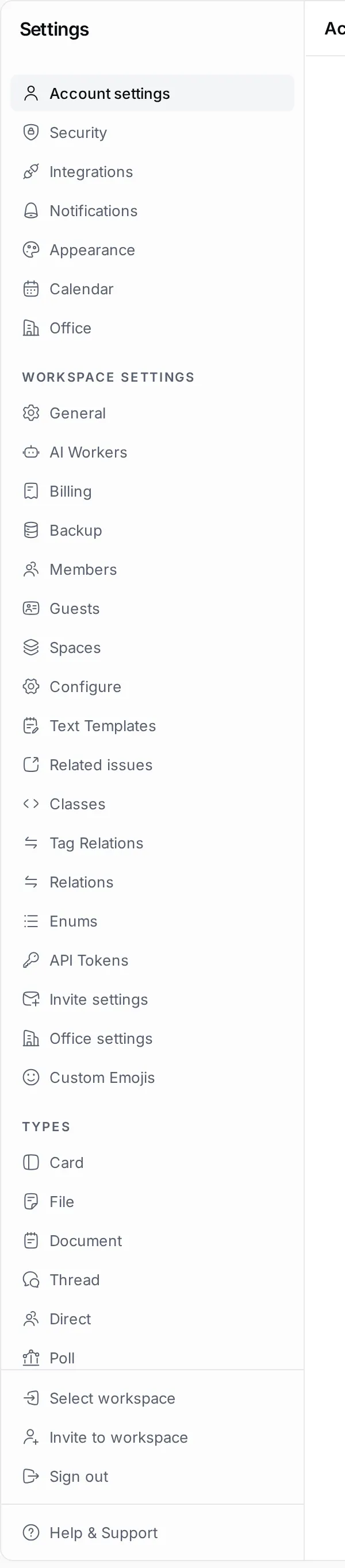
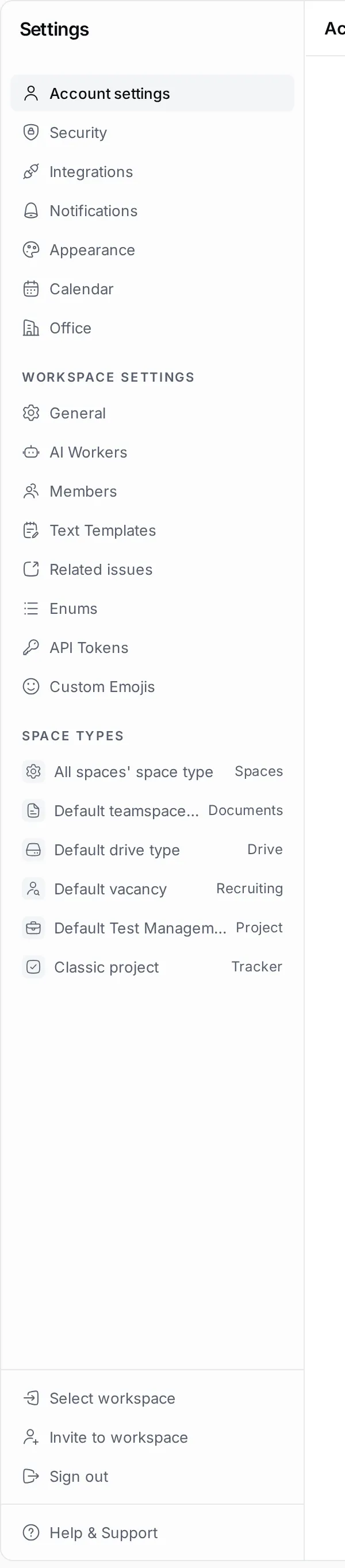
Which pages each role sees lists them all.
Guests and read-only visitors
Section titled “Guests and read-only visitors”Guests see only the apps that owners turn on for them in Settings › Guests, and only the spaces they are added to or that guests join automatically. For each app, owners can allow extra actions, such as creating issues or cards. Readonly members and anonymous visitors can look but not change anything. See Guests and public access.
Space roles
Section titled “Space roles”Inside a project, teamspace, drive or card space, members can hold roles that the space’s type defines, each with its own permissions. The workspace-wide Admin role, set in Settings › Spaces, can update and delete objects in every space. See Space admins and Space types, roles and statuses.
A private space is visible only to its members, whatever their workspace role.