Cards overview
Cards are records that your team shapes for its own work. A product team can keep a catalogue of features and releases, a studio its clients and briefs, a lab its samples. Each card has a type that decides which properties it has, a body you write in like a document, files, comments, child cards and links to other cards.
Open Cards from the left rail. The navigator lists your views, card types and spaces, and the main area shows the cards of whatever you pick.
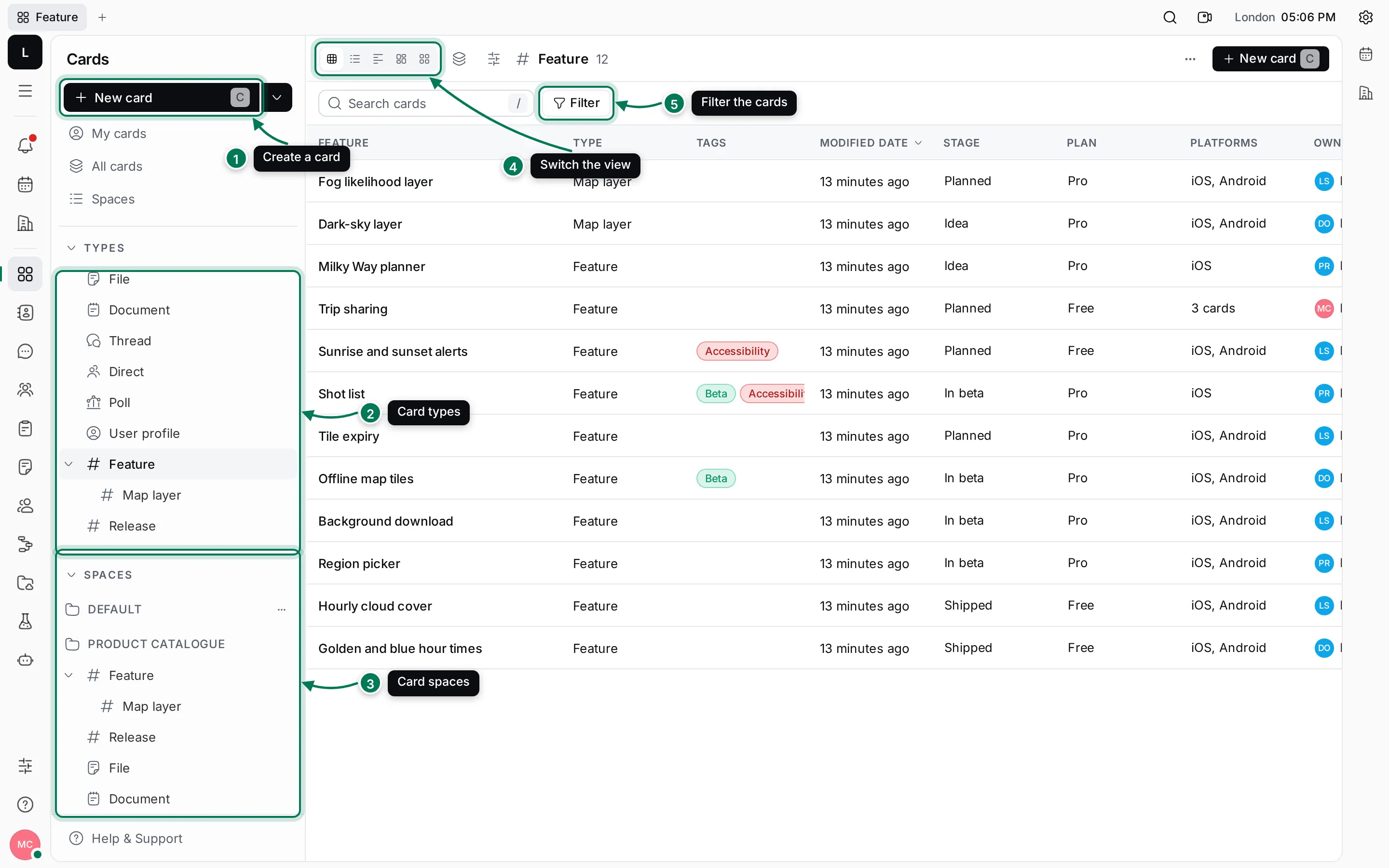
- New card creates a card. Press C anywhere in Cards to do the same.
- Types lists every card type. Sub-types sit under their parent type, so Map layer appears under Feature.
- Spaces lists the card spaces you belong to. Under each space you see the types it holds.
- The view switcher changes how the cards are shown: Table, List, Feed, Traceability Matrix or Grid.
- Filter narrows the list by space, type, people, dates or any property.
My cards has three tabs: Assigned (cards whose person fields, such as Owner, point at you), Created and Subscribed (cards you follow). All cards shows every card you can see.
How cards are organised
Section titled “How cards are organised”- A card space holds cards and decides who can see them. Lumen Labs keeps its product records in a space called Product catalogue.
- A card type such as Feature or Release defines the properties a card has, like Stage, Owner or Release date. A type can have sub-types that add more properties.
- A tag adds a set of extra properties to a card when it applies. A Beta tag on a feature adds Beta testers.
- A relation links cards of two types. A release Includes features, and each feature shows the release it was Shipped in.
- A card can have a parent card and child cards, so a large feature can be split into smaller ones.
Card types, tags and relations are set up in Settings › Types by workspace owners and maintainers. A card type can also run a process, a set of steps that moves each card from one state to the next.