Set up a process
A process belongs to a card type and runs on that type’s cards and its sub-types’ cards. Workspace owners and maintainers create and edit processes in Processes › Process setup. You can also reach a type’s processes from its Processes section in Settings › Types.
Create a process
Section titled “Create a process”-
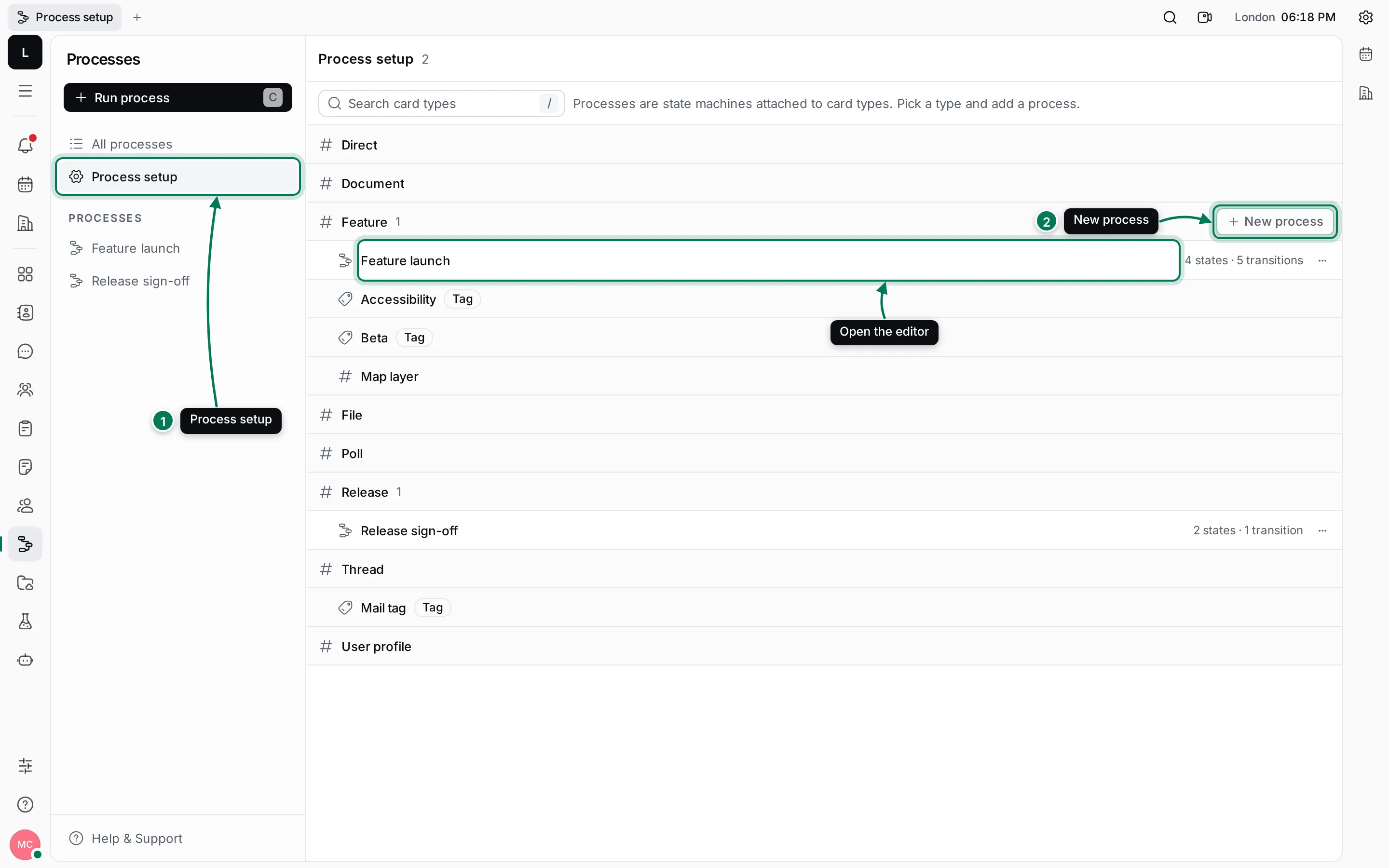
Open Processes and click Process setup in the navigator. Every card type is listed with its processes. Type in the search field to find a type.
-
Click + on the type’s row (New process). A process called New process is created and its editor opens.
-
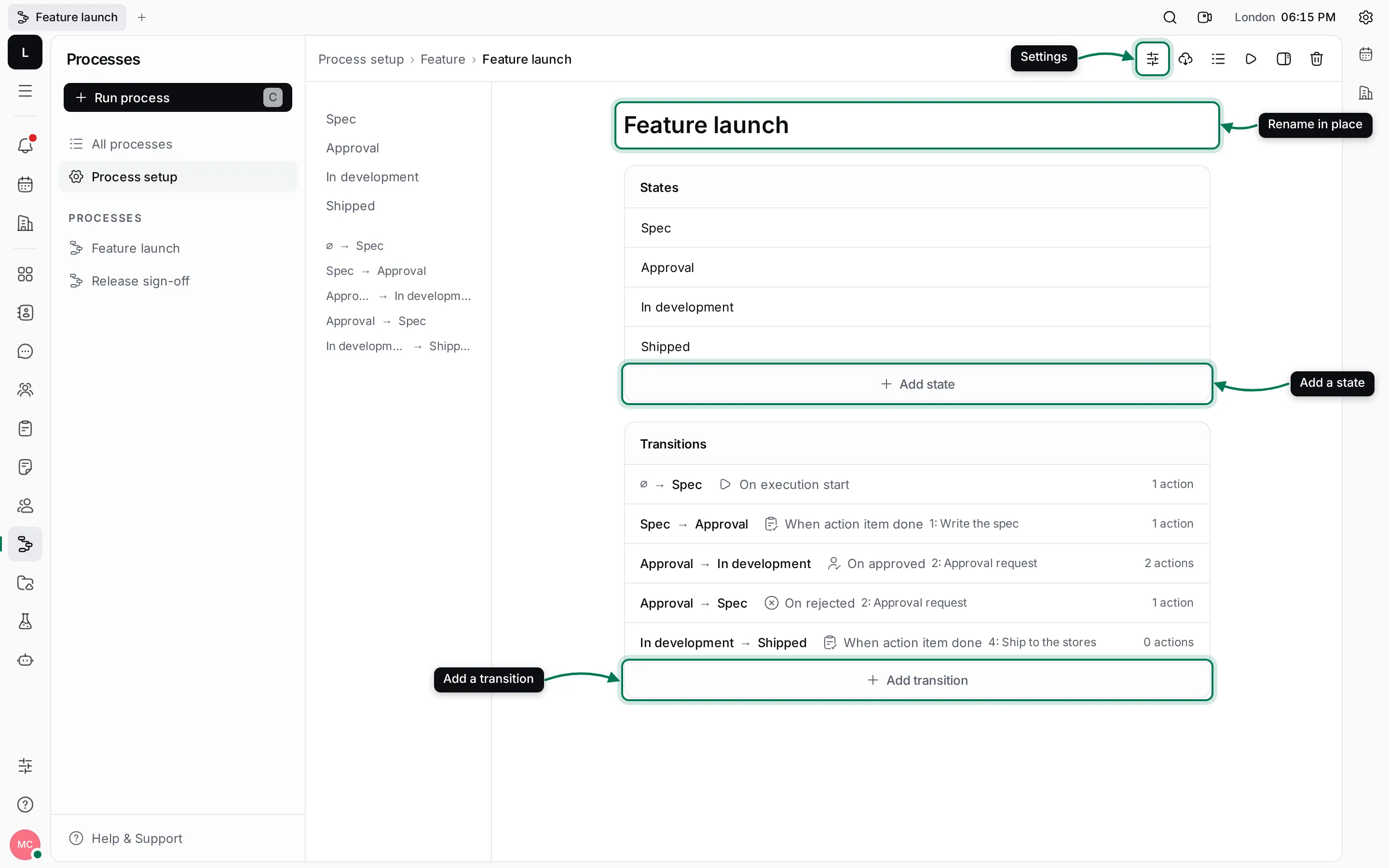
Click the name at the top and type the process’s name. Press Enter to save it.
Add states
Section titled “Add states”States are the stages a card goes through. Lumen’s Feature launch process has four: Spec, Approval, In development and Shipped.
- In the States card, click Add state. A row called New state appears, ready for its name.
- Type the state’s name and press Enter.
- Repeat for each state. Use the buttons on a state’s row to move it up or down, or to delete it. Deleting a state also deletes the transitions to and from it.
Add transitions
Section titled “Add transitions”A transition moves a card from one state to another when its trigger happens. The first transition starts the process, so its From is empty (shown as ∅ or Start) and its trigger is always On execution start.
- In the Transitions card, click Add transition.
- Pick From and To. For the first transition, only pick To.
- Pick a Trigger and fill in what it needs. For example, When action item done asks which action item.
- Click Create.
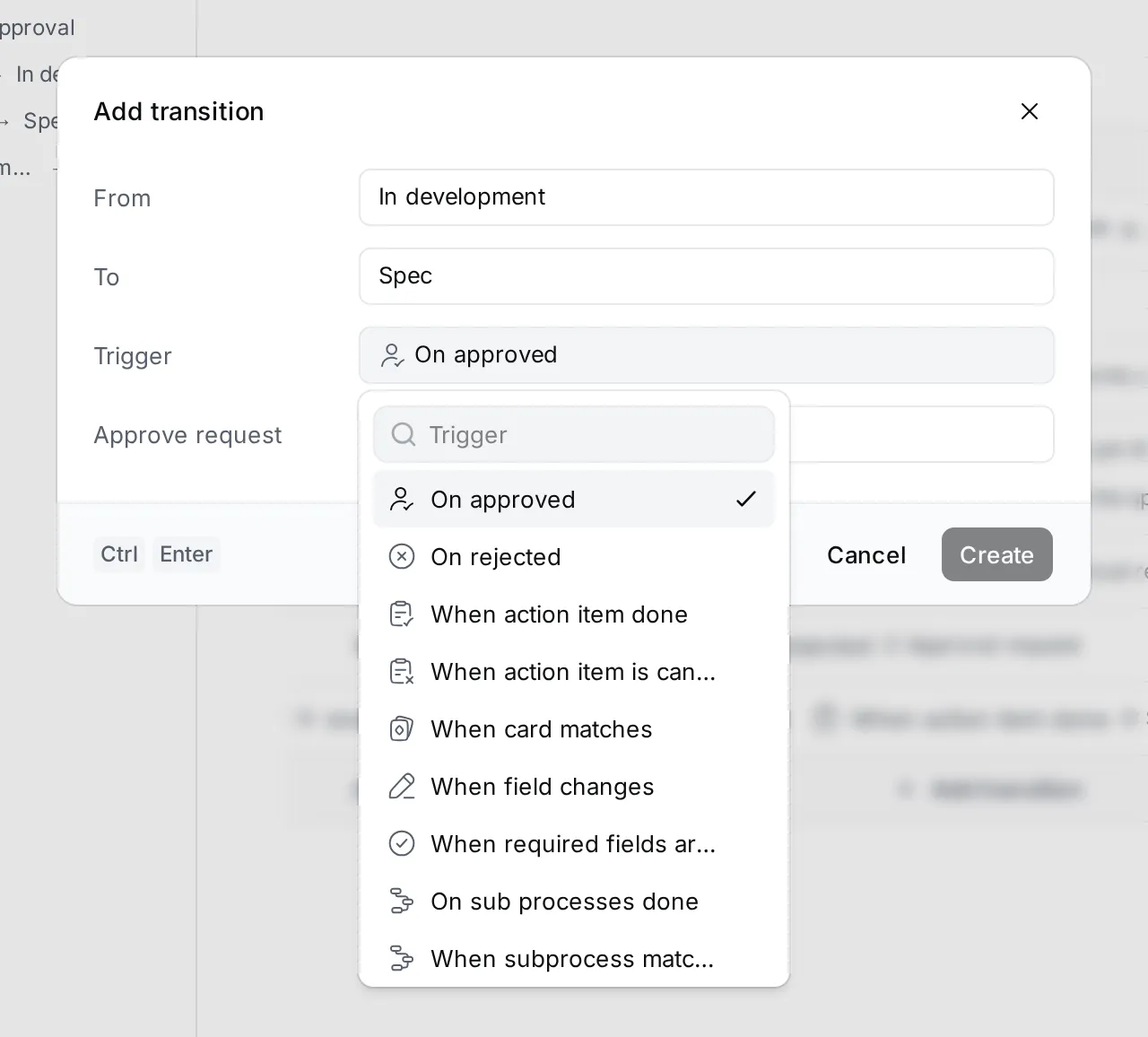
A card can have more than one way out of a state. In Lumen’s process, Approval leads to In development when the approval is approved, and back to Spec when it’s rejected.
Click a transition to open it and add its actions. See Triggers and actions.
Process settings
Section titled “Process settings”Click the settings button in the editor’s header to open Process.
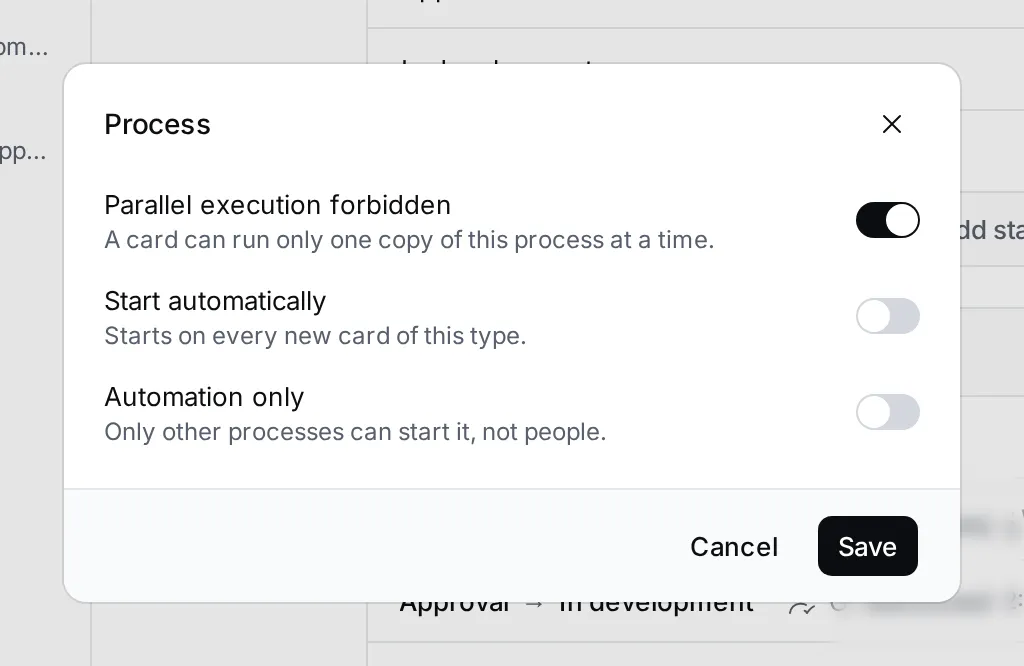
- Parallel execution forbidden: a card can run only one copy of this process at a time.
- Start automatically: the process starts on every new card of the type.
- Automation only: only other processes can start it, not people. It isn’t offered in Run process.
The editor’s header also has Export, Data, Run process, Running processes and Delete. Deleting a process asks you to confirm and removes its states and transitions.