Schedule and public holidays
The schedule shows who is away and when. Use the month view to plan around people’s time off, and the year view to see each person’s balance over the year.
The month view
Section titled “The month view”Each row is a person, with their department under their name. Each column is a day: weekends and public holidays are shaded, today’s column is tinted, and a public holiday’s date is a red circle.
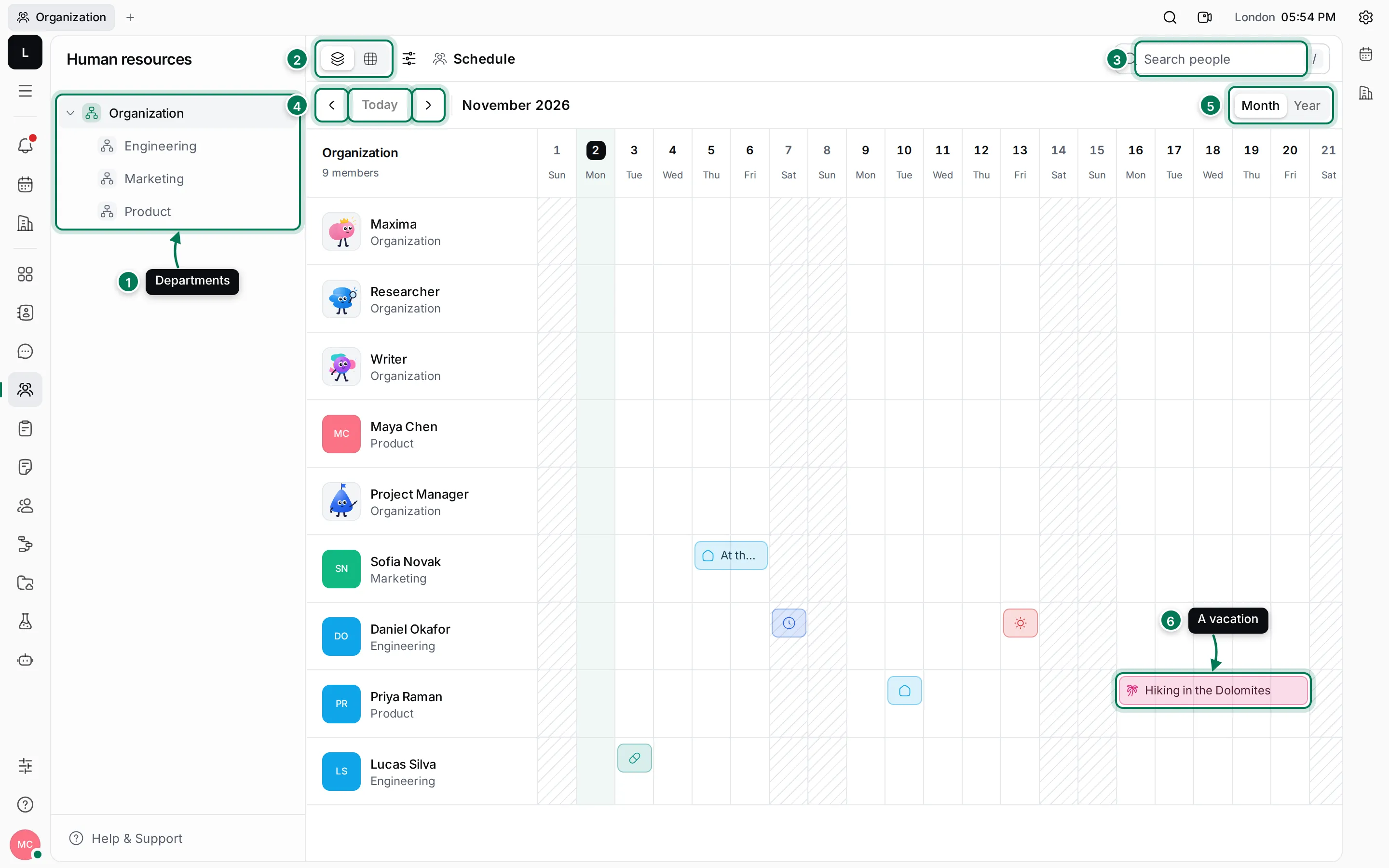
- Requests are bars in the colour of their type. A bar of several days shows the note, or the type; a one-day bar shows its icon.
- Hover over a bar to see the type, the first and last day and the note.
- When two requests overlap, they stack in the person’s row.
- Click a person’s name to open them in Contacts, and their department to open the department.
Scroll sideways to see the rest of the month; the names stay in place. Use ‹ and › to change month, and search to find someone.
People who have left the workspace are hidden. To see them, click View options (the sliders button next to the view switch) and turn off Hide inactive. The same setting works in Statistics.
The year view
Section titled “The year view”Click Year at the top right.
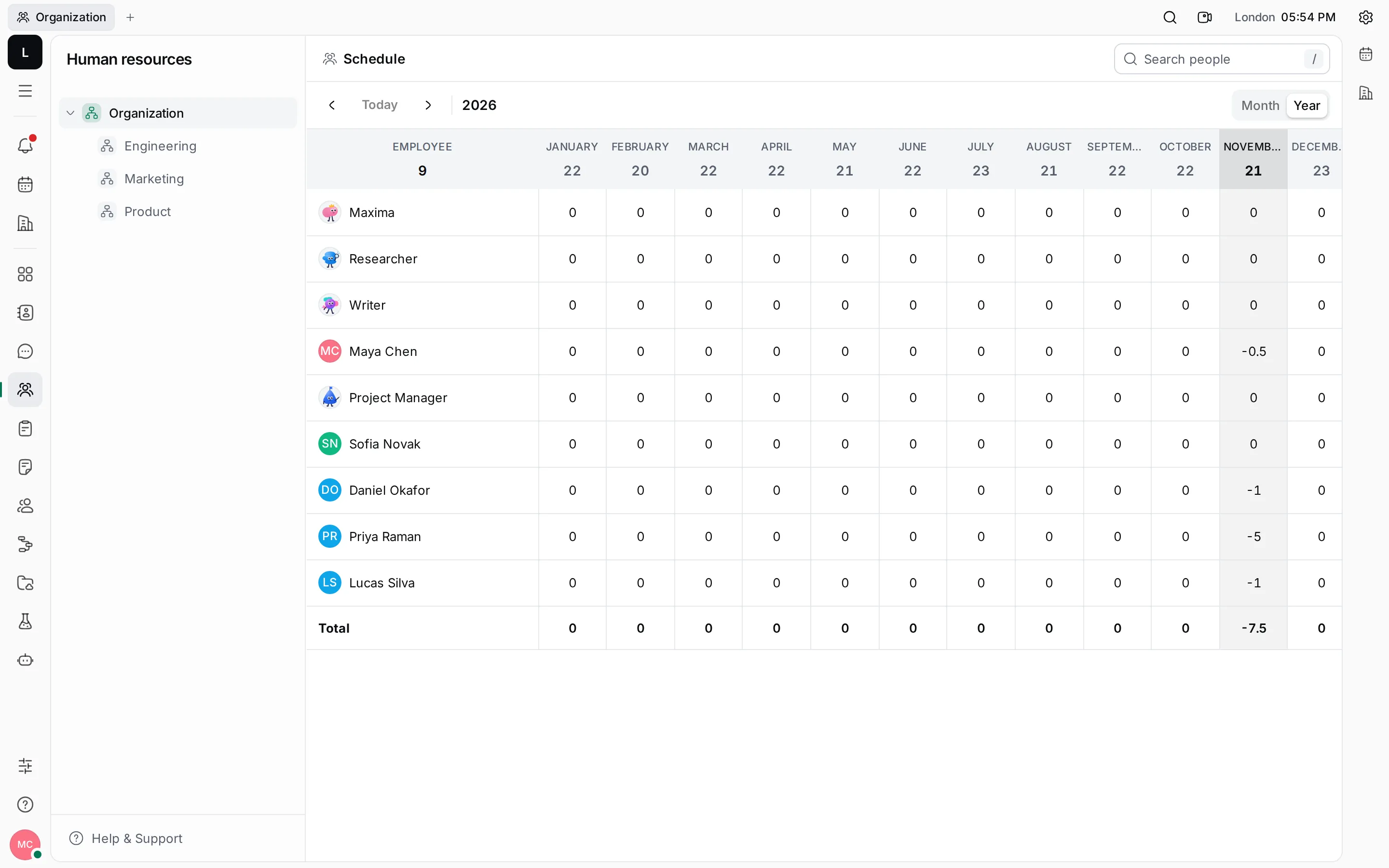
Under each month’s name is its number of working days. Each cell is the person’s balance for the month: days off count as minus, overtime as plus, and remote days as zero. For example, a week of vacation is -5, half a day of PTO -0.5. The Total row adds up everyone. Hover over a cell to list its requests.
Mark a public holiday
Section titled “Mark a public holiday”A public holiday is a day the office is closed, such as a national holiday. It doesn’t count as a working day.
- Select the department the holiday is for. Select Organization for everyone.
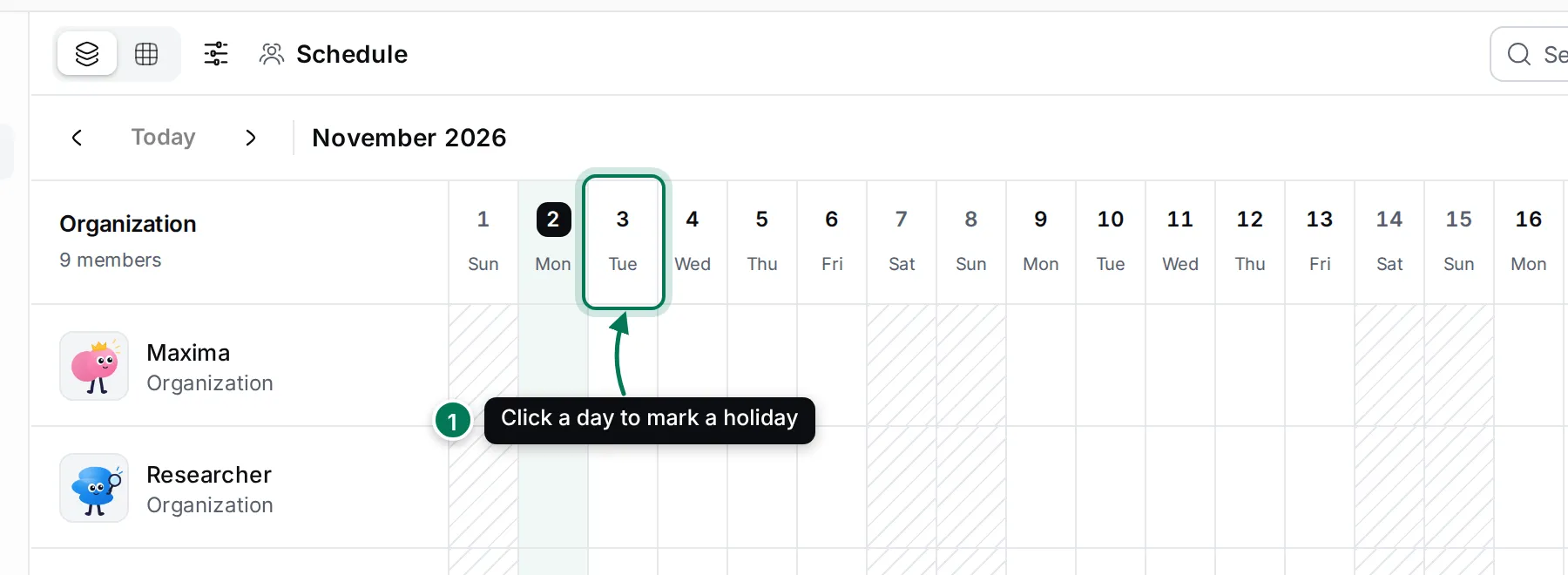
- Click the day’s date at the top of the schedule (1).
- In Mark as public holiday, type a Title and, if you like, a description.
- Click Ok.
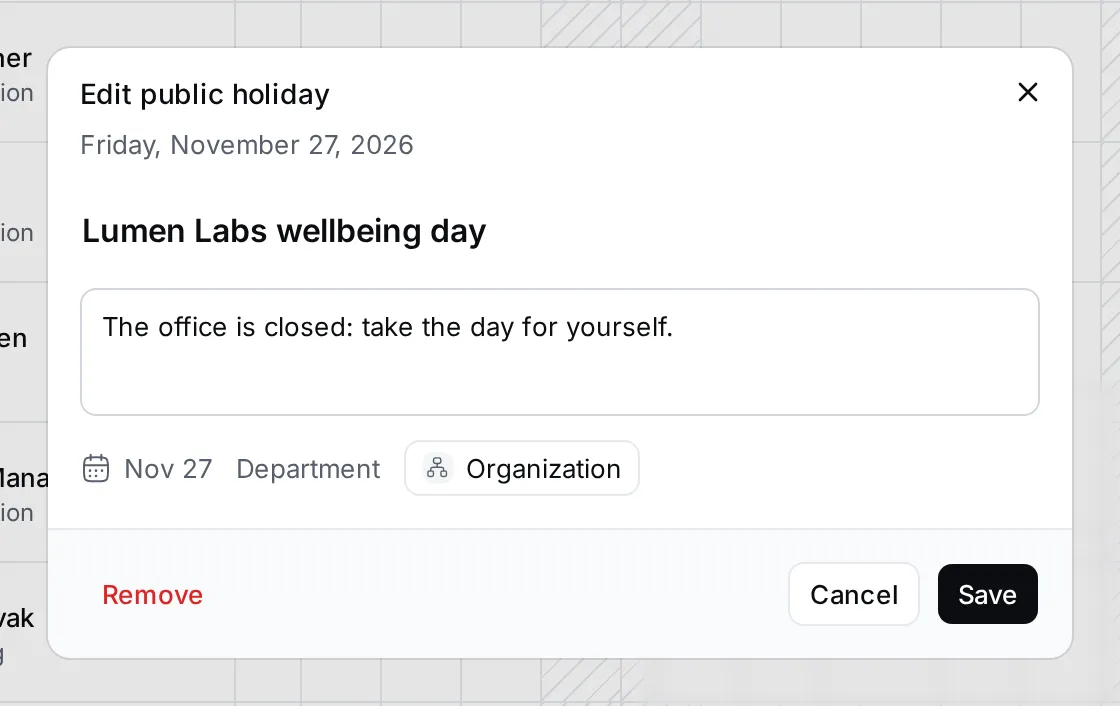
To change or remove a holiday, click its red date. The Edit public holiday dialog has Save and Remove.
See Statistics for working days and holidays per person.