Test plans
A test plan is a reusable list of test cases. Make one for each kind of testing you repeat: a quick Smoke test for every build, a full Beta 1.0 regression before a release. Each case in a plan has the person who usually runs it, and every run started from the plan assigns its results the same way.
Create a test plan
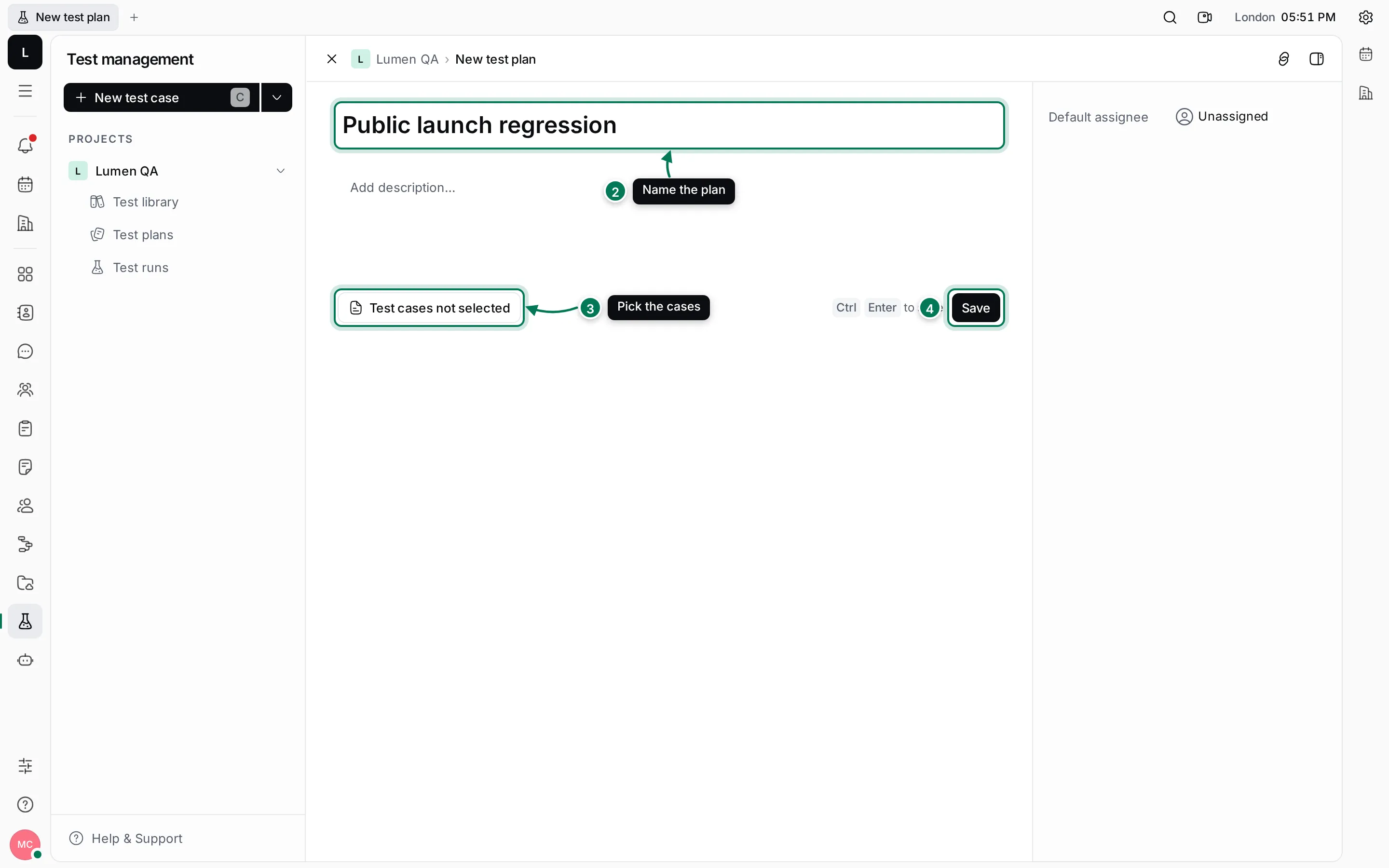
Section titled “Create a test plan”- Open the project’s Test plans and click New test plan.
- Enter the Test plan title and, if you like, a description.
- Click Test cases not selected to pick the cases.
- Click Save. The plan opens.
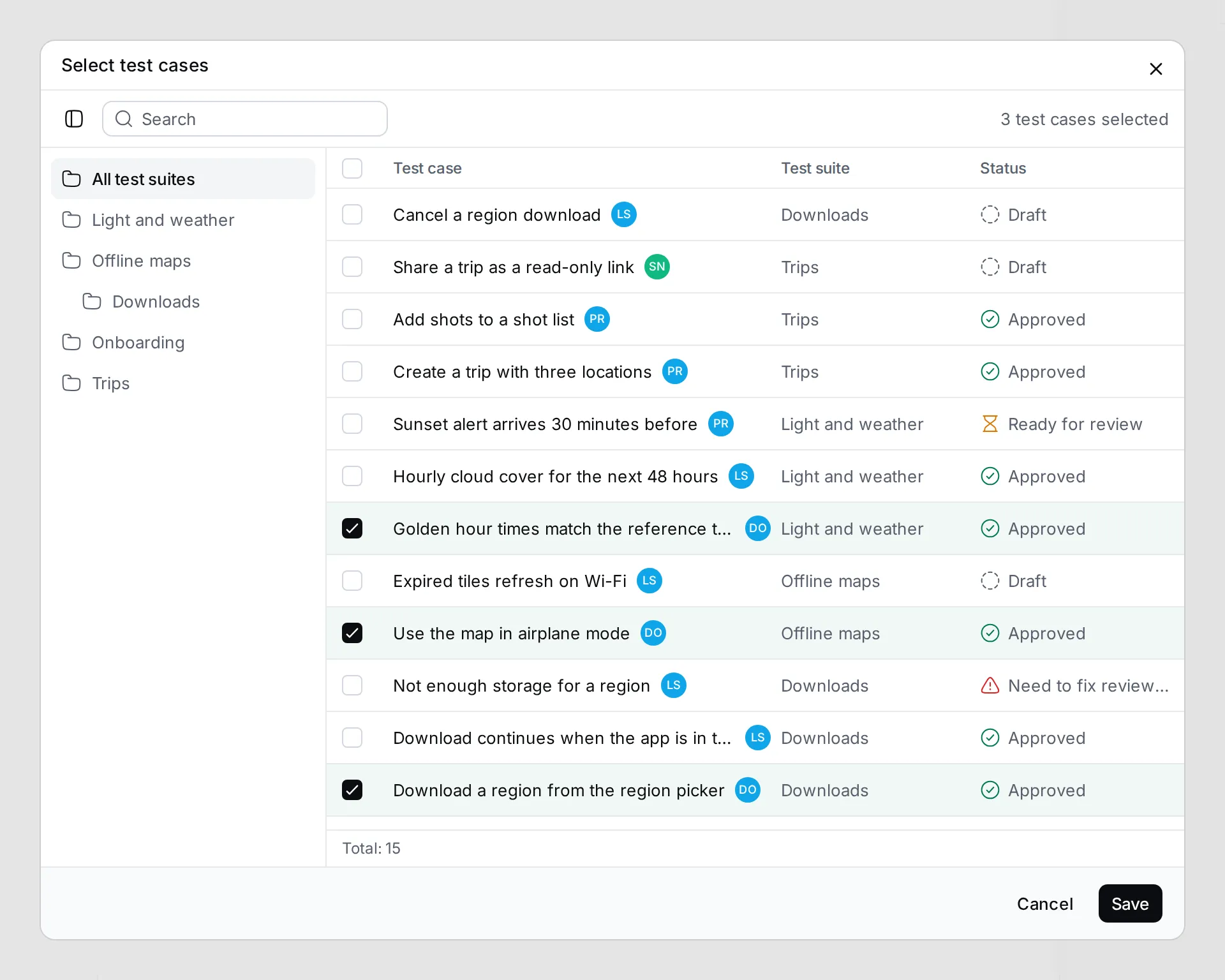
In Select test cases, tick the cases to include. Search, or show the suites tree to pick a whole suite. Select all shown ticks every case in the list. Click Save to go back to the plan.
Set a Default assignee on the right of the new plan to give every case the same person; change it per case afterwards.
Work with a plan
Section titled “Work with a plan”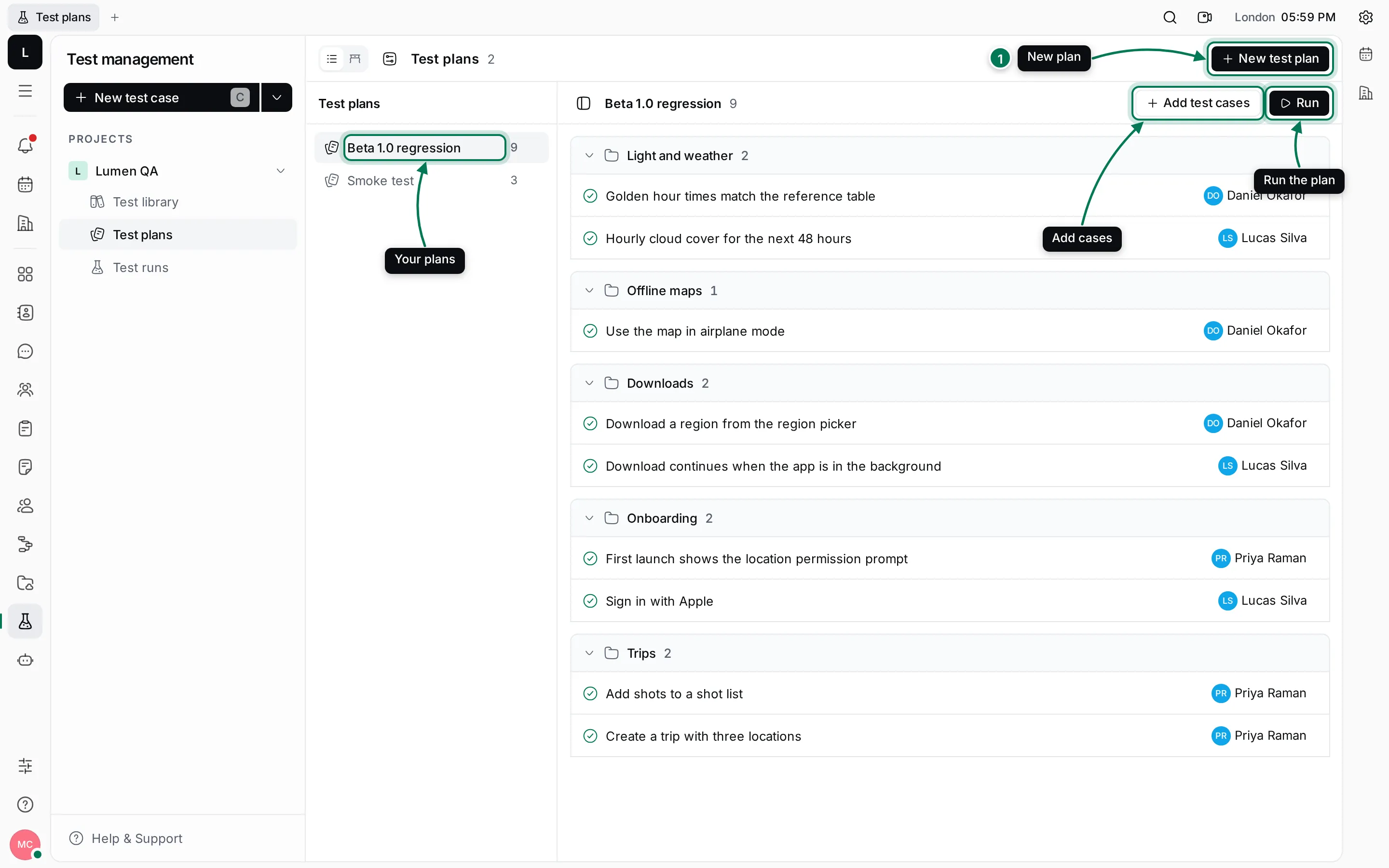
- The left pane lists the plans, newest first, with their number of cases. Click one to see its cases, grouped by suite.
- Click a case’s assignee to change who runs it.
- Add test cases adds more cases. Cases already in the plan show ticked and locked.
- Right-click a case and choose Remove from plan to take it out. The case stays in the library.
- Hover a plan and click ⋯ for Open, Open in new tab, Copy link and Delete.
Run a plan
Section titled “Run a plan”Click Run to open New test run with the plan’s cases, each assigned like in the plan. Give the run a name and a due date and click Save. See Run tests and record results.