Work // Test management
Run tests and record results
A test run is one round of testing, such as a beta build. It holds a result for each test case it includes. Every result starts as Untested; whoever runs the test sets it to Passed, Failed or Blocked.
Start a test run
Section titled “Start a test run”You can start a run three ways:
- From a test plan: open the plan and click Run.
- From the library: select cases, or click a suite’s ⋯ › Run, then click Run.
- From Test runs: click New test run and pick the cases.
- Enter the Test run name, for example Smoke test, build 418.
- Check the cases. Click the cases button to add or remove some.
- On the right, set a Default assignee for cases without one, and a Due date if the run has a deadline.
- Click Save. The run opens.
Record results with the run assistant
Section titled “Record results with the run assistant”The run assistant takes you through a run one test at a time.
- Open the run and click Run assistant. It opens the first untested result.
- Follow the steps in the Test case description.
- Click Passed, Failed or Blocked, or press P, F or B. The result is saved and the next test opens.
- Add notes in Description (optional) when something needs explaining, such as why a test failed.
- Click Next to skip a test. The header shows where you are, for example 1 of 3, and the last test says so.
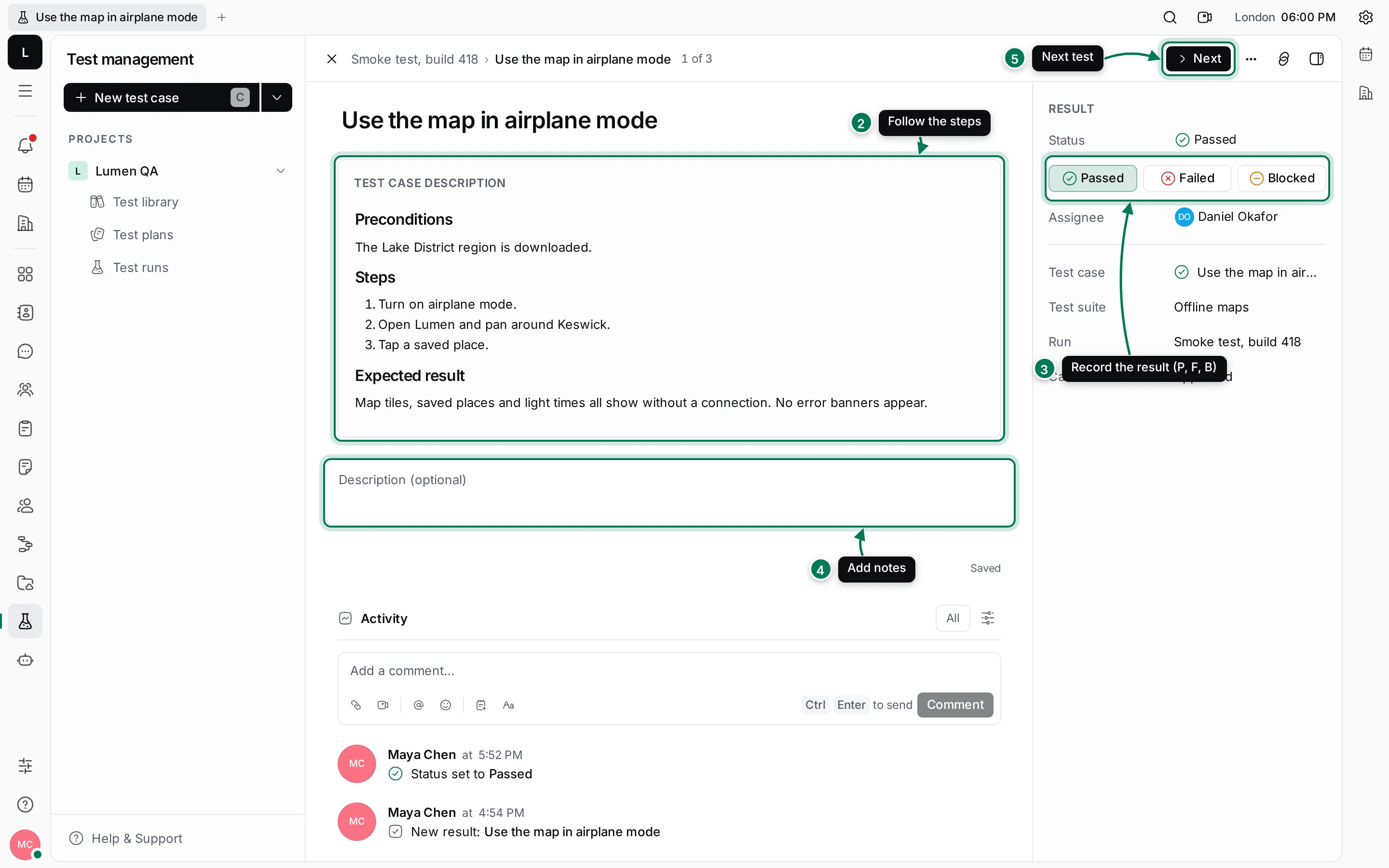
Each result also has an assignee, files and comments. Click Open test case to see the case itself.
Work in the runs list
Section titled “Work in the runs list”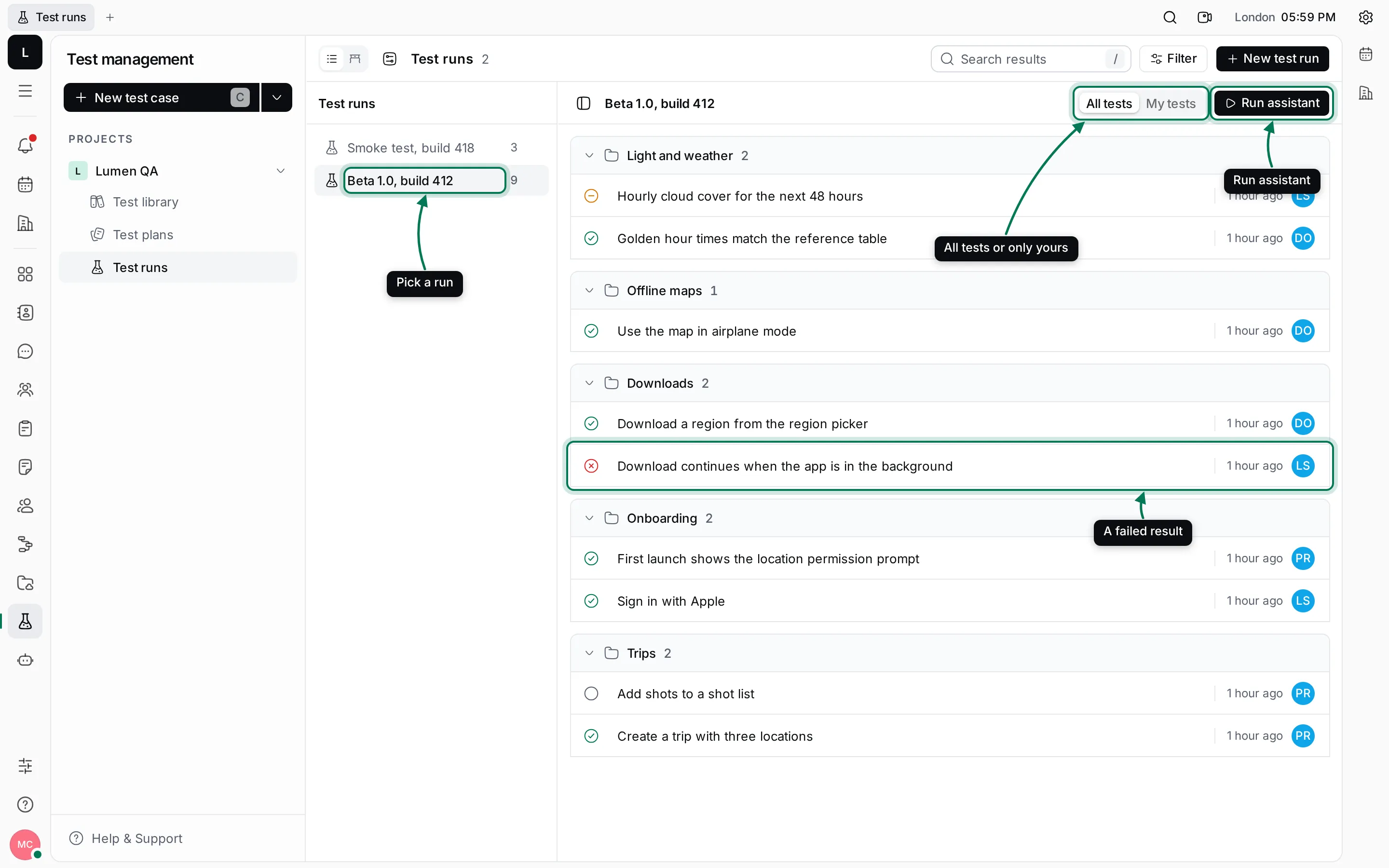
- The left pane lists the runs, newest first, with their number of results.
- All tests and My tests switch between every result and only the ones assigned to you.
- Click a result’s status to change it without opening it, or its avatar to reassign it.
- Filter narrows the results by Status, Assignee or Test suite.
- Right-click a result for Open, Open in new tab, Add relation, New related issue, Copy link and Delete.
See a run’s progress
Section titled “See a run’s progress”Open a run to see its summary on the right.
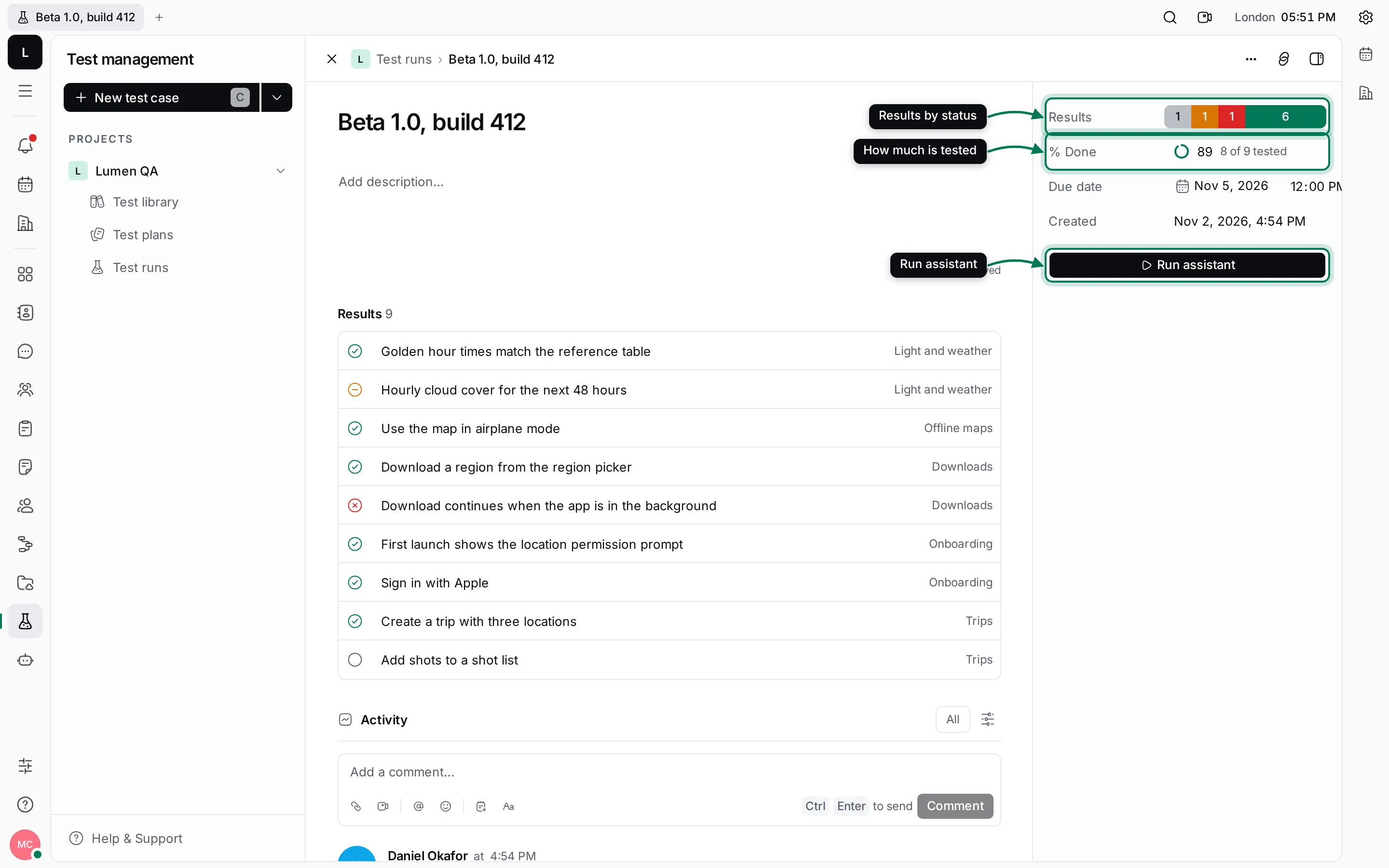
- Results is a bar split by status, with the number of results in each.
- % Done shows how many results are no longer untested, for example 8 of 9 tested.
- Due date shows the deadline; click it to change it.
- The page lists every result and keeps the run’s activity, such as who added results.