Threads and reactions
A thread keeps the replies to one message together, beside the conversation, so the main channel stays easy to read. Reactions let you answer with an emoji instead of a message.
Reply in a thread
Section titled “Reply in a thread”- Hover the message and click Reply to thread (the speech bubble), or click N replies under a message that already has a thread.
- The thread opens on the right, with the first message, the replies and a message box. Write your reply and press Enter.
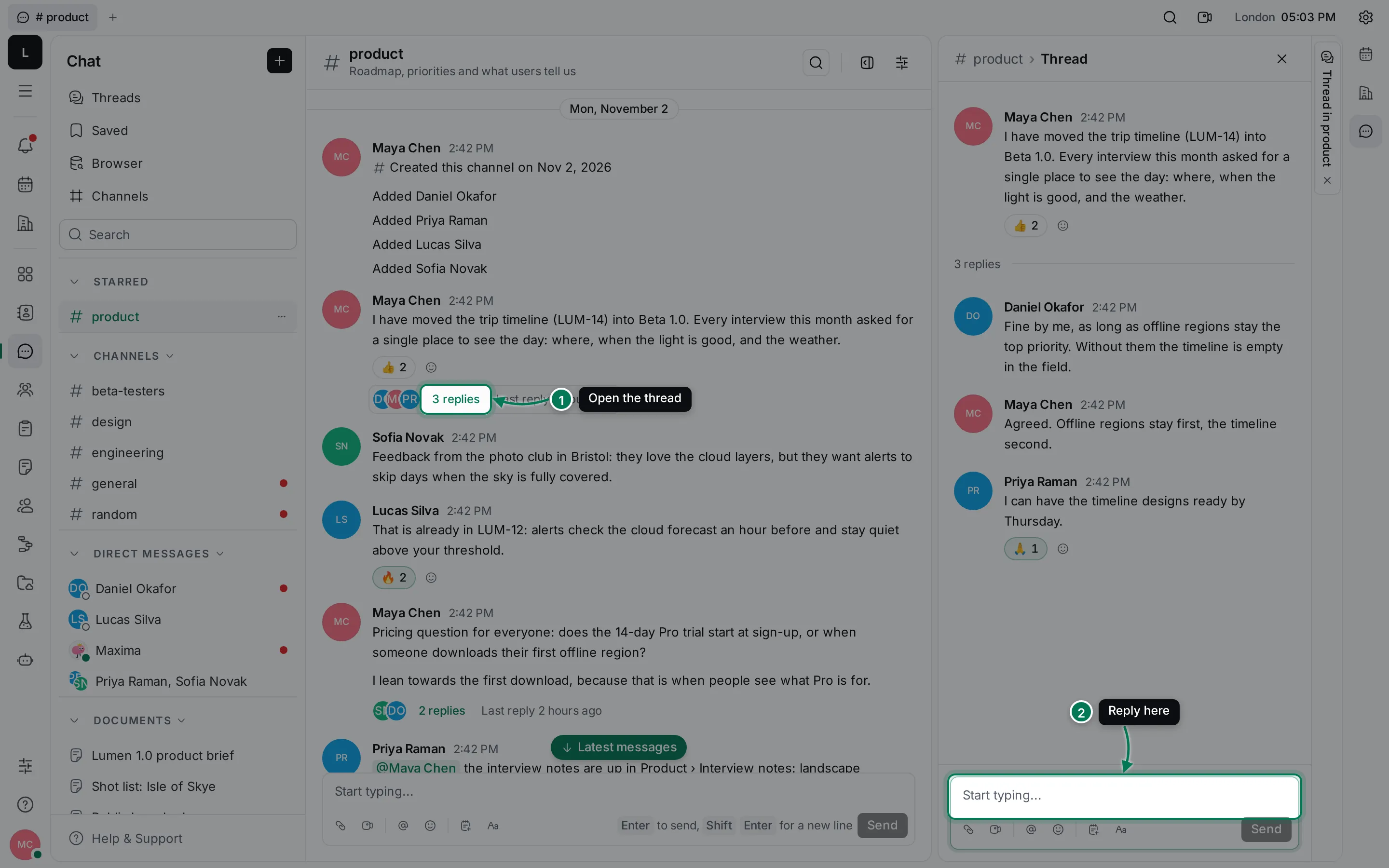
The summary under the first message shows who replied, how many replies there are and when the last one came. Close the thread with × or Esc.
Each open thread also becomes a tab on the right edge of the window, so you can keep several threads open and switch between them.
React to a message
Section titled “React to a message”- Hover the message and click Add reaction (the smiley).
- Pick an emoji. Search by name, for example “tada” or “thumbs”.
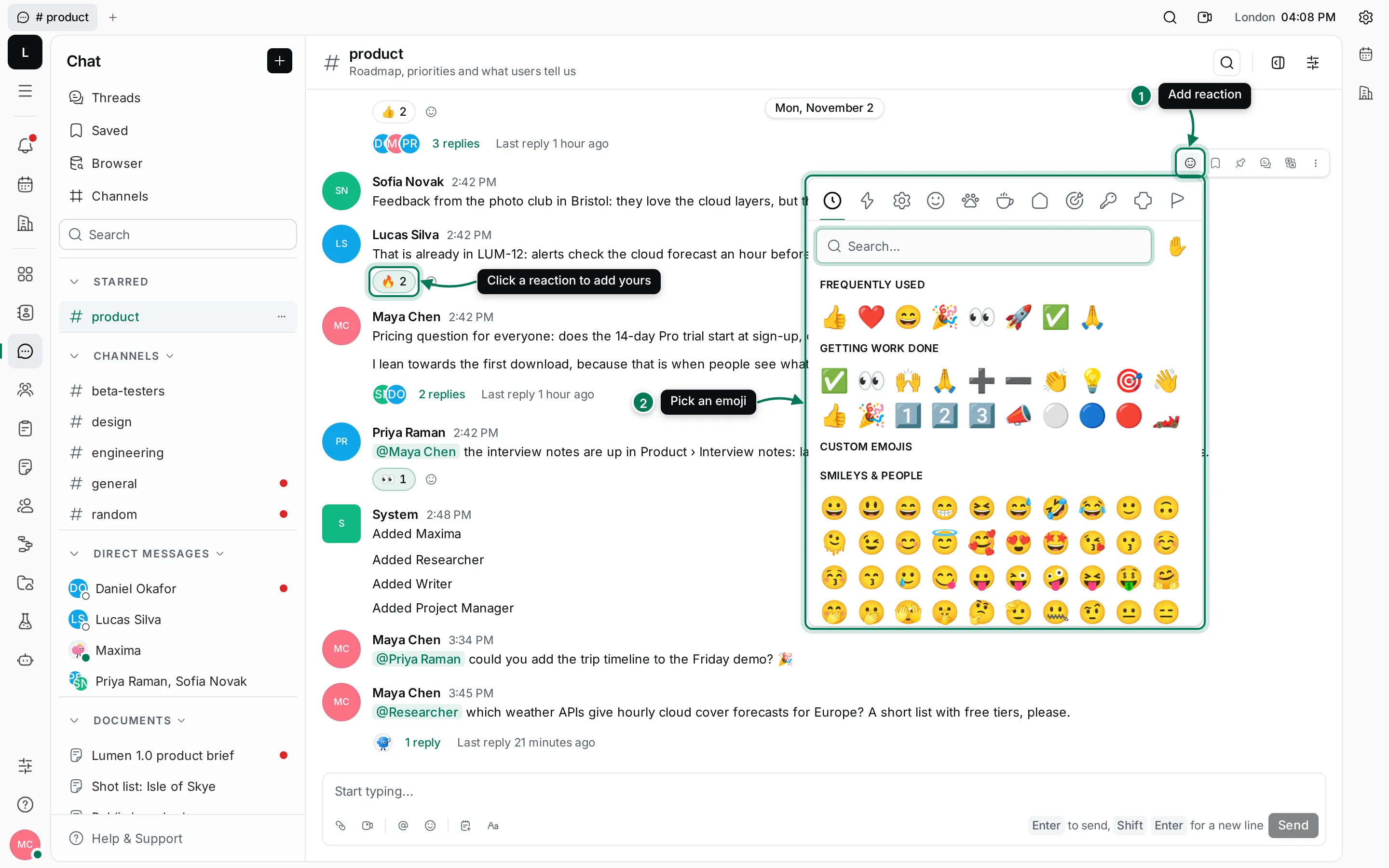
Reactions show under the message with a count. Click someone else’s reaction to add yours; click your own to take it back. Hover a reaction to see who reacted.
See all your threads
Section titled “See all your threads”Click Threads at the top of the navigator. It lists every thread you started or replied to, newest activity first, with the channel or conversation it belongs to.
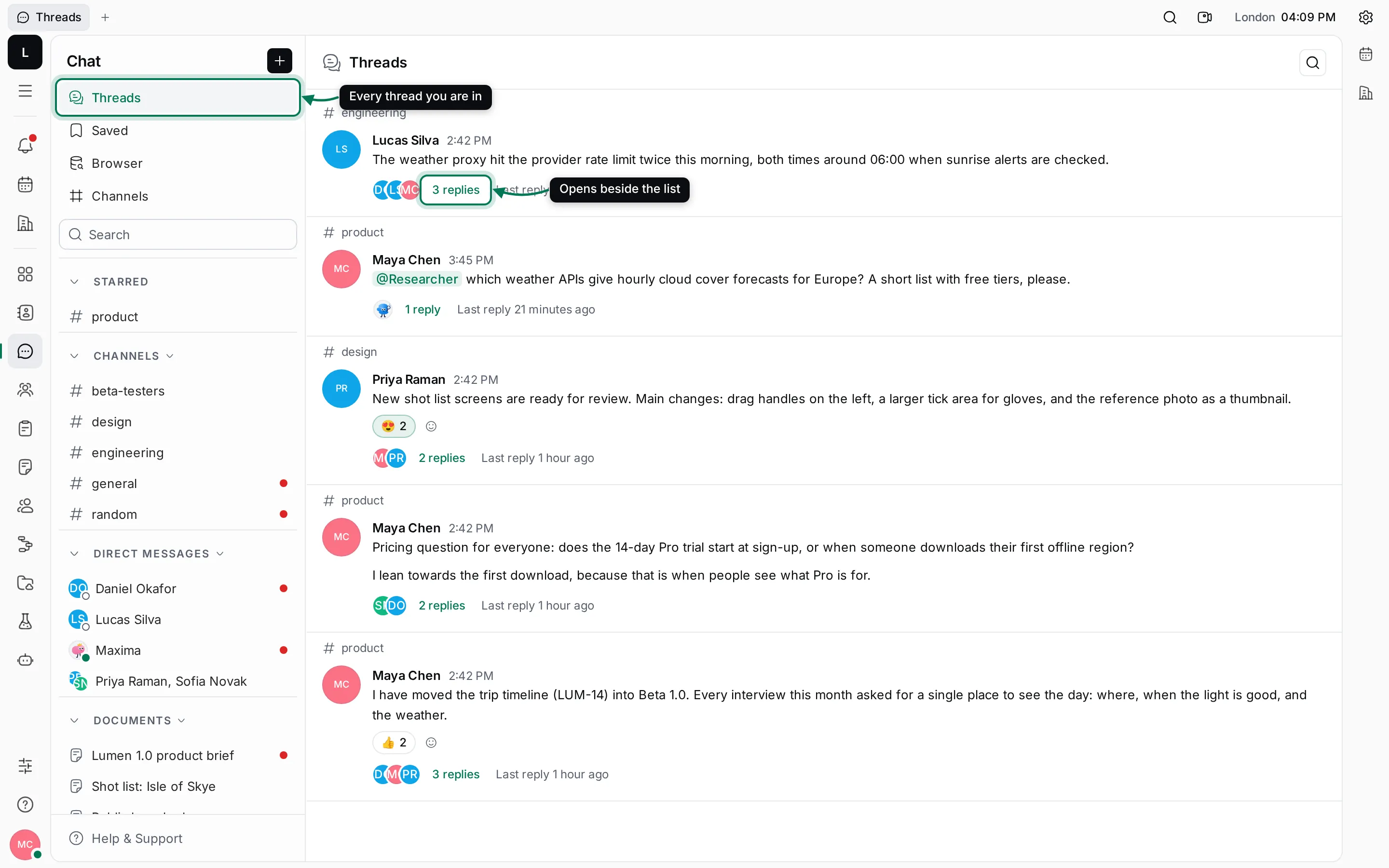
Click a message to open its conversation at that message, or click N replies to open the thread beside the list.
Keep a conversation open in the sidebar
Section titled “Keep a conversation open in the sidebar”Click Open in sidebar in a conversation’s header (or in its navigator menu). The conversation moves to the right-hand sidebar and stays there while you go to Tracker, Documents or anywhere else. It has its own message box and threads.
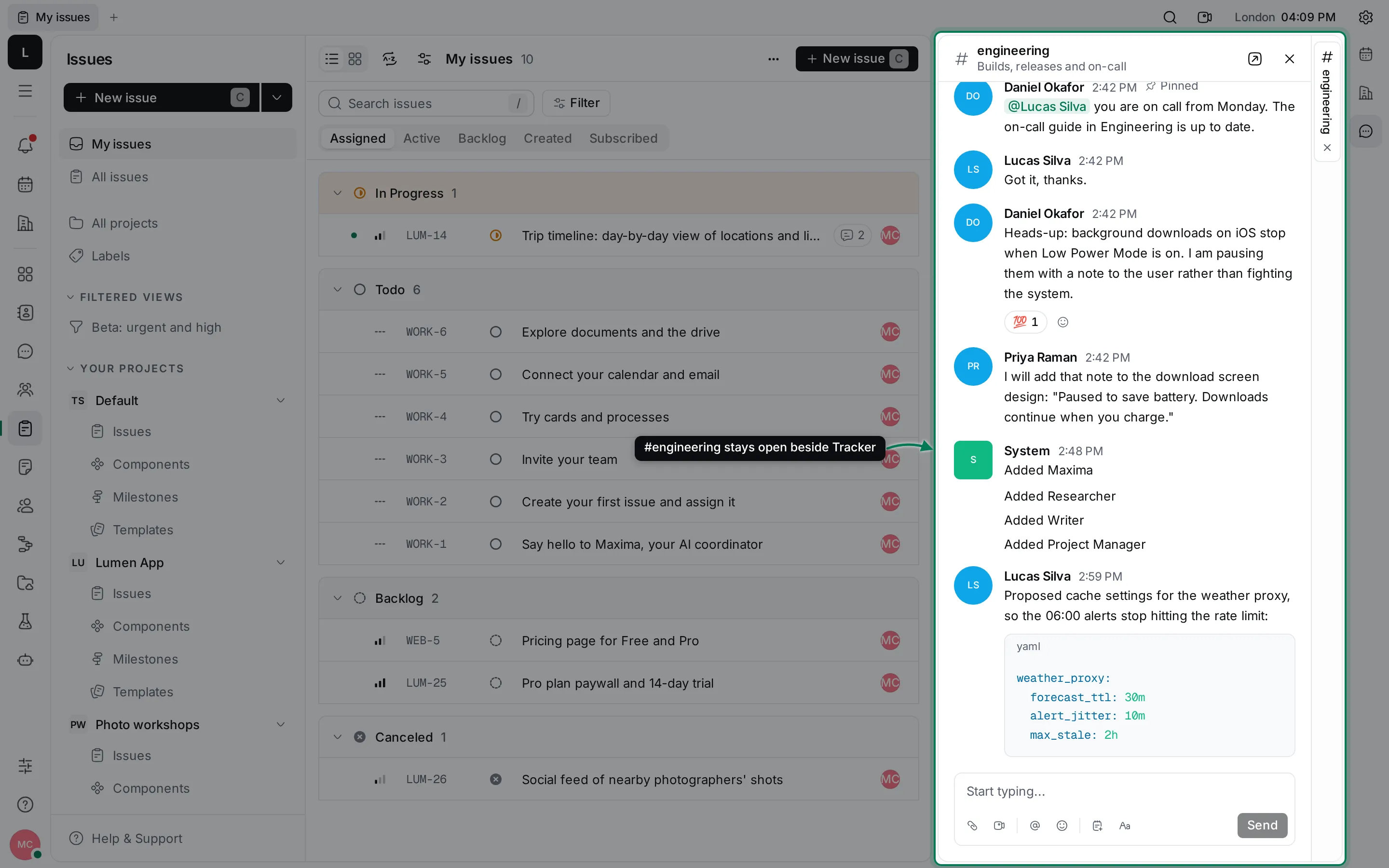
The sidebar shows a tab for each open conversation and thread. Click × on a tab to close it; the Chat icon on the right edge hides or shows the sidebar.
Other message actions
Section titled “Other message actions”The actions that appear when you hover a message are:
- Add reaction
- Save for later: see Saved, pinned and search.
- Pin: pins the message to the conversation for everyone.
- Reply to thread
- Translate
- More actions (⋮): Edit, Copy link and Delete (see Write messages).
Right-click a message to see all of them in one menu. With the keyboard, move between messages with ↑ and ↓ and press Shift+F10 for the menu.