Settings overview
Settings holds two kinds of settings: your own (your profile, notifications, appearance) and the workspace’s (members, guests, modules, fields and templates), which apply to everyone. Open it from the gear at the top right of the window, or from your avatar’s menu.
A quick tour
Section titled “A quick tour”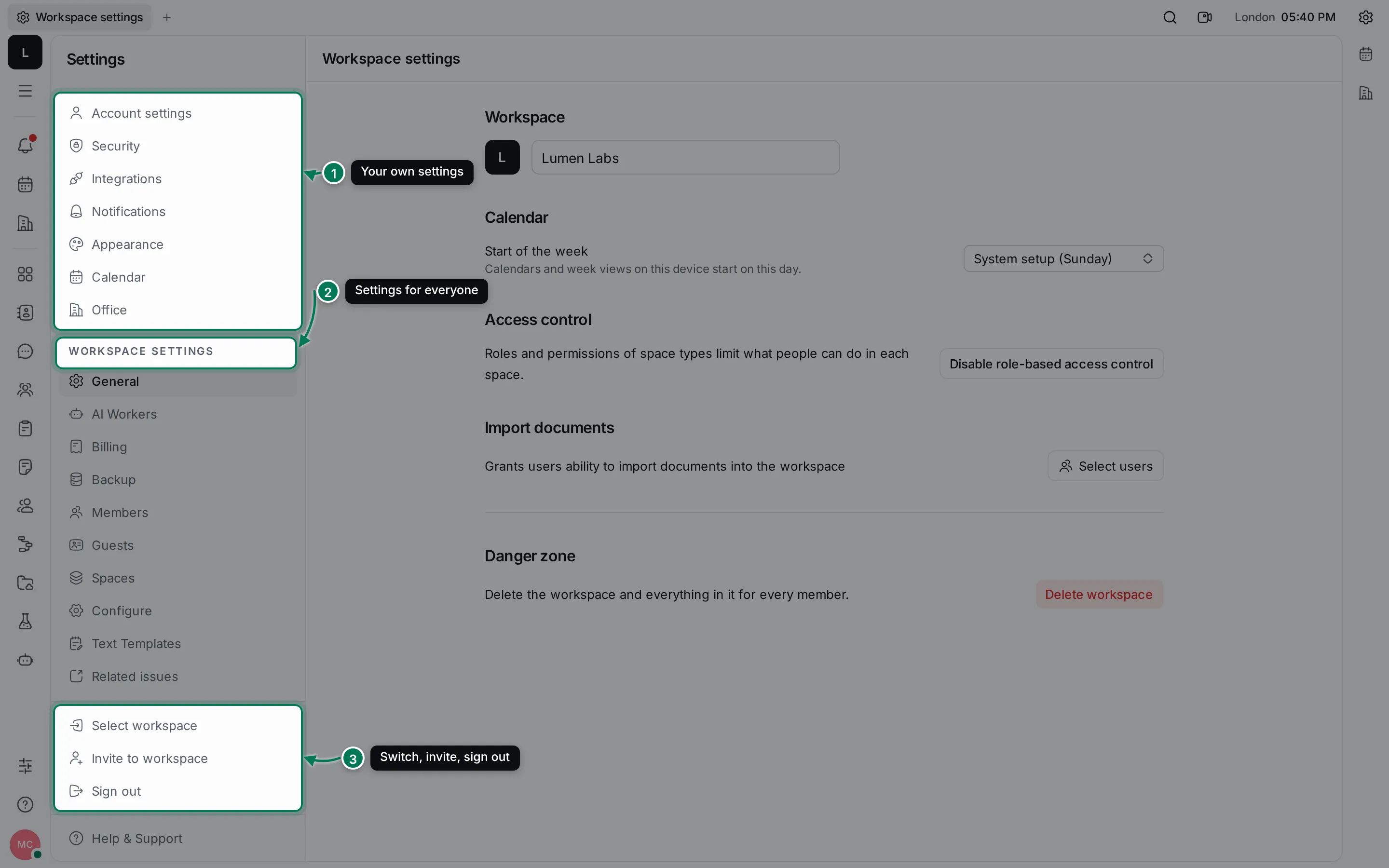
- Your own settings: Account settings, Security, Integrations, Notifications, Appearance, Calendar and Office. Changes here affect only you.
- Workspace settings: pages that change the workspace for everyone. You see only the pages your role allows.
- Select workspace switches to another workspace, Invite to workspace creates an invite link, and Sign out signs you out.
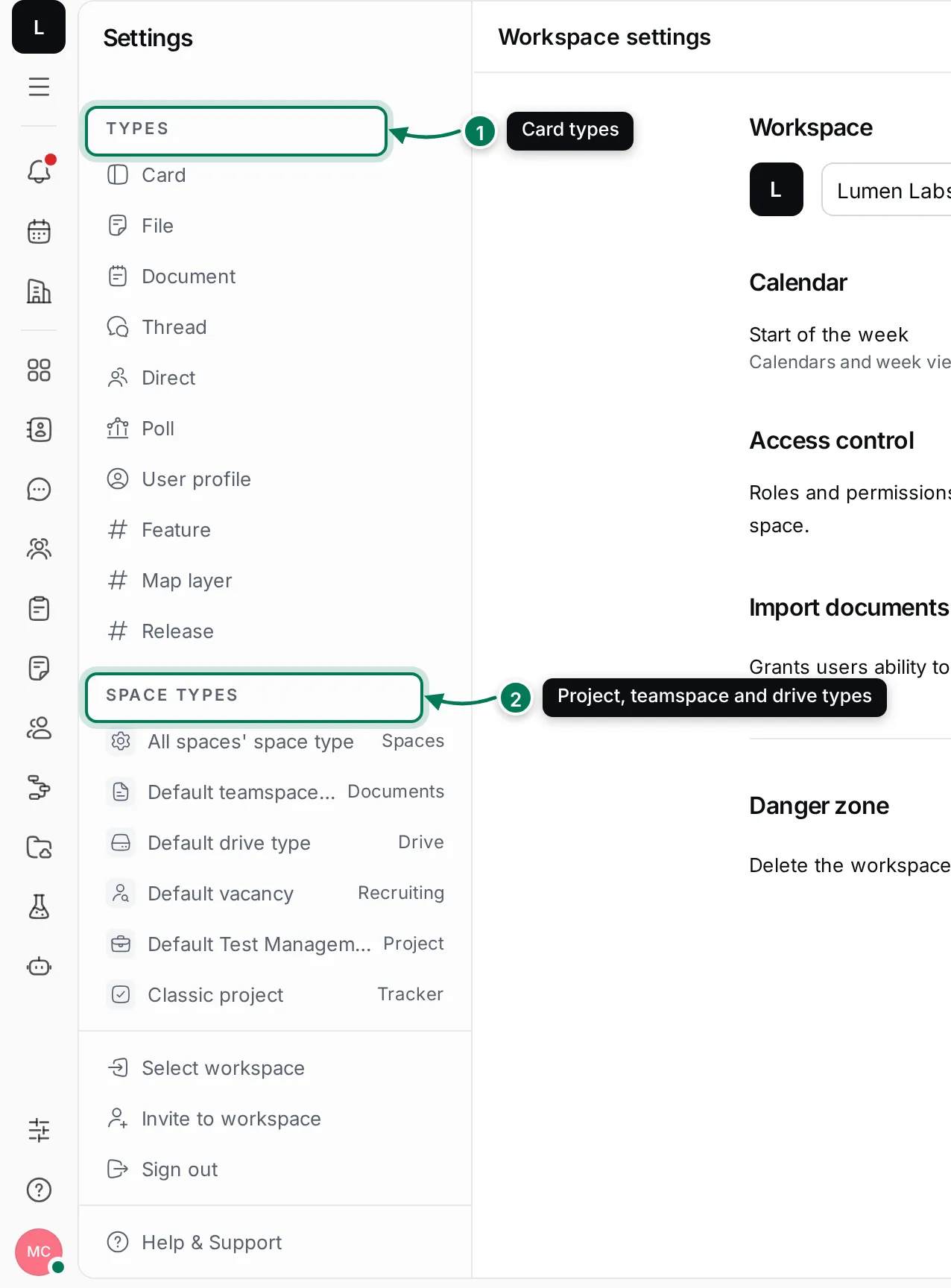
Further down, the navigator lists the workspace’s card Types and Space types.
Which pages each role sees
Section titled “Which pages each role sees”| Pages | Who sees them |
|---|---|
| Account settings, Security, Notifications, Appearance, Office, General, Members | Everyone |
| Integrations, Calendar, Text Templates, Related issues, Enums, API Tokens, Custom Emojis, Space types | User and up |
| Spaces, Classes, Tag Relations, Relations, Invite settings, Office settings, Types | Maintainer and up |
| Billing, Backup, Guests, Configure | Owner |
AI Workers in the workspace group opens the AI Workers app, where workers, models and usage are managed.
In this section
Section titled “In this section”Your accountName, avatar, location, social links, sign-in and security, call devices.
Notification channels and soundsChannels, the switches for each kind of change, and sound and badges.
Members and rolesWhat each role can do, changing roles and inviting people.
Guests and public accessWhat guests can use, the spaces they join and read-only visitors.
Workspace settingsName, modules, space admins, office defaults, backups and API tokens.
Classes, fields and space typesAdd fields, lists of options and relations, and set up statuses and roles.
Templates, emojis and related issuesReusable replies, your own emojis and where related issues go.
Connecting other tools is covered in Integrations. Theme, accent colour, density and language are in Settings › Appearance; see Getting started.