Find your way around
Every app in Maxint Work uses the same frame: the rail of apps on the left, the app’s navigator next to it, the page in the middle, a top bar with tabs and search, and a narrow sidebar on the right for your calendar and the office.
The left rail
Section titled “The left rail”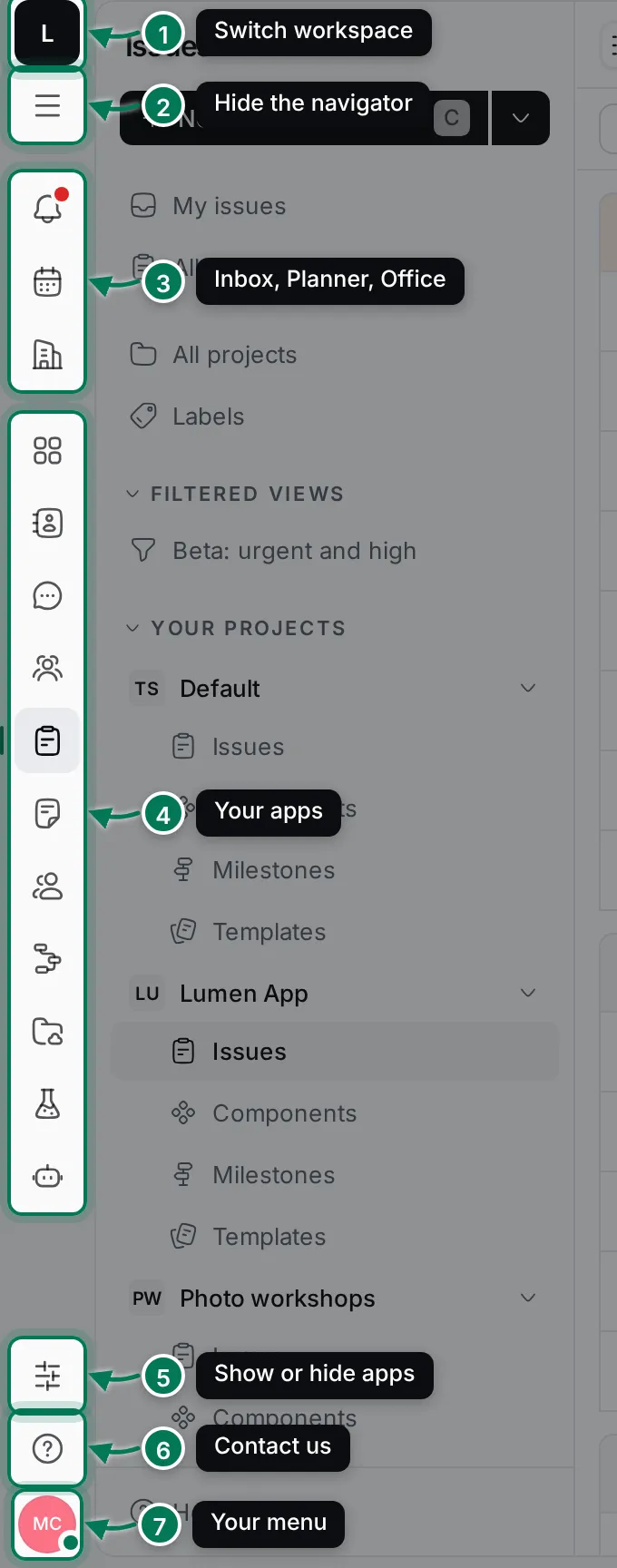
- Workspace tile. Shows the workspace’s name as a tooltip. Click it to switch workspaces.
- Hide menu. Hides the navigator to give the page more room, and shows it again. Press Ctrl+B (⌘+B on a Mac).
- Inbox, Planner and Office. Your own places: notifications, your plan for the day, and the office floor. A red dot on Inbox means you have unread notifications.
- Your apps. Cards, Contacts, Chat, Human resources, Tracker, Documents, Team, Processes, Drive, Test management and AI Workers. The open app has a filled tile.
- Customize. Choose which apps show on your rail.
- Contact us. Opens Maxint support in a new tab.
- You. Your avatar opens your menu. The dot on its corner shows your connection: green when you’re online, amber while reconnecting, red when offline.
When the rail has more apps than fit on your screen, scroll it, or use the arrow at the end that has more apps.
Customize the rail
Section titled “Customize the rail”Click Customize (or right-click any app icon) to open Apps on the rail. Click an app to hide or show it. Your choice follows you to every device. Hidden apps are still a search away in the command palette.
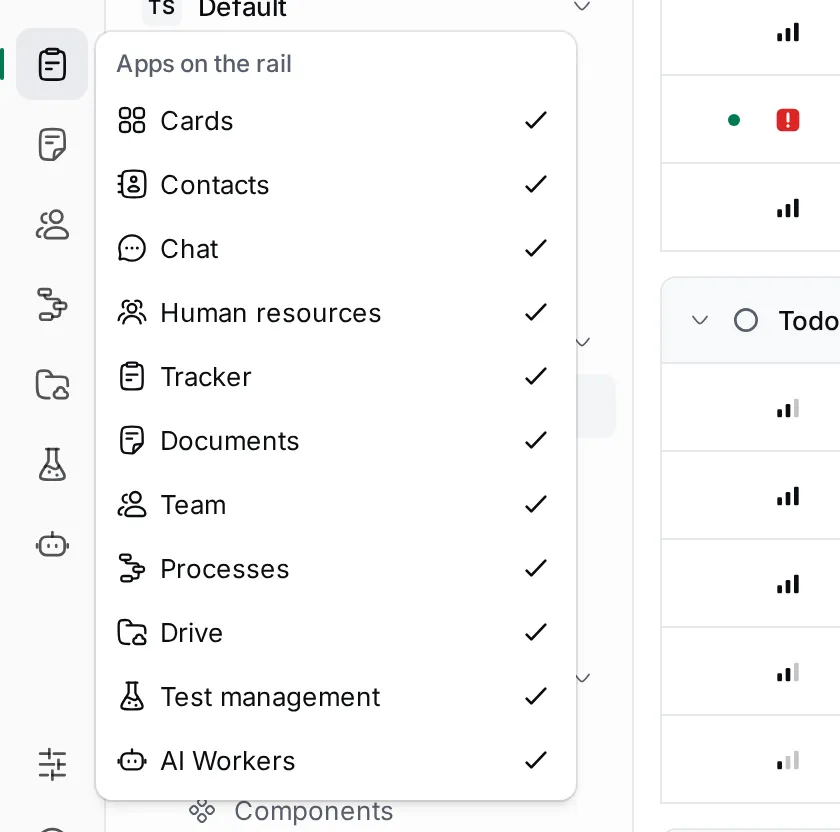
Inbox, Planner and Office always stay on the rail.
The navigator
Section titled “The navigator”The navigator shows what’s inside the open app: in the Tracker, your views and projects; in Documents, your teamspaces; in Chat, your channels and direct messages. Its main button, such as New issue or Create document, creates the app’s main thing.
Drag the navigator’s right edge to make it wider or narrower. Help & Support at its bottom opens the Help Center.
The top bar
Section titled “The top bar”
- Tabs. Each tab shows the app’s icon and the page’s title, and follows you as you move around. Your tabs follow you to every device you sign in on.
- New tab. Opens another tab. Close a tab with its × when you have more than one.
- Search. Opens the command palette.
- Call devices. Choose the microphone, speaker and camera for calls. Your browser may ask for permission to show their names.
- Your local time. Click it for a clock and today’s full date.
- Appearance. Theme, accent colour, size and language.
Right-click a tab to Pin it. A pinned tab moves to the start and shows only its icon. Unpin and Close tab are in the same menu.
Search and the command palette
Section titled “Search and the command palette”The command palette finds anything in the workspace and runs commands. Open it with Search in the top bar or press Ctrl+K (⌘+K on a Mac).
- Type a few letters of what you are looking for (1). Words match from their start, so “offl” finds “offline”.
- Results are grouped by type (2): People, Organizations, Documents, Folders, Files, Meeting minutes, Cards and Issues. Searching looks inside text, not only titles.
- Move with the arrow keys and press Enter, or click a result, to open it.
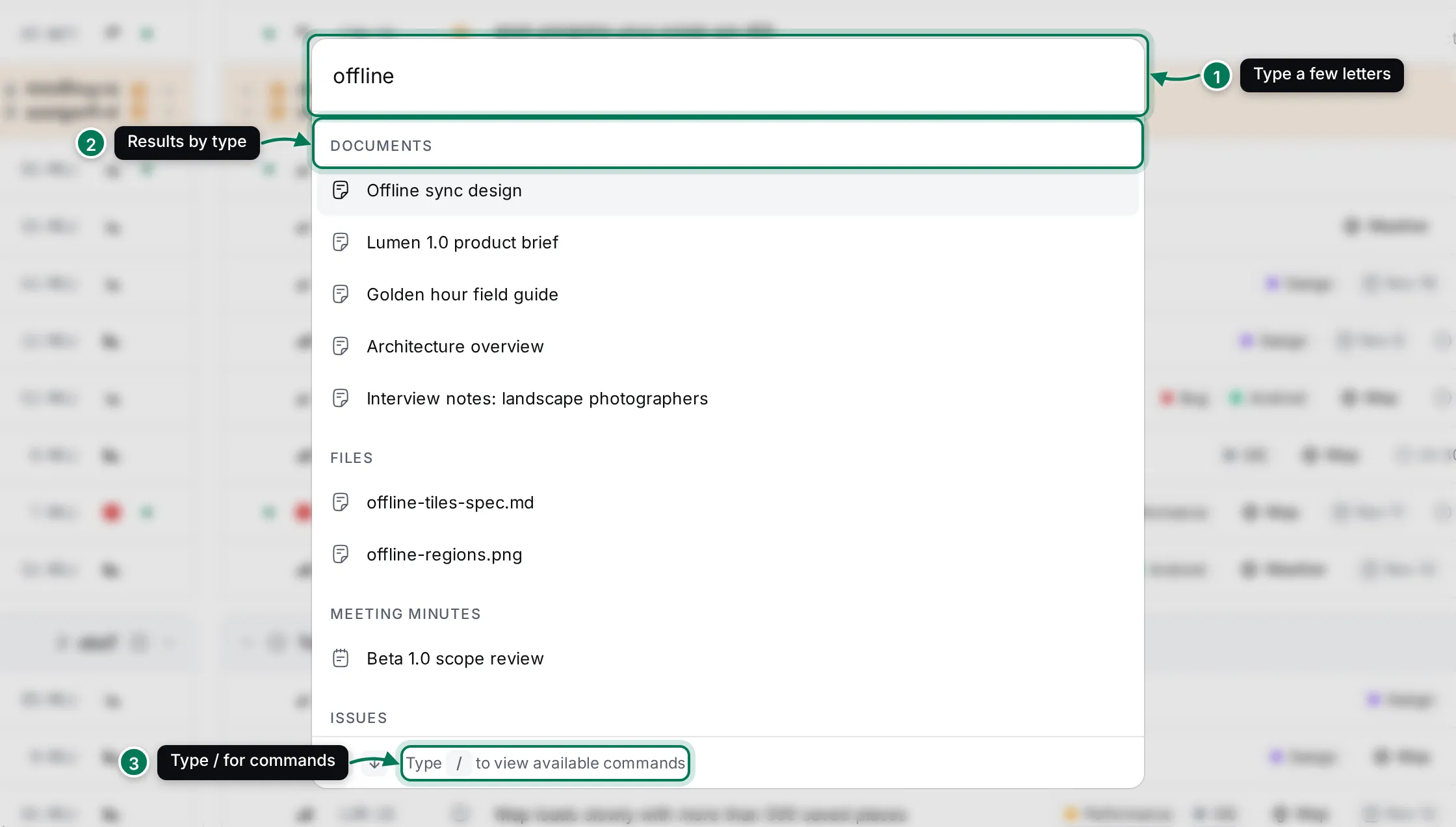
Run a command
Section titled “Run a command”Type / in the palette (3) to list only commands, then keep typing to filter them. Commands include New tab, Close tab, Switch theme, Set your status, Invite to workspace, Help & Support, Keyboard shortcuts, Toggle calendar, Toggle office, Mark all as read and going to any app. Commands are grouped under small headings, and many show their keyboard shortcut on the right.
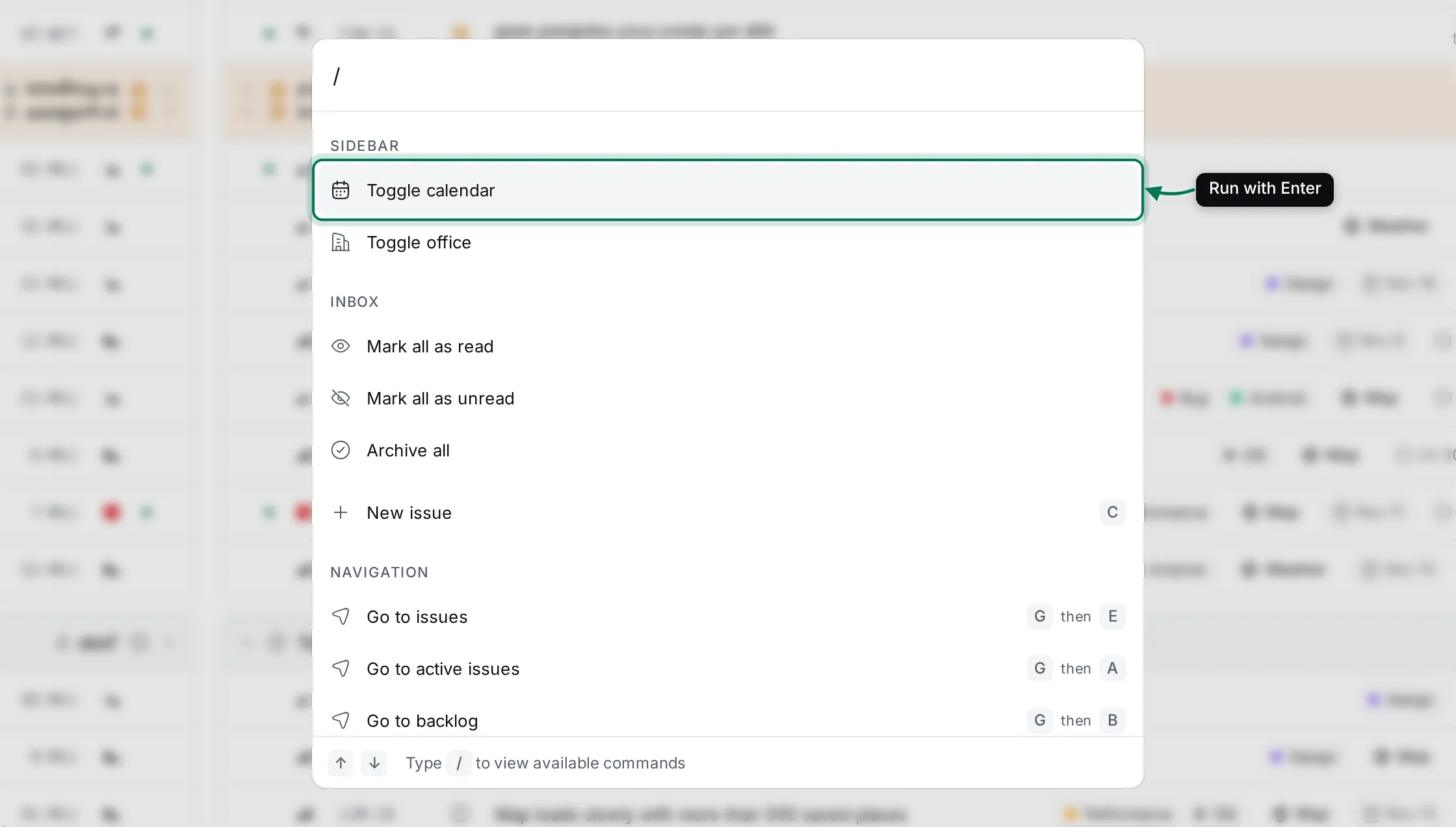
When a row in a list has focus, such as an issue, the palette shows it as a chip above the search box and lists its actions first.
Calendar and Office panels
Section titled “Calendar and Office panels”The narrow sidebar on the far right opens two panels next to whatever you are doing. Click an icon again, or ×, to close the panel. Drag the panel’s left edge to resize it.
-
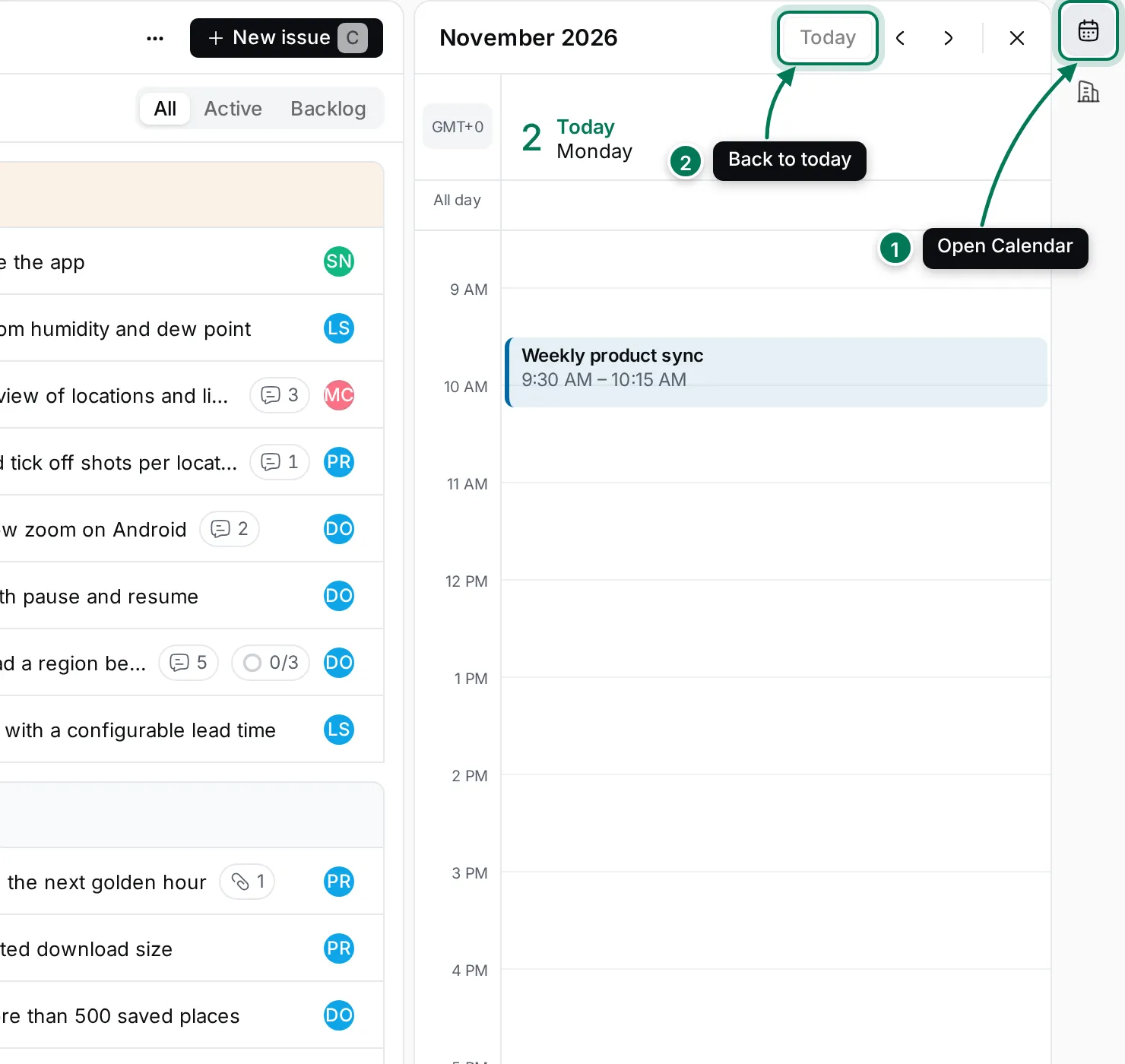
Calendar shows today in your Planner: your events and the time you blocked for to-dos, with a line at the current time. Use ‹ › to move a day and Today to come back.
-
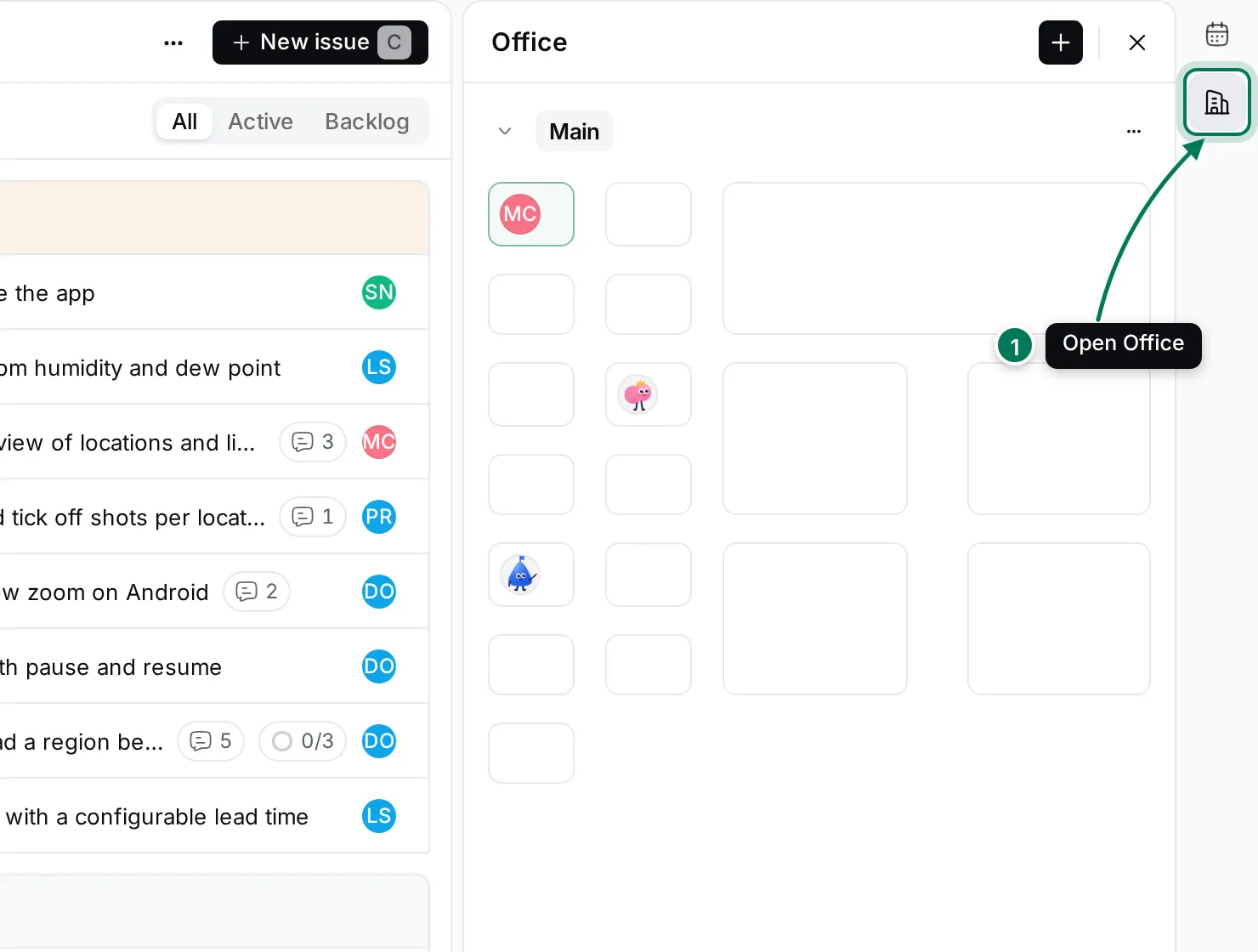
Office shows the office floor: every room with the people in it. Click a room to join it, or knock to ask to come in.
Click Help & Support at the bottom of the navigator (it is also in your menu) to open the Help Center.
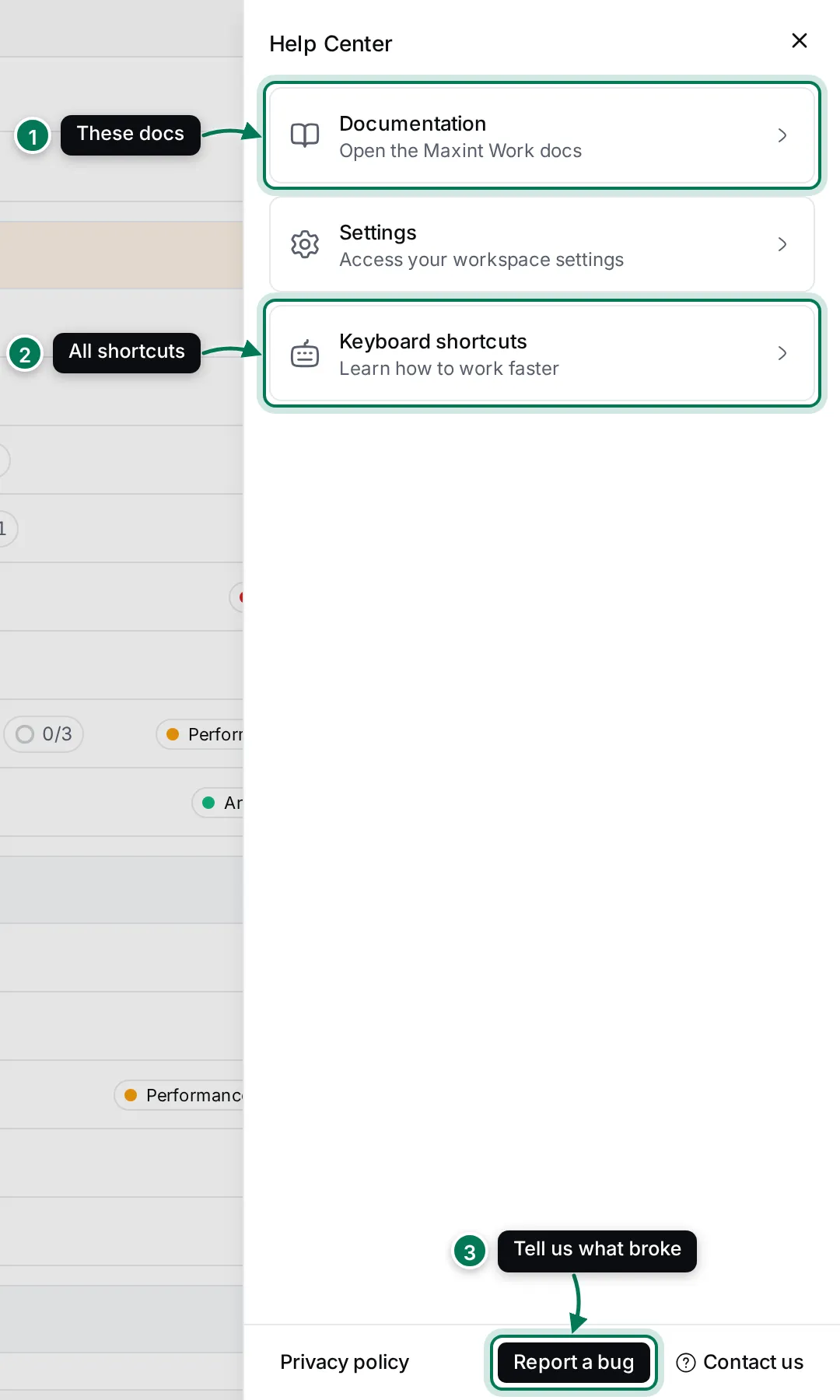
- Documentation opens these docs.
- Keyboard shortcuts lists every shortcut, with a filter box. See Keyboard shortcuts.
- Report a bug and Contact us reach the Maxint team. Settings opens your workspace settings.
Press ? anywhere (outside a text box) to see the keyboard shortcuts straight away.