Bulk changes and shortcuts
Every issue has a menu with all the things you can do to it. Select several issues and the same menu changes them all at once. Most actions also have keyboard shortcuts.
The issue menu
Section titled “The issue menu”Right-click an issue in a list or on the board to open its menu. On the issue page, it’s the … button at the top right.
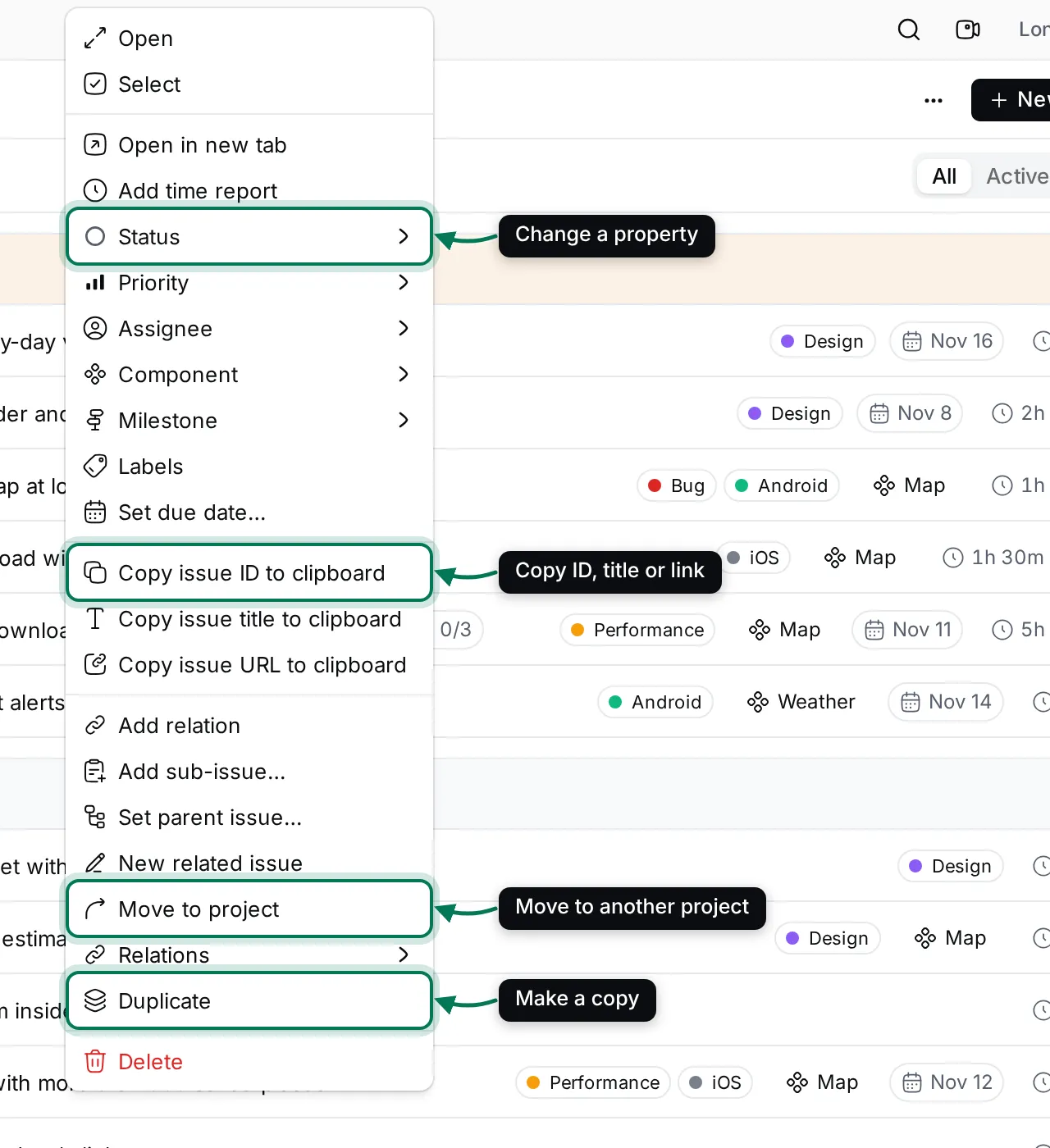
- Open, Open in new tab and Select.
- Add time report. See estimate and report time.
- Status, Priority, Assignee, Component, Milestone, Labels and Set due date… change a property.
- Copy issue ID to clipboard, Copy issue title to clipboard and Copy issue URL to clipboard.
- Add relation, Add sub-issue…, Set parent issue…, New related issue and Relations. See sub-issues and relations.
- Move to project moves the issue and its sub-issues to another project. They get new IDs there.
- Duplicate makes a copy in the same project with the same title, description and properties. A message offers to open it.
- Delete asks first, then deletes the issue with its sub-issues, comments and attachments.
Move issues to another project
Section titled “Move issues to another project”When you choose Move to project, pick the project in the Move issues dialog. Components and milestones carry over to ones with the same name. Turn on Keep original attributes to keep each status when the other project has it, or open Manage attributes to choose what each status, component and milestone becomes. Then click Move.
Change many issues at once
Section titled “Change many issues at once”-
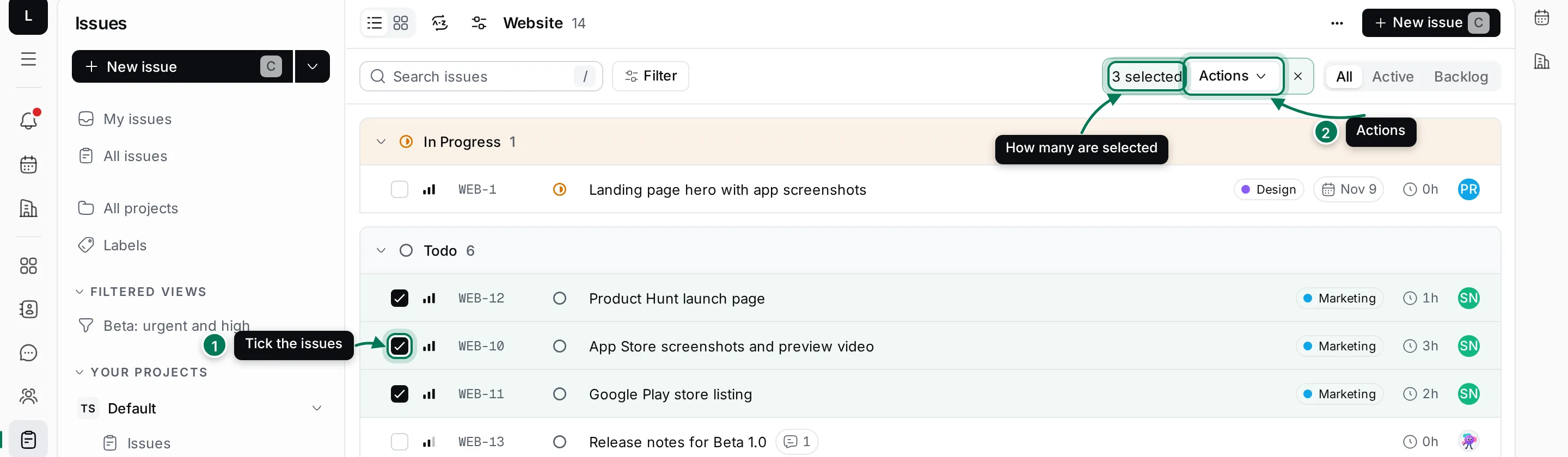
Hover over an issue and tick the box at the left of its row (1). Tick more issues, or hold Shift and tick another box to select every issue in between. The box on a group header selects the whole group.
-
Click Actions in the bar that shows how many are selected (2). You can also right-click one of the selected issues.
-
Pick what to change (3), then the new value. Every selected issue changes.
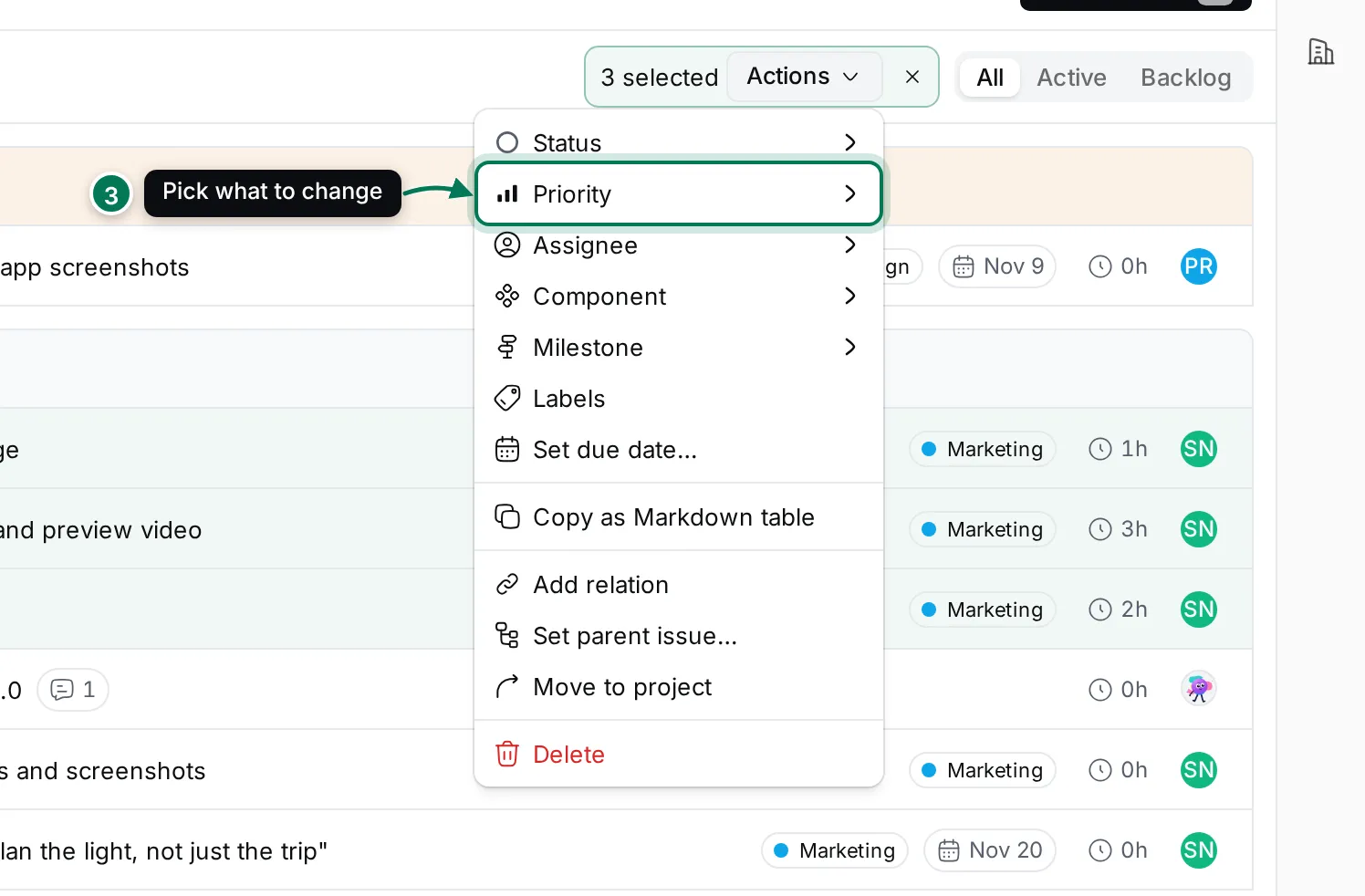
The menu for a selection also has Copy as Markdown table, Add relation, Set parent issue…, Move to project and Delete. Component and Milestone appear only when all the selected issues are in the same project.
Click × in the selection bar or press Esc to clear the selection.
Keyboard shortcuts
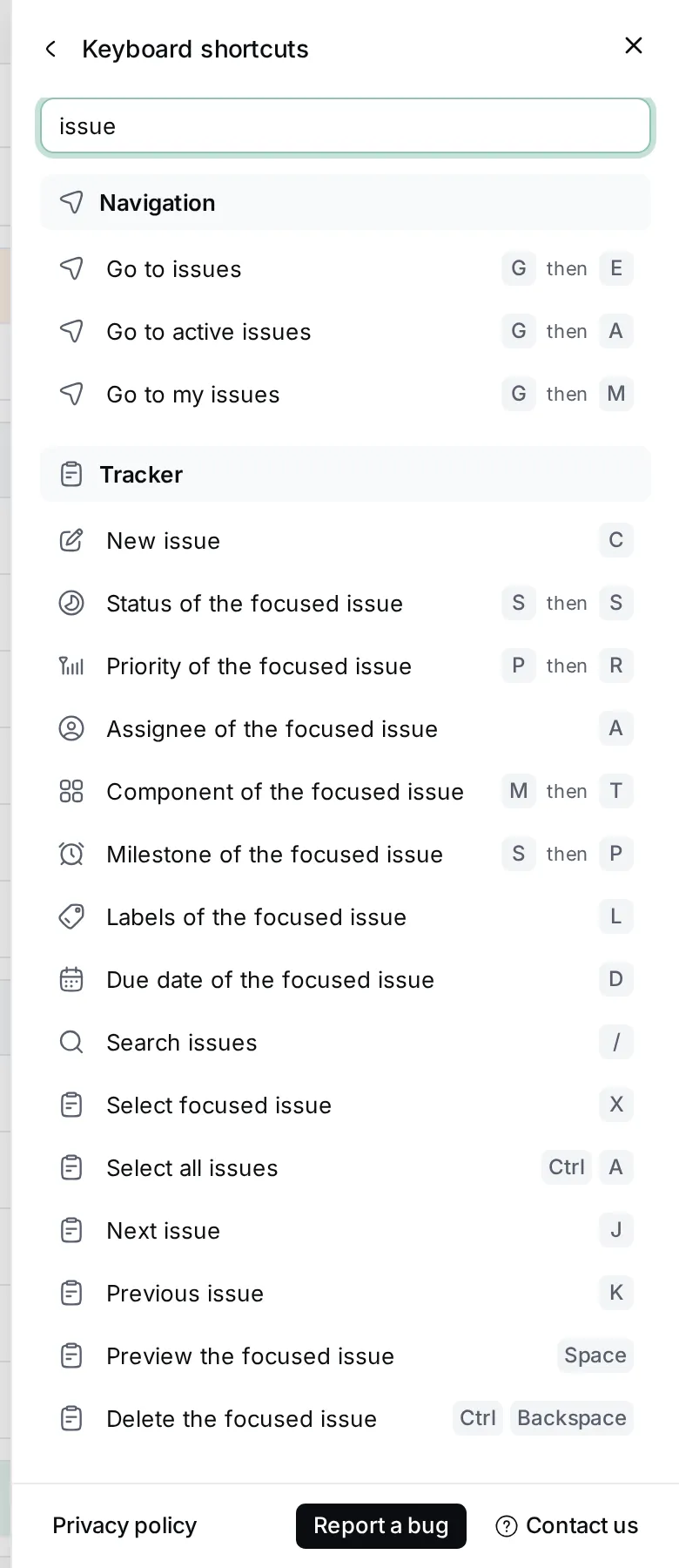
Section titled “Keyboard shortcuts”Open Help & Support › Keyboard shortcuts to see every shortcut. Type in the field at the top to find one. Keyboard shortcuts lists the ones that work across the app.
Anywhere in the Tracker
Section titled “Anywhere in the Tracker”| Keys | Action |
|---|---|
| C | New issue |
| / | Search issues |
| G then E | Go to issues |
| G then A | Go to active issues |
| G then B | Go to backlog |
| G then C | Go to components |
| G then M | Go to my issues |
| Ctrl + K | Open the command palette |
In a list
Section titled “In a list”Move to an issue with ↓ and ↑ (or J and K), then:
| Keys | Action |
|---|---|
| Enter | Open the issue |
| Space | Preview it without leaving the list |
| X | Select it |
| Ctrl + A | Select all issues |
| Esc | Clear the selection |
| S then S | Status |
| P then R | Priority |
| A | Assignee |
| M then T | Component |
| S then P | Milestone |
| L | Labels |
| D | Due date |
| T | Add time report |
| Ctrl + Backspace | Delete |
When the focused issue is part of a selection, these shortcuts act on the whole selection.