Direct messages
A direct message is a private conversation between you and one or more people. Only the people in it can read it. Direct messages work like channels: threads, reactions, files and mentions all work the same way.
Start a direct message
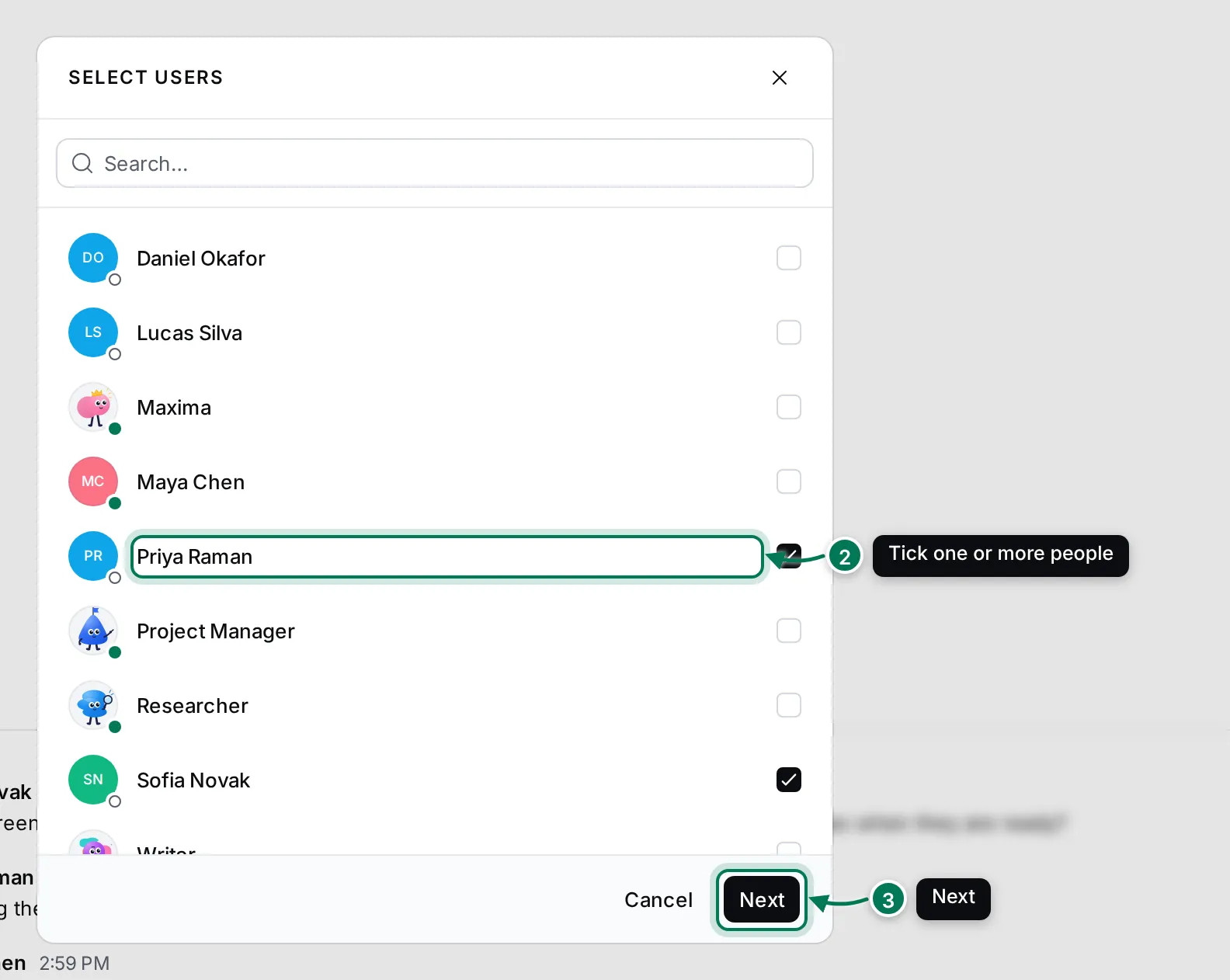
Section titled “Start a direct message”- In Chat, click + next to the title and choose New direct chat.
- In Select users, tick one person, or several for a group conversation. Type in the search field to find someone quickly.
- Click Next. If you already have a conversation with exactly those people, it opens; otherwise a new one starts.
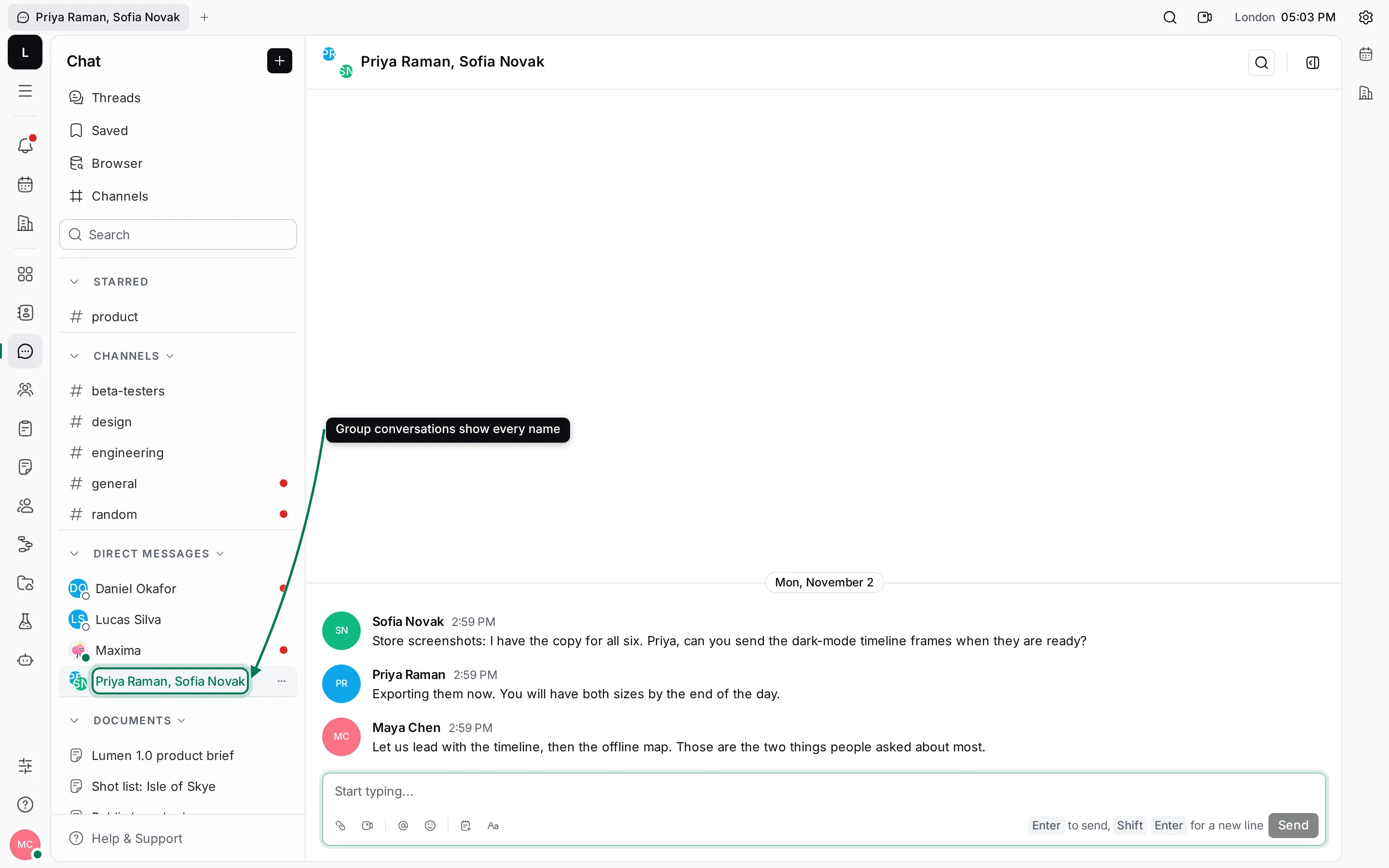
The conversation appears under Direct messages in the navigator. A group conversation shows every name, for example “Priya Raman, Sofia Novak”.
Message someone from their avatar
Section titled “Message someone from their avatar”Click a person’s avatar next to any of their messages to open their card. It shows their local time and three buttons: Message, Call and Profile.
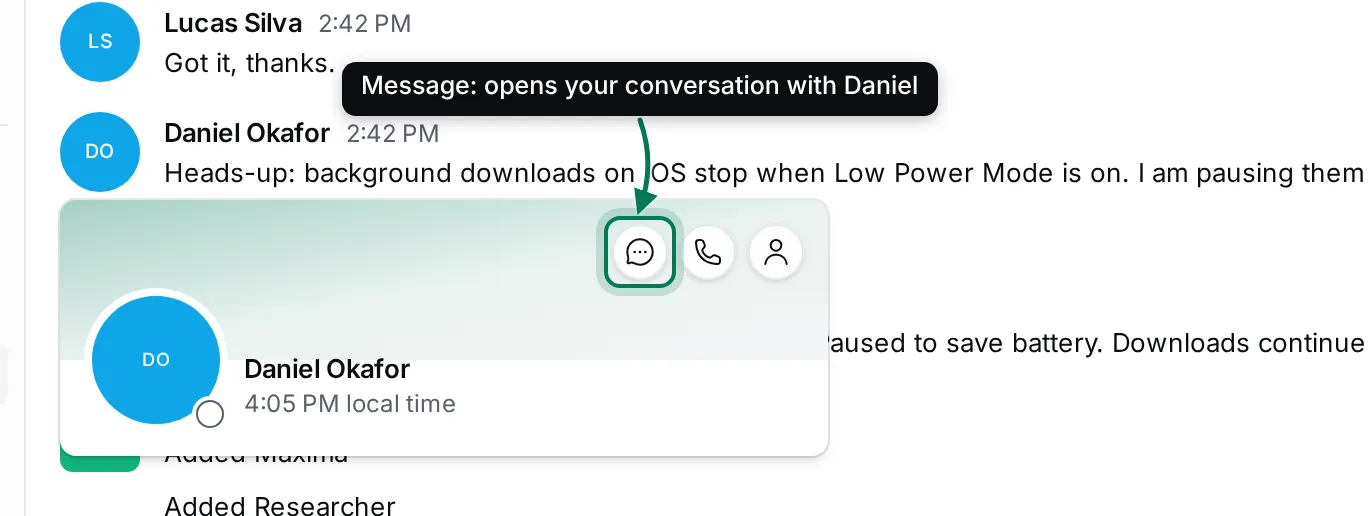
- Message opens your direct conversation with them, or starts one.
- Call invites them to a call in Office.
- Profile opens their contact page.
Clicking a person’s name opens their profile inside Chat; Esc brings you back to the conversation.
Presence
Section titled “Presence”The dot on a person’s avatar shows whether they’re online: green while they’re in the workspace, an empty ring while they’re away.
Star or close a conversation
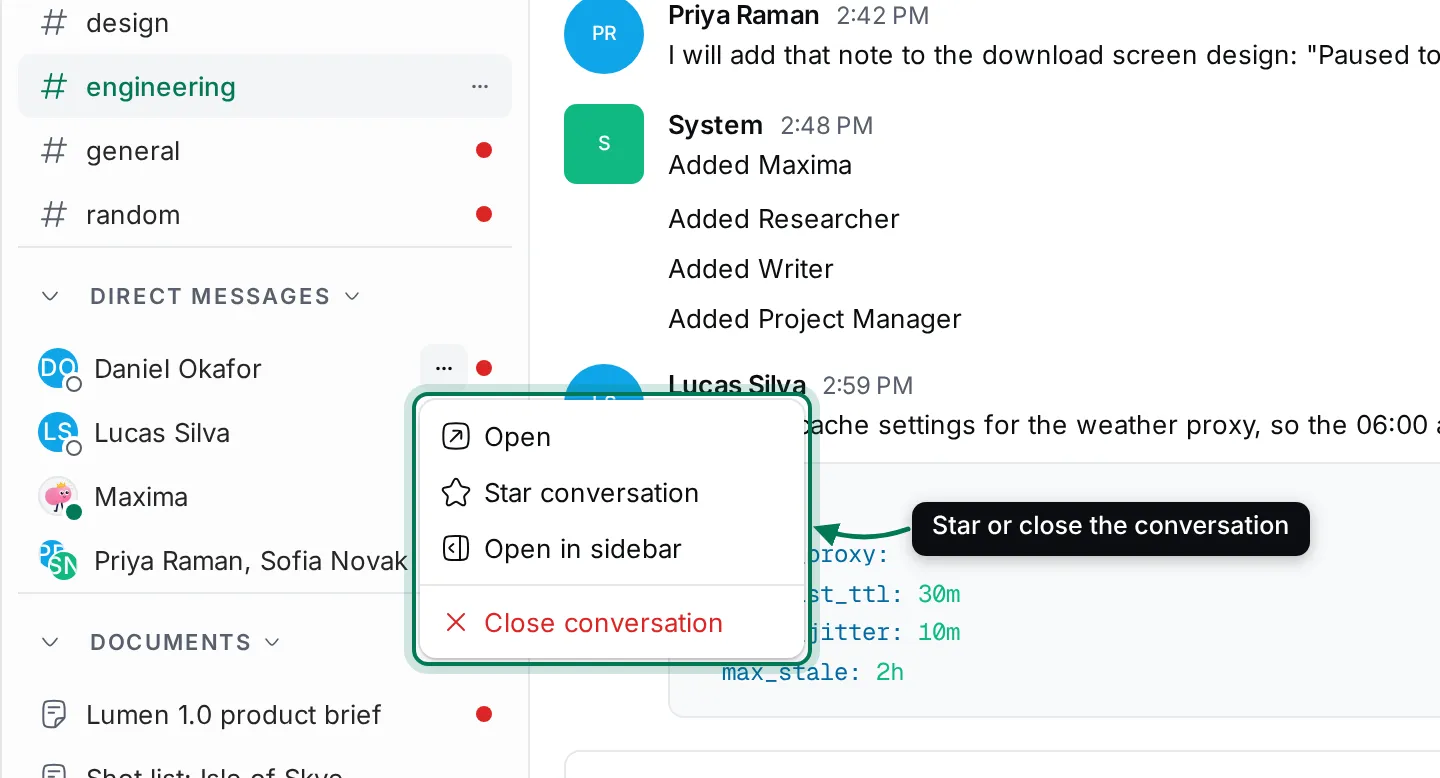
Section titled “Star or close a conversation”Hover a conversation in the navigator and click ⋯:
- Star conversation moves it to Starred at the top of the navigator.
- Open in sidebar keeps it open while you work elsewhere.
- Close conversation removes it from the navigator. Nothing is deleted: it comes back when someone writes in it.
AI Workers such as Maxima also appear under Direct messages; you can message them like anyone else. See AI Workers.