Add people and companies
Add the people and companies you work with, so everyone on the team can find their details. People in the workspace don’t need adding: they appear under Employee when they join.
Add a person
Section titled “Add a person”- Open Contacts and click Person in the navigator.
- Click + Person (or press C).
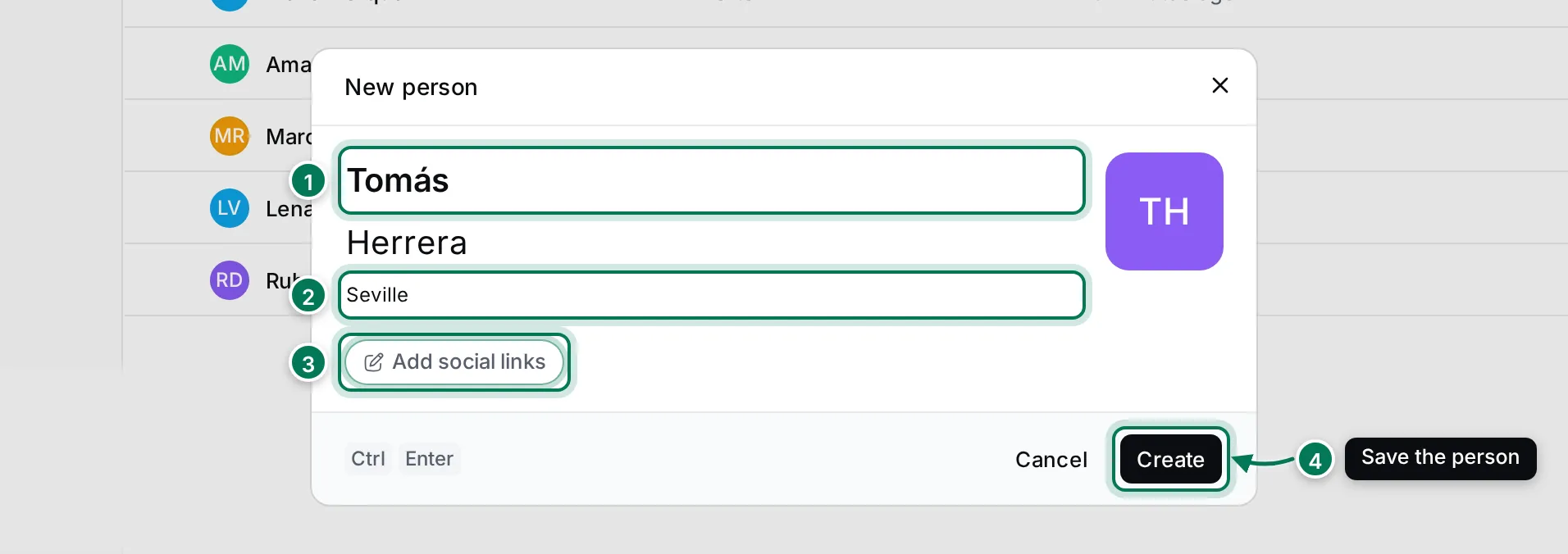
- Type the First name (1). Add a Last name and a Location (2) if you know them.
- Click Add social links (3) to add an e-mail address, phone number or profile link (see below).
- Click Create (4), or press Ctrl Enter.
The person appears in the list, and a message at the bottom of the screen has an Open button to go straight to them.
The round tile on the right of the dialog shows the person’s initials. Click it to choose a colour or upload a photo.
Add contact info
Section titled “Add contact info”Add social links opens a list of channels: Phone, LinkedIn, X, GitHub, Facebook, Home page, Whatsapp, Skype, Profile, Viber, Telegram and Email.
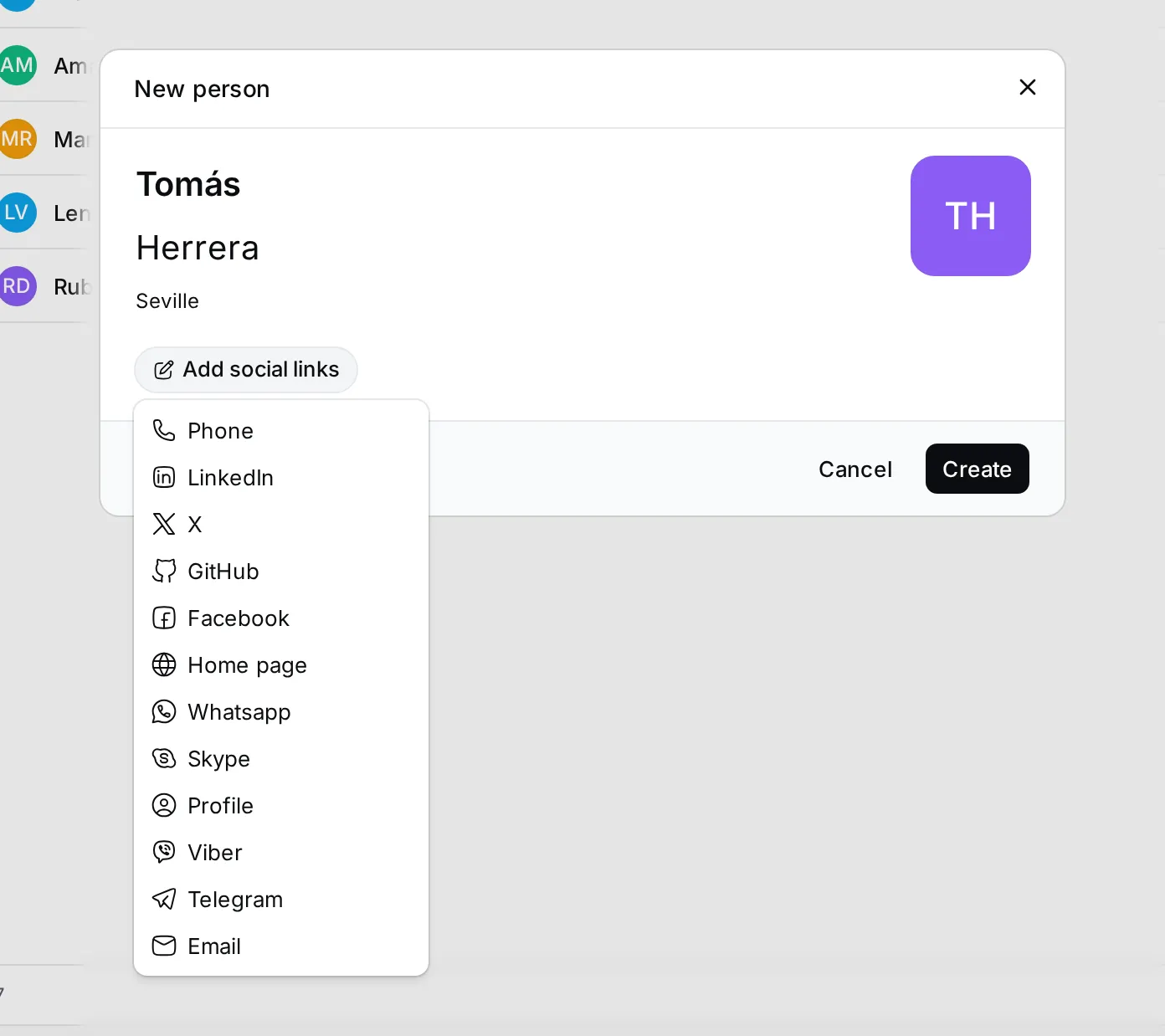
- Pick a channel.
- Type the address, number or user name, and press Enter.
- The channel shows as a round icon. Add as many as you need.
Add a company
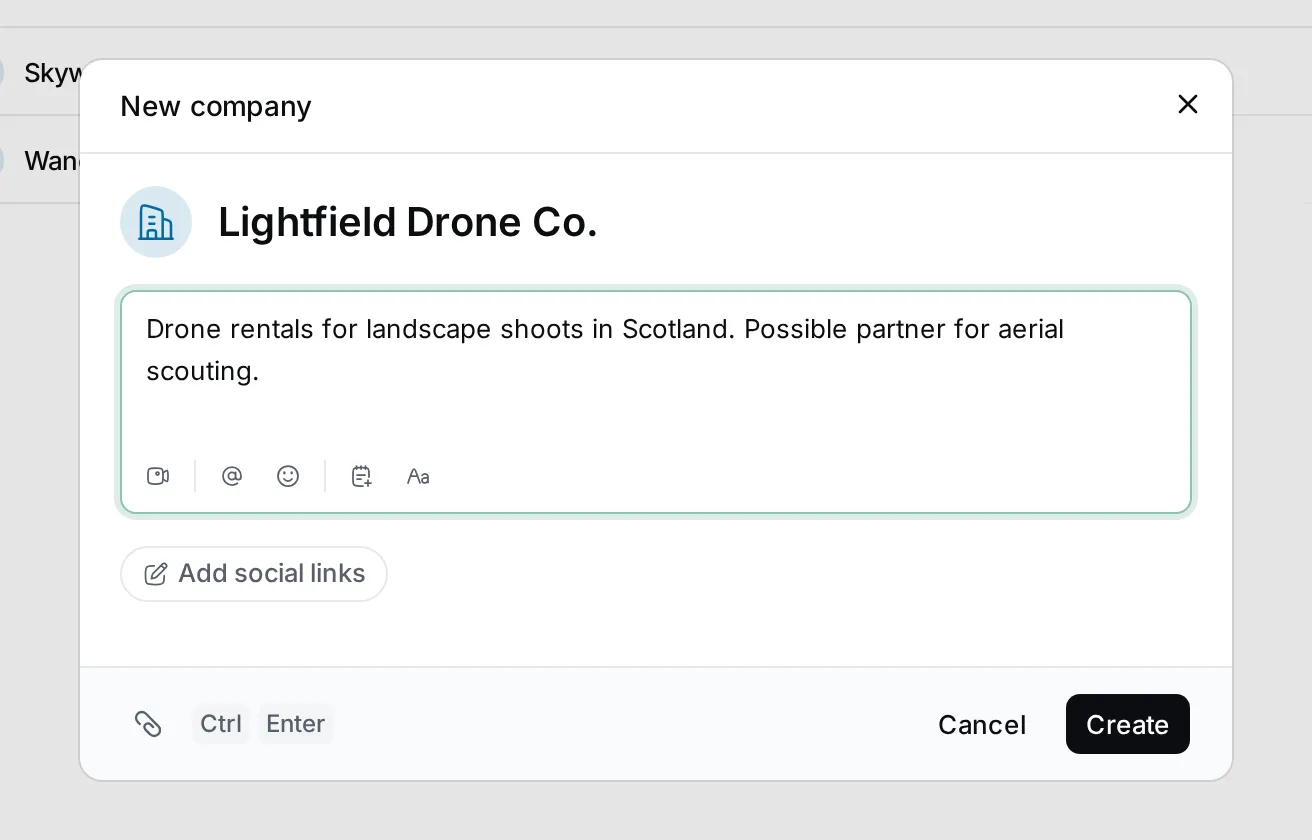
Section titled “Add a company”- Click Company in the navigator, then + Company.
- Type the Company name.
- Write a Description: what they do and how you work with them. You can mention people with @ and attach files with the paperclip.
- Add the company’s website or e-mail with Add social links, and click Create.
Add people to a company
Section titled “Add people to a company”A company page lists its people under Members.
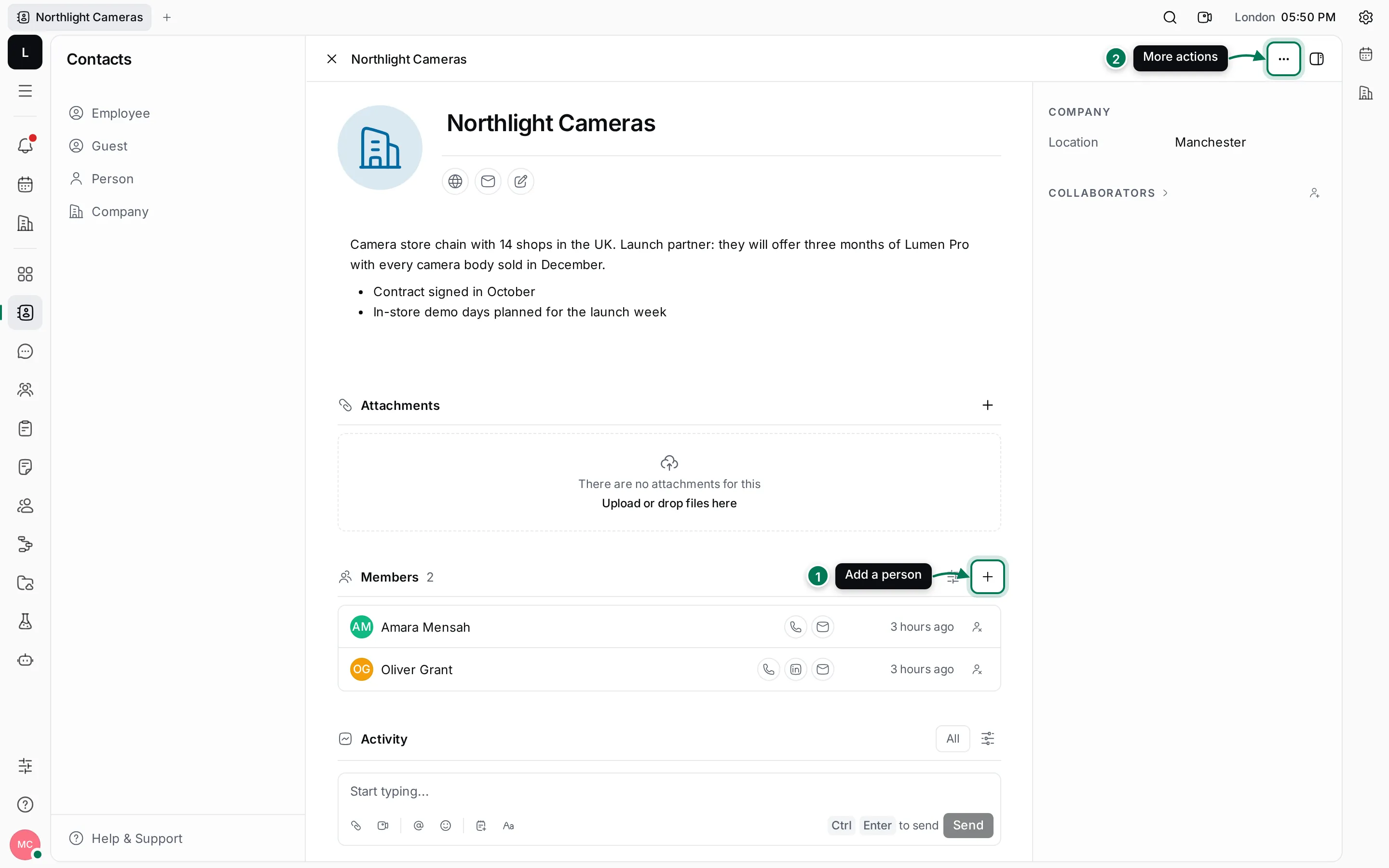
- Open the company and find Members.
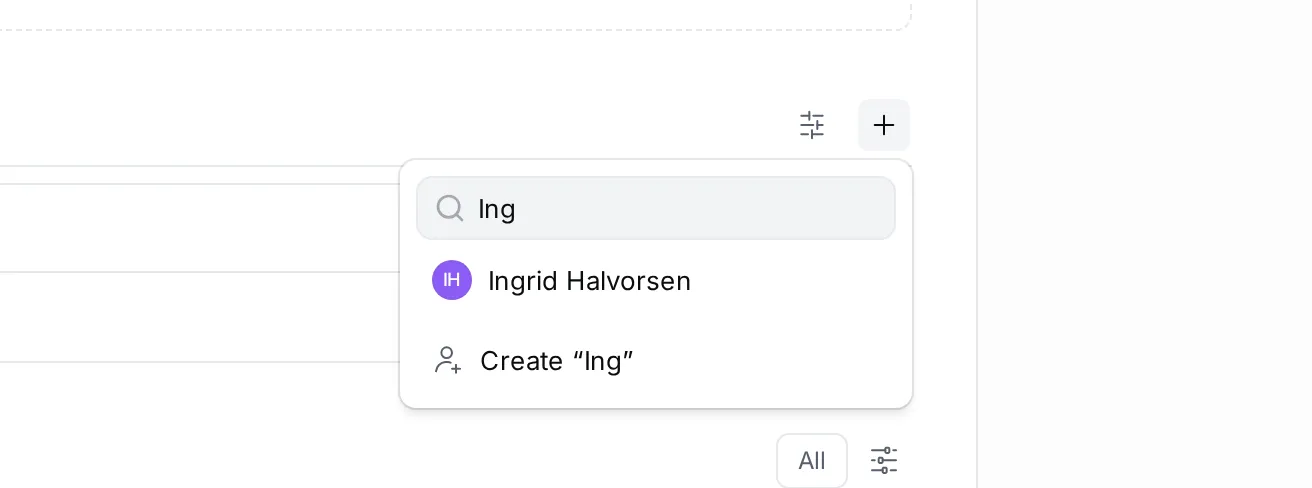
- Click + (1).
- Type a name and pick the person. If they aren’t in Contacts yet, choose Create followed by the name to add them now.
Each member row shows their contact info and when they were added. Click a name to open the person, or the button at the end of the row to remove them from the company. The person stays in Contacts.
The ⋯ menu of the company (2) has Open in new tab, Add relation, New related issue, Copy link and Delete.