On your phone
Maxint Work runs in your phone’s browser with a layout made for small screens. Open your workspace’s address, sign in the same way as on a computer, and everything is there. You can also install it, so it opens from your home screen like any other app.
The phone layout
Section titled “The phone layout”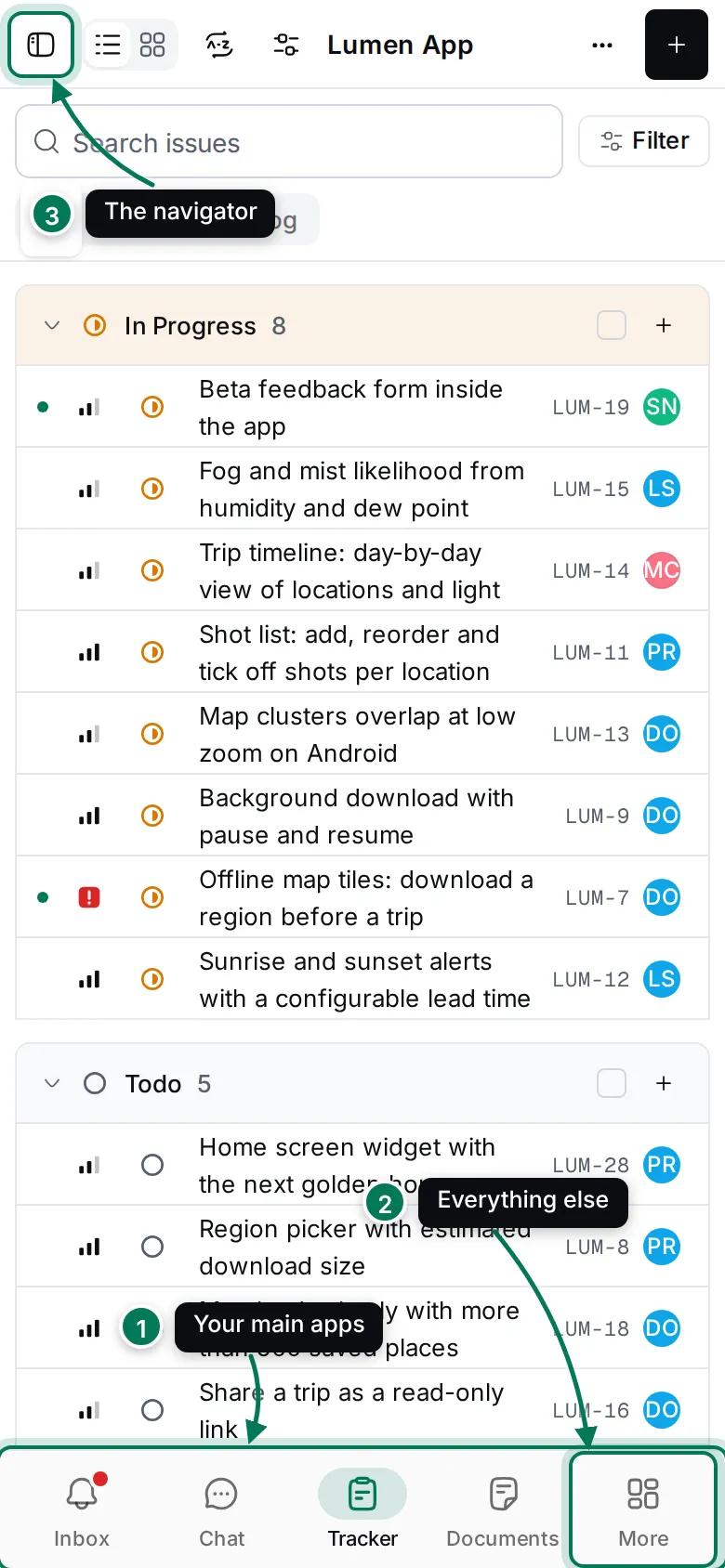
- The bottom bar holds Inbox, Chat, Tracker and Documents. A red dot on Inbox means unread notifications.
- More opens All apps: every app, the workspace tile and your menu.
- The navigator button at the top left opens the app’s navigator, with its projects, teamspaces or channels.
Lists such as Chat and Drive open on their list. Open a conversation or a folder, and Back at the top returns you to the list. Panels that sit beside the page on a computer, such as the Calendar, open as a sheet from the bottom.
All apps and your menu
Section titled “All apps and your menu”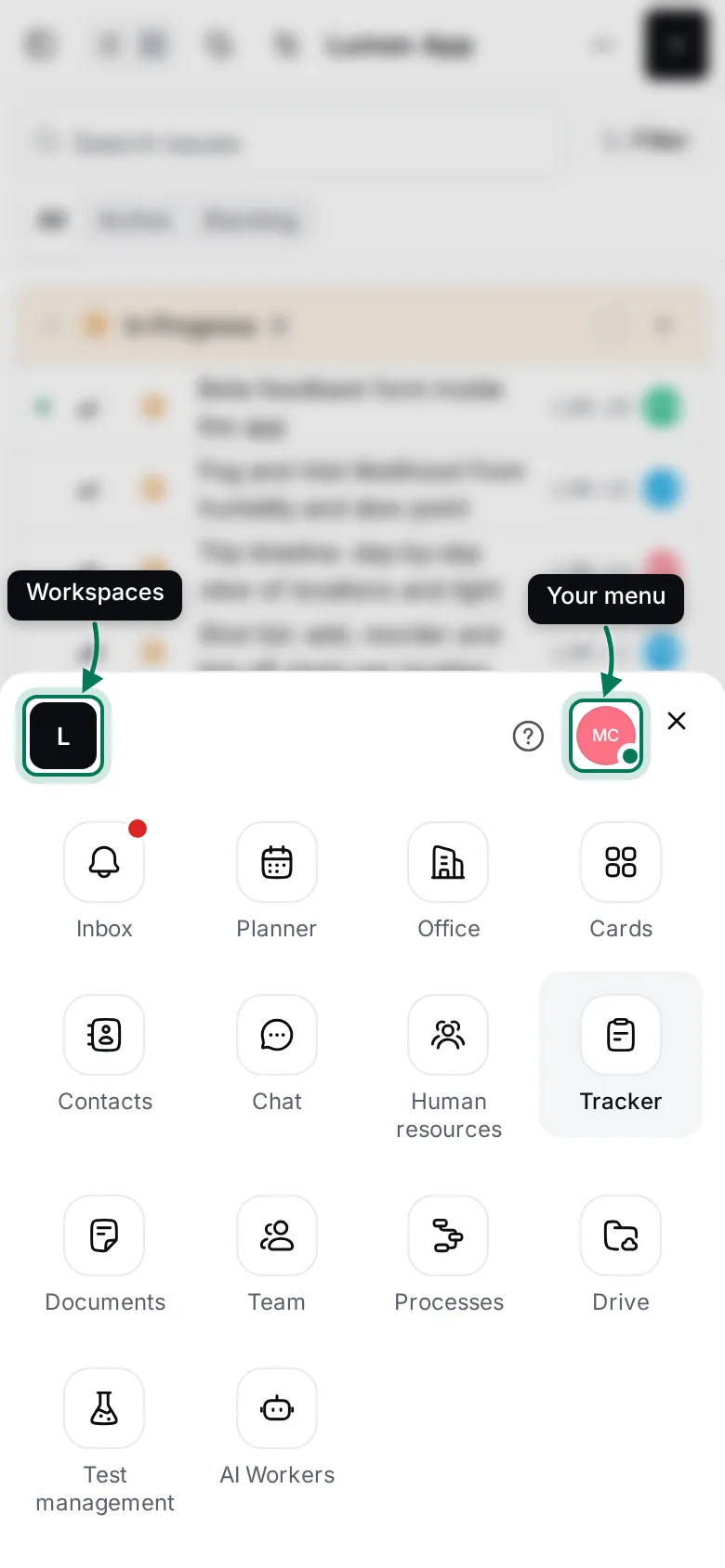
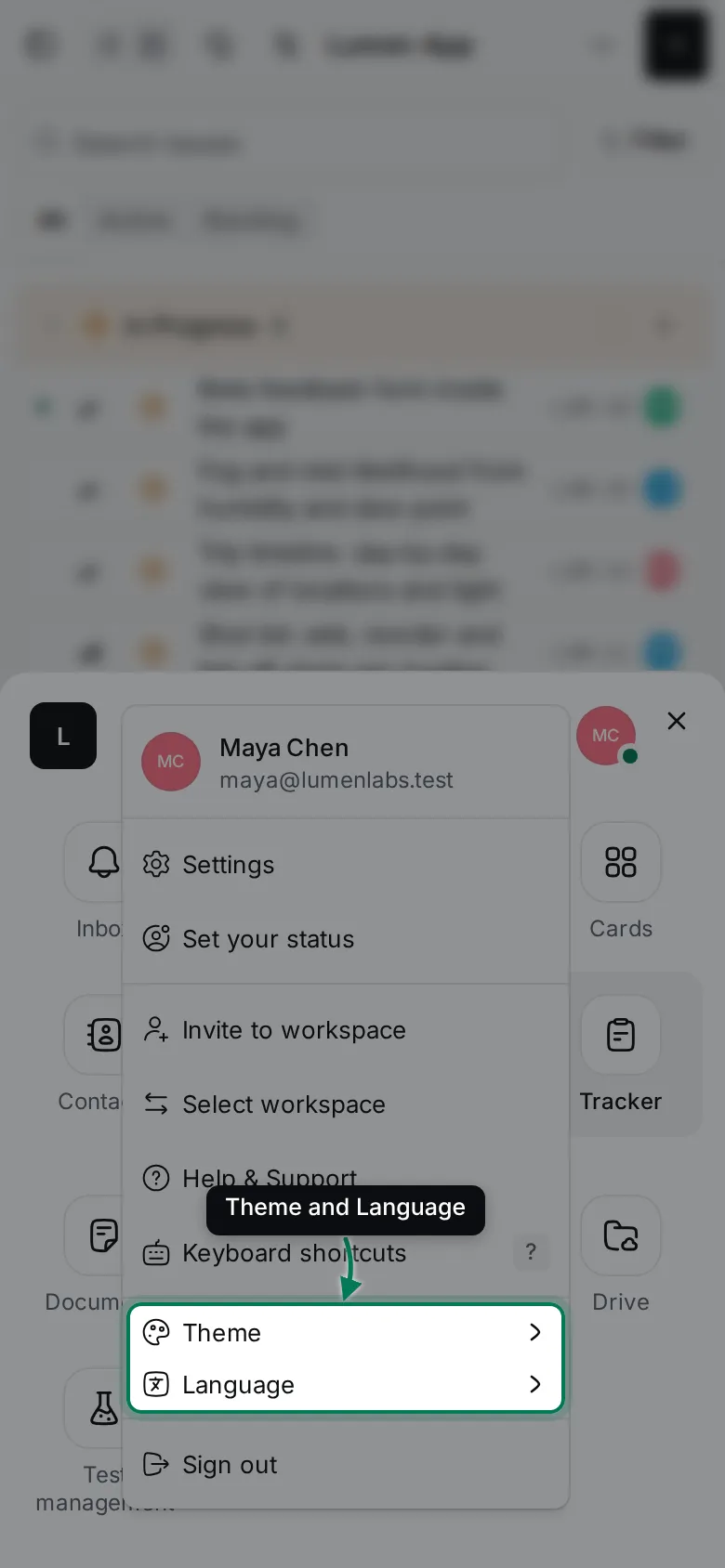
Tap the workspace tile in All apps to switch workspaces, and your avatar to open your menu. On a phone your menu also has Theme and Language, because there is no top bar.
Install Maxint Work as an app
Section titled “Install Maxint Work as an app”An installed Maxint Work opens in its own window, without the browser’s address bar, and has an icon on your home screen, dock or taskbar.
On a computer (Chrome or Edge)
Section titled “On a computer (Chrome or Edge)”-
Click your avatar at the bottom of the rail.
-
Choose Install app and confirm in the browser’s prompt.
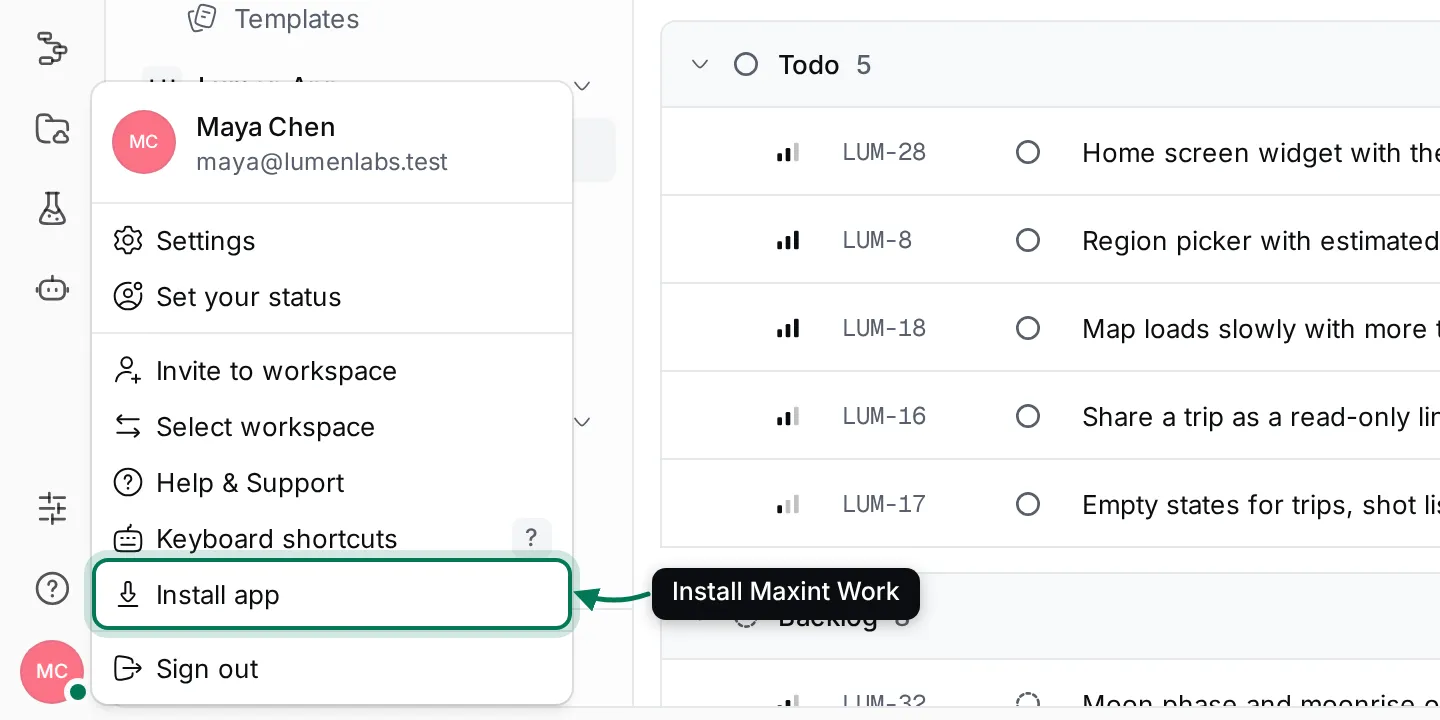
Install app shows only while your browser offers to install Maxint Work, and disappears once it is installed. You can also use the install button in the browser’s address bar.
On iPhone and iPad
Section titled “On iPhone and iPad”- Open Maxint Work in Safari.
- Tap Share, then Add to Home Screen.
- Tap Add. Open Maxint Work from its new icon.
On Android
Section titled “On Android”- Open Maxint Work in Chrome.
- Open your menu (More, then your avatar) and tap Install app, or tap Add to home screen in Chrome’s menu.
Notifications on your phone
Section titled “Notifications on your phone”To get notifications when Maxint Work is closed, turn on push notifications for each device in Settings › Notifications, under Push. On iPhone and iPad, add Maxint Work to your home screen first, then turn notifications on inside the installed app. See Notification channels and sounds.