Work together
Everyone in a teamspace can open and edit its documents at the same time. Changes appear for everyone as they are typed, and each document keeps a record of comments and changes underneath the text.
Edit at the same time
Section titled “Edit at the same time”Open the same document as a teammate and start typing. You see their cursor with their name on it, and their text appears as they type it. You don’t need to save or refresh.
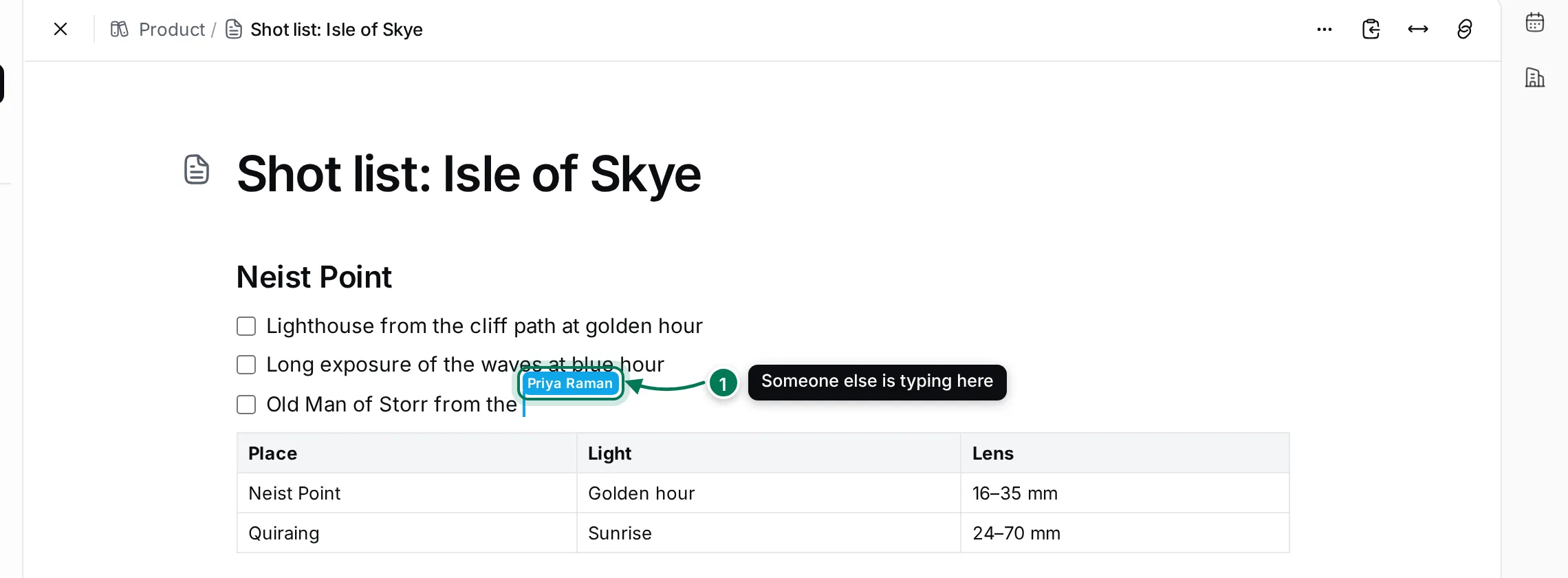
Under the text, a status shows Saved once your changes are stored. If your connection drops, it says Offline: edits will sync when you reconnect, and you can keep writing.
Comments and activity
Section titled “Comments and activity”The Activity section at the bottom of every document holds comments and a history of what changed: who created the document, renamed it, moved it, locked it, and when its text changed.
- Scroll to Activity and click the comment box.
- Type your comment. To mention a teammate, type @ or click Mention someone.
- To add files, click Attach files, or paste or drop them into the box. They upload while you type.
- Press Ctrl + Enter (⌘ + Enter on a Mac) or click Send.
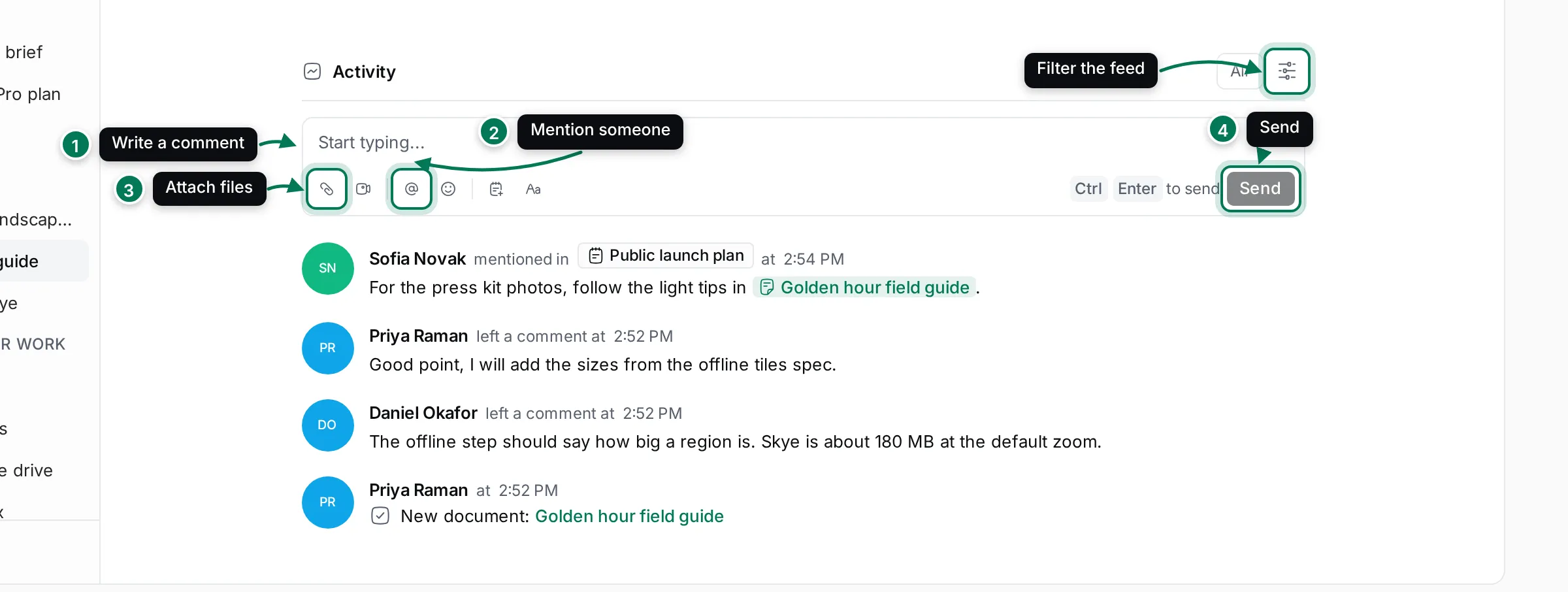
Next to Attach files, Record records a short video message. The box also has Insert emoji, Text Templates for replies you save and reuse, and Formatting for the same text styles as the document.
The filter button at the top right of Activity chooses what the feed shows (All, Attributes, Pinned, Mentions, Attachments or Comments) and whether the newest entries come first.
Reply, react and more
Section titled “Reply, react and more”Hover a comment to show its actions.

From left to right: Add reaction, Save for later, Pin to the top of the feed, Reply to thread, Translate (only when your workspace has its AI service set up), and More actions with Copy link, plus Edit and Delete for your own comments. A thread opens in a panel beside the document.
Lock a document
Section titled “Lock a document”Lock a document when it is final, such as an approved spec, so nobody changes it by accident.
- Click More actions (⋯) at the top right of the document.
- Choose Lock.
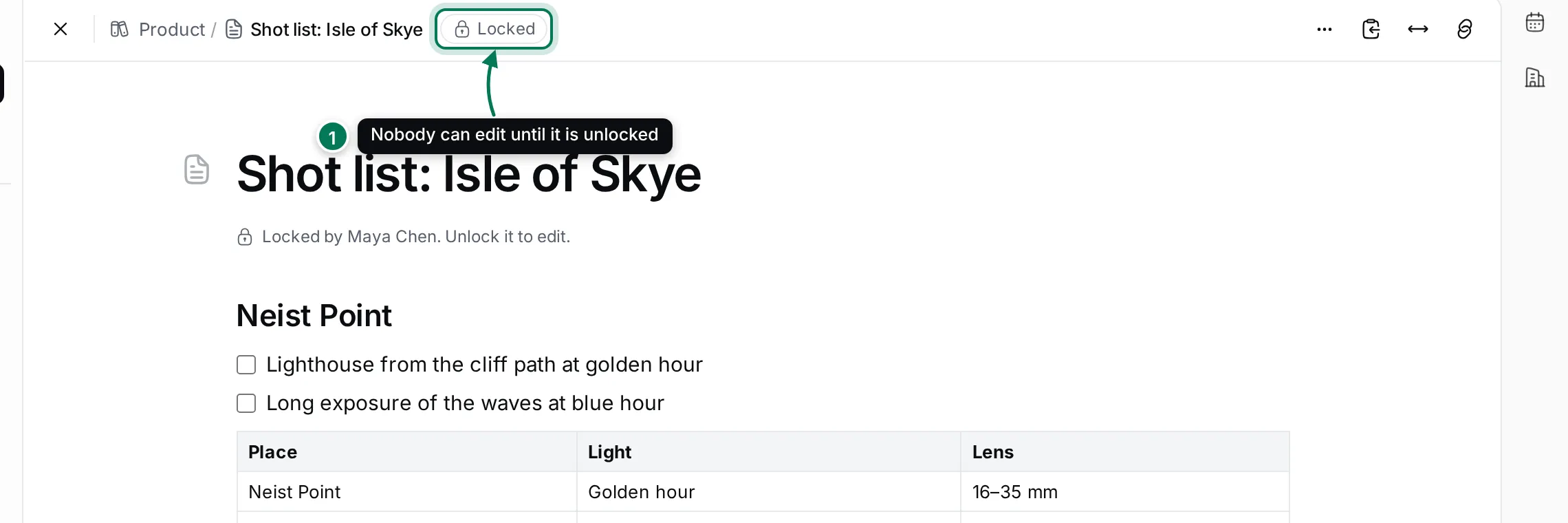
A Locked chip appears next to the title, and the title, icon and text become read-only for everyone. To edit again, choose More actions › Unlock.
Relate a document to other work
Section titled “Relate a document to other work”Relations link a document to other items, such as a customer or a test plan, beyond a mention in the text.
- Click More actions › Add relation.
- Choose the kind of relation, then search for and pick the items.
- Click Create.
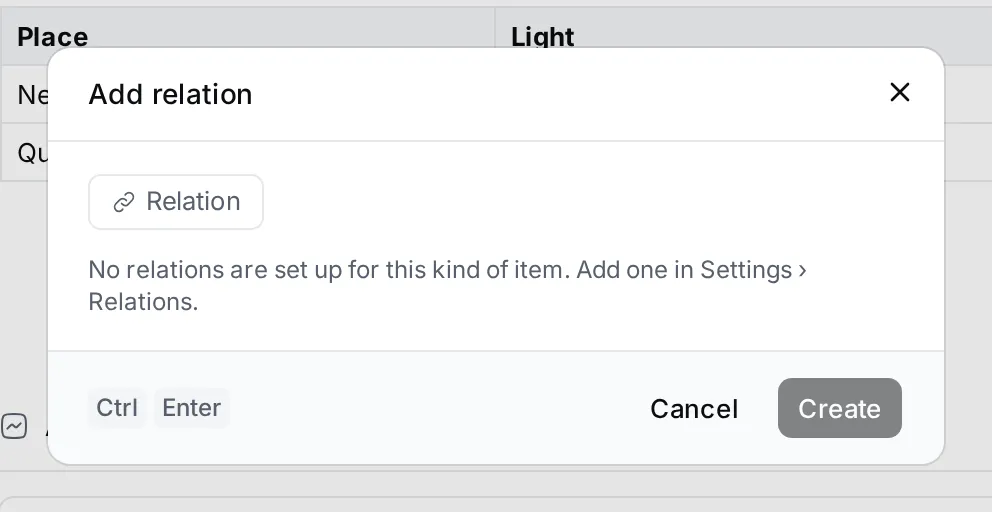
The document’s relations then show under its text. Click × next to one to remove it.
Related: mentions, links and backlinks.