Work with a contact
Click a contact in any view to open their page. Everything you know about them is here: their details, files, comments and the history of changes.
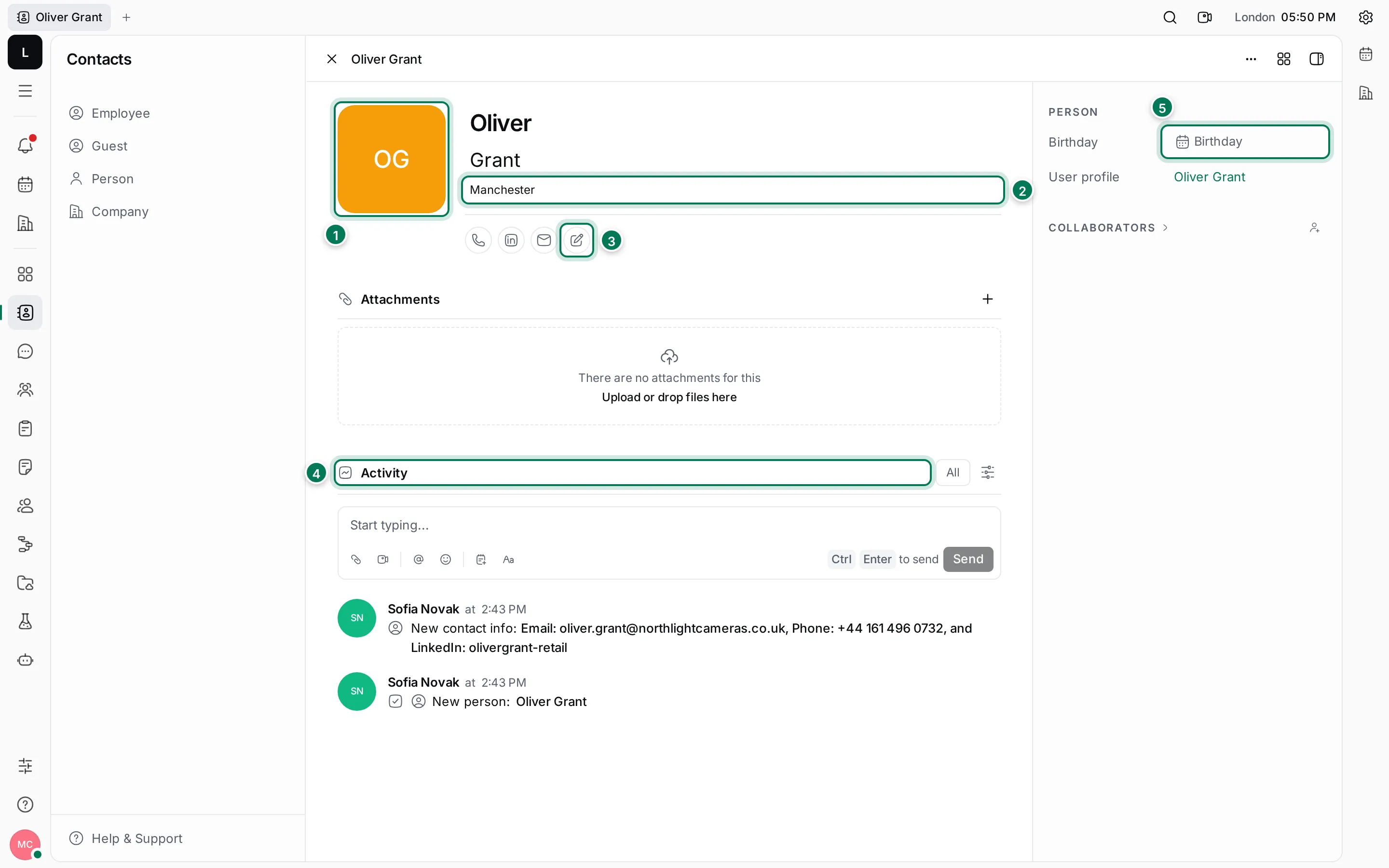
- Avatar: click it to change the colour or add a photo.
- Name and location: click the first name, last name or location to edit it. Enter saves, Esc undoes.
- Contact info: one icon per channel, and the pencil to add more.
- Activity: comments and every change to the contact.
- Birthday and other details in the sidebar on the right.
Under the contact info is Attachments: click +, or drop files on it, to attach a contract or a business card. Close the page with × or Esc.
Change the avatar colour
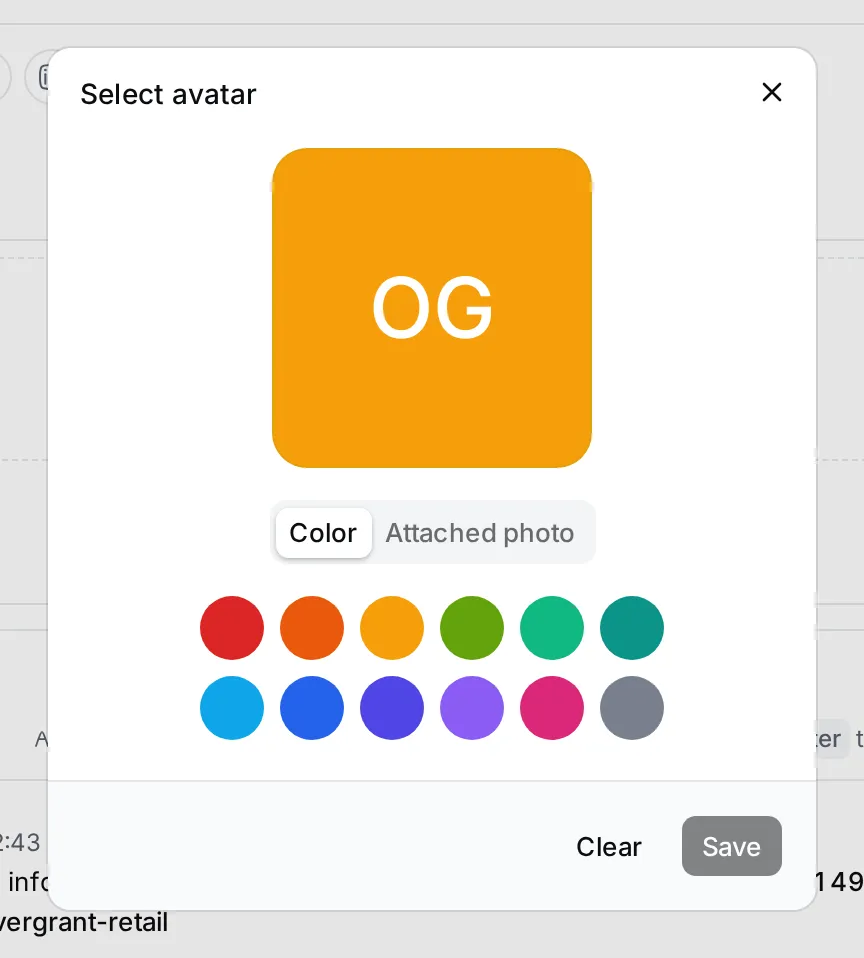
Section titled “Change the avatar colour”- Click the avatar.
- In Select avatar, choose a colour under Color, or switch to Attached photo and click Upload photo.
- Click Save. Clear goes back to the initials.
Manage contact info
Section titled “Manage contact info”Click a channel icon to see its value. You can change it and save with the tick, open it with the arrow (a link opens in a new tab, an e-mail starts a message, a phone number starts a call), or click the bin to remove it.
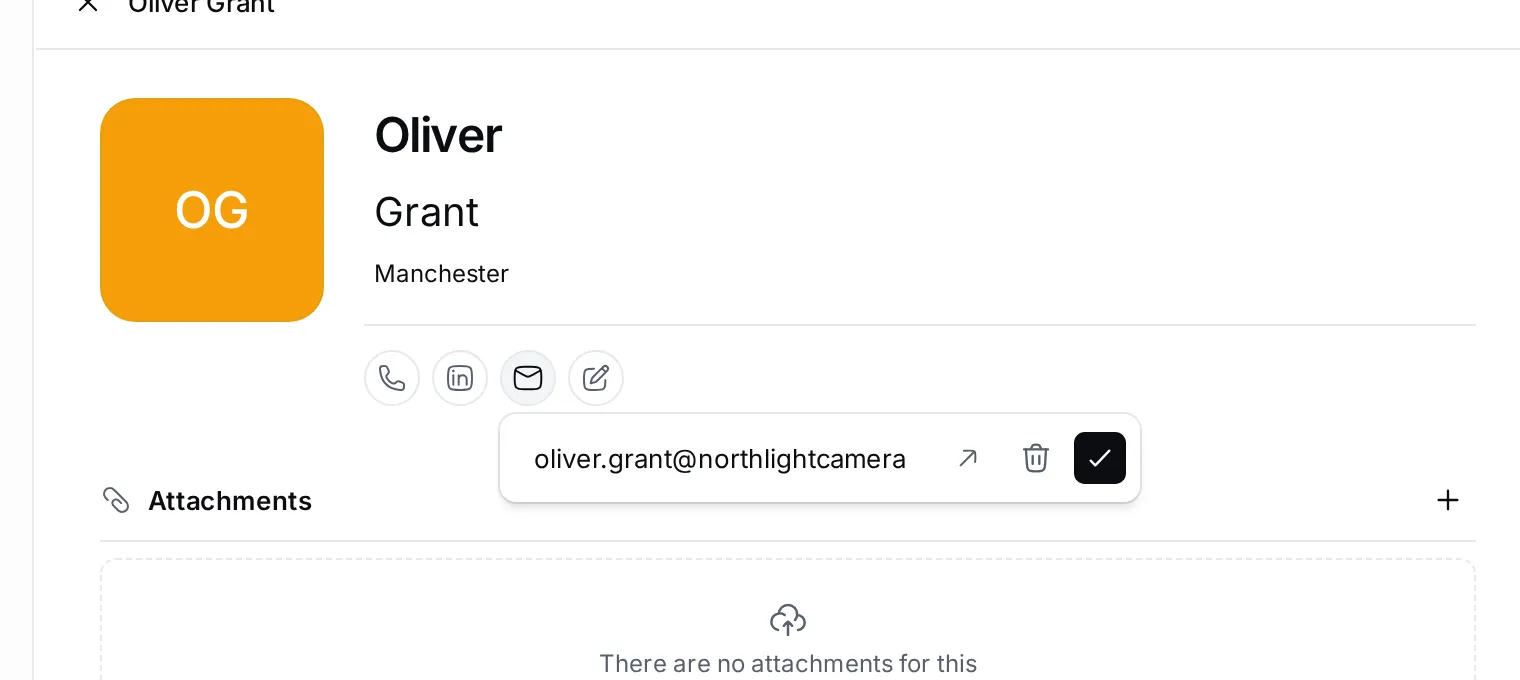
To add a channel, click the pencil next to the icons and pick one, as when you add a person.
Comment and follow changes
Section titled “Comment and follow changes”Write in Start typing… under Activity and press Ctrl Enter to post a comment. Type @ to mention a colleague; they get a notification. The feed also lists changes such as New contact info and Location set to, with who made them and when.
Collaborators in the sidebar are the people who get updates about this contact. Add yourself to follow a contact you work with often.
The sidebar
Section titled “The sidebar”The sidebar on the right holds details that aren’t on every contact:
- Birthday: pick a date.
- User profile: a link to the contact’s profile card.
- Worker › Department: the department a colleague belongs to.
Click Show all sections (the layout button at the top) to also see empty sections such as Talent or GitHub, and fill them in.
More actions
Section titled “More actions”The ⋯ menu at the top of the page, or a right-click on the contact in the list, has more:
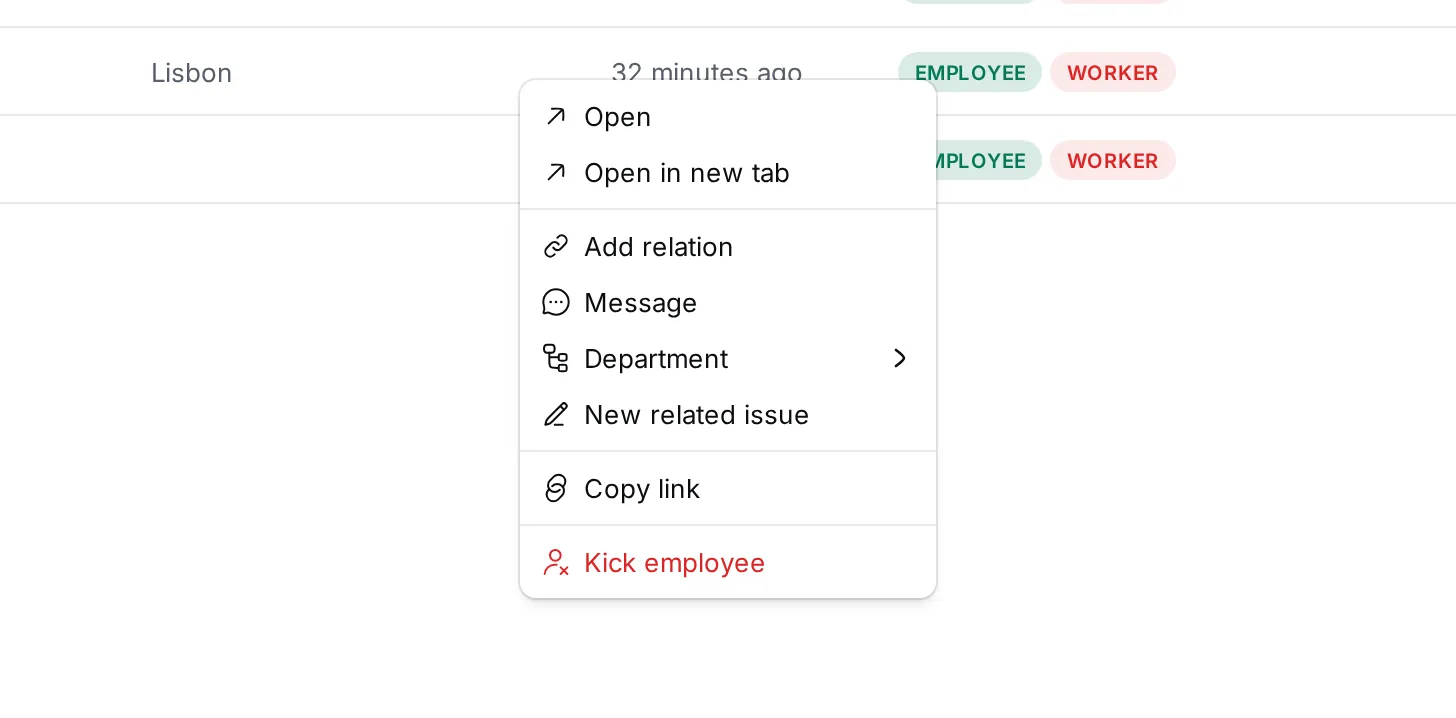
- Open in new tab and Copy link.
- Add relation: link the contact to another item, such as a project document.
- Message (colleagues): opens a direct conversation in Chat.
- Department (colleagues): move them to another department.
- New related issue: create an issue linked to this contact.
- Delete (persons and companies): removes the contact with its contact info, files and comments, after you confirm.
- Kick employee (colleagues): removes them from the workspace. See Invite employees and guests.