Your account
Your profile is what your teammates see on your person card, in mentions and next to your work. Change it in Settings › Account settings. Your status and the profile menu are covered in Your profile and status.
Edit your profile
Section titled “Edit your profile”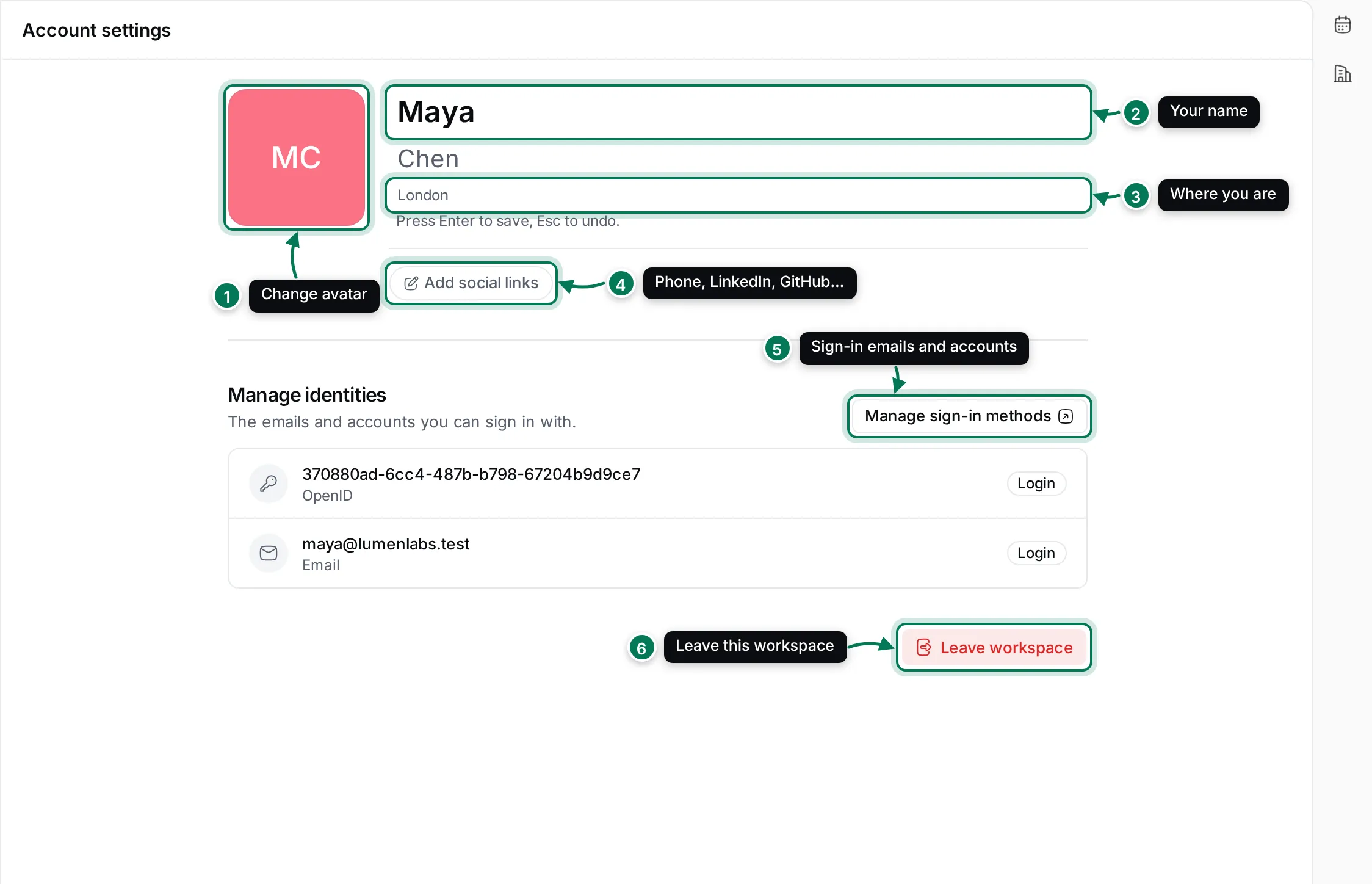
- Click your avatar to change it (see below).
- Click your first or last name to edit it, then press Enter to save or Esc to undo. The first name can’t be empty.
- Type where you are in Location and press Enter.
- Click Add social links and choose Phone, LinkedIn, X, GitHub, Facebook, Home page, Whatsapp, Skype, Profile, Viber, Telegram or Email, then enter the value. Click a link’s icon later to open, change or remove it.
- Manage sign-in methods lists the emails and accounts you can sign in with (see Sign-in and security).
- Leave workspace removes you from this workspace (see below).
Your name and photo change everywhere in this workspace, and the name also changes for your Maxint account.
Change your avatar
Section titled “Change your avatar”- Click your avatar.
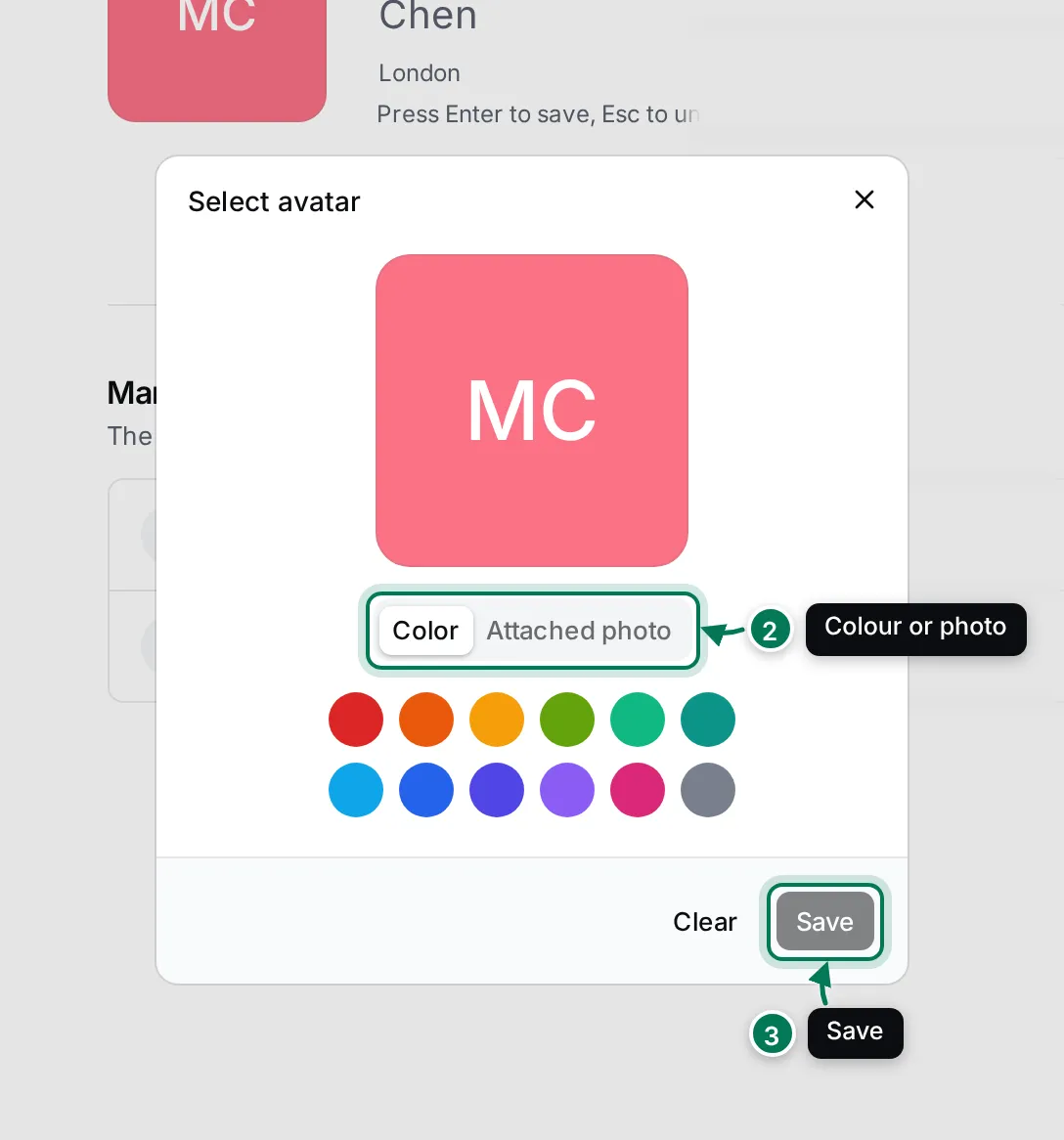
- In Select avatar, choose Color to show your initials on a colour, or Attached photo and Choose a photo to upload a picture.
- Click Save. Clear goes back to your initials.
Sign-in and security
Section titled “Sign-in and security”Your Maxint account signs you in to Maxint Work and other Maxint apps. Settings › Security sends you to the Maxint account page to manage it.
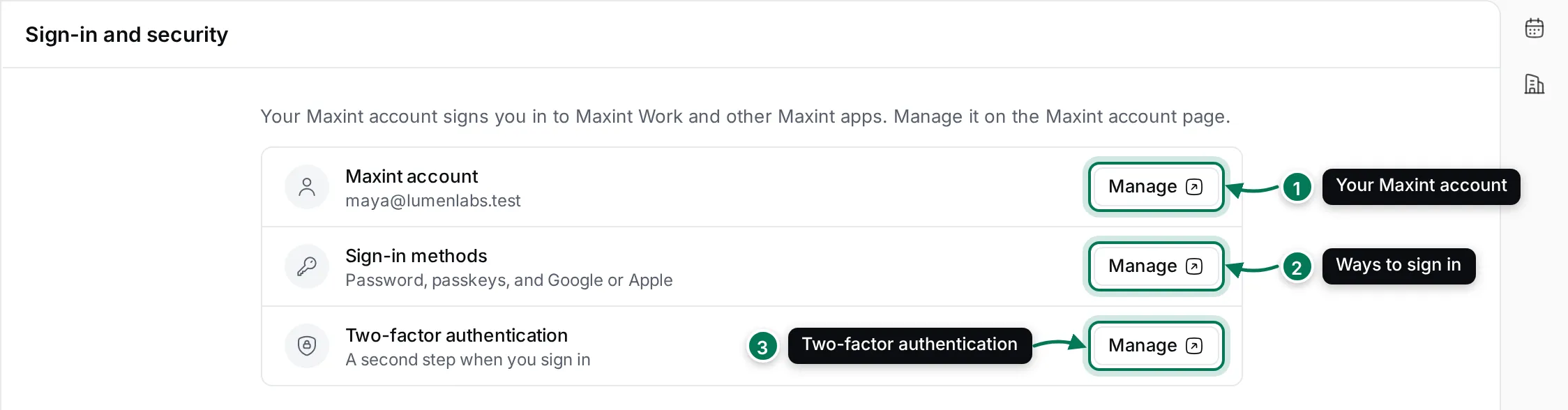
- Maxint account: your email and account details.
- Sign-in methods: password, passkeys, and Google or Apple.
- Two-factor authentication: a second step when you sign in.
Your call devices
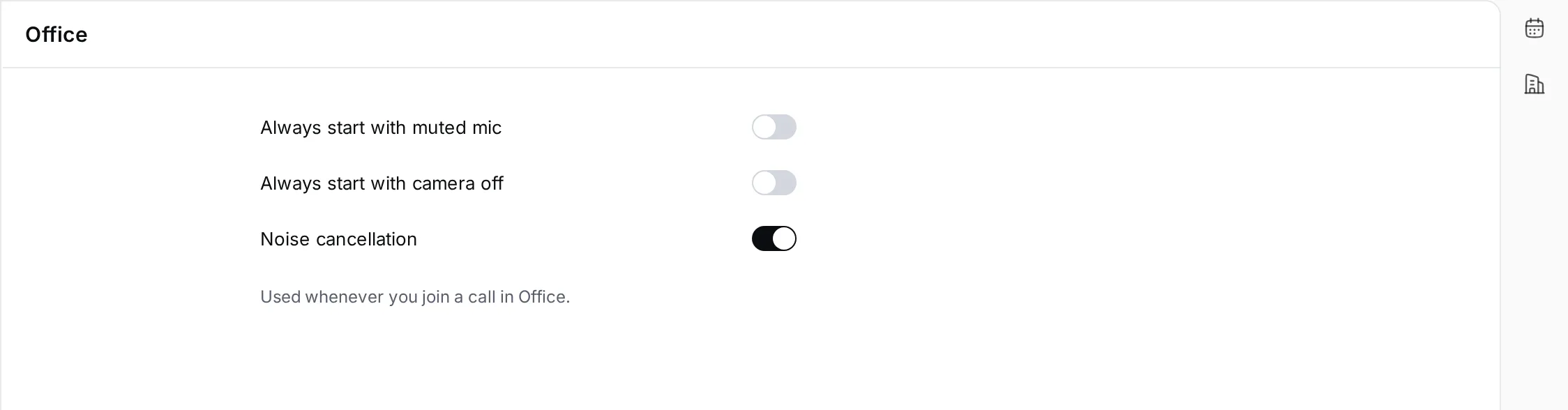
Section titled “Your call devices”Settings › Office sets how you join calls in Office: Always start with muted mic, Always start with camera off and Noise cancellation. They apply to your next call.
Leave a workspace
Section titled “Leave a workspace”Click Leave workspace at the bottom of Account settings and confirm. You lose access at once and go back to your list of workspaces. To come back, someone has to invite you again. If you are the only owner, make someone else an owner first in Members.