Browse and preview
A drive or folder shows its folders first, then its files. You can list them in a table or see them as a grid of previews, and open most files right in the browser.
The table
Section titled “The table”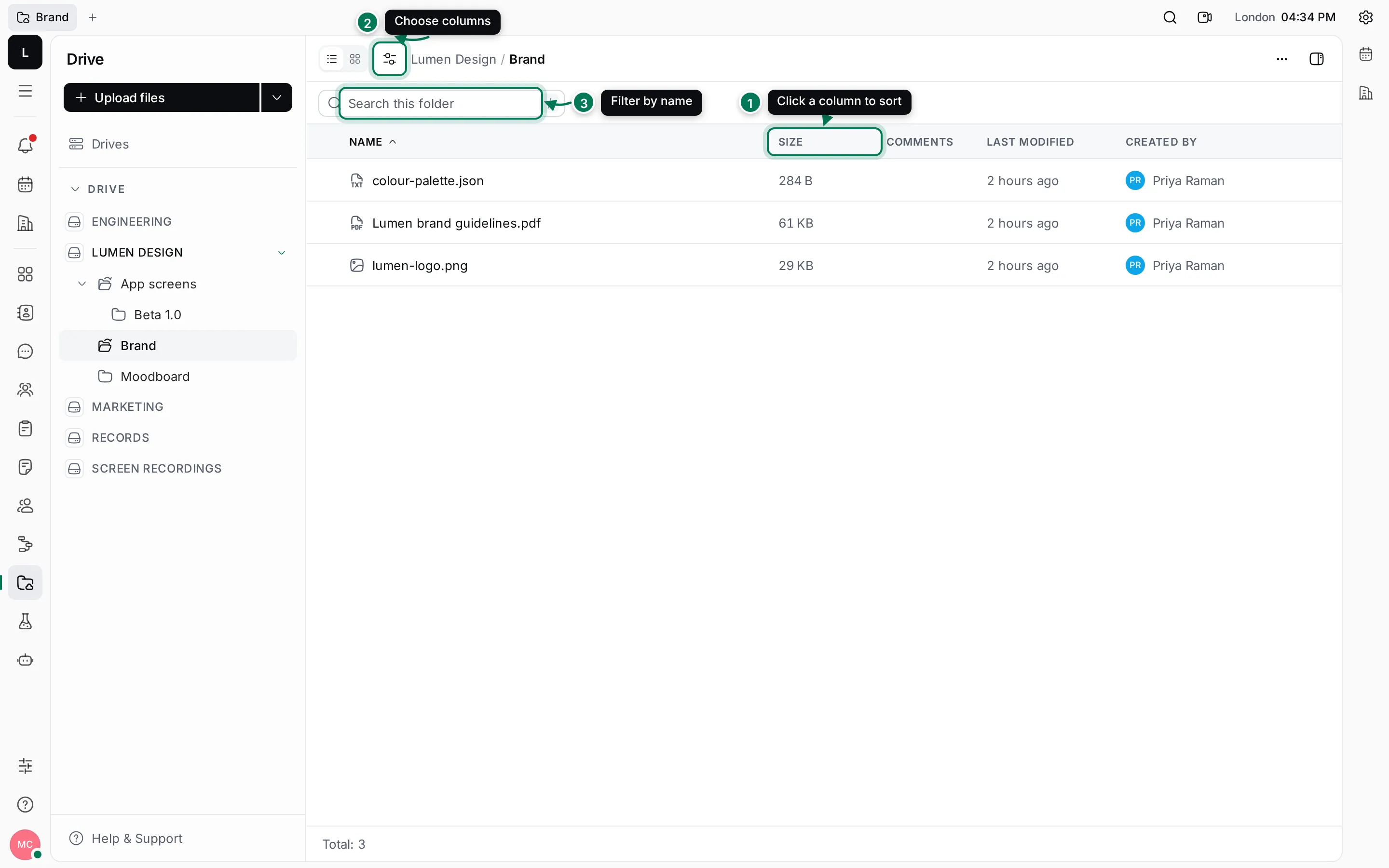
- Click a column header to sort by it, and click again to reverse the order. Folders always stay at the top.
- Configure columns chooses which columns show.
- Search this folder filters the list as you type. Press / to jump to it.
The table shows Name, Size, Comments, Last modified and Created by. You can also add Modified date, Modified by and Created date, or go back with Restore defaults. Your choice is remembered in this browser.
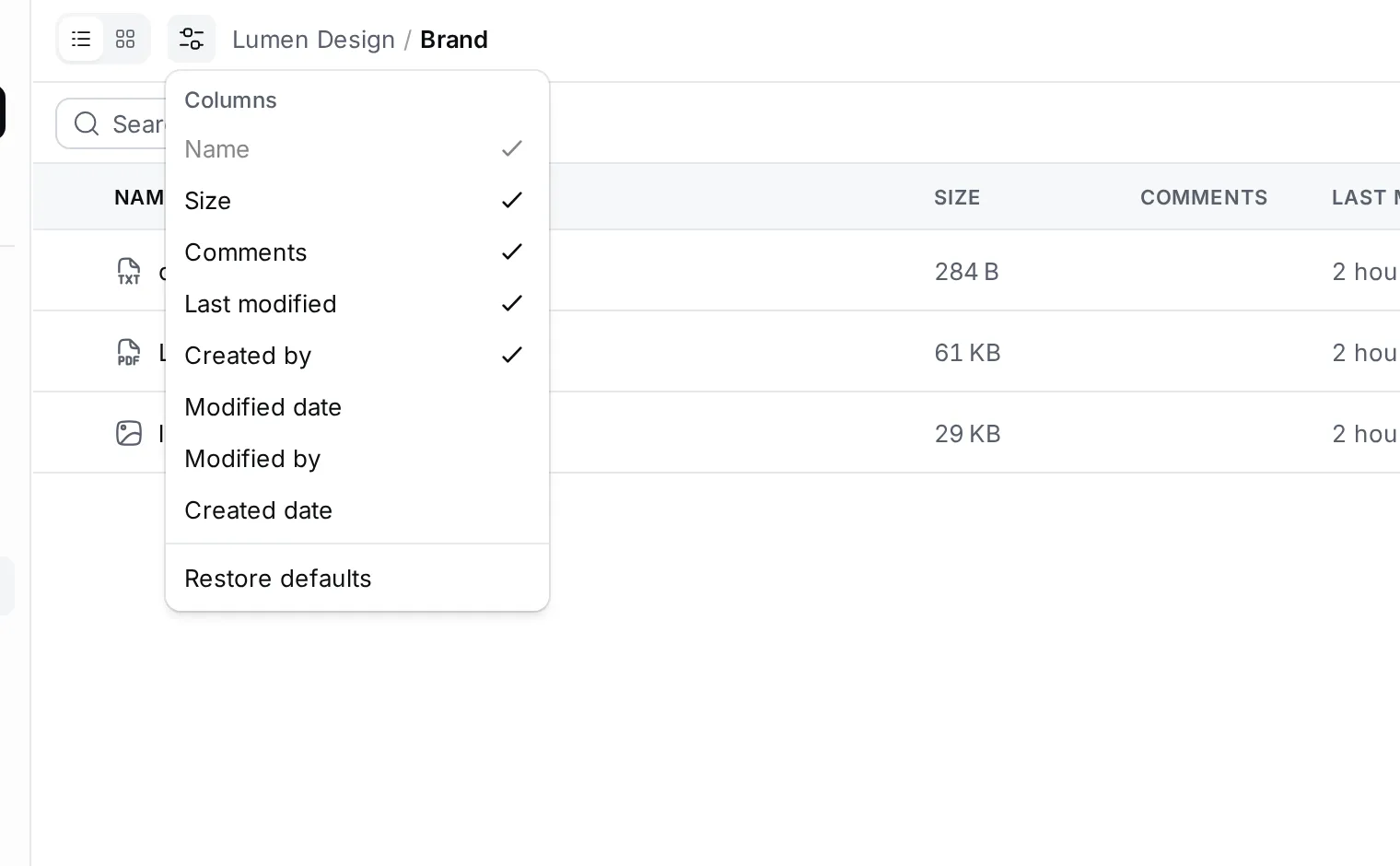
Click anywhere on a row to open the folder or file. With the keyboard, use the arrow keys to move between rows and Enter to open one. The total at the bottom counts the items in the folder.
The grid
Section titled “The grid”Switch to the grid with the button at the top left to see a preview of each file: a picture for images, and a coloured badge such as PDF or TXT for other files.
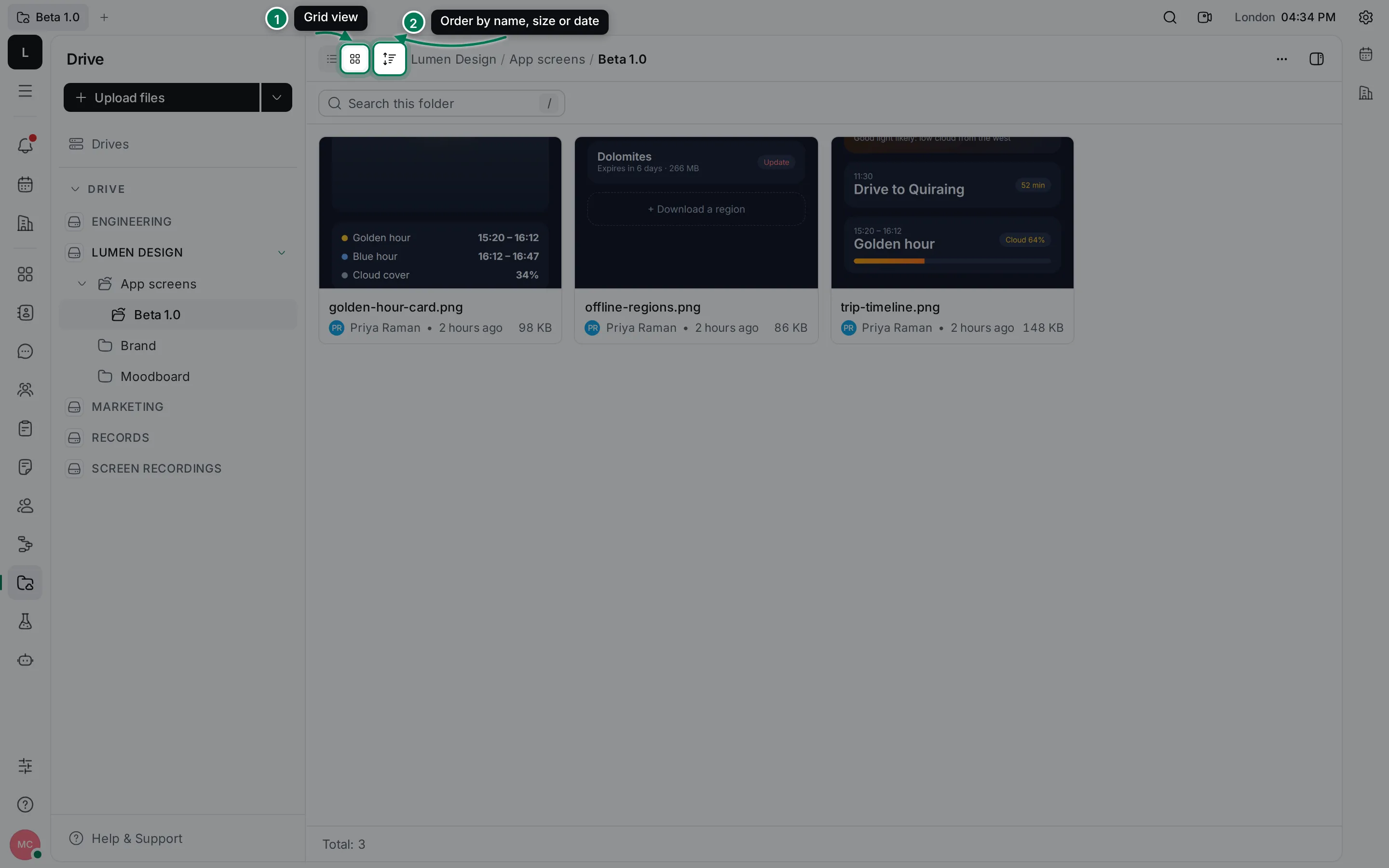
- The grid button. Next to it, the table button switches back.
- Ordering sorts the grid by Name, Size or Modified date.
Each card shows who added the file, when, and its size. Hover a card and click ⋯, or right-click it, for the same actions as in the table.
Preview a file without leaving the folder
Section titled “Preview a file without leaving the folder”Use the arrow keys to move to a file in the table or grid, and press Space to open a quick preview. Press Esc to close it.
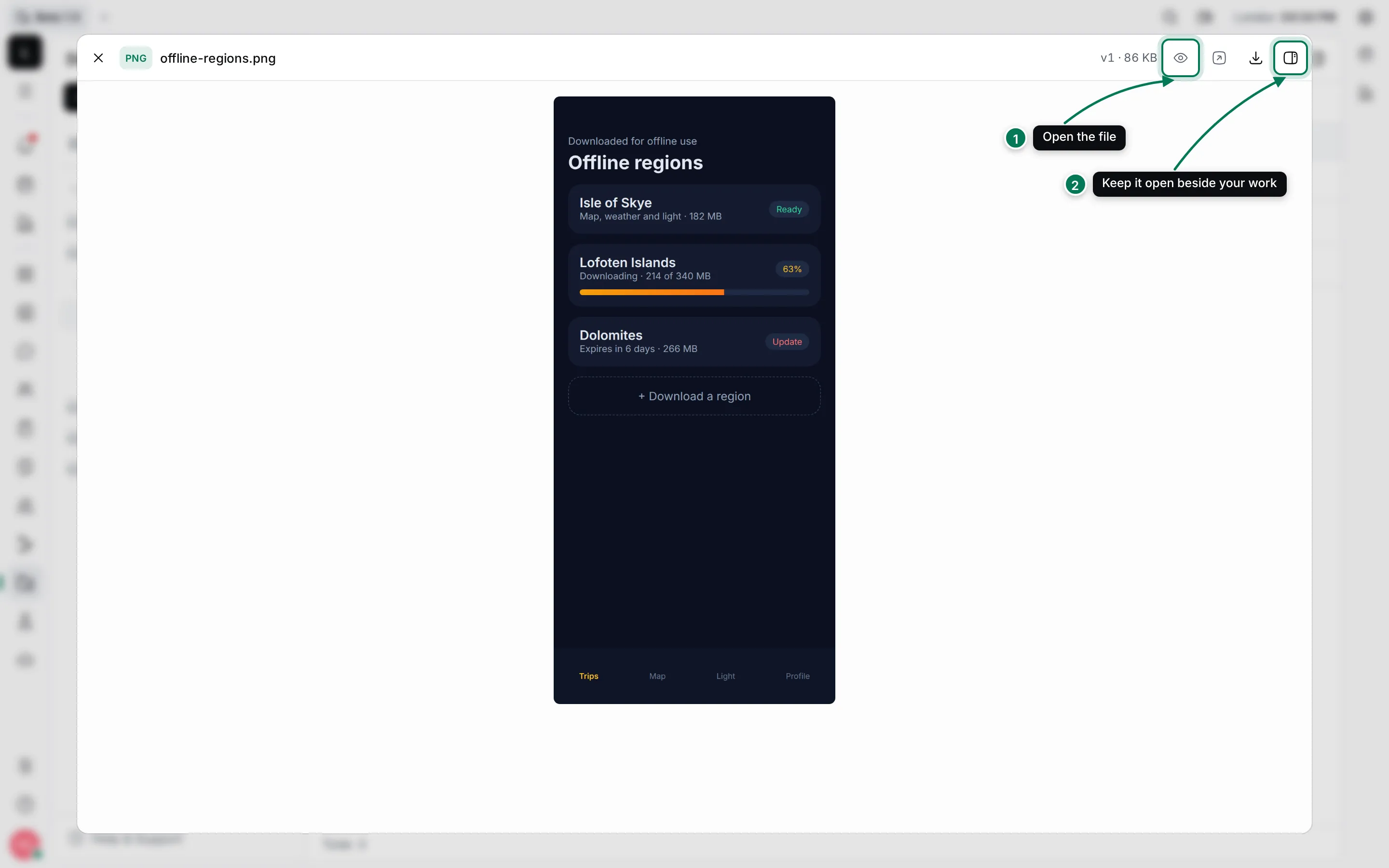
- Open the file page opens the file with its versions, details and comments.
- Open in sidebar keeps the file open in a panel on the right, so you can look at it while you work elsewhere.
The preview also has Open in a new tab and Download.
What previews look like
Section titled “What previews look like”The file page shows the current version of a file in a way that suits its type.
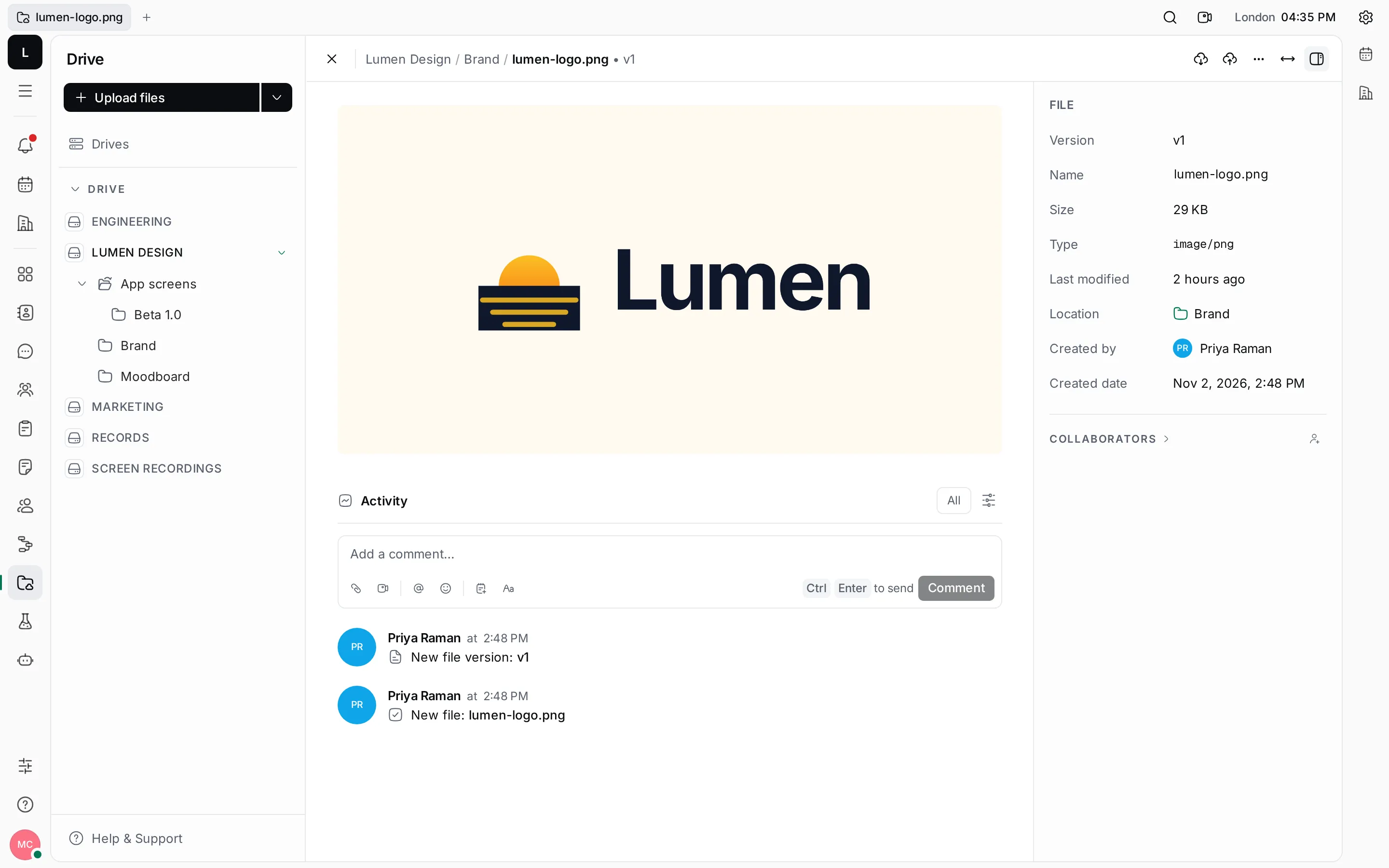
Images appear at their natural size, fitted to the page.
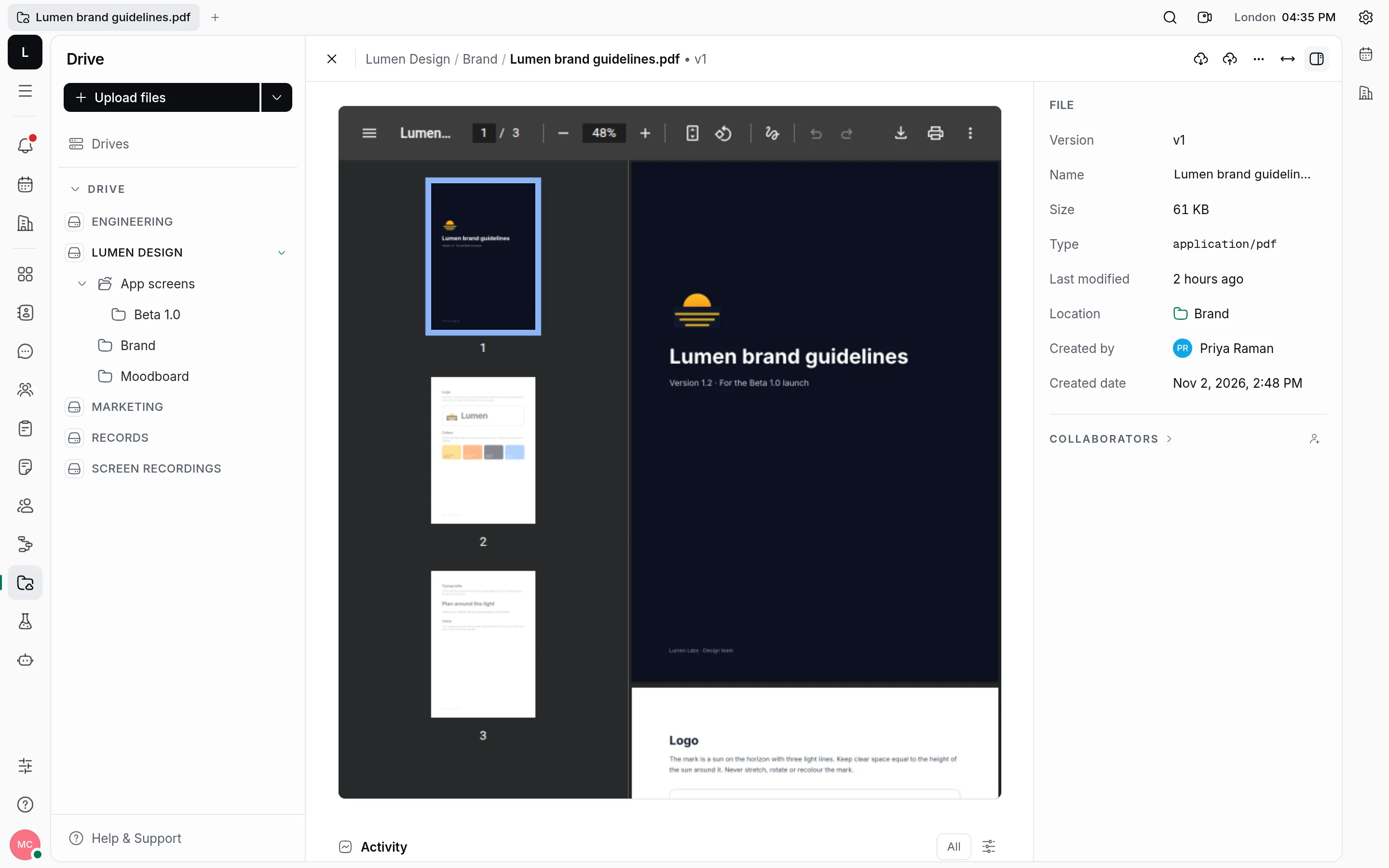
PDFs open in the browser’s PDF viewer, where you can page through, zoom, search, print and download.
Markdown files are shown formatted. Switch to Code to see the plain text.
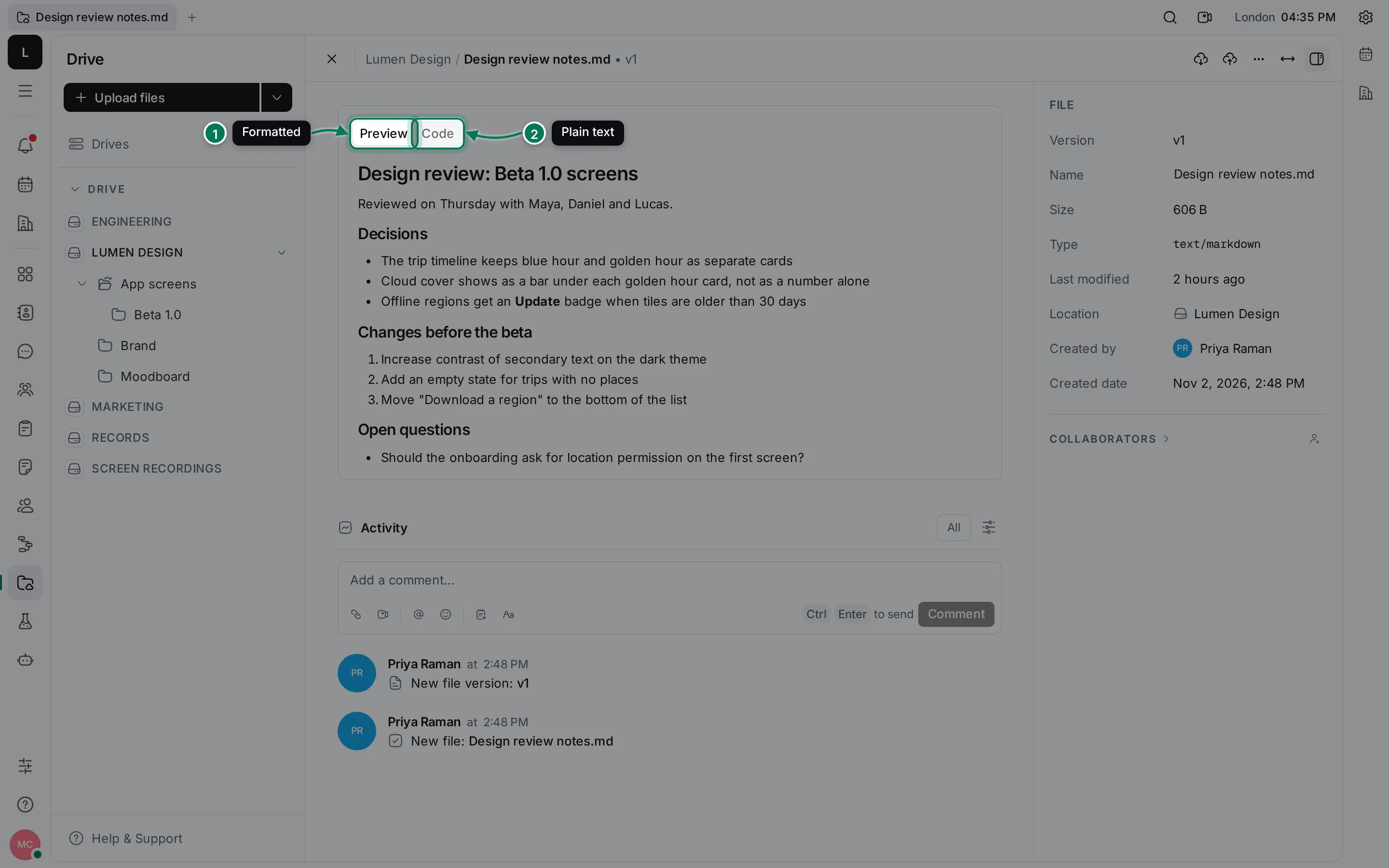
- Preview shows the formatted text.
- Code shows the Markdown source.
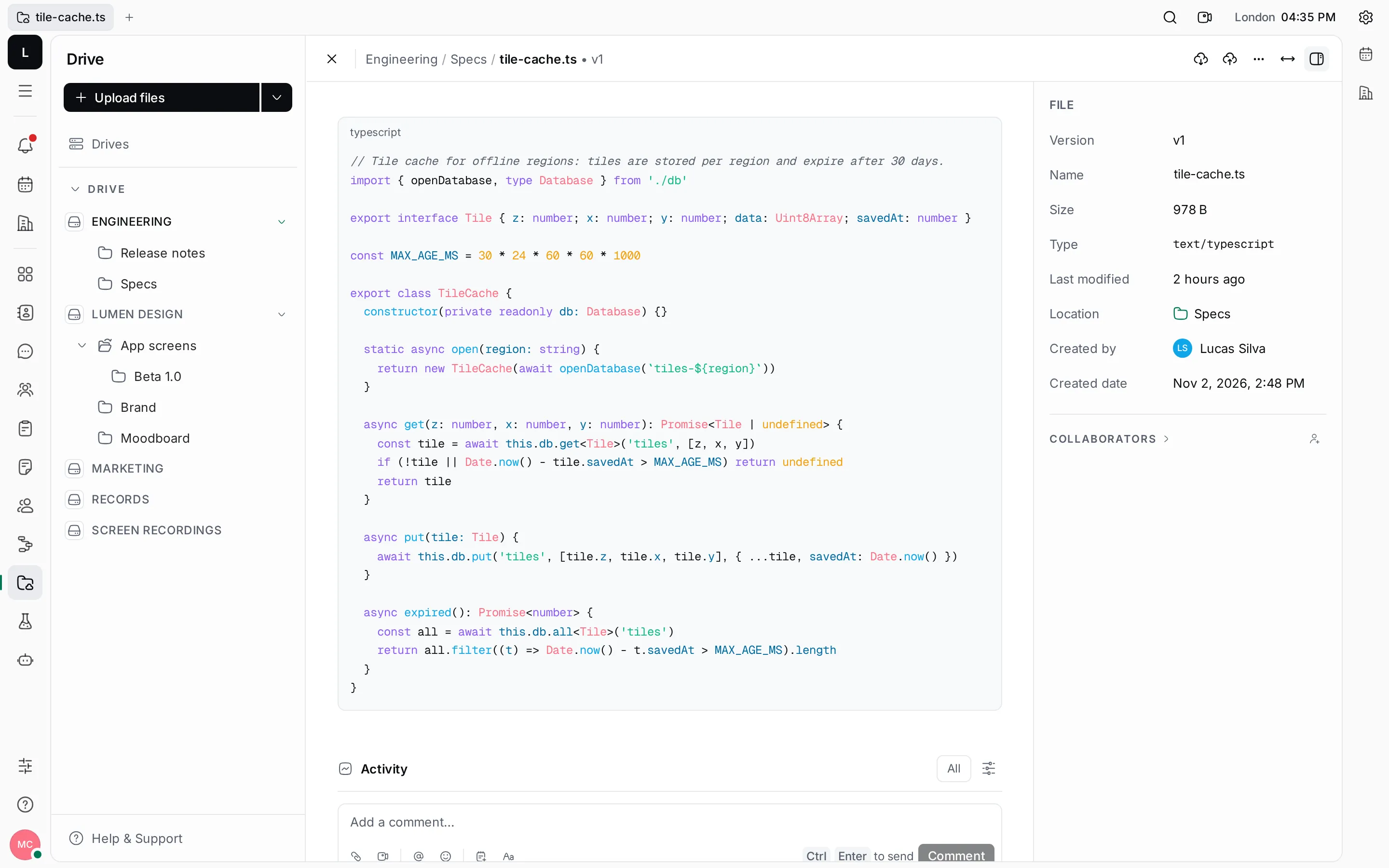
Code and text files, such as TypeScript, JSON or CSV, are shown with syntax highlighting.
Video and audio files play in the page. Files Maxint Work can’t show get a card with their type, size and a Download button.