Create a workspace
A workspace holds everything your team shares: projects, documents, files, chat, people and AI Workers. Most companies have one. You can belong to several workspaces with the same Maxint account and switch between them at any time.
If your team already uses Maxint Work, you don’t need to create anything: ask a teammate to send you an invite link.
Create a workspace
Section titled “Create a workspace”-
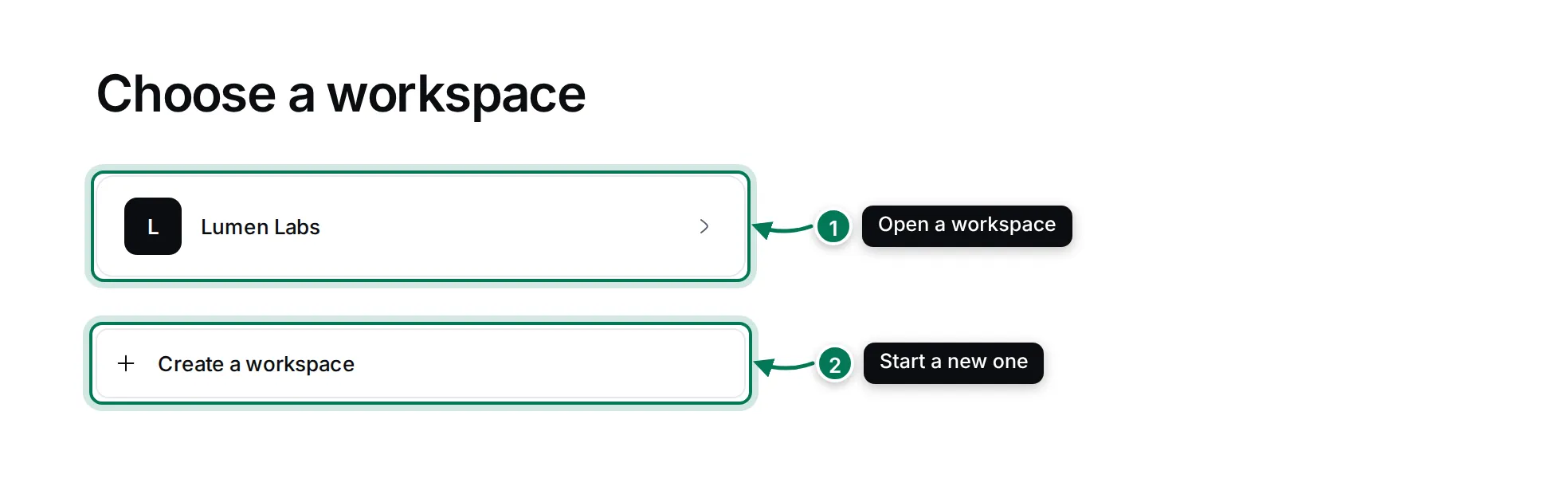
Sign in. If you have no workspace yet, or after you choose Select workspace in your menu, you see Choose a workspace.
-
Click Create a workspace (2).
-
Type a Workspace name (3), such as your company or team name, and click Create workspace (4).
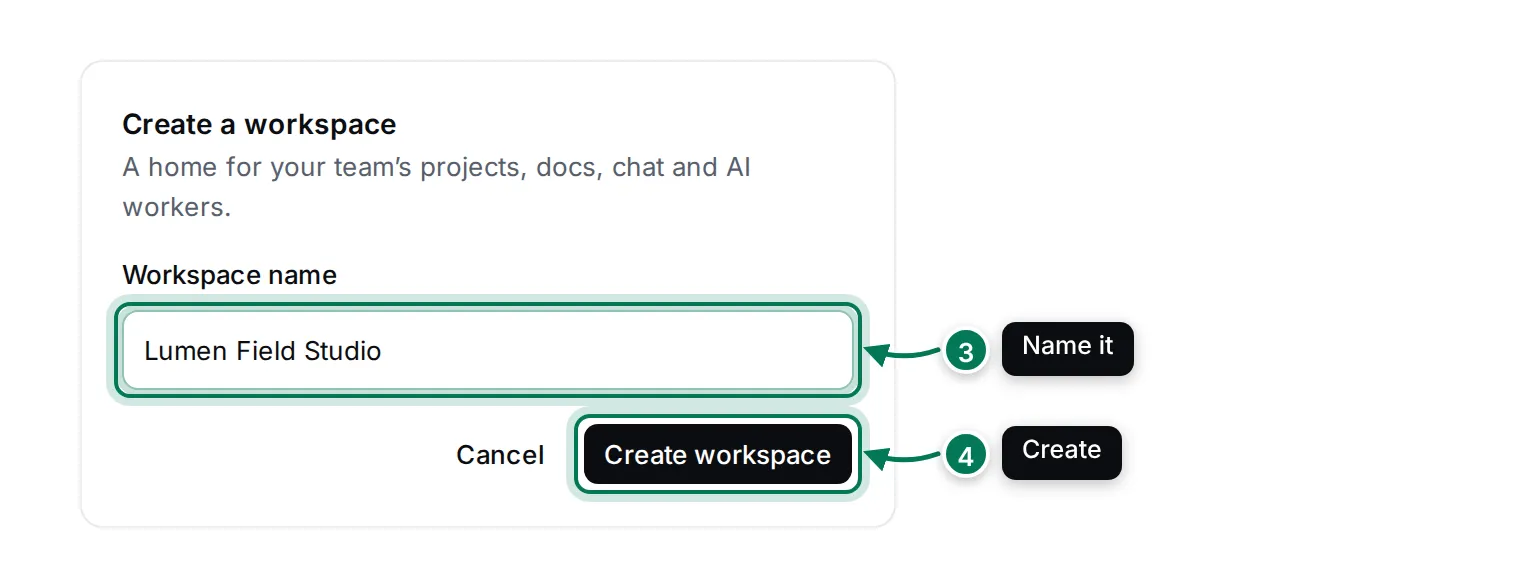
Setting up a workspace takes a moment. It opens by itself as soon as it is ready, and you are its Owner. You can rename it later in Workspace settings.
What a new workspace contains
Section titled “What a new workspace contains”Every new workspace starts with two things to help your team learn Maxint Work.
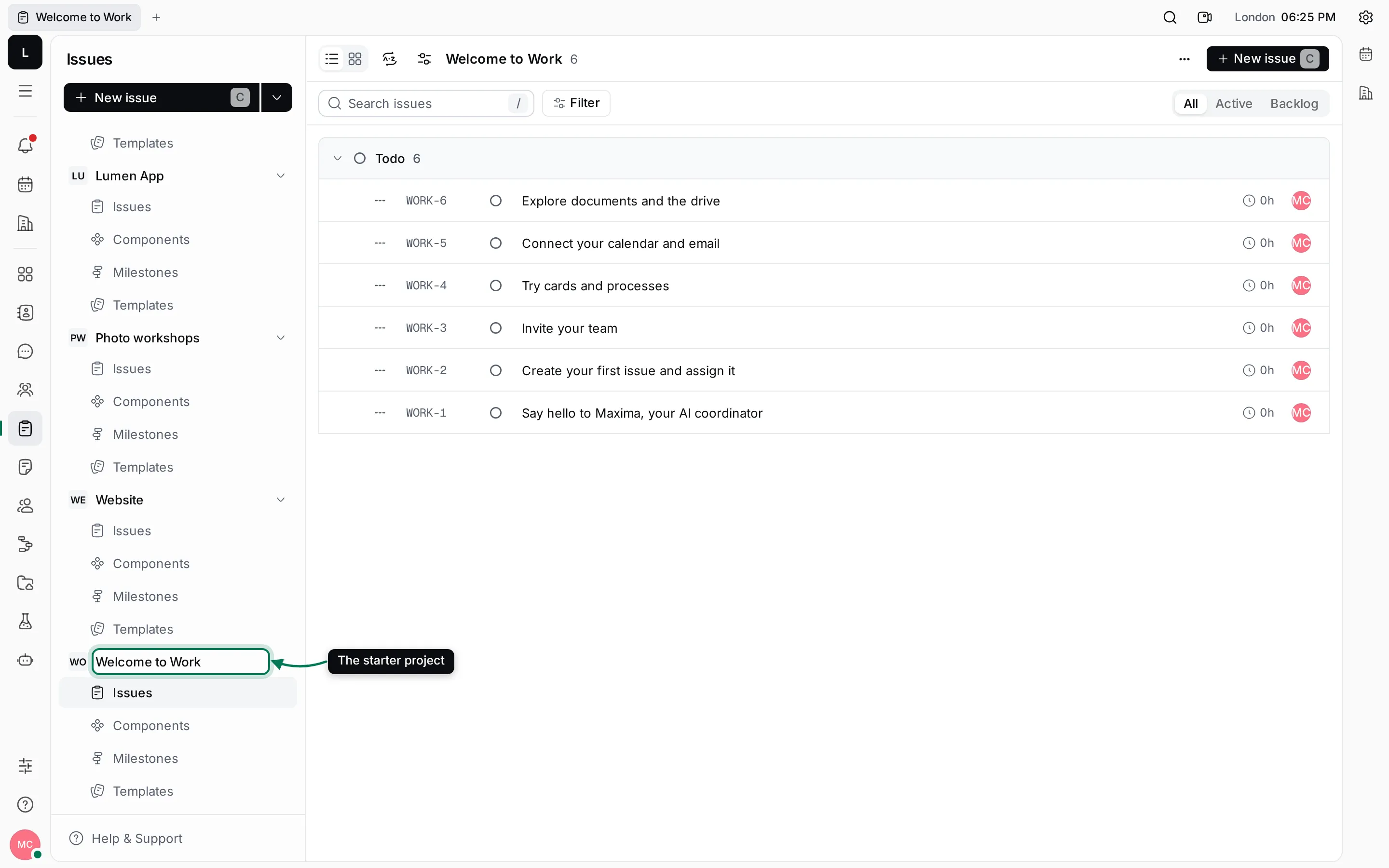
The Welcome to Work project (issue IDs start with WORK) holds six short onboarding issues, assigned to you:
- Say hello to Maxima, your AI coordinator
- Create your first issue and assign it
- Invite your team
- Try cards and processes
- Connect your calendar and email
- Explore documents and the drive
Open each one, follow its steps and mark it Done when you’re through. See Work on an issue.
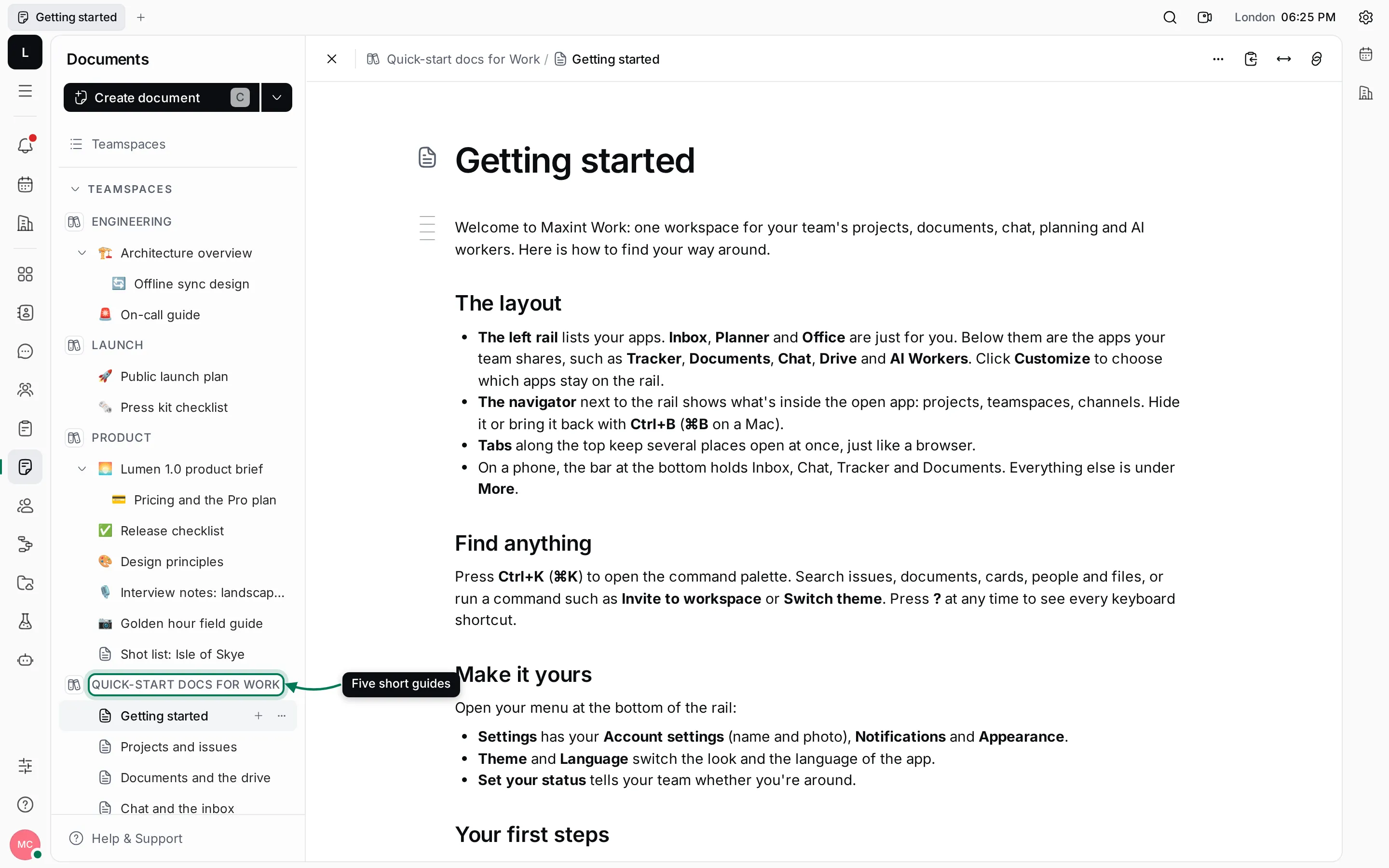
The Quick-start docs for Work teamspace in Documents holds five guides: Getting started, Projects and issues, Documents and the drive, Chat and the inbox and AI Workers. They are ordinary documents: edit them, add your own team’s notes, or move them.
Switch workspaces
Section titled “Switch workspaces”Click the workspace tile at the top of the rail. The menu lists your workspaces, with a check mark on the open one. Pick another to switch, or choose All workspaces to see Choose a workspace.
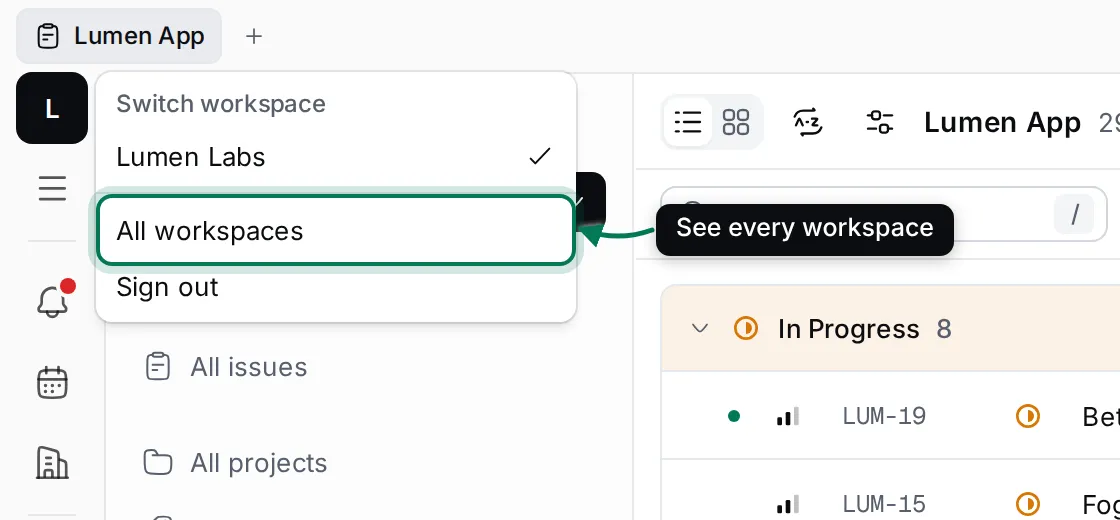
You can also choose Select workspace in your menu (click your avatar at the bottom of the rail).
Leave or delete a workspace
Section titled “Leave or delete a workspace”To leave a workspace, open Settings › Account settings and click Leave workspace. See Your account. Only owners can delete a workspace, in Workspace settings.