Set up card types
A card type is the template for a kind of record. It decides which properties every card of that type has and how its cards can be linked and shown. Workspace owners and maintainers set up types in Settings › Types. Everyone else uses them when they create cards.
Lumen Labs has two types of its own: Feature, with Stage, Plan, Platforms, Owner and Target date, and Release, with Version, Release date, Platforms and Release manager.
Create a card type
Section titled “Create a card type”-
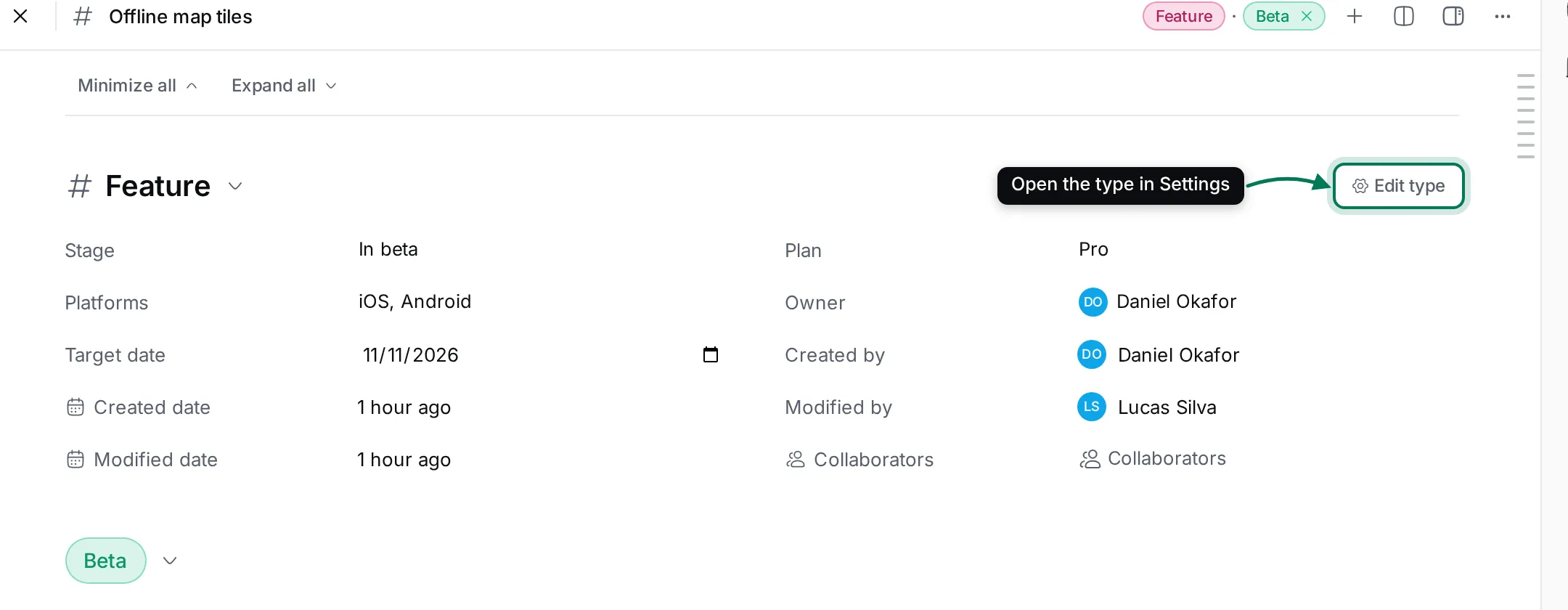
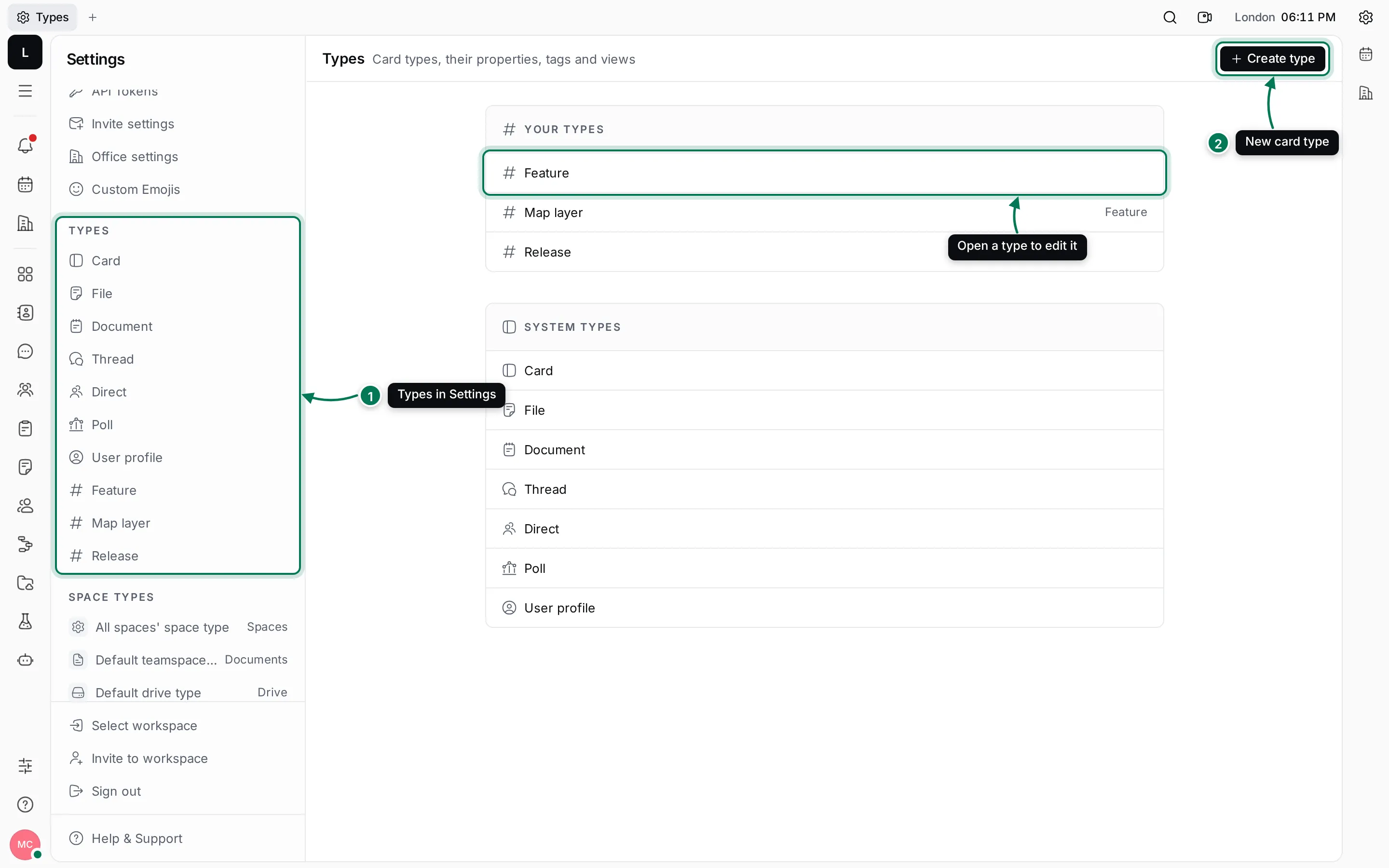
Open Settings and scroll the navigator to the Types section, or click Edit type on any card. Settings › Types lists Your types and the System types that come with Maxint Work.
-
Click Create type.
-
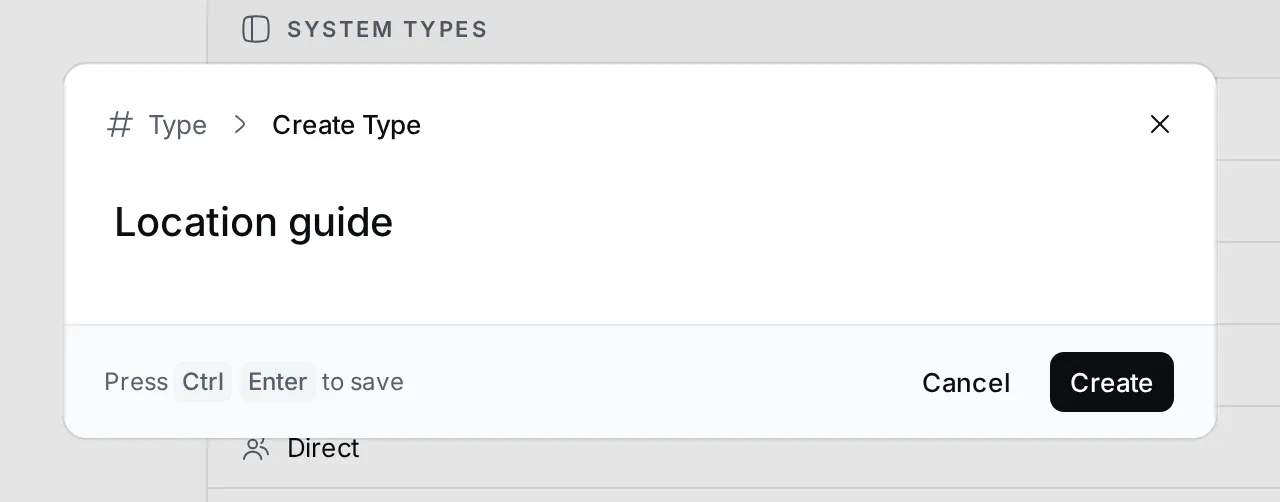
Enter the name, such as Location guide, and click Create. The type designer opens.
To make a sub-type, open the parent type and click + in its Types section. A sub-type has all of its parent’s properties plus its own. In Lumen Labs, Map layer is a sub-type of Feature that adds Data source.
Add properties
Section titled “Add properties”-
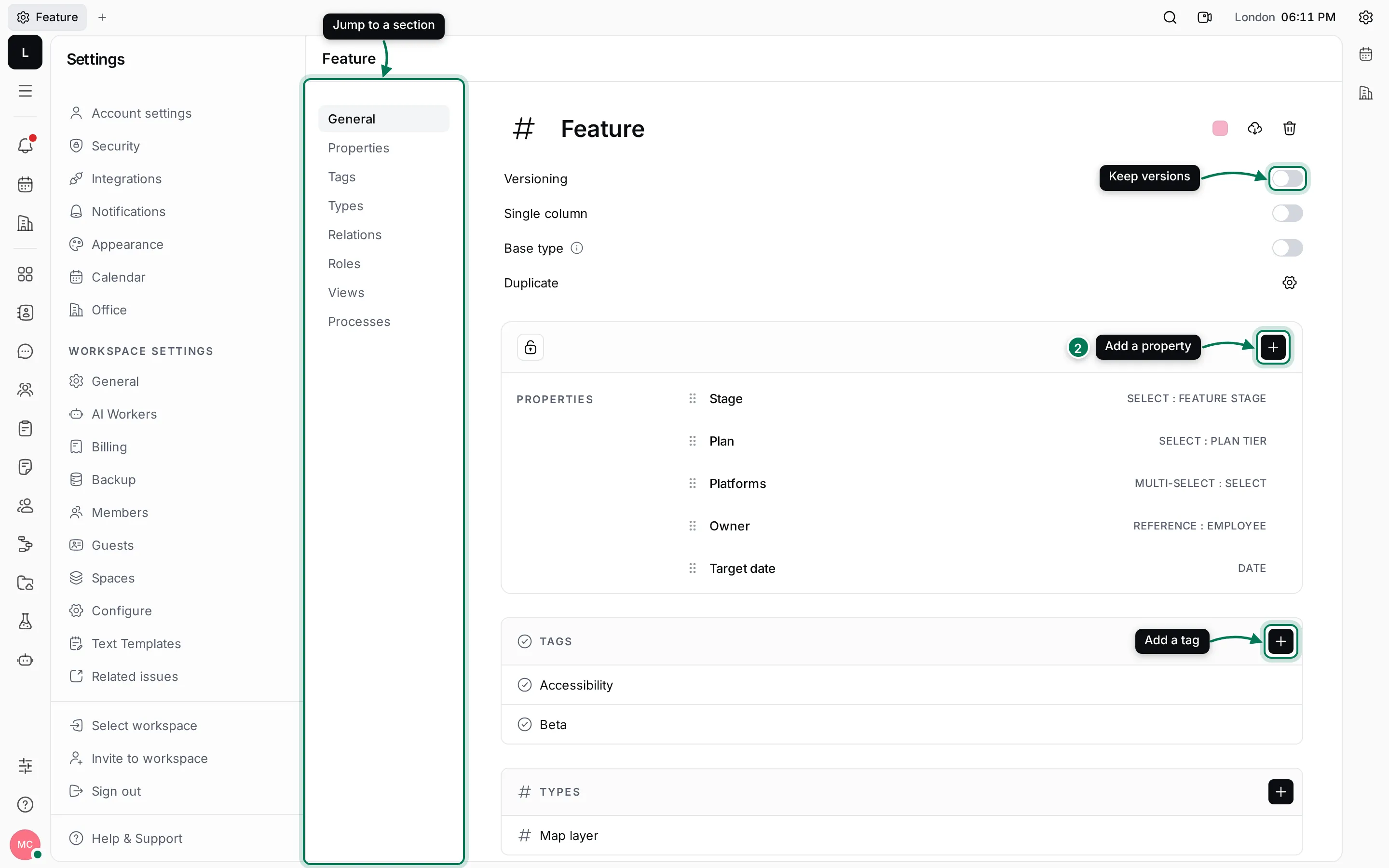
Open the type in Settings › Types.
-
In the properties card, click + and pick the kind of property.
-
Name the property and fill in its settings, then save. The property appears on every card of the type and its sub-types.
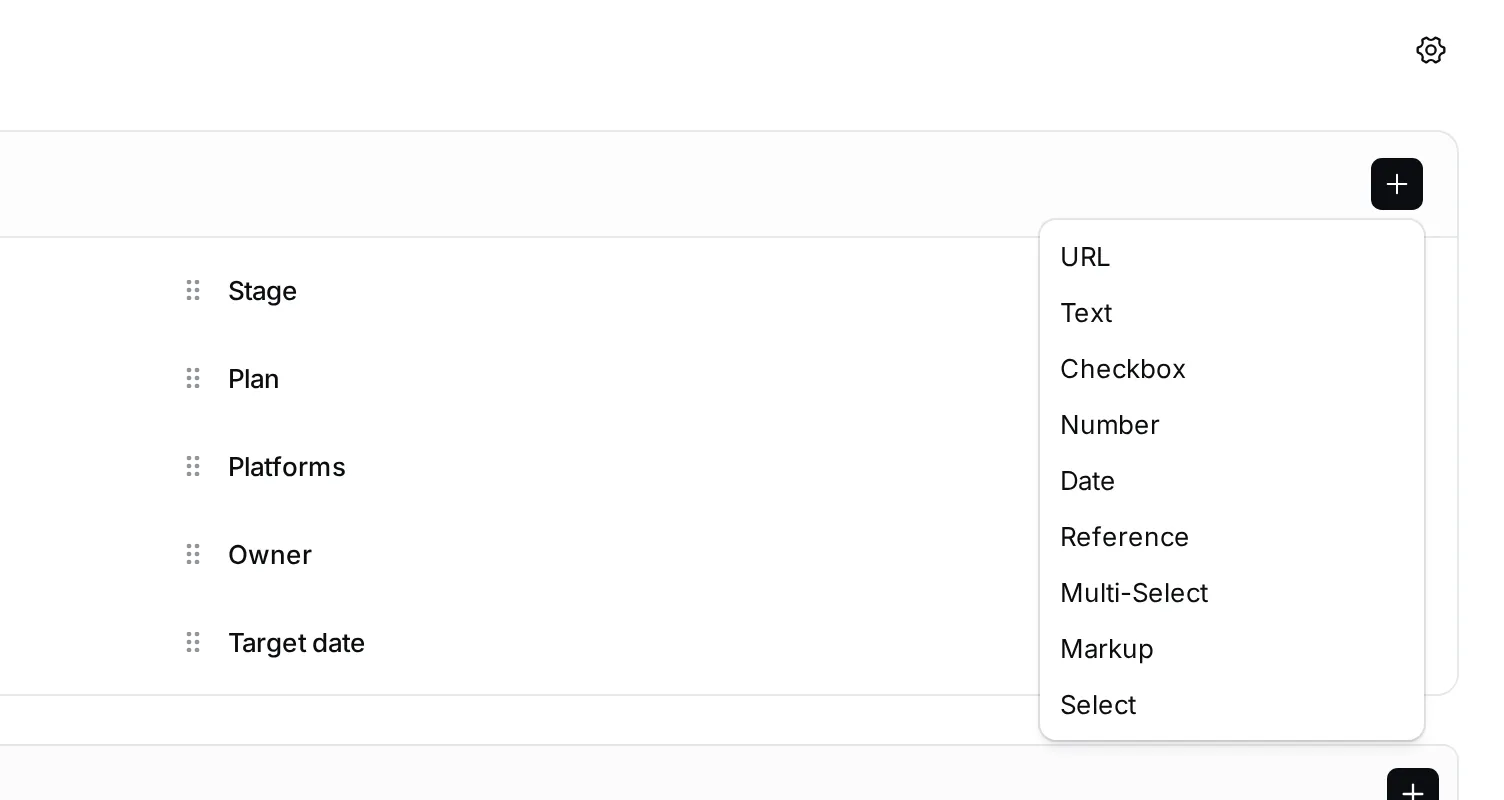
| Kind | Use it for | Example |
|---|---|---|
| Text | Short text | Version 1.0.0 |
| Markup | Formatted text | A summary with bold and links |
| Number | Counts and amounts | Beta testers 120 |
| Checkbox | Yes or no | Checked against WCAG 2.2 |
| Date | A day, or a day and time | Release date |
| URL | A link | A design file |
| Select | One value from a list | Stage: Idea, Planned, In beta, Shipped |
| Multi-Select | Several values from a list | Platforms: iOS, Android, Web |
| Reference | A person or another record | Owner, an employee |
Drag the handle next to a property to change its order on the card. Click a property to rename it or change its settings. The lock button at the top of the properties card restricts who can change a property; Maxint Work asks you to confirm, because restricting can’t be undone.
Add tags
Section titled “Add tags”A tag is an optional set of properties that people add to a card when it applies. On a Lumen Feature, the Beta tag adds Beta testers and the Accessibility tag adds Checked against WCAG 2.2.
- Open the type and click + in its Tags section.
- Name the tag and click Create.
- Click the tag in the Tags section to open it, and add its properties the same way you add properties to a type.
People then add the tag from the + next to a card’s tags. See Create and edit cards.
Add a relation
Section titled “Add a relation”A relation lets cards of two types link to each other, and names the link from both sides. In Lumen Labs, a Release includes Features, and a feature shows the releases it was shipped in.
-
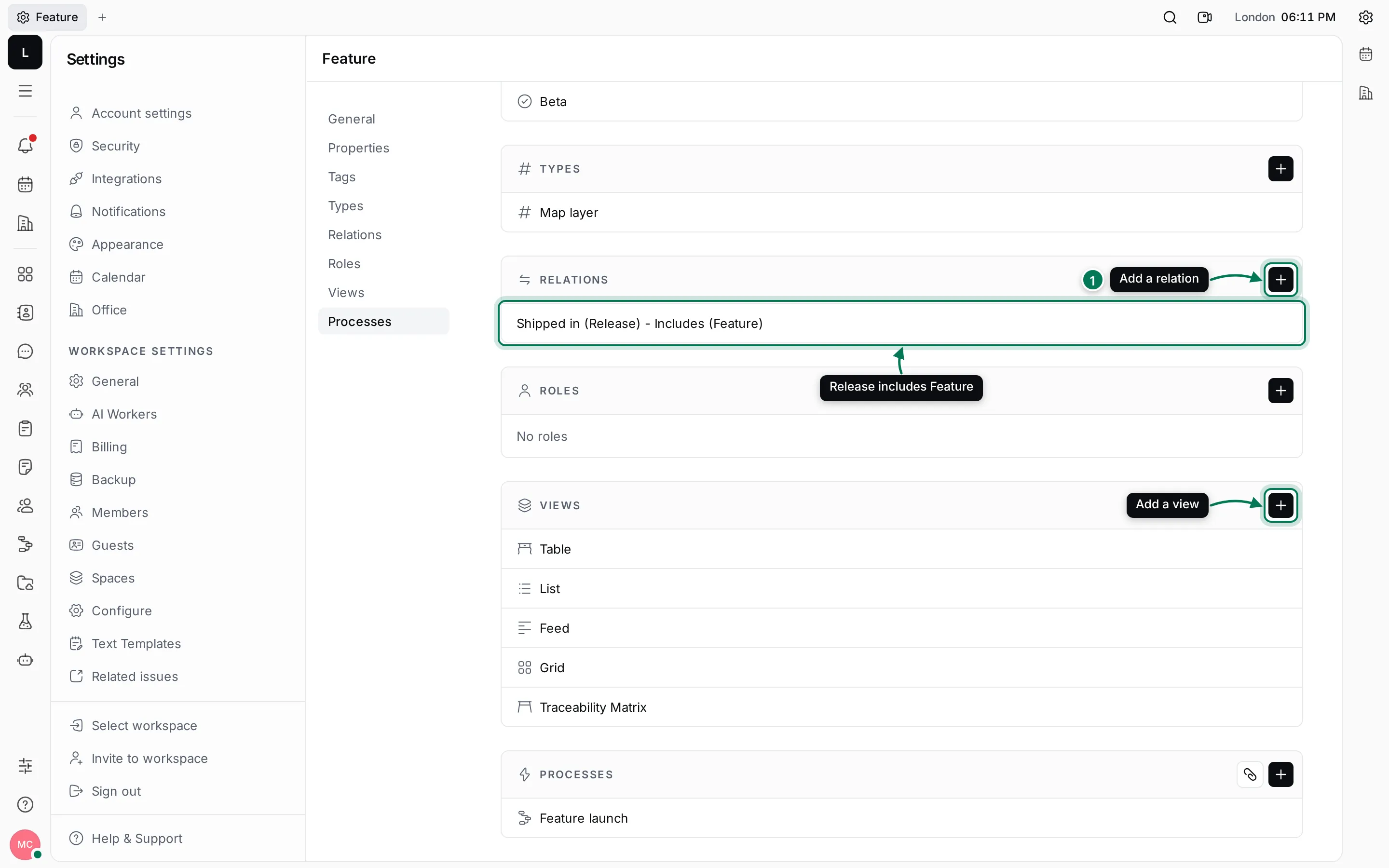
Open one of the two types and click + in its Relations section.
-
Under A, enter the name the other side’s cards use for these cards. Under B, pick the other type and enter the name these cards use for it.
-
Pick how many cards can link: 1:1, 1:N or N:N.
-
Click Create.
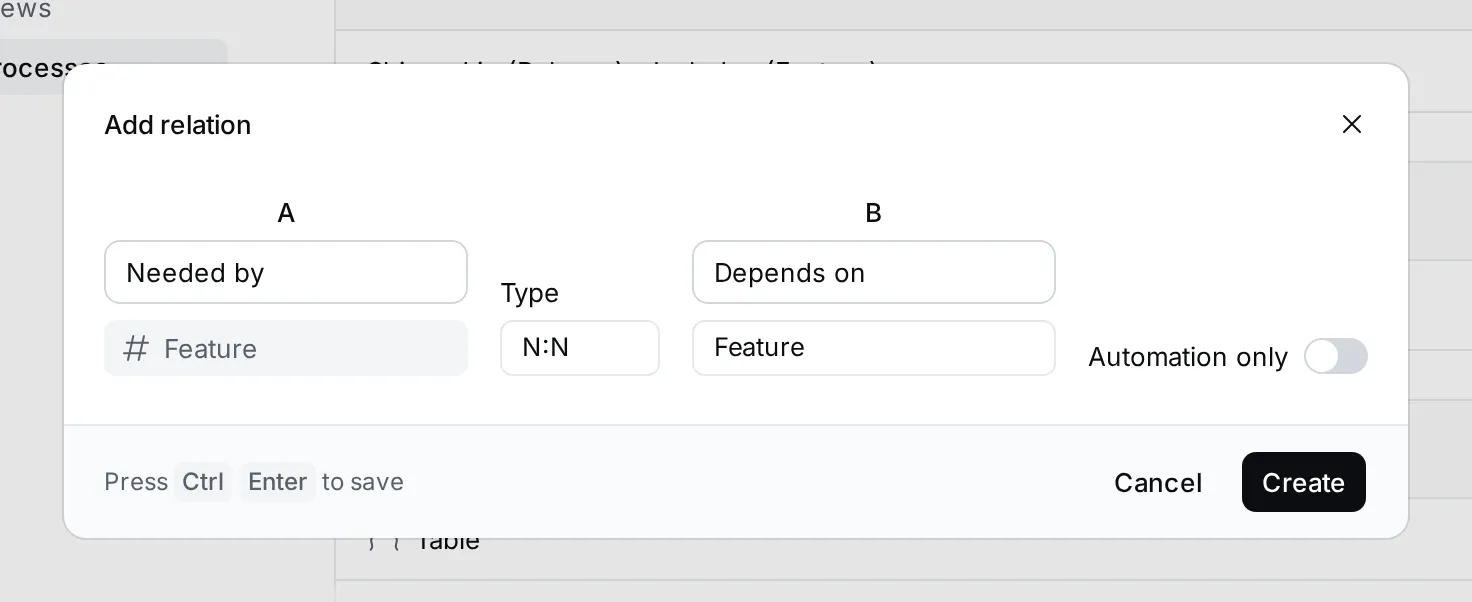
Turn on Automation only when only a process should create these links. Each relation then shows as a section on the cards of both types. See Link cards with relations.
Views, roles and processes
Section titled “Views, roles and processes”- Views lists the views people can switch between for this type: Table, List, Feed, Grid and Traceability Matrix. Click + to add one with its own title, grouping, ordering and columns.
- Roles defines roles for spaces with Role-based access control, and what each role may do with cards of this type, such as Create Card, Update Card or Run process.
- Processes lists the processes that run on cards of this type. See Set up a process.
General settings
Section titled “General settings”- Versioning keeps earlier versions of each card. Maxint Work asks you to confirm, because versioning can’t be turned off once it’s on. To see older versions next to the latest ones, turn on Show all versions in a view’s View options menu.
- Single column shows the card’s properties in one column.
- Base type makes the type a parent only: people create cards from its sub-types, not from the type itself.
- Duplicate chooses which properties, tags and relations are copied when someone duplicates a card.
- The colour swatch, Export and Delete type sit next to the type’s name. Deleting a type deletes its cards too.
Open a type from a card
Section titled “Open a type from a card”Owners and maintainers see Edit type next to the type’s name on every card, and in the ⋯ menu of a type’s card list. It opens the type in Settings.