Notification channels and sounds
Maxint Work tells you about changes to things you follow: an issue assigned to you, a reply in your thread, a status change. Settings › Notifications decides which of those reach you, and where. Everything here is your own preference; it doesn’t change anyone else’s.
Channels
Section titled “Channels”A notification can reach you on four channels. Turn them on or off in Settings › Notifications › General.
| Channel | Where it reaches you |
|---|---|
| Inbox | Your Inbox. Always on: the inbox has no switch. |
| Push | A notification from your browser or the installed app, even when Maxint Work isn’t open. |
| Sound | A sound for new events. |
| An email to your account’s address. |
Under Push, This device shows whether this browser gets push notifications and lets you allow them, turn them on or turn them off for this device only. If your browser blocks notifications for Maxint Work, allow them in the browser’s site settings first.
Choose what notifies you
Section titled “Choose what notifies you”Each app has its own page in the list below General, such as Issues, Documents, Chat or GitHub.
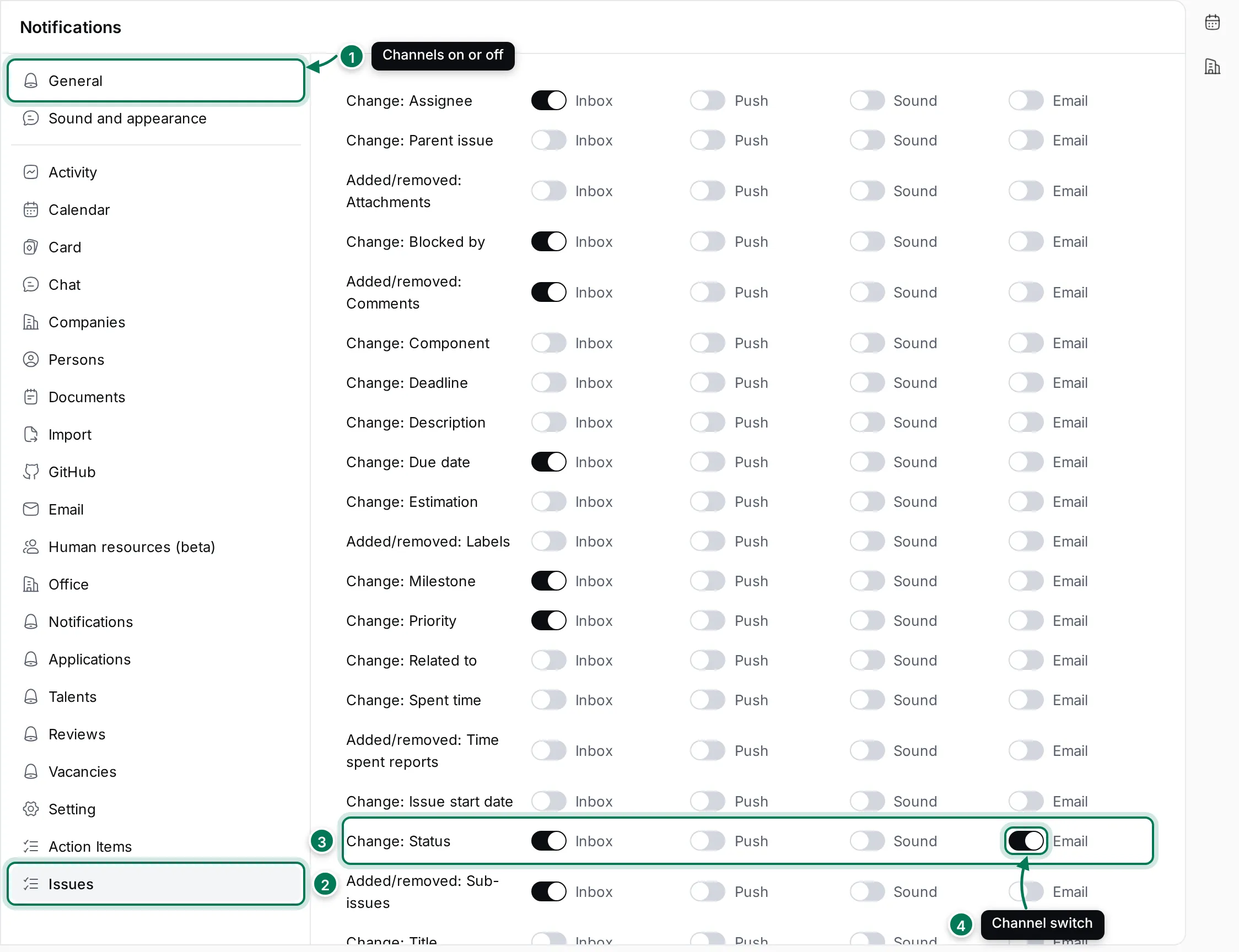
- General turns whole channels on or off.
- Pick an app, for example Issues.
- Each row is one kind of event, such as Assigned to me, Change: Status or Added/removed: Comments.
- Turn the switch for a channel on or off. A channel that is off in General has no column here.
Switches save at once. Some events can’t be sent on every channel, so a row may have no switch for one of them.
Sound and appearance
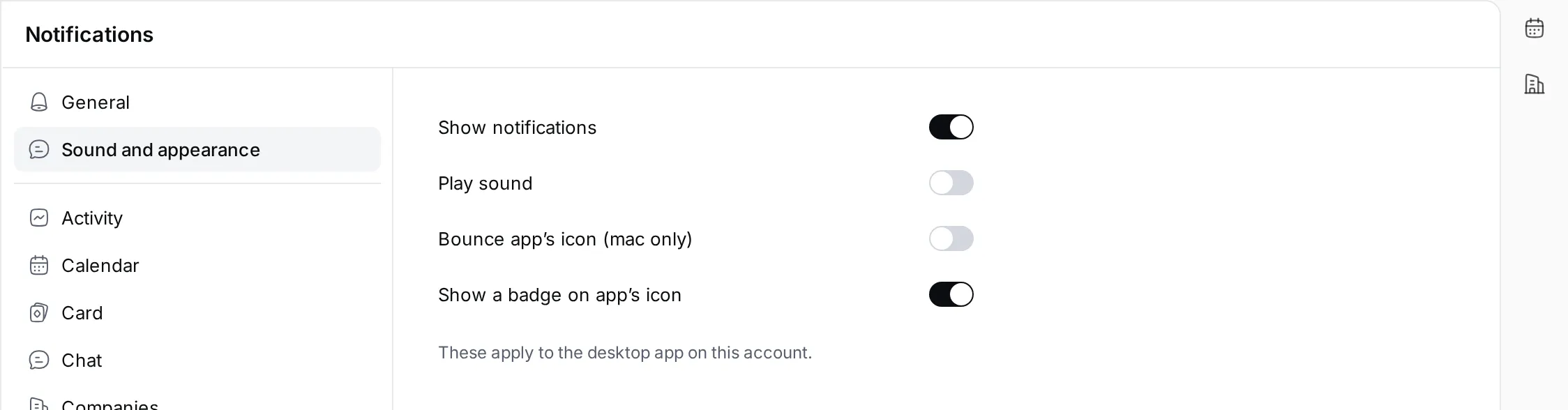
Section titled “Sound and appearance”Sound and appearance controls how the desktop app shows notifications: Show notifications, Play sound, Bounce app’s icon (mac only) and Show a badge on app’s icon.