Write and format
Click anywhere in a document and start typing. There is no fixed toolbar: you add blocks with the slash menu, format text with the toolbar that appears when you select it, or type Markdown shortcuts as you go. Everything is saved as you type.
Add a block with the slash menu
Section titled “Add a block with the slash menu”- Start a new line and type /. You can also click the + that appears at the start of an empty line.
- Pick a block from the menu, or keep typing to filter it (for example
/tabfor Table). - Press Enter or click the block to insert it.
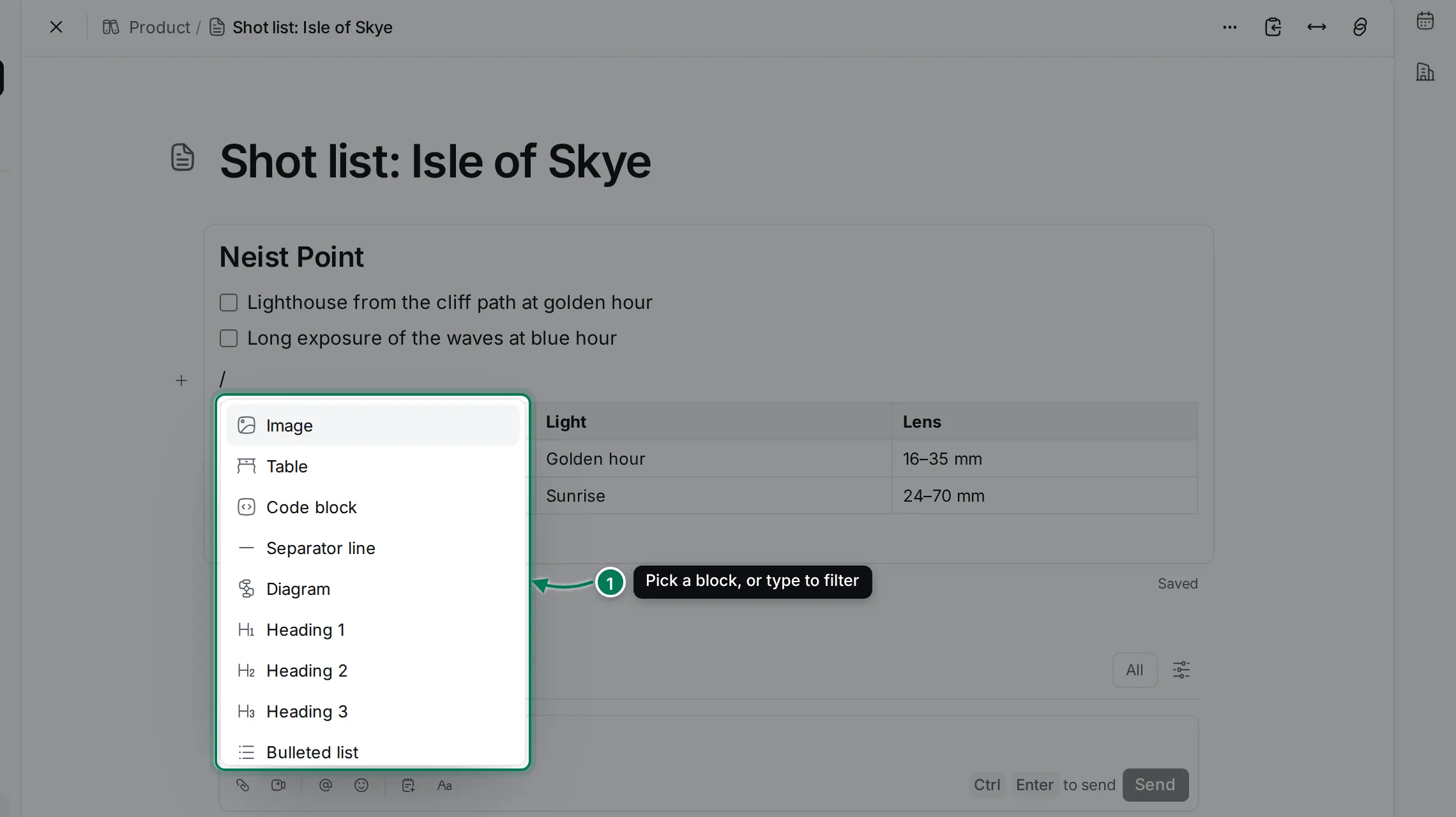
The menu has Image, Table, Code block, Separator line, Diagram, Heading 1 to Heading 3, Bulleted list, Ordered list, Action items (a to-do list) and Blockquote.
Format text
Section titled “Format text”Select some text to show the formatting toolbar above it.
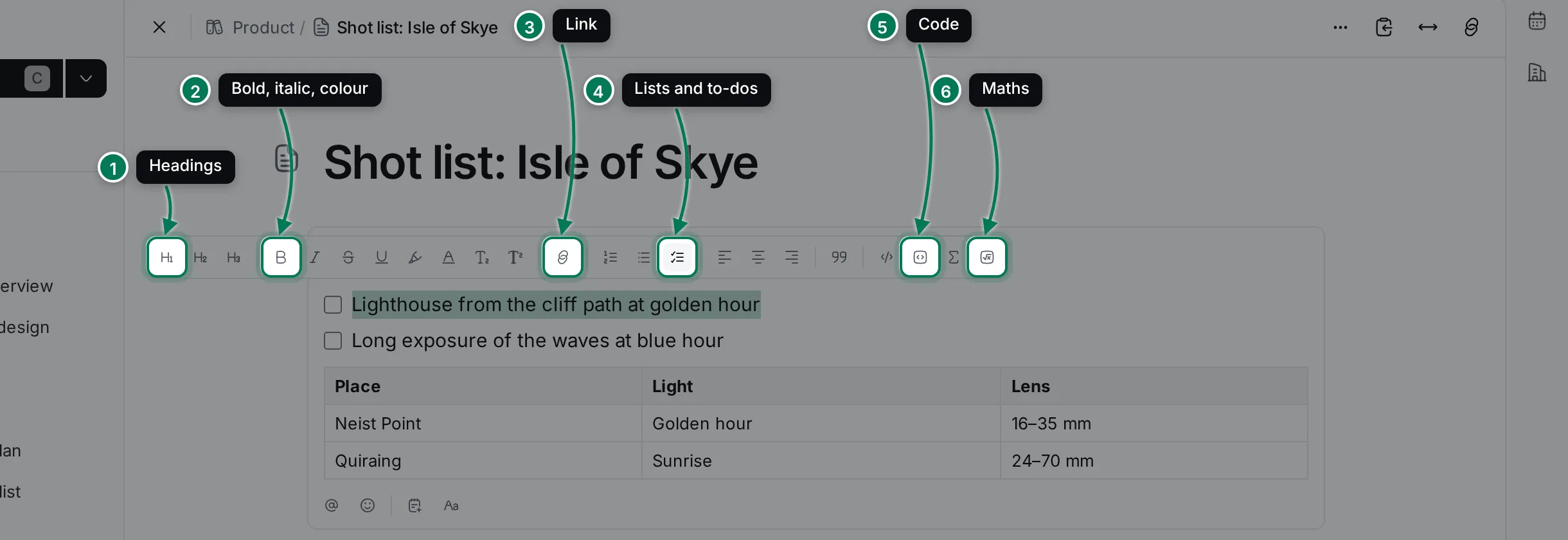
From left to right the toolbar has:
- Heading 1, Heading 2 and Heading 3.
- Bold, Italic, Strikethrough, Underlined, Highlight, Set text color, Subscript and Superscript.
- Link, which asks for the web address.
- Ordered list, Bulleted list and Action items, then Align left, Align center, Align right and Blockquote.
- Code (inline) and Code block.
- Mathematics and Mathematics block.
Hover a button to see its name and keyboard shortcut.
Markdown shortcuts
Section titled “Markdown shortcuts”If you know Markdown, type it and the text changes as you go:
| Type | To get |
|---|---|
# , ## , ### at the start of a line |
Heading 1, 2 or 3 |
**bold** or __bold__ |
bold |
*italic* or _italic_ |
italic |
~~strike~~ |
|
`code` |
inline code |
==text== |
highlighted text |
- or * |
a bulleted list |
1. |
an ordered list |
[ ] |
a to-do |
> |
a quote |
--- |
a separator line |
``` |
a code block |
A web address followed by a space becomes a link. Some characters are replaced as you type: -> becomes →, --
becomes —, and :) becomes 🙂.
Keyboard shortcuts work too: Ctrl + B for bold, Ctrl + U for underline, Ctrl + E for inline code and Ctrl + Alt + 1 to 3 for headings. On a Mac, use ⌘ instead of Ctrl.
To-dos
Section titled “To-dos”Choose Action items from the slash menu or the toolbar, or type [ ] at the start of a line. Click a box to tick
it; ticked items are struck through. Press Enter on an empty to-do to end the list.
Tables
Section titled “Tables”- Type
/tableand press Enter. - Pick a size, such as 3x3, or Headed 3x3 for a table with a header row.
- Type in the first cell and press Tab to move to the next one.
While the cursor is in a table, a small toolbar shows Set cell color, Select table and Customize table.
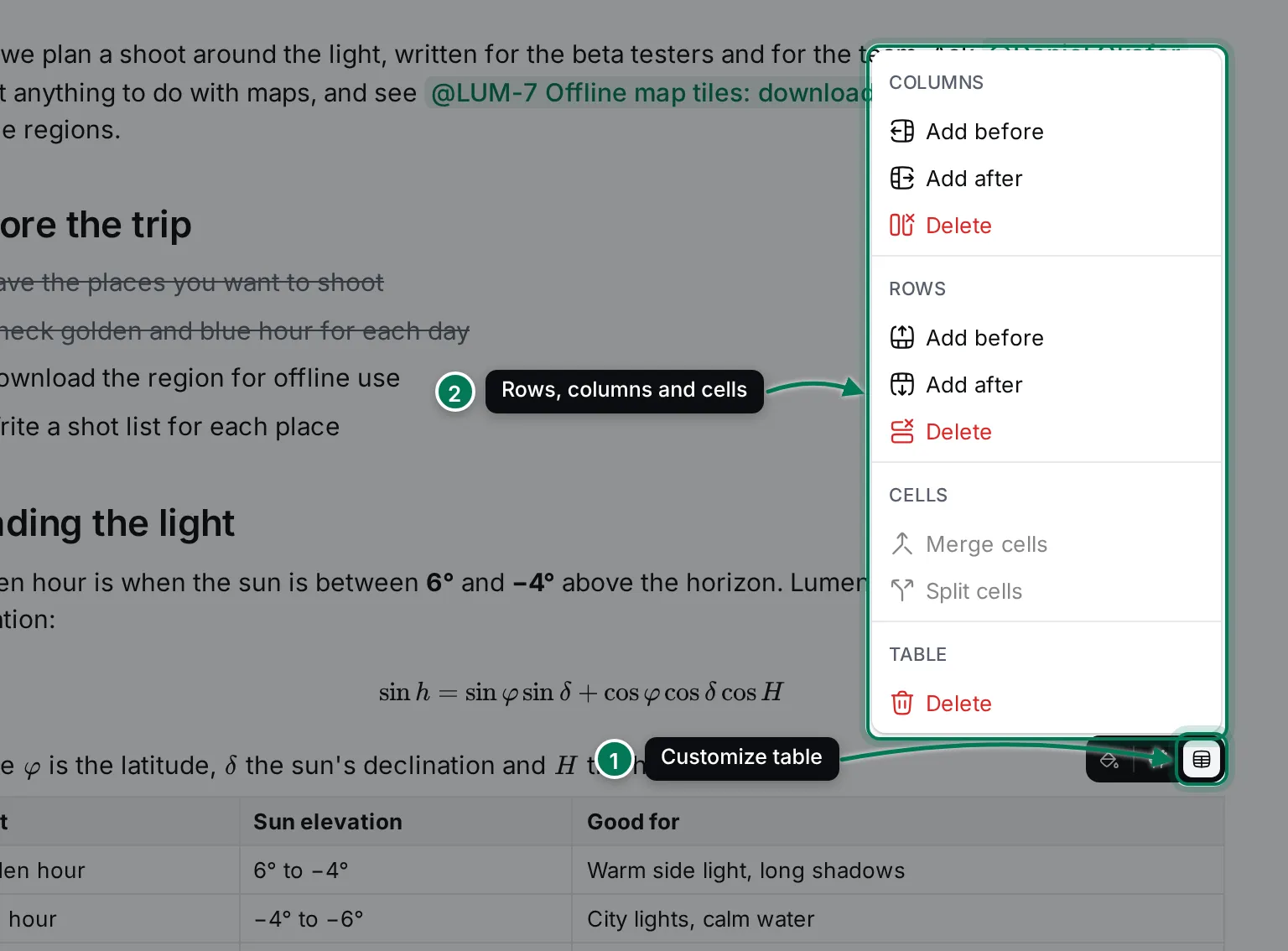
- Customize table opens the table menu.
- The menu adds or deletes Columns and Rows (before or after the current one), merges or splits Cells, and deletes the whole Table.
Code blocks
Section titled “Code blocks”Type ``` or choose Code block from the slash menu, then paste or type your code.
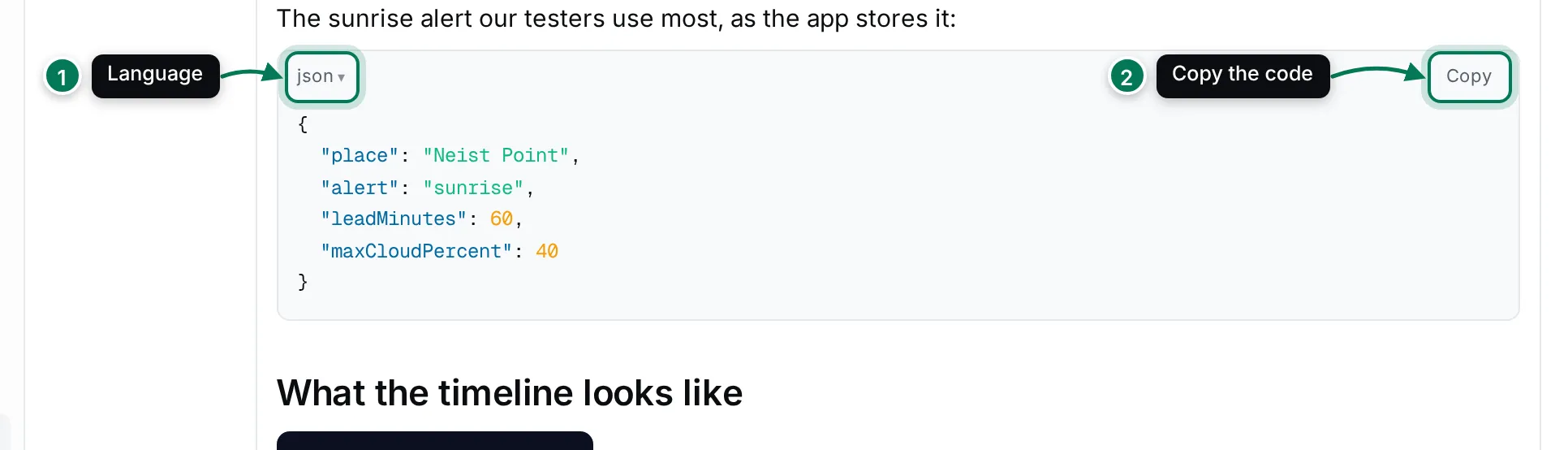
- Click the language button to choose how the code is highlighted.
- Copy copies the whole block.
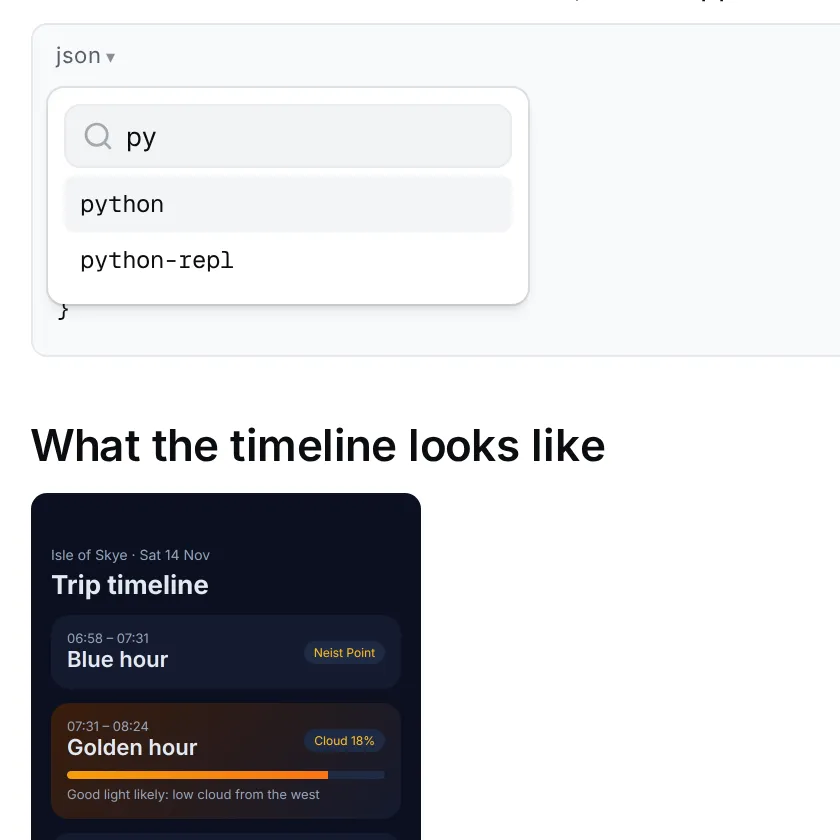
Type in the list to filter it. Auto-detect lets the editor guess the language.
Formulas are written in LaTeX between dollar signs and shown as typeset maths.
- Inline: select text and click Mathematics, or type
$x^2$. - On its own line: click Mathematics block, or type
$$ … $$in an empty paragraph.

Click a formula to see and edit its source; it is typeset again when the cursor leaves it.
Diagrams
Section titled “Diagrams”Choose Diagram from the slash menu to add a Mermaid diagram, such as a flowchart.
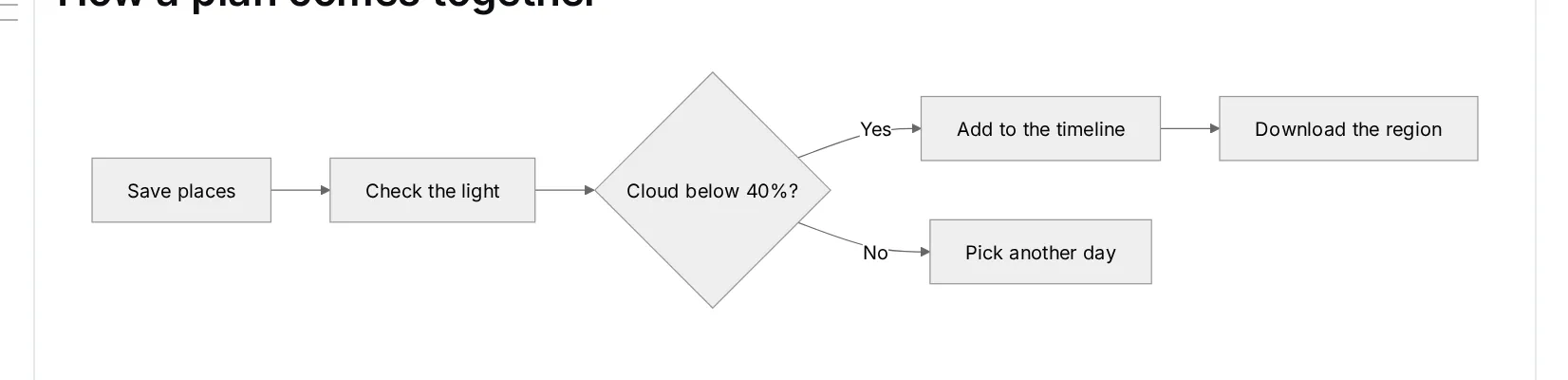
Click a diagram to edit it. Its Mermaid source opens above the drawing, and the drawing updates as you type.
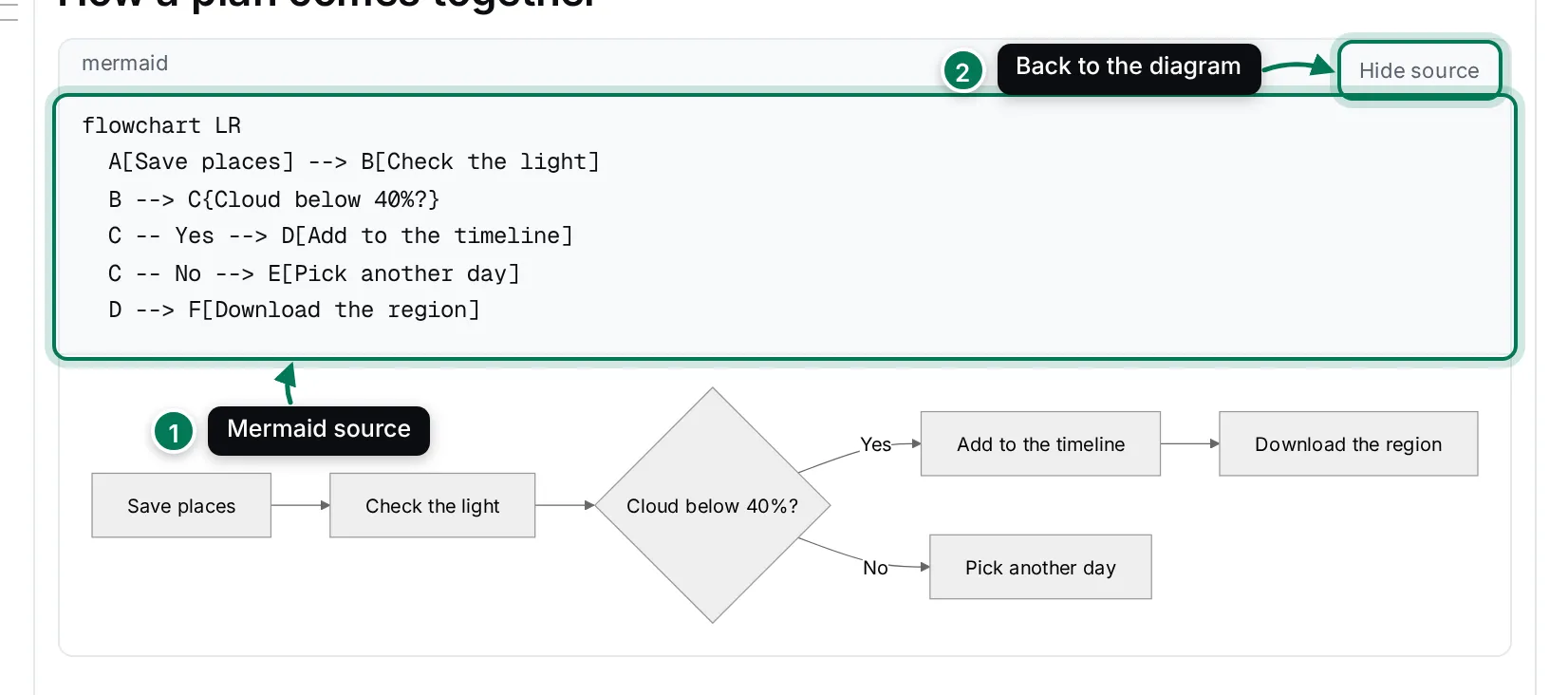
- Edit the source here.
- Hide source goes back to the diagram alone.
Images
Section titled “Images”Choose Image from the slash menu to upload a picture, or paste or drop an image into the text.
Hover an image to show its toolbar.
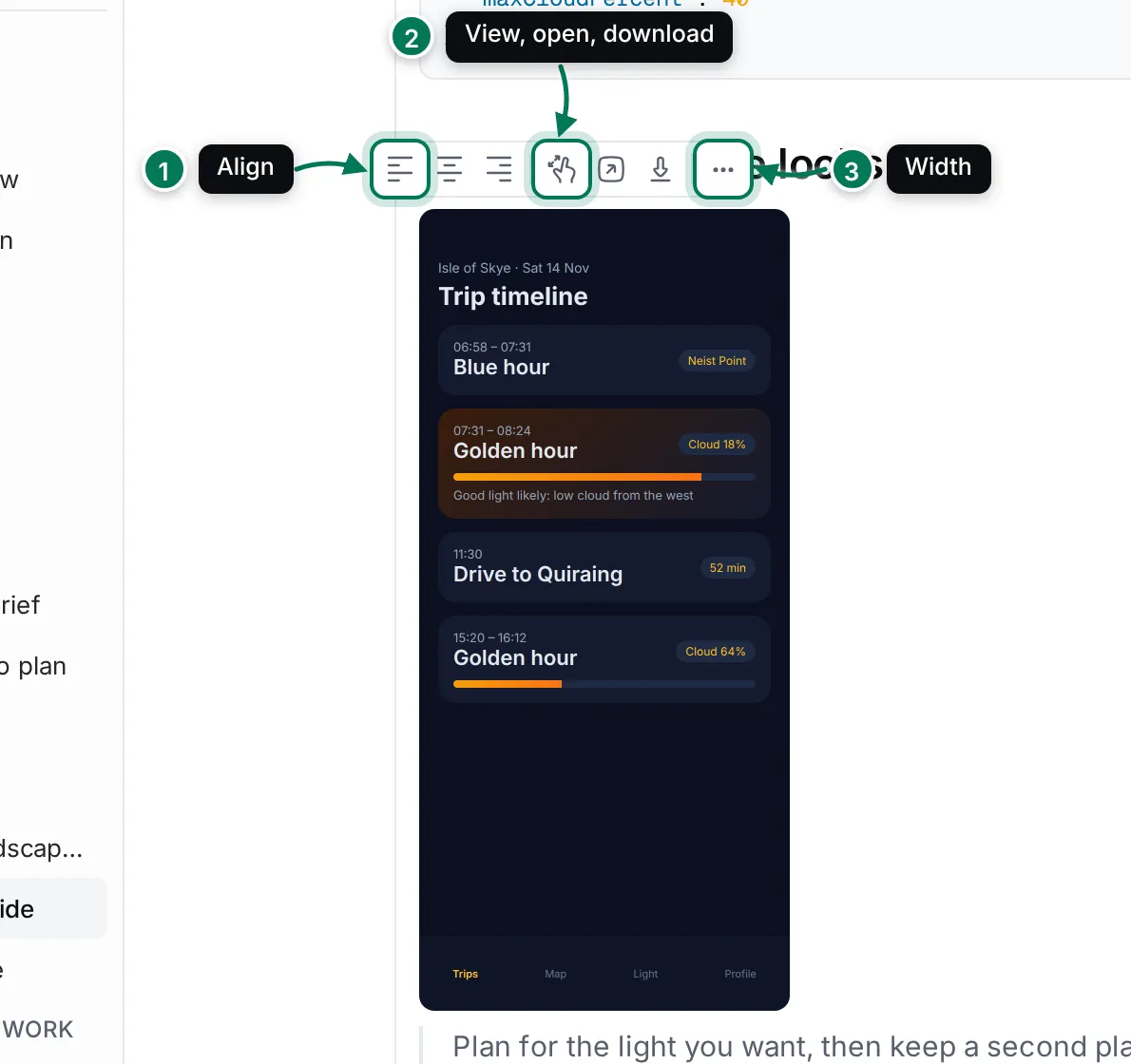
- Align left, Align center and Align right.
- View image opens it larger, View original opens the file in a new tab, and Download saves it.
- More actions sets the width: 25%, 50%, 75%, 100% or Unset.