List and board views
Every issue list (My issues, All issues and each project’s Issues) can be shown as a list or a board, grouped and ordered the way you like. Your choices are remembered for you in this browser and don’t change what others see.
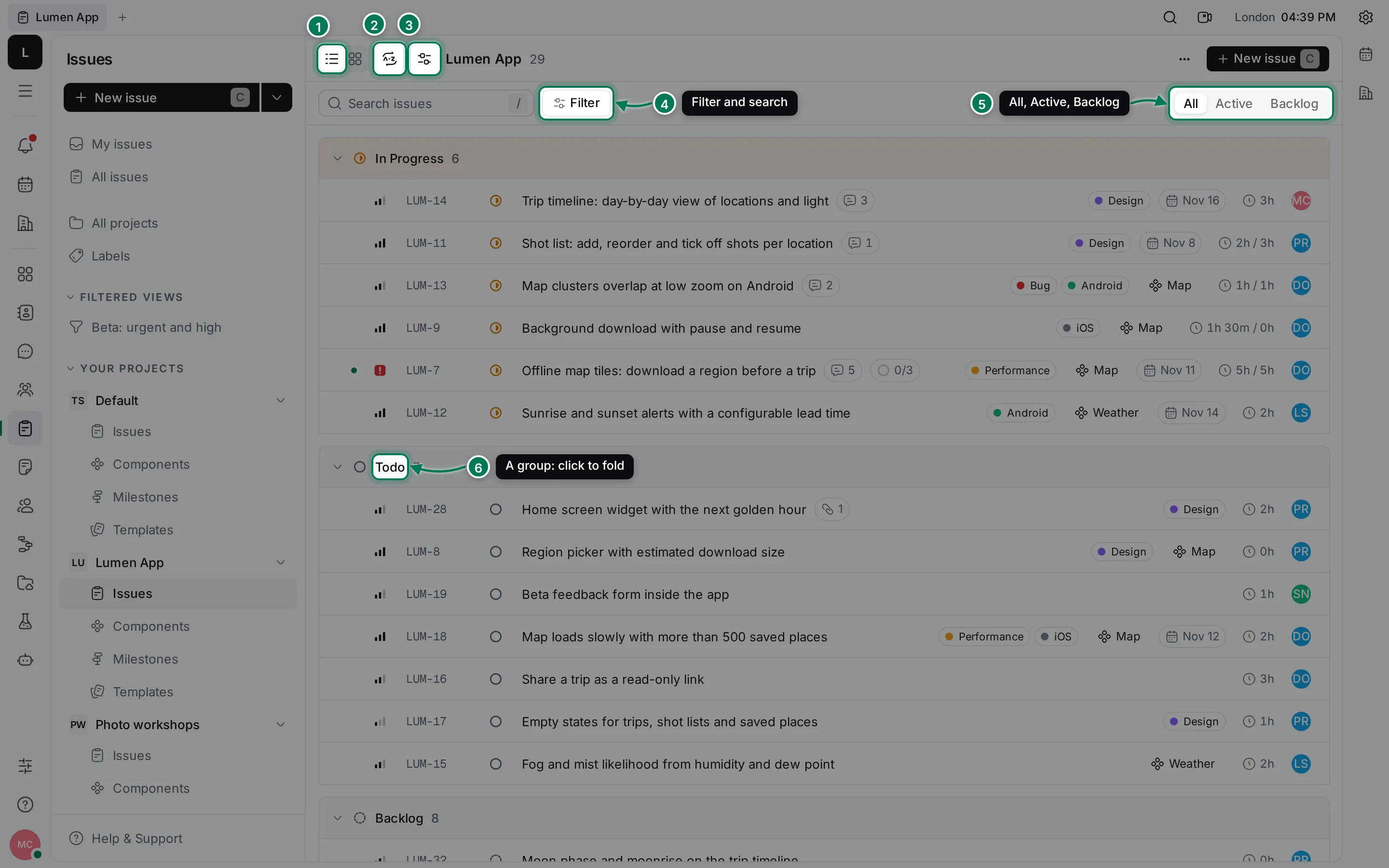
- List or Board.
- Customize view: grouping, ordering and display options.
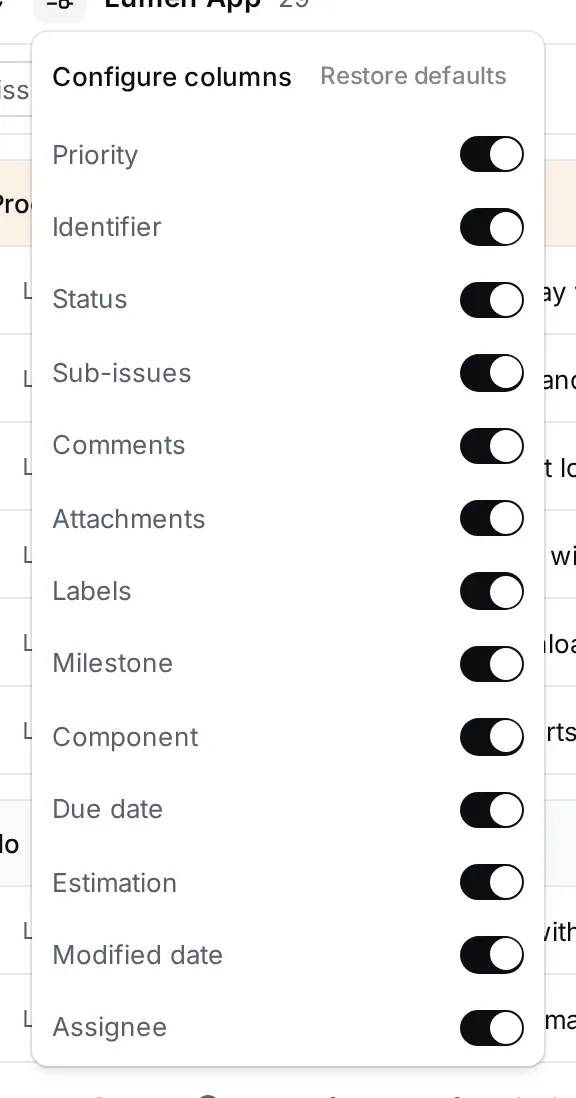
- Configure columns: what each row shows.
- Filter and the search field. See search, filters and saved views.
- All, Active and Backlog tabs. Active shows the issues in Todo and In Progress; Backlog shows the ones in Backlog.
- A group. Click its header to fold it, or + on it to add an issue to the group.
Read an issue row
Section titled “Read an issue row”
Each row shows the priority, the ID, the status and the title, then whatever columns are on: comments, sub-issues done, labels, component, milestone, due date, time and assignee. A dot before the row means there’s activity you haven’t seen.
Click a row to open the issue. Click a value in it to change it without opening the issue; see work on an issue. Hover over the comment count to read the latest comments and reply.
Use the board
Section titled “Use the board”The board shows one column per status, with a card per issue. Drag a card to another column to change its status.
- Click Board above the list (1).
- Drag a card to another column (2). The issue takes that column’s status.
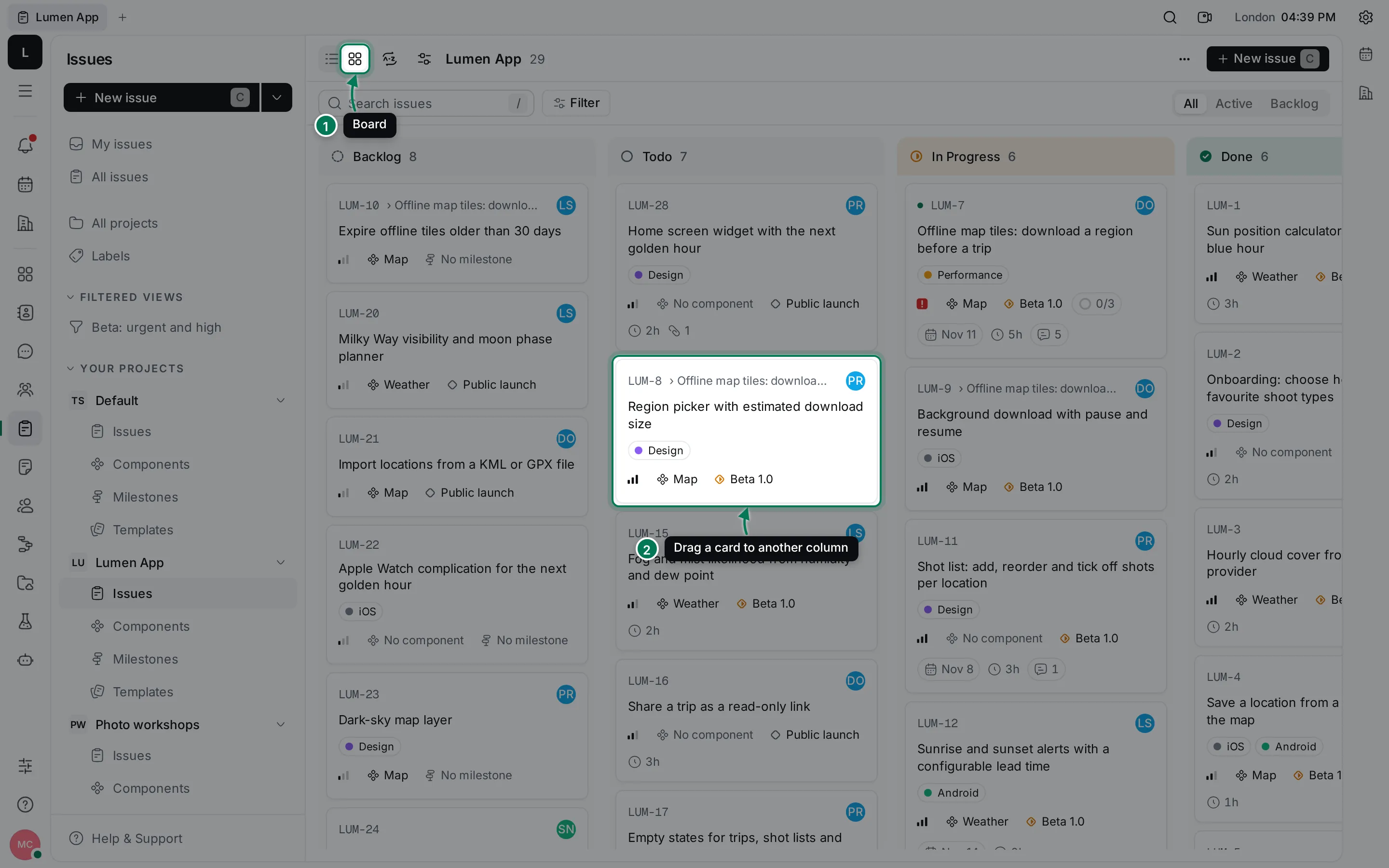
You can also drag with the keyboard: focus a card, press Space, move it with the arrow keys and press Space again. In a list, drag a row by the handle on its left to move it to another group or, with Manual ordering, to a new position.
Group and order issues
Section titled “Group and order issues”Click Customize view to change how issues are arranged.
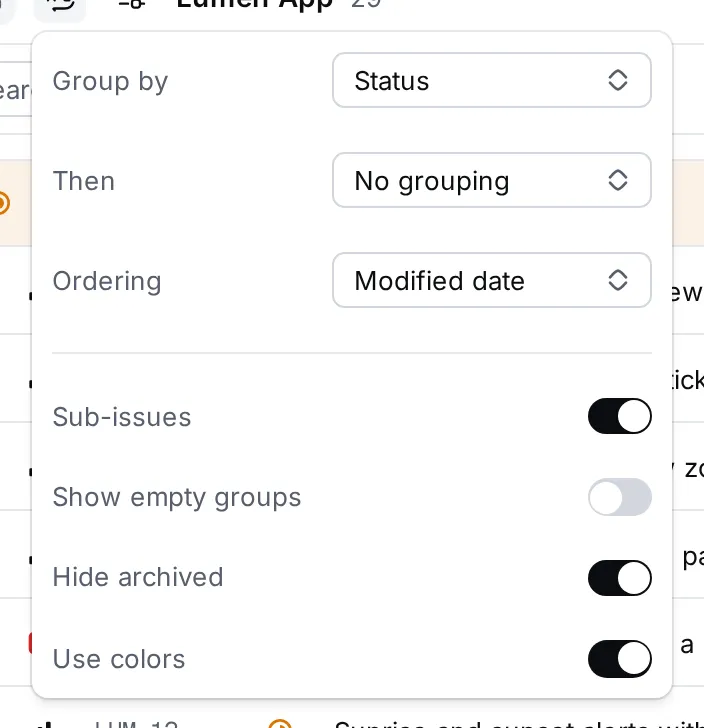
- Group by: status, assignee, priority, project, component, milestone, created by, modified by, task type, time, or No grouping.
- Then: a second level of groups inside each group.
- Ordering: modified or created date, status, priority, due date, time, or Manual to drag rows into your own order.
- Sub-issues: show sub-issues as rows of their own.
- Show empty groups: list statuses that have no issues.
- Hide archived: leave out issues of archived projects.
- Use colors: tint group headers by status.
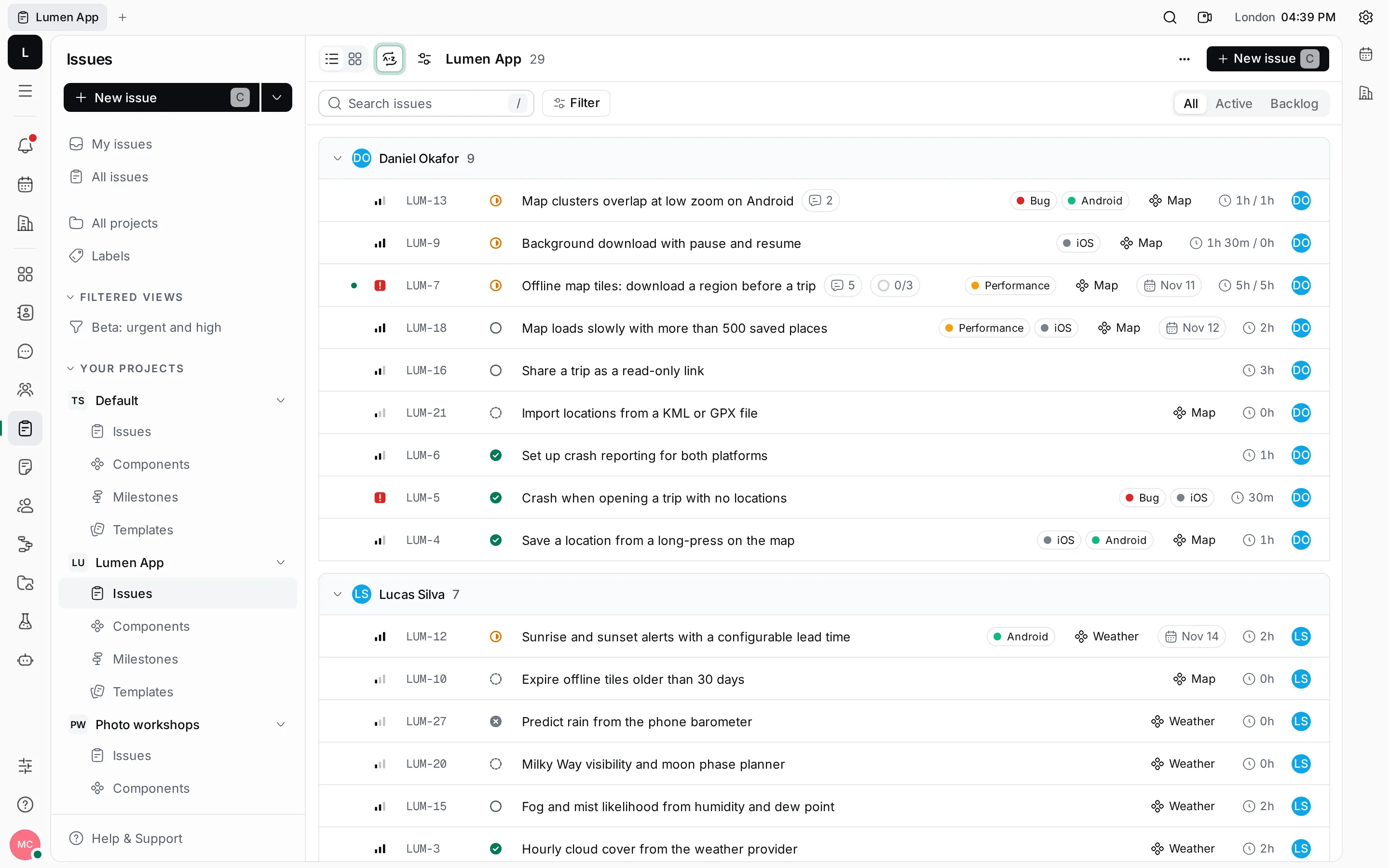
The board has a shorter set of options, since its columns are always statuses.
Choose columns
Section titled “Choose columns”Click Configure columns and turn properties on or off: priority, identifier, status, sub-issues, comments, attachments, labels, milestone, component, due date, estimation, modified date and assignee. Restore defaults turns them all back on. On the board, the same button opens Card fields, where you choose what each card shows.
To copy the issues on screen as a Markdown table, click … at the top right and choose Copy all.