Run a process
Once a process is set up for a card type, anyone who can work with those cards can start it. Processes set to Start automatically begin on their own when a card of the type is created.
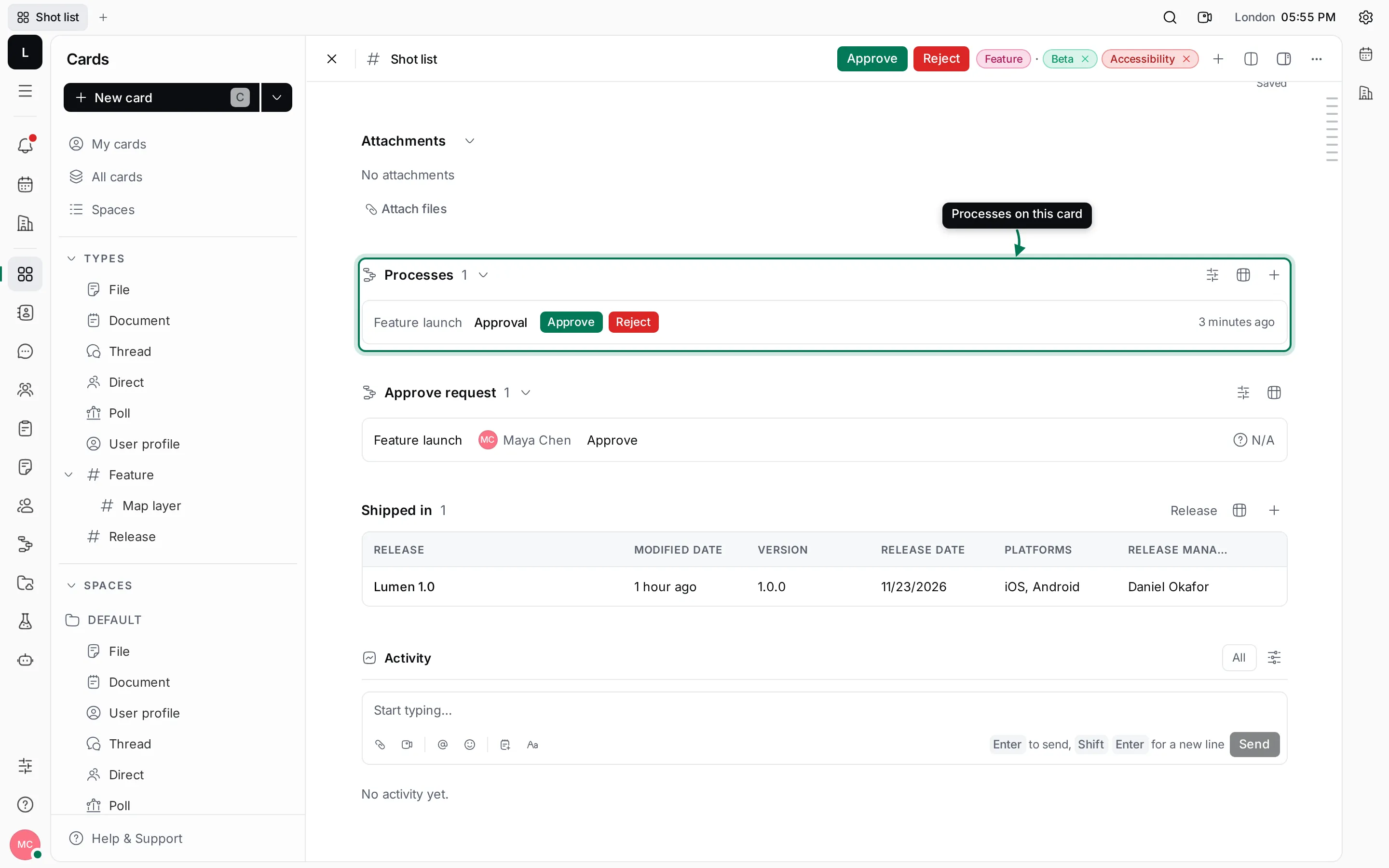
Start a process from a card
Section titled “Start a process from a card”- Open the card.
- Click ⋯ and choose Run process.
- Pick the process. Only the processes of the card’s type and its parent types are offered.
The process appears in the card’s Processes section, already in its first state with its first action item. In Lumen’s Feature launch, that’s Spec, with Write the spec for Priya. You can also click + in the section to start a process.
Start a process from the Processes app
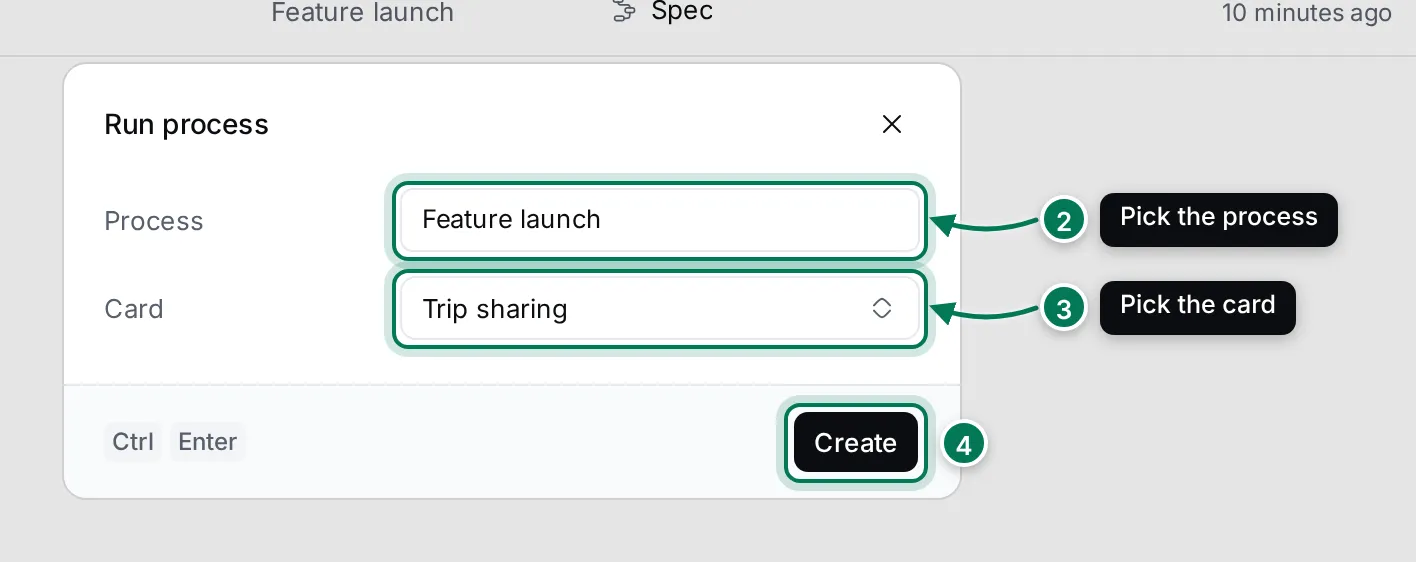
Section titled “Start a process from the Processes app”- Open Processes and click Run process (or press C).
- Pick the Process.
- Pick the Card. Search to find it; only cards of the process’s type are offered.
- Click Create. The new process opens.
If the first step asks the person who starts it for a value, Create turns into an Enter value step. Fill in the values and click Save.
When a process has Parallel execution forbidden turned on, you can’t start it twice on the same card while the first one is still running.
Follow a process
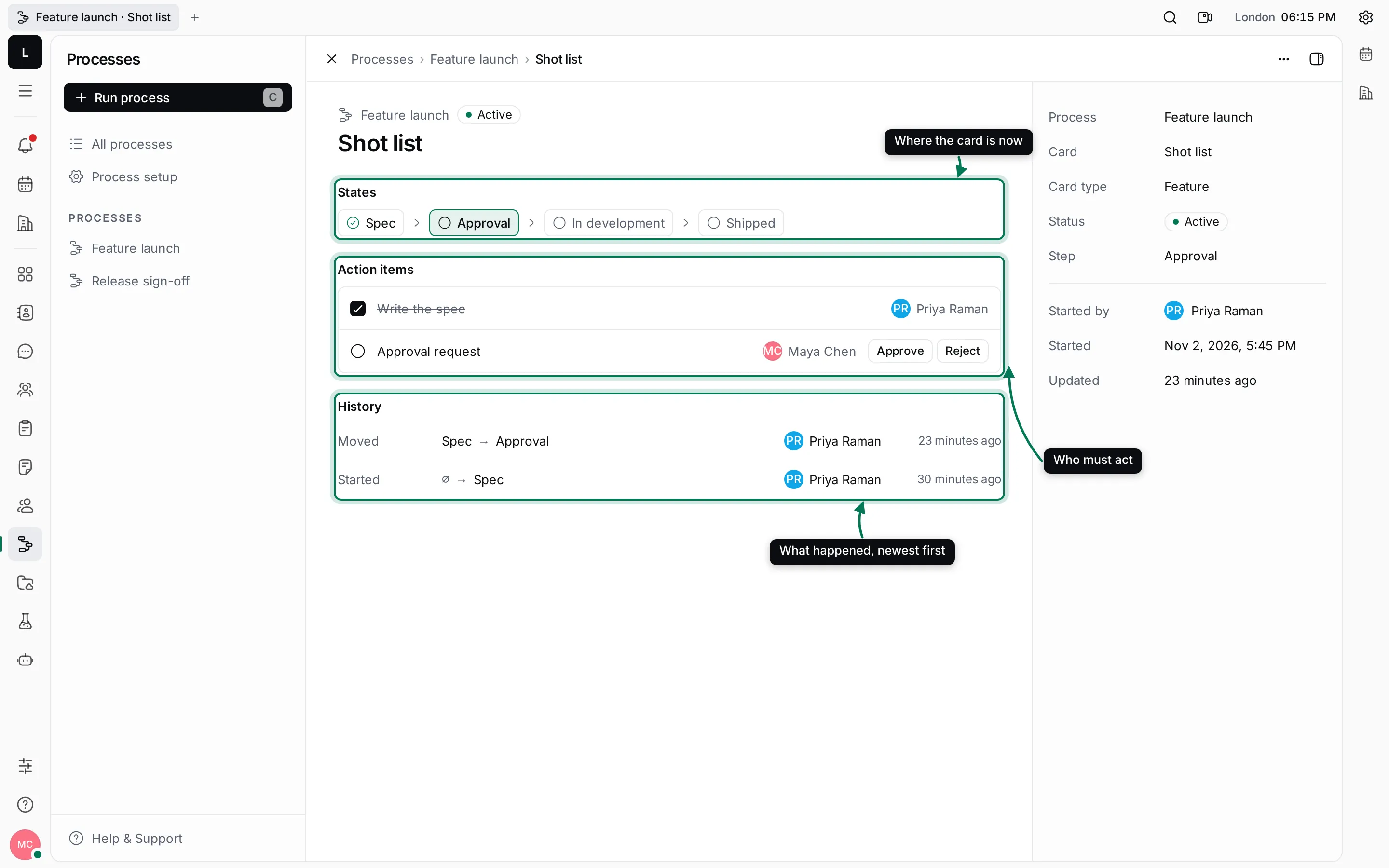
Section titled “Follow a process”Click a row in All processes or in a card’s Processes section to open the process. Its page shows the card, the states with the current one marked, the action items with who must act, and the History: what happened, when and who did it, newest first. Approval requests on this page also have Approve and Reject.
In the list, click the process name in a row to read its log without leaving the list. Click the card’s title to open the card.
Action items and approvals
Section titled “Action items and approvals”When a step creates an action item for you, it shows in the process, on the card and on your list of to-dos. Tick it when you’re done; the process moves on if a transition waits for it. If the action item asks for results, a Result dialog asks for them first.
When a step asks for your approval, the card shows it in its header and in an Approve request section that lists every request with its answer.
- Open the card and click Approve in its header, or Reject to send the card back.
- Check that the Email in the dialog is yours. A rejection also needs a Rejection reason.
- Click Submit. If a transition waits for the answer, the process moves on.
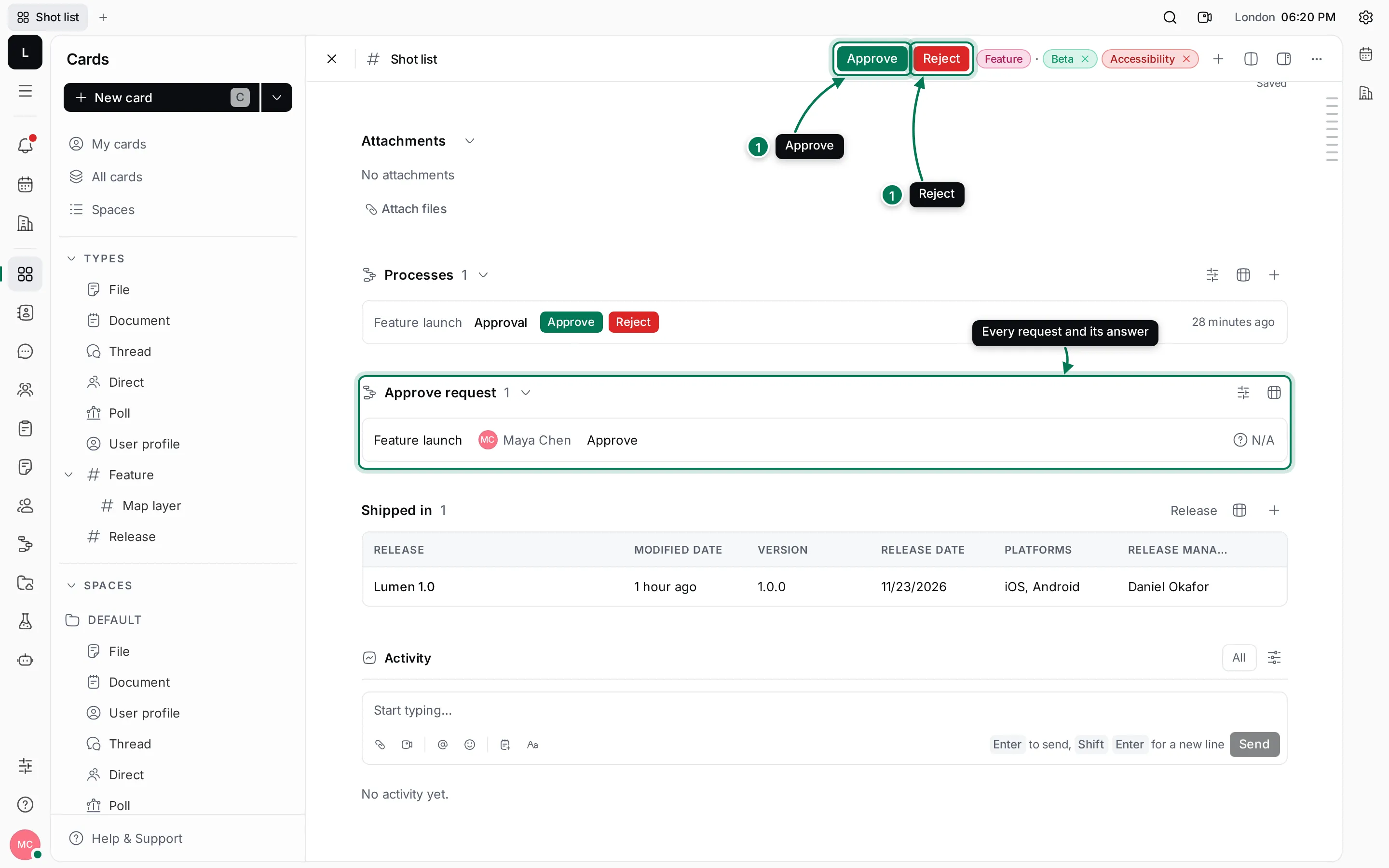
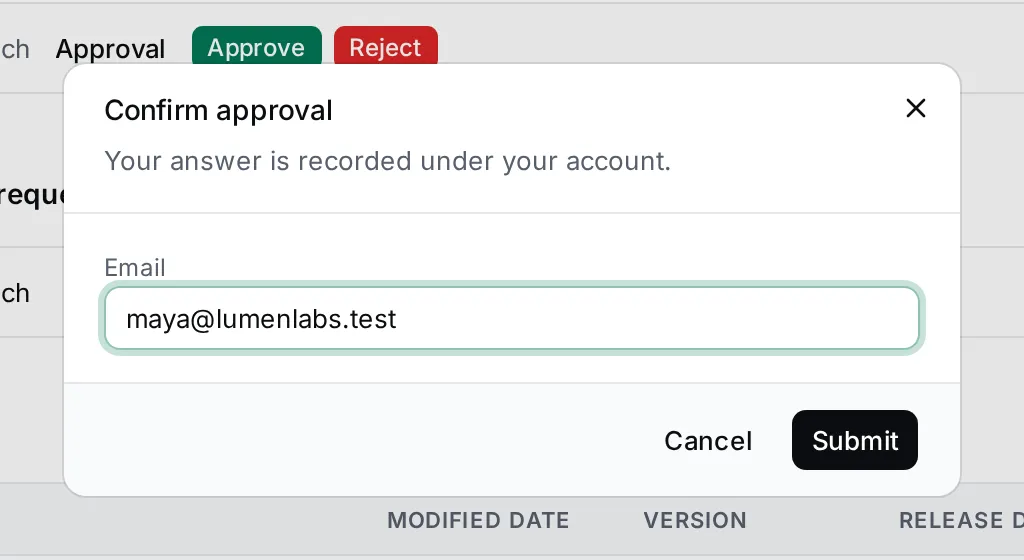
In Lumen Labs, Priya ticked Write the spec on the Shot list feature, so the process now waits for Maya to approve it.
When something goes wrong
Section titled “When something goes wrong”If a step fails, the process stops and shows the error in red, for example a value it needed was empty. Fix the cause, then click Continue to retry the step. To stop a process for good, right-click it in the list and choose Cancel process. Select several rows to continue or cancel them together.
Find processes
Section titled “Find processes”- All processes lists every process. Each process also has its own entry in the navigator.
- View options groups the list by Process, Step or Card, or not at all, orders it by date, and turns Show done on or off.
- The search field matches card titles and process names. Press / to jump to it.
See Triggers and actions for what each step can do.