Your profile and status
Your avatar at the bottom of the rail opens your menu: your account settings, your status, invitations, other workspaces, help and sign out.
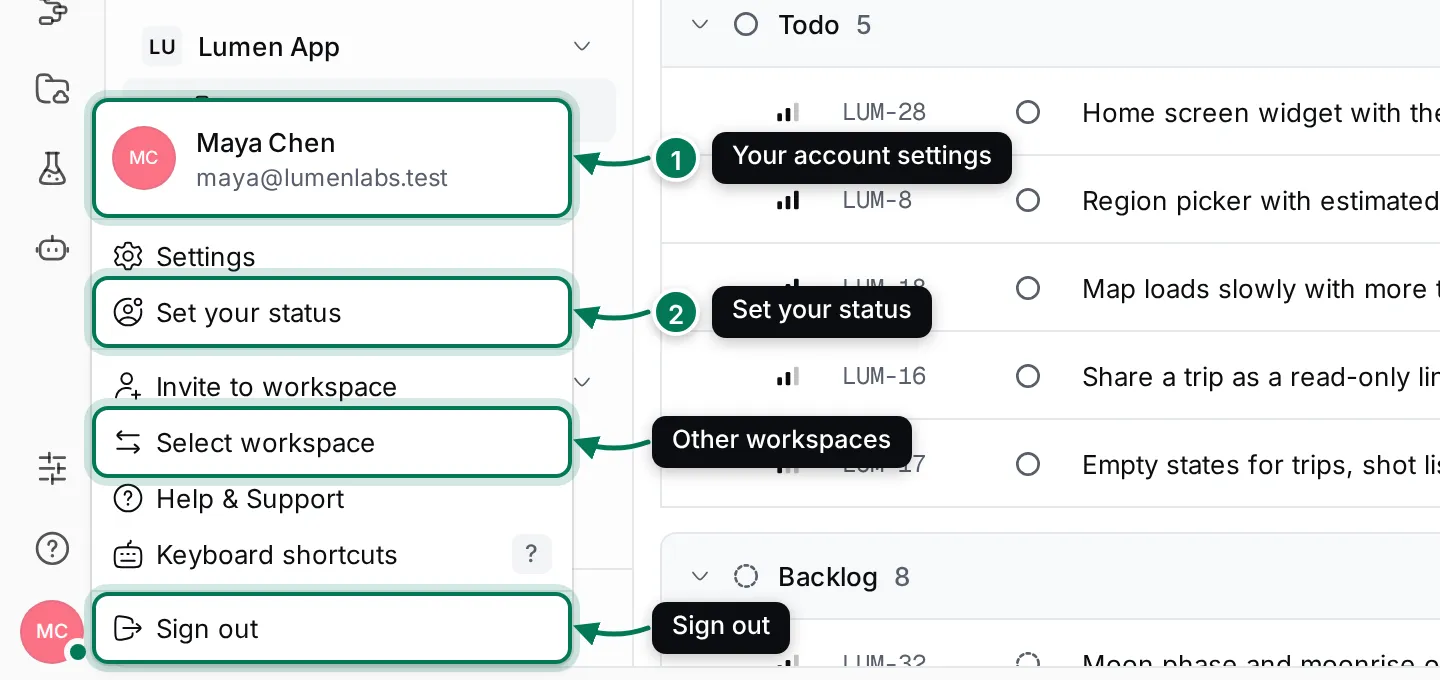
- Your name and email open Settings › Account settings, where you change your profile.
- Set your status tells your team what you’re up to.
The rest of the menu: Settings, Invite to workspace, Select workspace (see Switch workspaces), Help & Support, Keyboard shortcuts and Sign out. When your browser can install Maxint Work as an app, Install app shows here too (see On your phone).
Your profile
Section titled “Your profile”Click your name at the top of the menu, or open Settings › Account settings. There you change your first and last name (press Enter to save), your photo or avatar colour, your location and your social links.
Your teammates see your name and photo next to everything you do: issues, documents, messages and calls. Your account explains every field.
Your email, sign-in methods and two-factor authentication belong to your Maxint account. See Manage your Maxint account.
Set your status
Section titled “Set your status”A status is a short note such as “Reviewing beta feedback” or “On vacation”, with an emoji and a time when it clears by itself.
-
Click your avatar and choose Set your status.
-
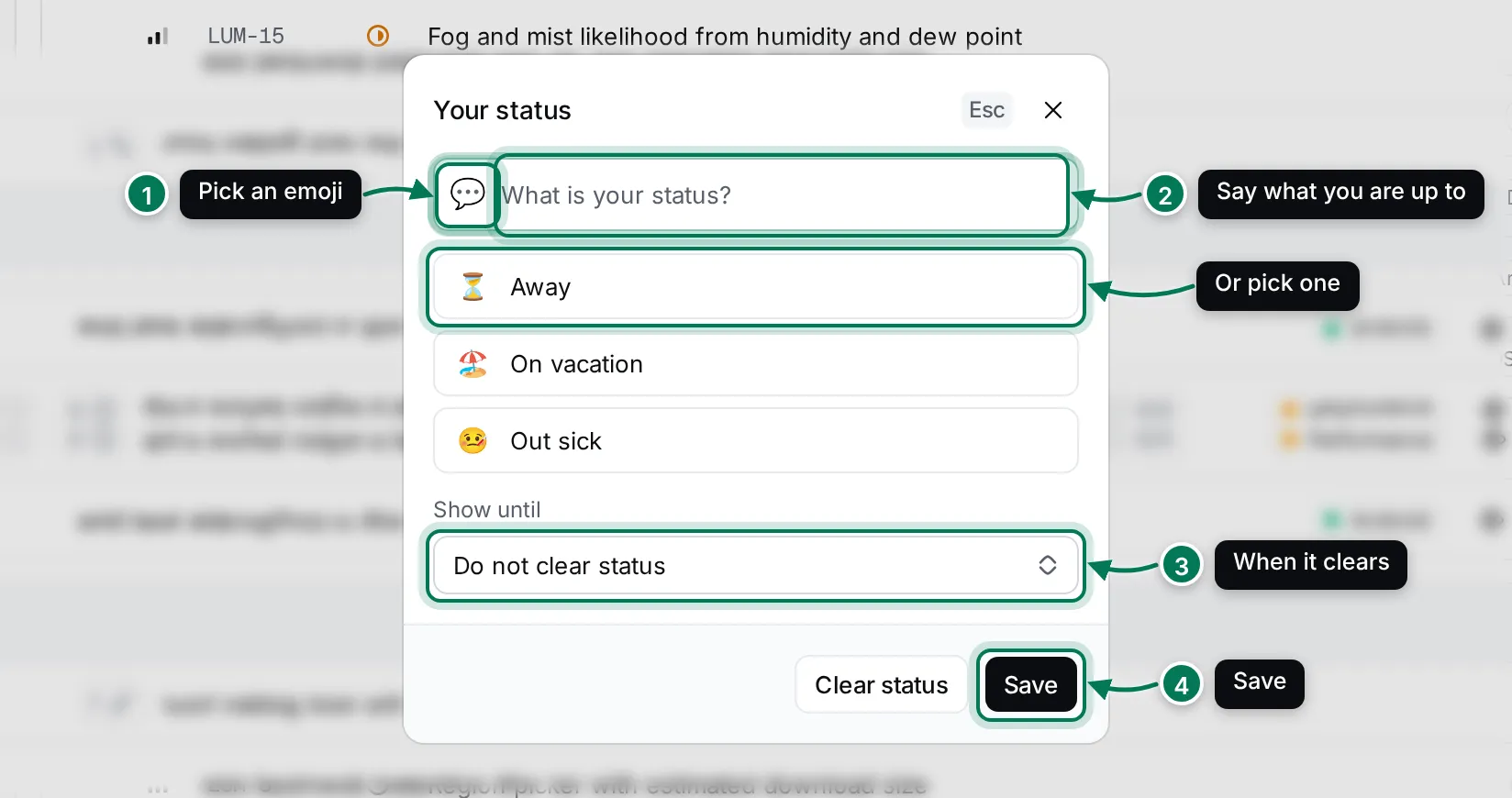
Click the emoji (1) to pick another one, and type what you’re up to (2). Or click Away, On vacation or Out sick to use one of those.
-
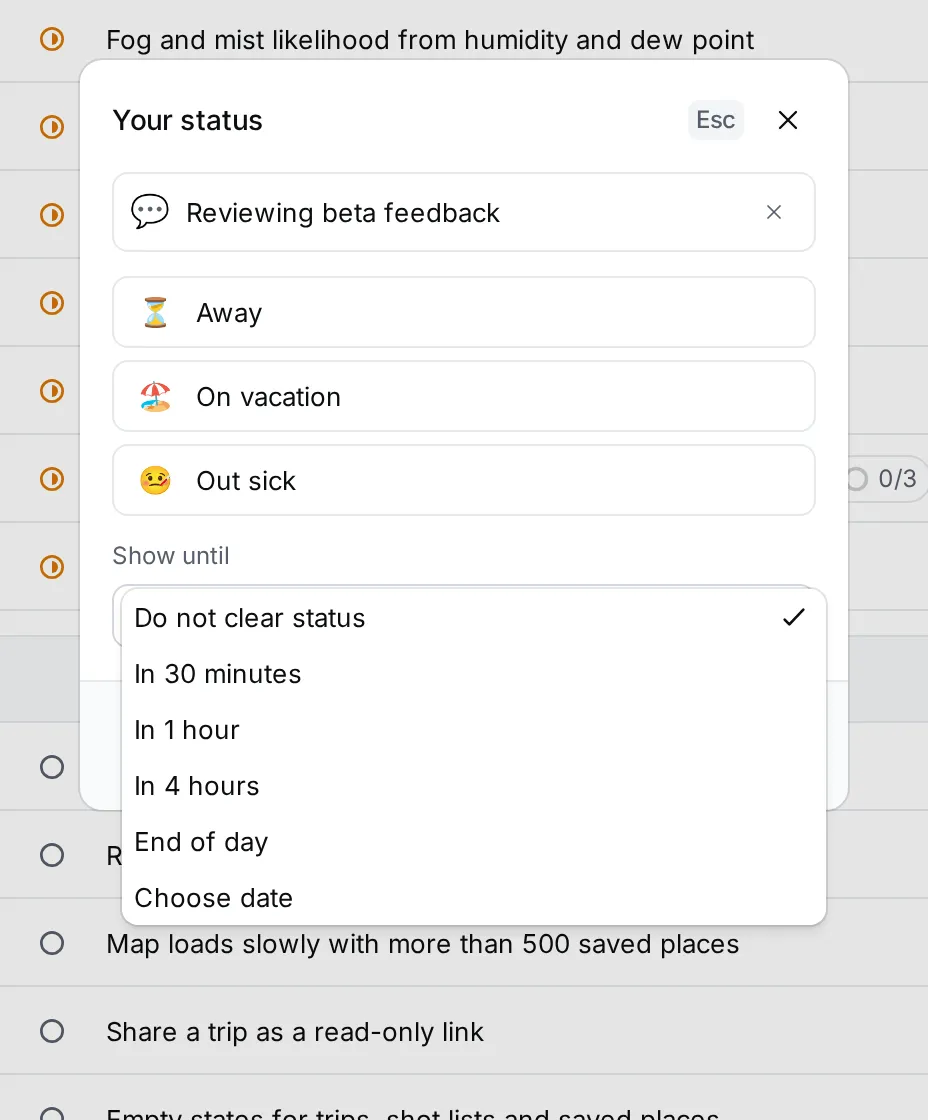
Under Show until (3), choose when the status clears: Do not clear status, In 30 minutes, In 1 hour, In 4 hours, End of day, or Choose date to pick a date and time.
-
Click Save (4), or press Ctrl+Enter (⌘+Enter on a Mac).
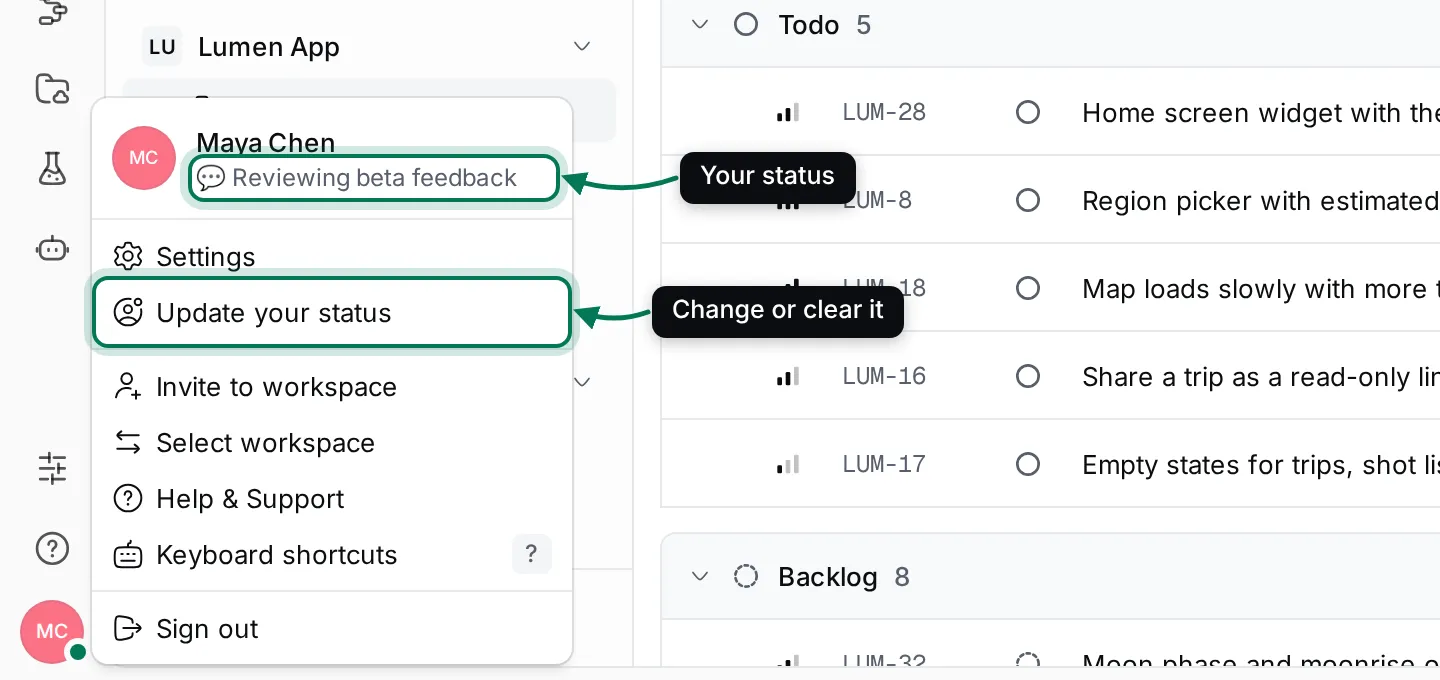
Your status shows under your name at the top of your menu, and the menu item becomes Update your status.
Change or clear your status
Section titled “Change or clear your status”Choose Update your status in your menu. Change the text or the time and click Save, or click Clear status to remove it now. A status with a Show until time disappears by itself at that time.