Rooms, presence and knocking
The floor plan works like a real office: go into a room to meet the people there, and knock before entering someone’s office.
Kinds of rooms
Section titled “Kinds of rooms”- Your office: when you’re in the workspace you sit in your own office. Click it to go back to your desk; that also ends any call you’re in.
- Other people’s offices: usually set to Knock, so the owner decides whether to let you in. An office’s name is greyed out while nobody is in it.
- Meeting rooms and team rooms are shared. Video rooms show a camera icon; audio rooms, like Voice Room 1, have none.
Join a meeting room
Section titled “Join a meeting room”- Click a meeting room on the floor plan. Hover first to see its free seats; click a seat to sit there, or anywhere in the room to take the first free one.
- You appear in the room for everyone, and the room’s call starts on your side.
- To leave, click Leave in the call bar at the bottom, or click your own office.
Each room also has a menu: right-click it, or hover it and click ⋯.
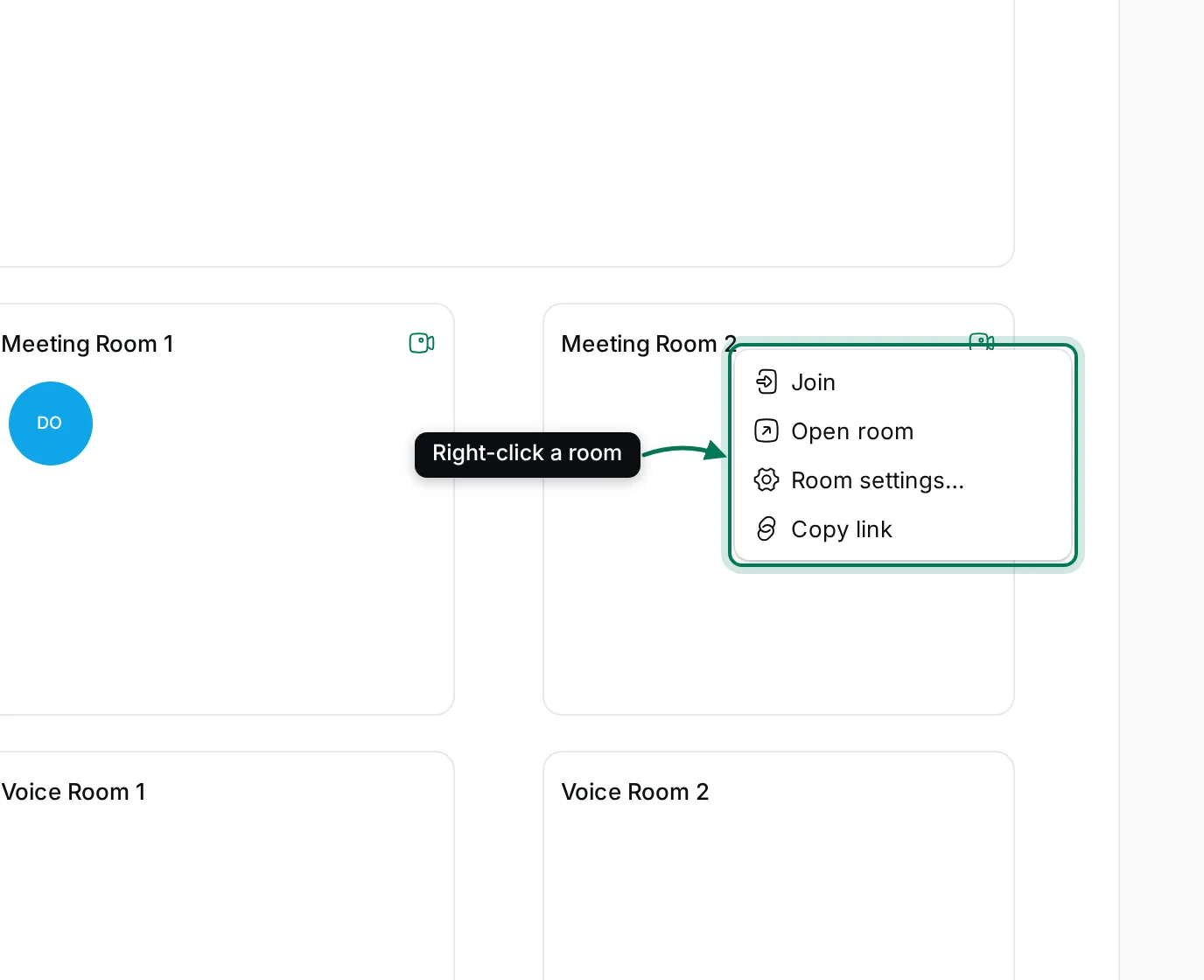
- Join (or Knock, or Go to my office).
- Open room: the room’s own page, with its description, files and meeting minutes.
- Room settings…: see Arrange the office.
- Copy link: a link to the room you can paste in a message.
See who is where
Section titled “See who is where”The In the office list in the navigator shows everyone online, with the room they’re in. On the plan, click someone’s avatar to see where they are and to go to them.
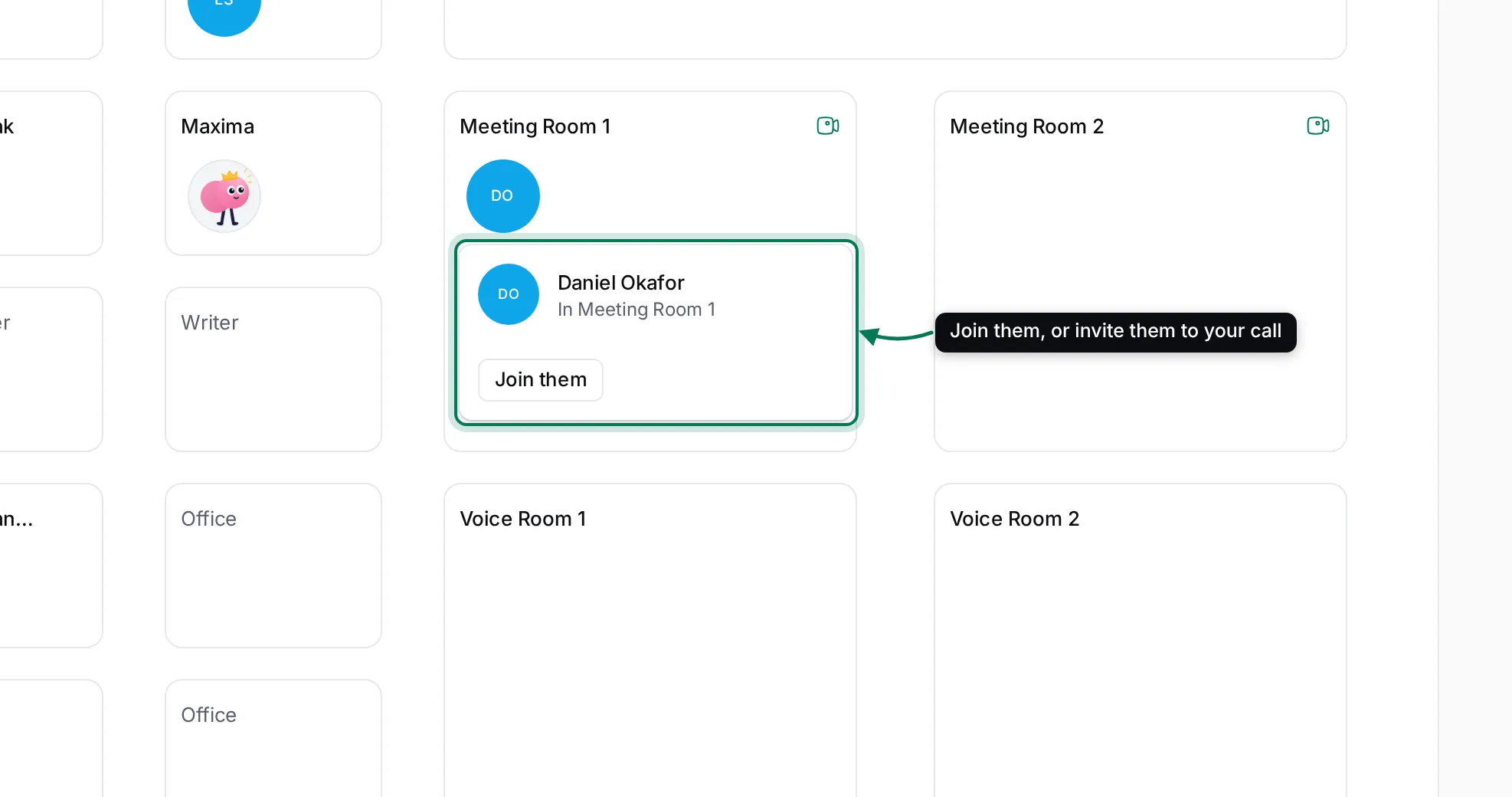
- Join them takes you to their room (or knocks, if their room asks for it).
- Invite to my call asks them to come to the room you’re in.
Keep the office in view from any page
Section titled “Keep the office in view from any page”You don’t have to leave what you’re doing to see who is around.
- Click Office (the building icon) on the right edge of the window, on any page.
- A small map of each floor opens beside your work, with everyone’s avatar in the room they’re in. Click a room to go in, knock or go back to your office, just as on the floor plan. Right-click a room for its menu.
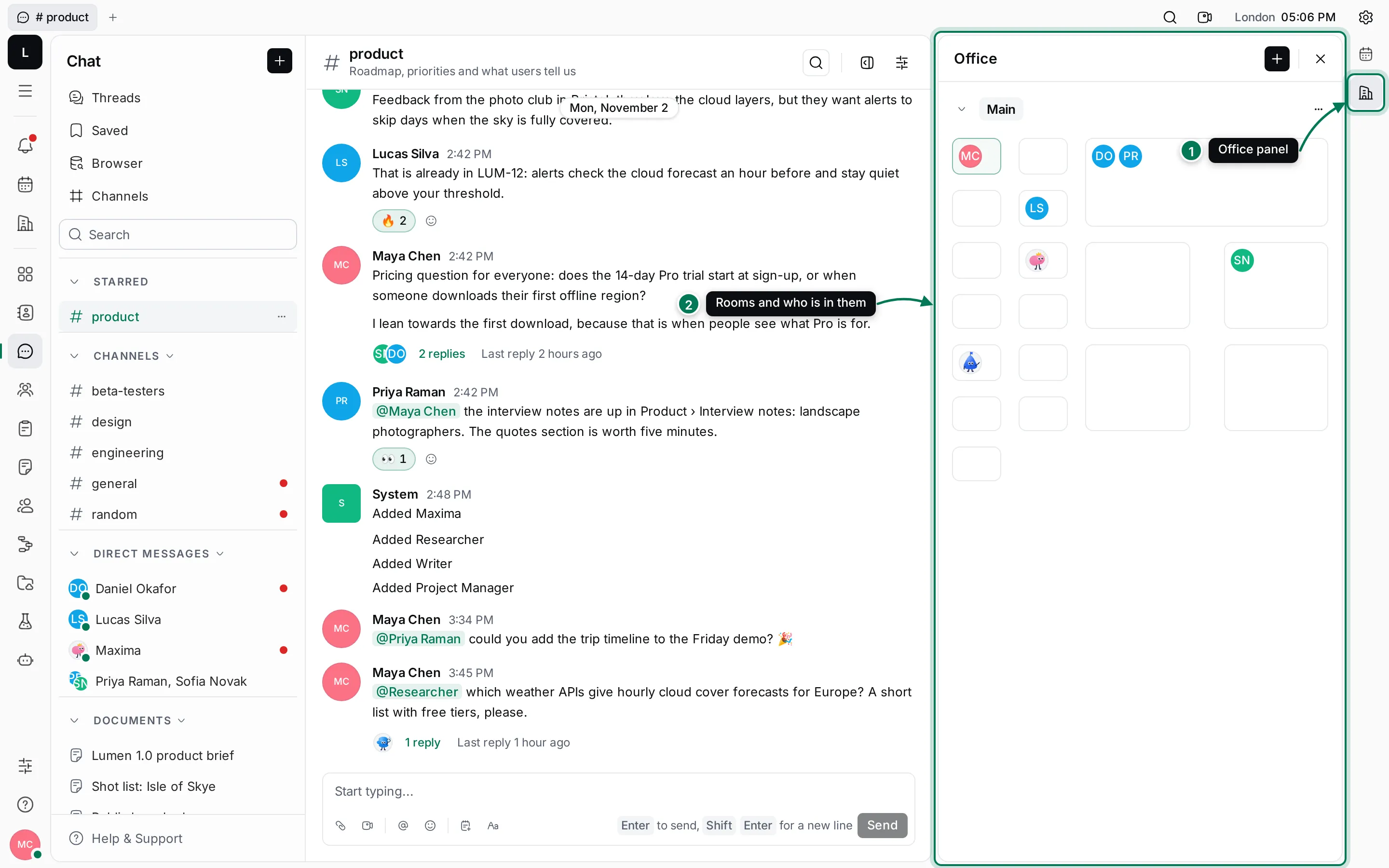
While you’re in a call, the call controls appear in this panel too. Click × or the building icon again to close it.
Knock on an office
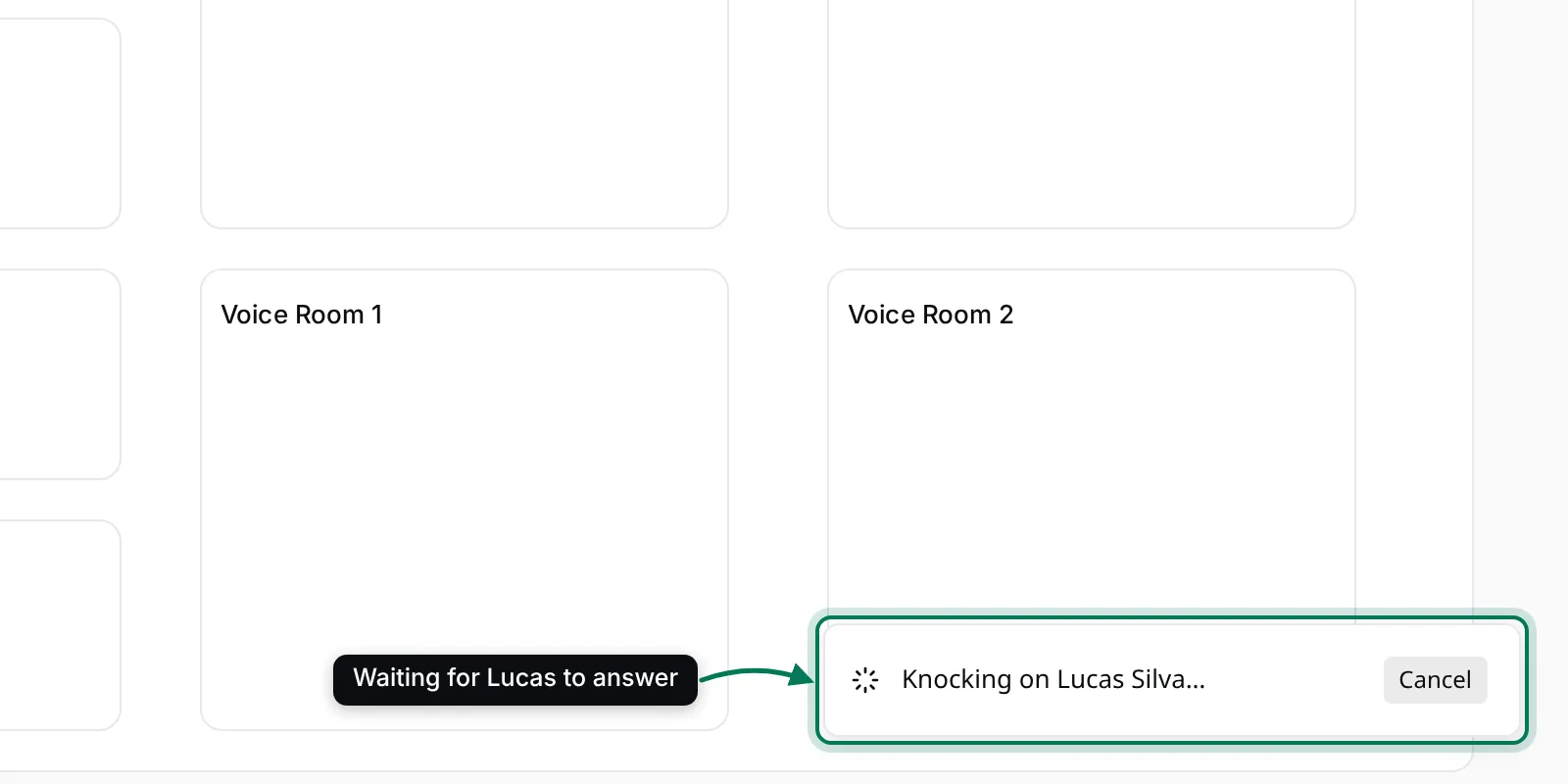
Section titled “Knock on an office”- Click the office of someone who is in. If it’s set to Knock, a message “Knocking on …” appears with Cancel.
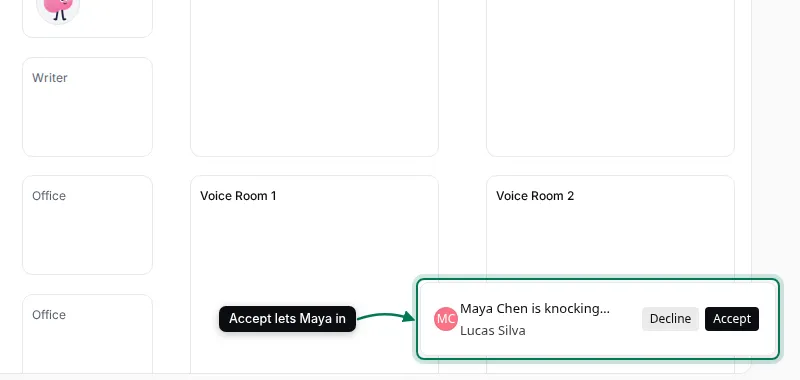
- They get “… is knocking…” with Decline and Accept, and a knocking sound.
- If they accept, you enter their office and the call starts. If they decline, or don’t answer within 45 seconds, you’re told so and stay where you are.
Rooms set to Do not disturb can’t be entered; clicking one explains why. Knocks and invites reach people on any page, not just in Office.
Invite someone to your call
Section titled “Invite someone to your call”- While in a room, open the call (click the room’s name in the call bar) and click Invite to this call, or right-click the room and choose Invite to this call.
- Search for a person and pick them. You see “Invited …”.
- They get “… is asking you to join” with Accept and Decline. You’re told whether they accepted, declined or didn’t answer.
You can also invite someone from their card anywhere in the app: Call on a person’s card invites them to your current call, or, if you’re not in one, takes you to your office and invites them there.
AI Workers can be invited too; they answer on their own.