Card spaces
A card space is a shared place for cards, much like a project in the Tracker. It decides which card types can be created in it and who can see its cards. Every workspace starts with a Default space. Add more when a team needs its own set of records, such as a Product catalogue for features and releases.
Create a space
Section titled “Create a space”-
Open Cards and click Spaces in the navigator, then click Create space. You can also open the menu next to New card and choose Create space.
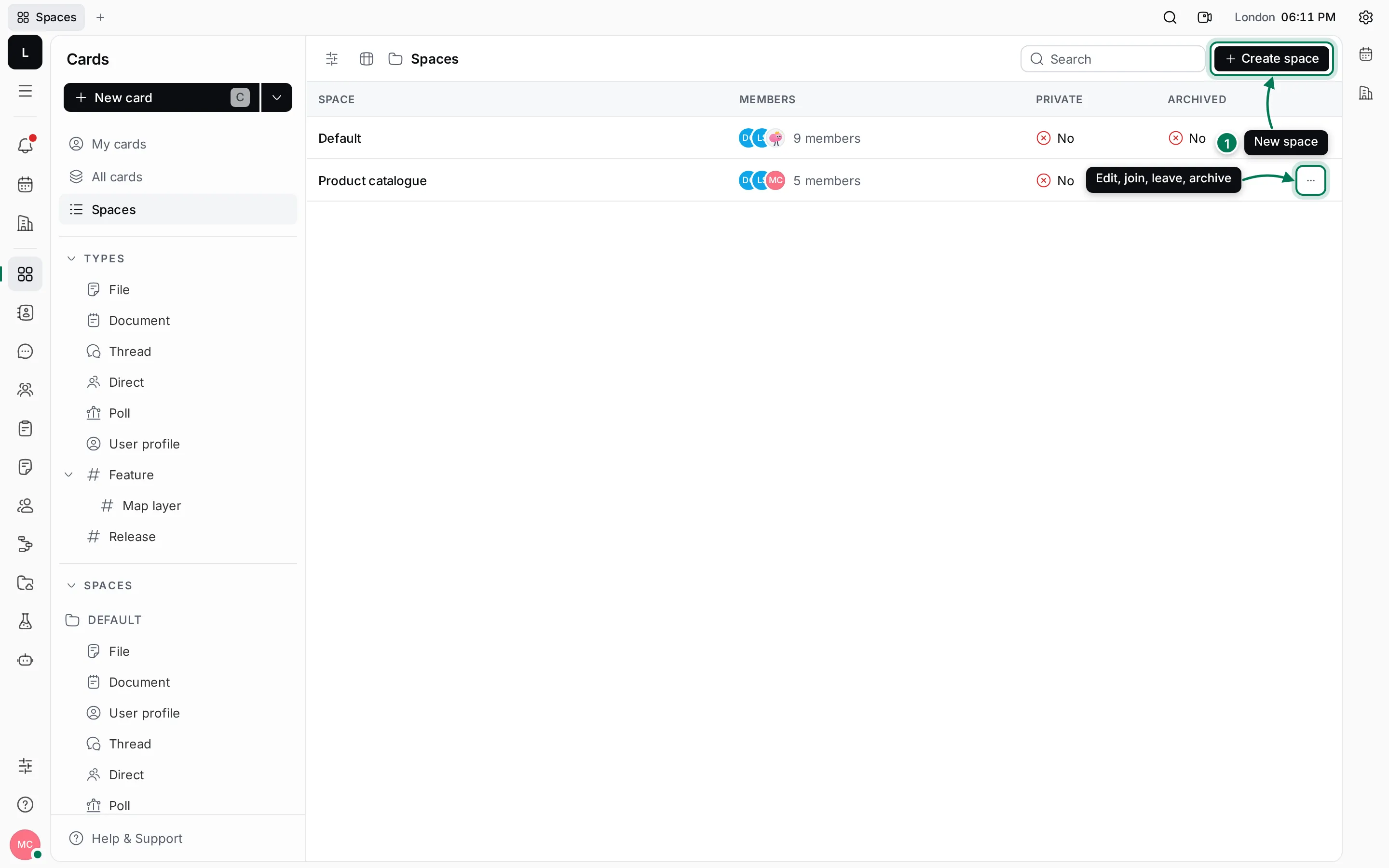
-
Enter a Name for the space.
-
Under Types, choose the card types people can create in the space. New spaces offer every type; pick only the ones the space needs. Sub-types come with their parent type.
-
Choose the Members. Owners can edit the space and its members. Turn on Make private if only members should see the space.
-
Click Create. The space appears under Spaces in the navigator, with its types listed below it.
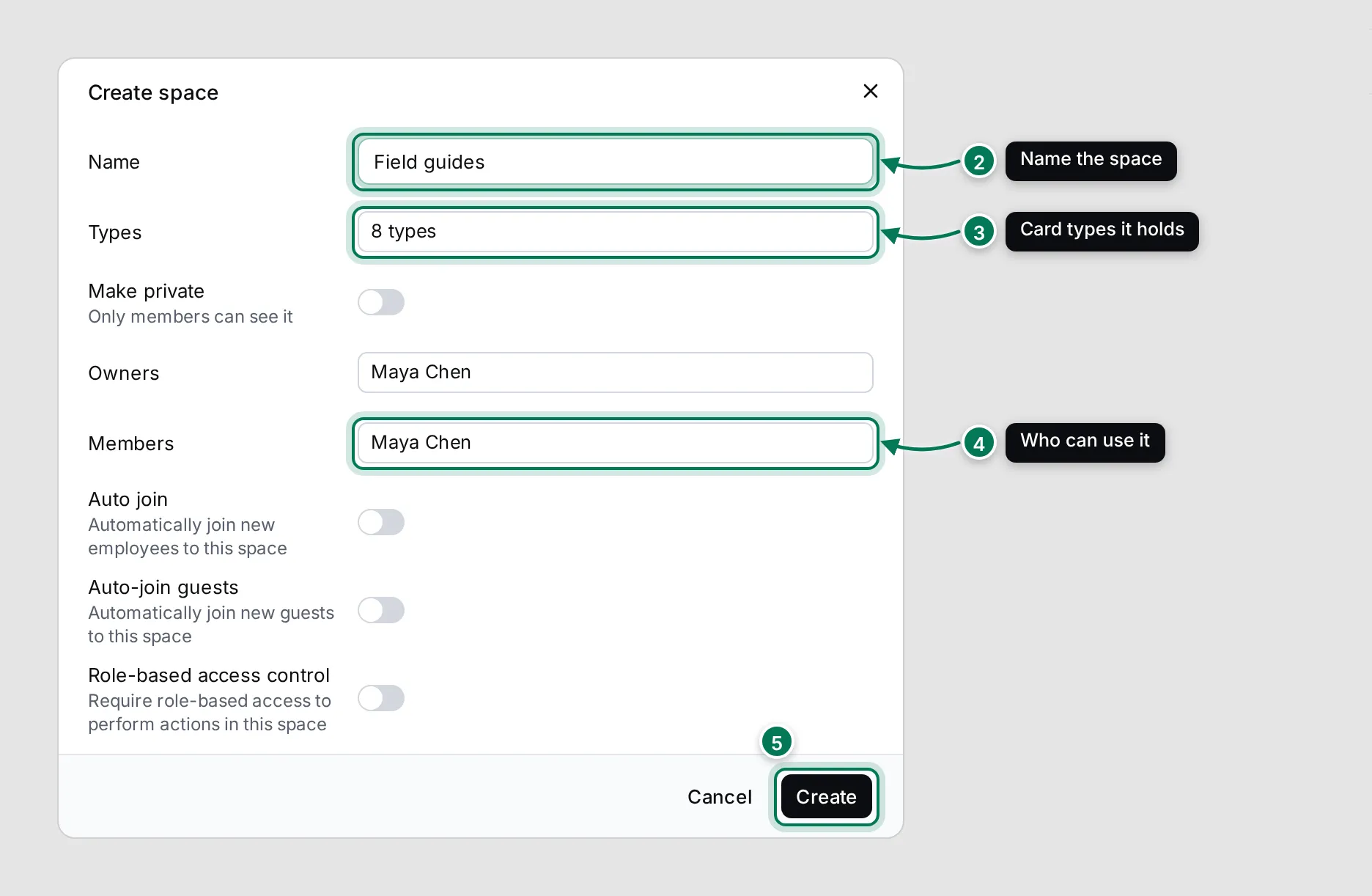
The dialog also has these switches:
- Auto join adds every new employee of the workspace to the space.
- Auto-join guests does the same for new guests.
- Role-based access control limits what members can do in the space to what their role allows. Roles and their permissions are set on each card type in Settings › Types.
Change, join, leave or archive a space
Section titled “Change, join, leave or archive a space”Hover a space in the Spaces list or in the navigator and click ⋯, or right-click it.
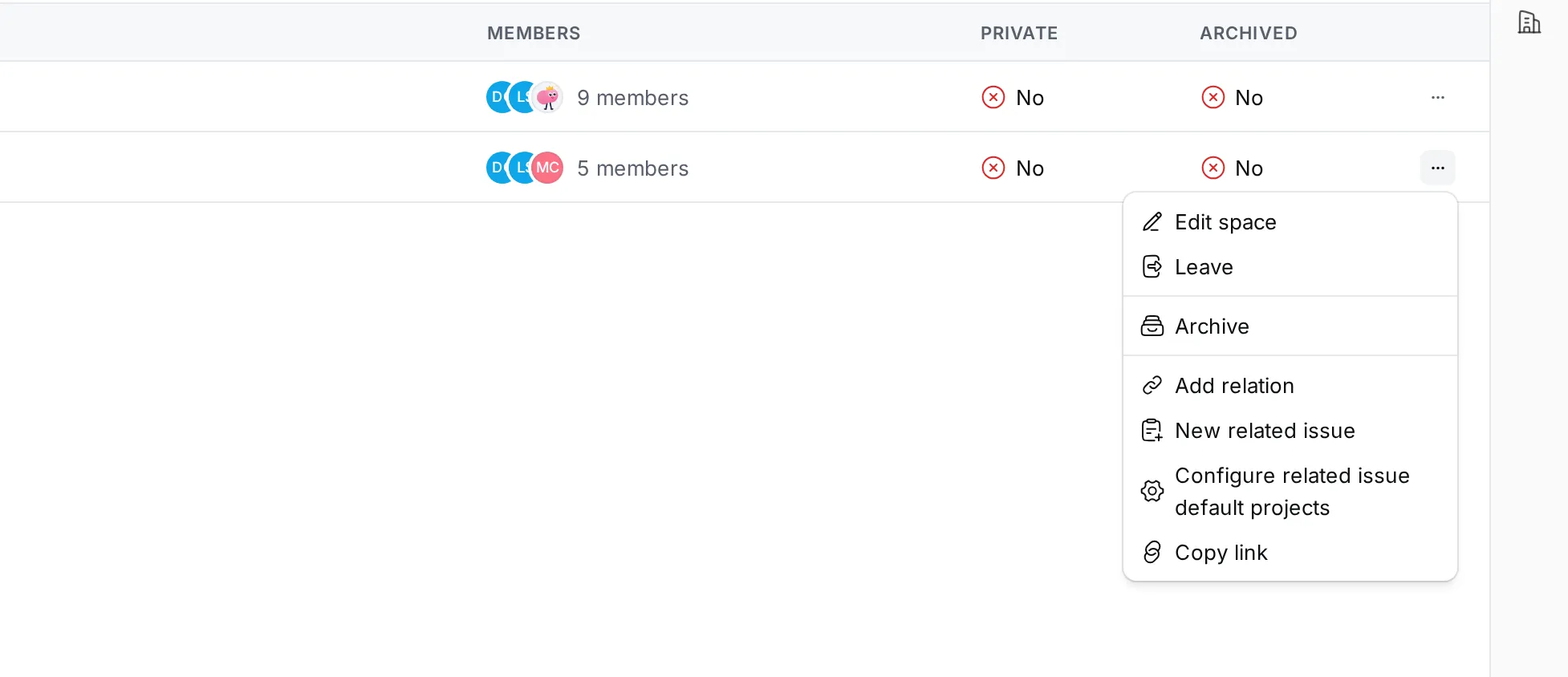
- Edit space opens the same dialog as when you created it.
- Join and Leave add you to the space or take you out of it.
- Archive hides the space from the navigator. Archived spaces stay in the Spaces list unless you turn on Hide archived in View options. Choose Unarchive to bring a space back.
- Star (in the navigator’s menu) moves the space to a Starred section at the top of the navigator.
- Configure related issue default projects picks the Tracker project that new related issues go to when you create them from cards in this space.
- Copy link copies a link to the space.
Move a card to another space
Section titled “Move a card to another space”Open the card, click ⋯ and choose Move. Pick the space and click Move. See Create and edit cards for the other card actions.