Files, versions and comments
Click a file to open its page: a preview of the current version, every earlier version, the file’s details, and comments from your team. When a file changes, upload the new version to the same page so links and comments stay together.
The file page
Section titled “The file page”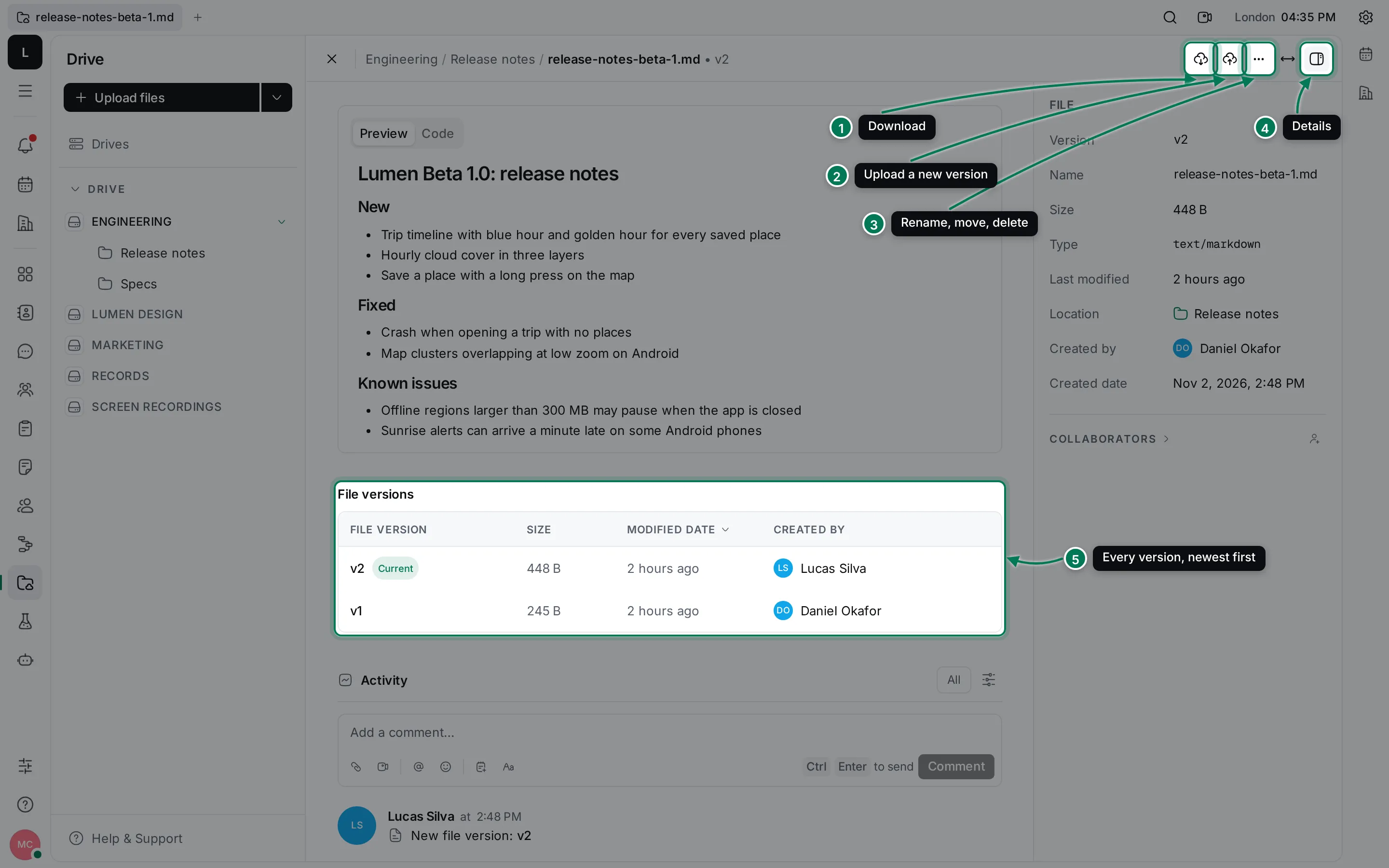
- Download saves the current version.
- Upload a new version replaces the file with a newer one and keeps the old one. You can also drop a file onto the page.
- More actions has Rename, Delete, Add relation, Download, Move and Copy link.
- Details shows or hides the panel on the right.
- File versions lists every version, newest first, when there is more than one.
The location at the top shows the drive and folders the file is in, followed by the current version, such as v2. Click a part of the location to go there, or press Esc to go back to the folder. Max width widens the preview to the whole window.
Upload a new version
Section titled “Upload a new version”- Open the file’s page.
- Click Upload a new version at the top right.
- Pick the new file. It becomes the current version, and the File versions table appears with both versions.
Go back to an earlier version
Section titled “Go back to an earlier version”Click a version in File versions to preview it. Right-click it, or click ⋯ at the end of its row, for more.
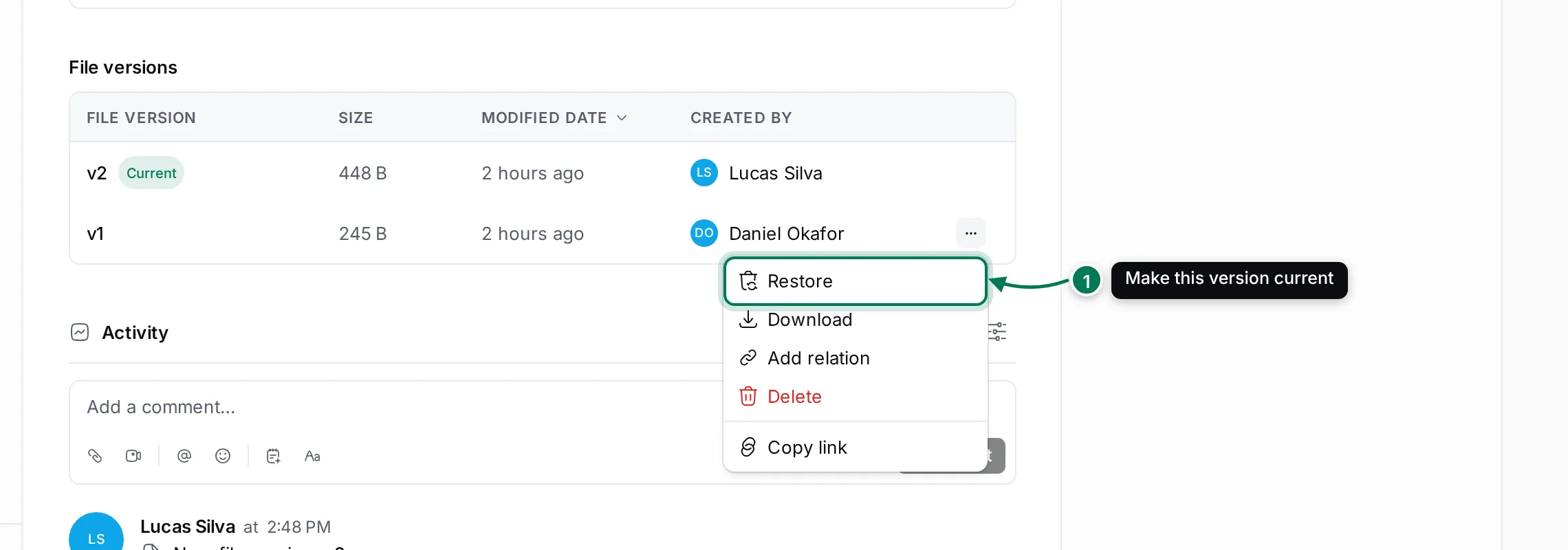
- Restore makes that version the current one again. Nothing is lost: the newer versions stay in the list.
- Download saves that version.
- Delete removes the version after you confirm. You can’t delete the current version.
- Add relation and Copy link work as for the file.
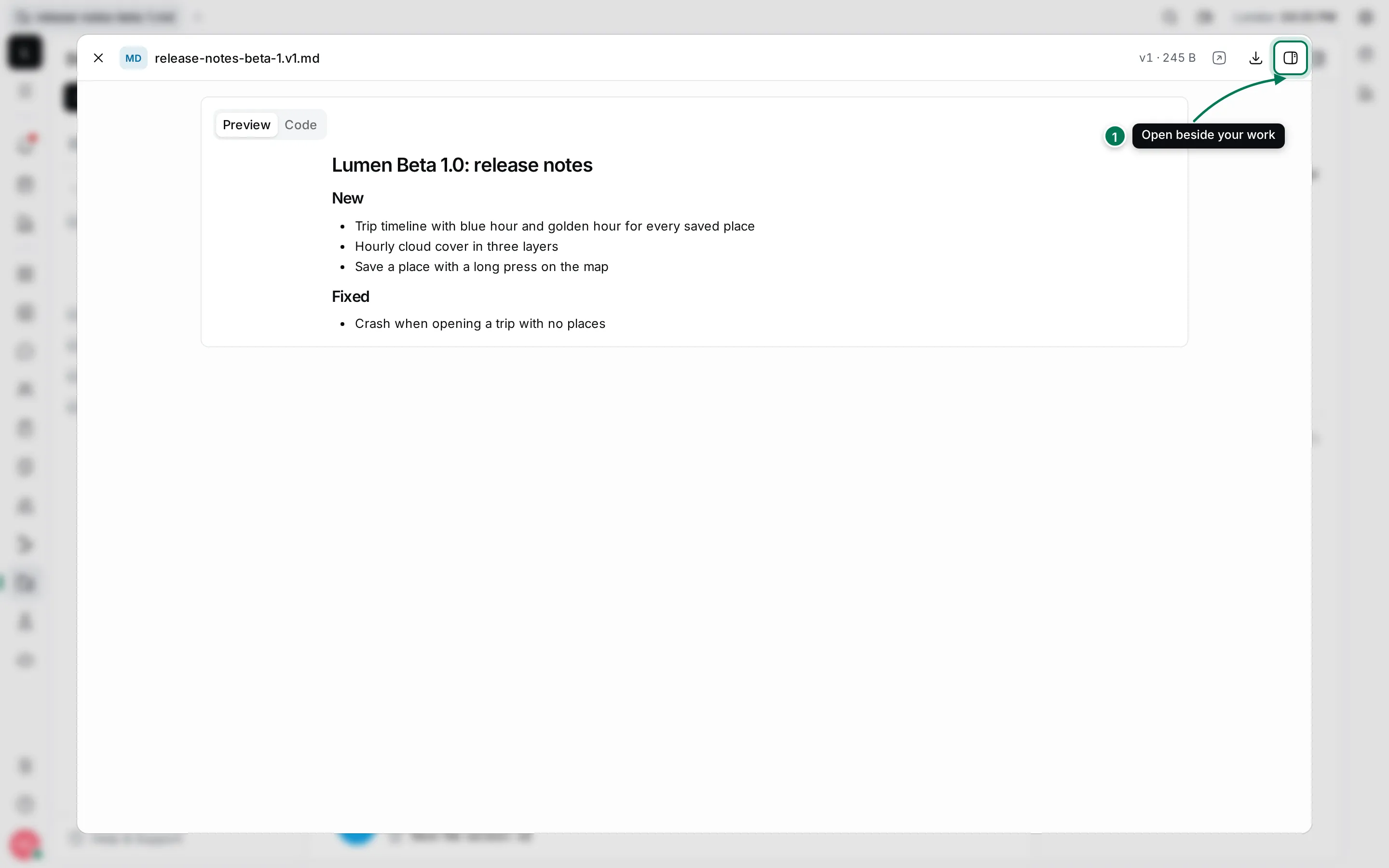
The version preview can open the file page, open the version in a new tab, download it, or Open in sidebar to keep it in a panel on the right while you work.
Details
Section titled “Details”The Details panel lists the file’s Version, Name, Size, Type, Last modified, Location and who created it and when. Click the name to rename the file in place, or pick another version to make it current.
Under the details, Collaborators lists the people who get updates about the file. Click the person icon to add or remove someone. If your workspace uses relations, the file’s related items show here too.
Comment on a file
Section titled “Comment on a file”The Activity section under the preview has comments and a history of the file: when it was created, each new version, renames, moves and restores.
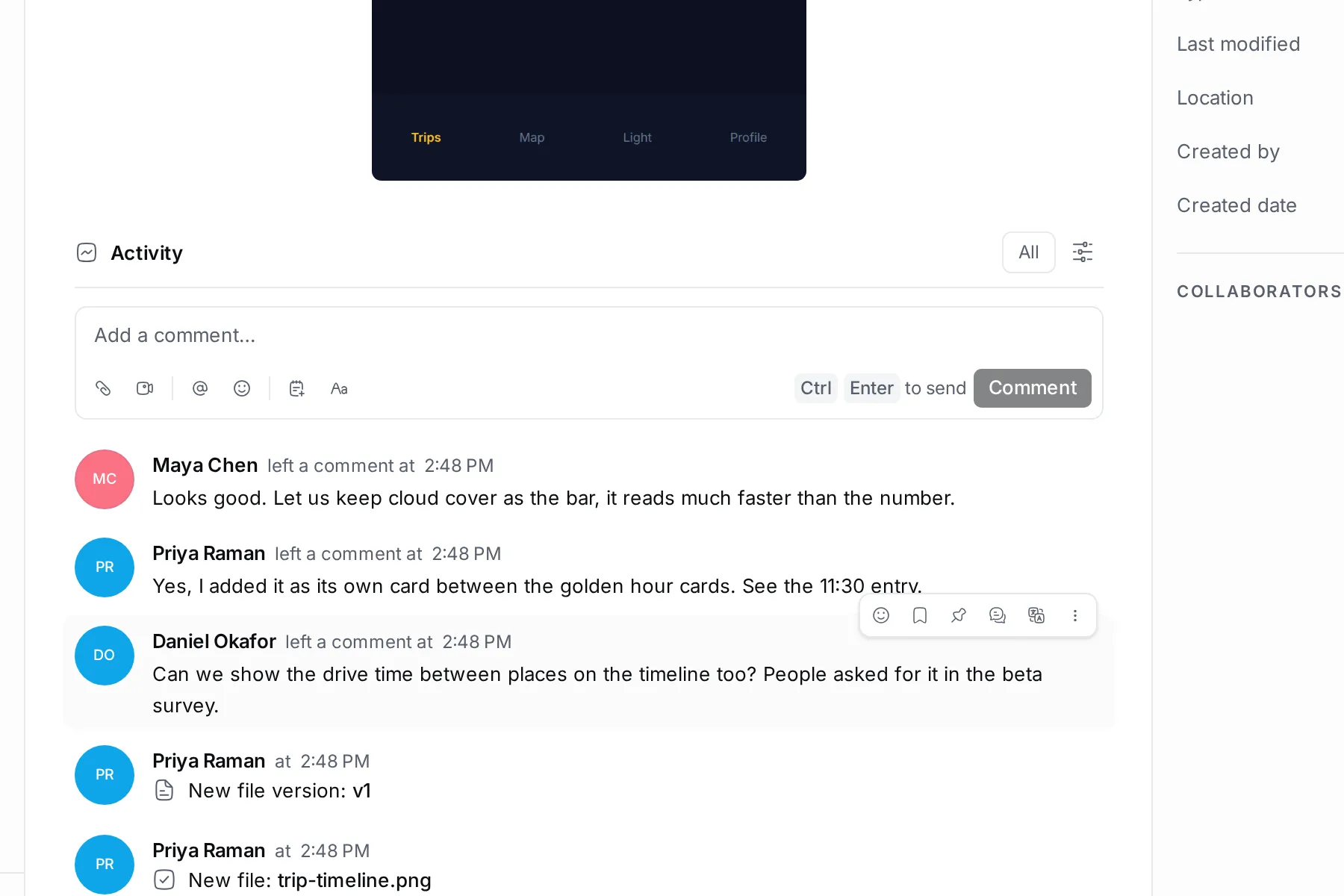
- Click Add a comment….
- Type your comment. Use @ to mention a teammate, and Attach files to add files.
- Press Ctrl + Enter or click Comment.
Hover a comment to react to it, reply in a thread, or edit and delete your own. The Comments column in the folder table shows how many comments each file has.
Related: upload and organize files.