Write messages
Every channel, direct message and thread has the same message box at the bottom. Type and press Enter to send; press Shift+Enter for a new line.
The message box
Section titled “The message box”
- Attach files: pick files from your computer. You can also paste or drop files onto the box.
- Record: record a short video with your camera, microphone or screen and send it as a file.
- Mention someone: inserts
@so you can pick a person. - Insert emoji: opens the emoji picker.
- Text Templates: insert a saved reply. Workspace owners manage templates in Settings › Text Templates.
- Formatting: shows the formatting buttons.
- Send: the same as pressing Enter.
Unsent text is kept as a draft for each conversation and thread, even if you switch conversations or reload the page.
Mention people, issues and documents
Section titled “Mention people, issues and documents”- Type
@followed by the first letters of a name. - Pick a person from the list, or scroll down for documents, meeting minutes, cards and issues.
- Finish the message and send it.
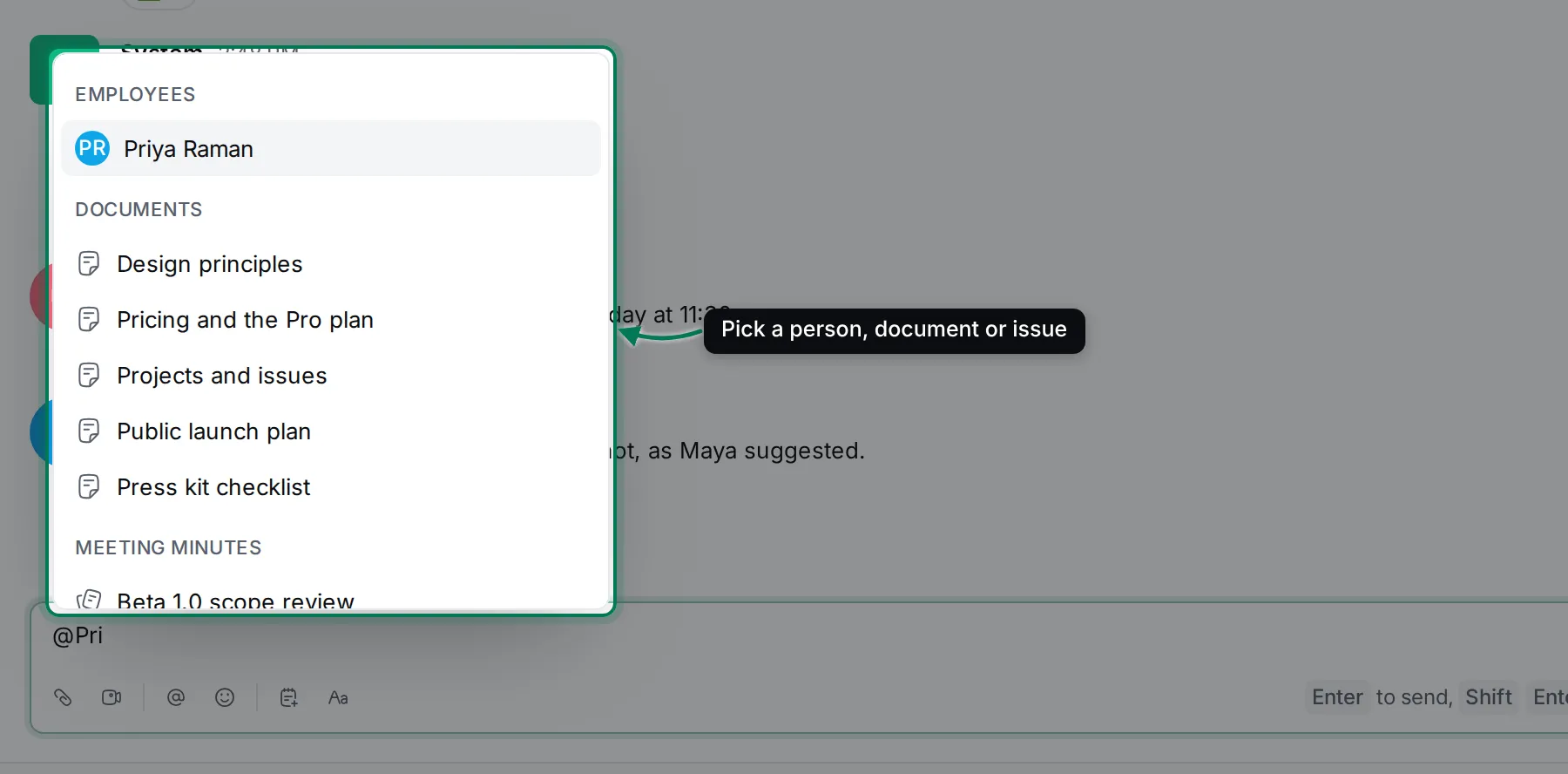
A mentioned person gets a notification in their Inbox. Mentions of issues and documents show as chips that open the item when clicked.
Two special mentions reach many people at once:
- @everyone notifies every member of the channel.
- @here notifies the members who are online.
Format text
Section titled “Format text”Select text in the message box to show the formatting toolbar: headings, bold, italic, strikethrough, underline, colours, links, lists, to-do lists, quotes, inline code, code blocks and maths.
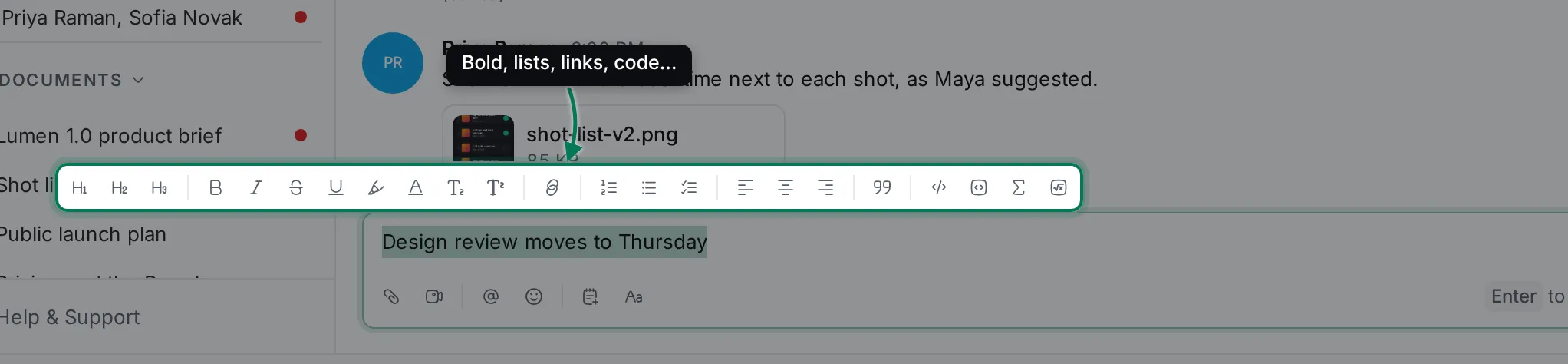
Markdown shortcuts work as you type too: **bold**, *italic*, `code`, - for a bullet list, 1. for a numbered list and ``` for a code block.
A code block keeps its spacing and highlights the syntax:

Share files and images
Section titled “Share files and images”- Click Attach files (the paper clip), or drop or paste files onto the message box.
- The files upload straight away and show as cards above your text.
- Add a message if you like, and send.
Images show a preview in the conversation; click one to see it full size or to download it.

To find a file someone shared earlier, use Browser › Files (see Saved, pinned and search).
Record a video message
Section titled “Record a video message”Click Record to open Record video. Choose the camera and microphone, optionally Share screen, and click Record. Click Stop when you’re done: the recording is attached to your message like any other file, named “Recording” with the date.
Edit or delete a message
Section titled “Edit or delete a message”- Hover your message. A row of actions appears at its top right.
- Click More actions (⋮).
- Choose Edit to change the text in place, then Save; or choose Delete and confirm.
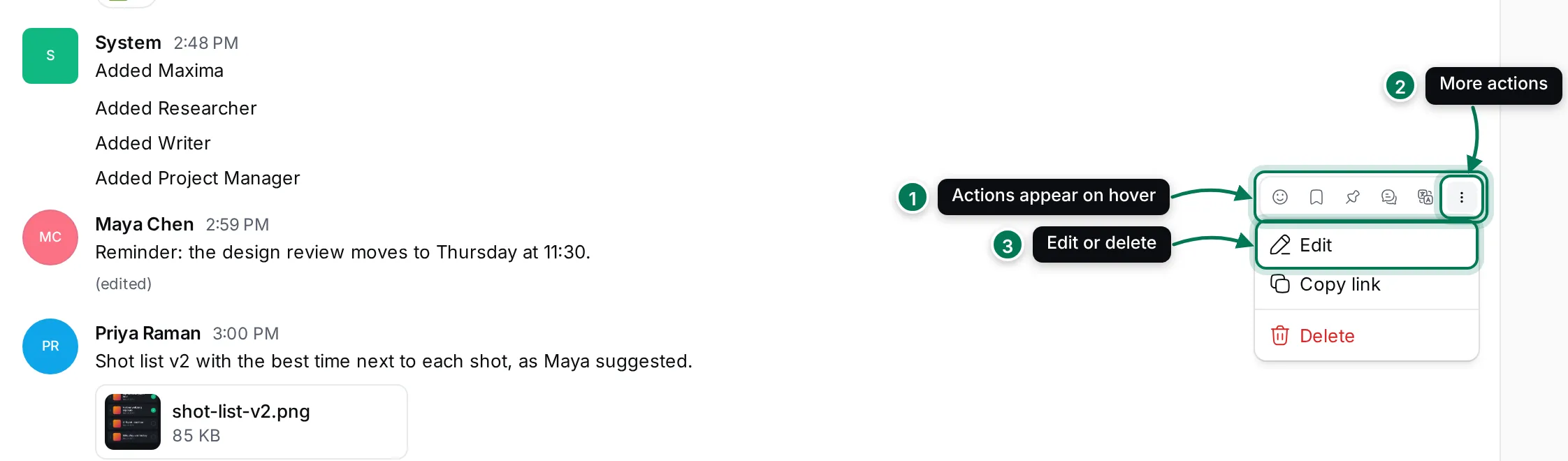
Edited messages are marked as edited. Pressing ↑ in an empty message box edits your last message; Esc cancels.
Copy link copies a link to the message. Opening the link scrolls to the message and highlights it. Workspace owners can delete other people’s messages too.
Who is typing
Section titled “Who is typing”While someone writes in the conversation you have open, a line under the message box says so, for example “Priya Raman is typing…”. AI Workers say what they’re doing instead, such as “Maxima is looking through issues…”.
Translate a message
Section titled “Translate a message”Hover a message and click Translate to read it in your language. Show original switches back. Translation is done by the workspace’s AI service; if it can’t answer, the message stays as it was and you see “Couldn’t translate”.