Work // Test management
Write test cases
A test case describes one check that someone runs by hand. Write it so anyone on the team can follow it: what must be true before you start, the steps, and what should happen.
Create a test case
Section titled “Create a test case”- In the Test library, click the suite the case belongs to, then click New test case (or press C).
- Check the suite at the top of the dialog. Every case needs a suite.
- Enter the Test case title.
- Write the description: the preconditions, the numbered steps and the expected result. Use headings and lists to keep it easy to scan.
- Set the Status, Priority, Type and Assignee with the chips at the bottom.
- Click Create (or press Ctrl Enter).
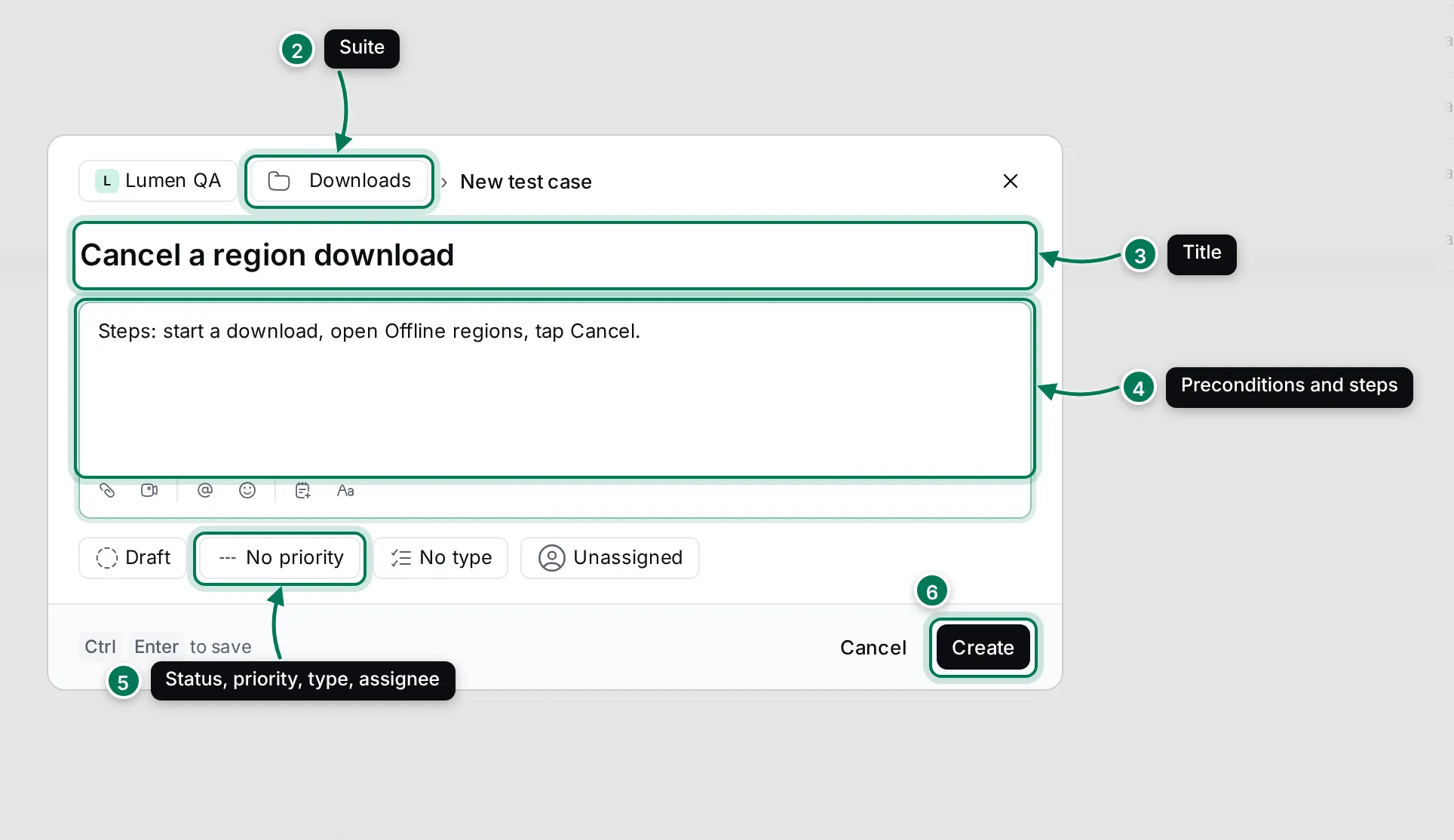
A message confirms the new case with an Open link. You can attach files, such as a reference image, with the paperclip in the description’s toolbar.
Properties of a test case
Section titled “Properties of a test case”| Property | Values |
|---|---|
| Status | Draft, Ready for review, Need to fix review comments, Approved, Rejected |
| Priority | Low, Medium, High, Urgent |
| Type | Functional, Performance, Regression, Security, Smoke, Usability |
| Assignee | The person who owns the case |
The status is about the case itself, not about a test result: use it to review cases before they go into plans.
Edit a test case
Section titled “Edit a test case”Click a case in the library to open it.
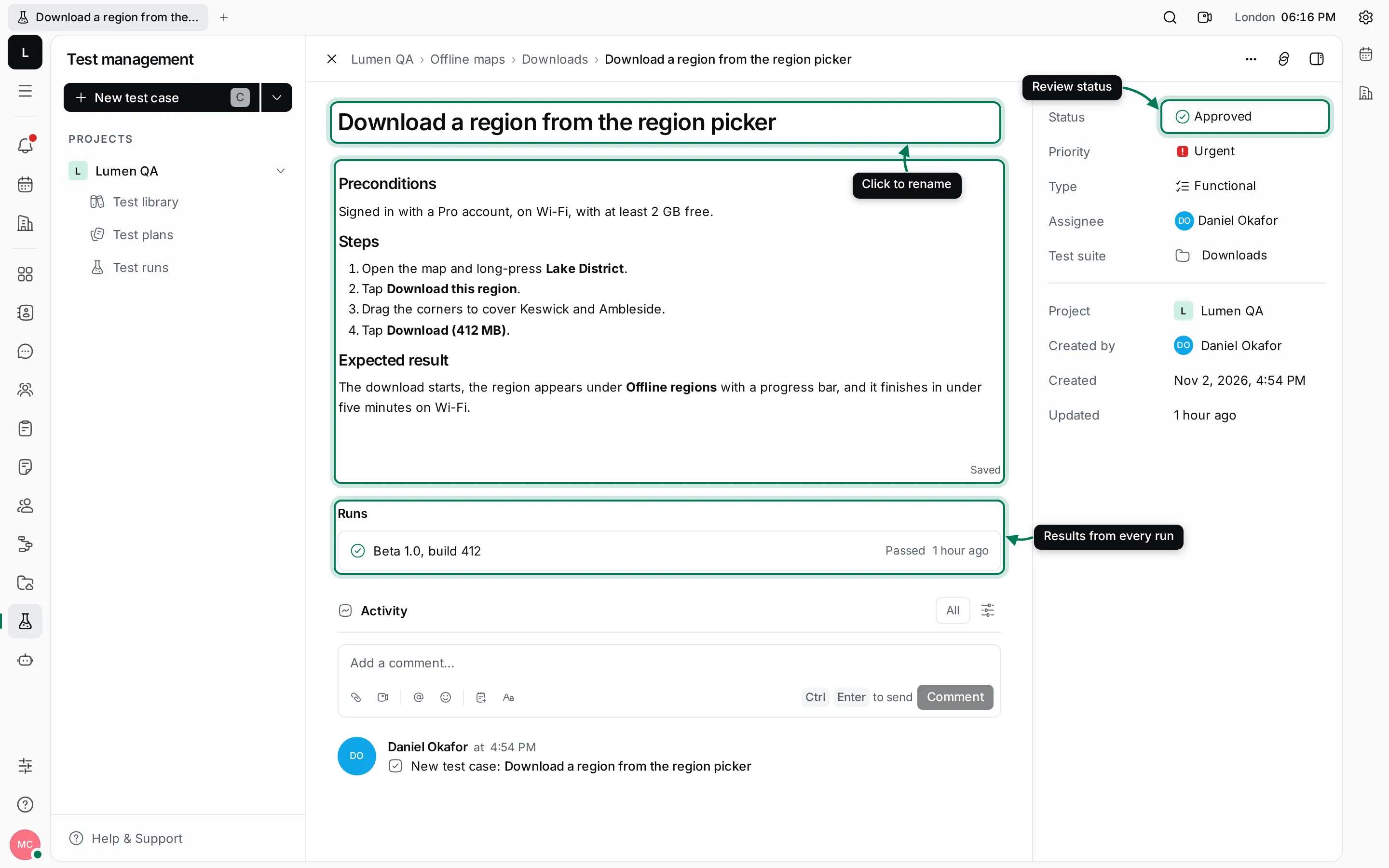
- Click the title to rename the case.
- Edit the description in place. Others see your changes as you type.
- Change Status, Priority, Type, Assignee and Test suite on the right. Changing the suite moves the case.
- Runs lists the case’s result in every run, so you can see when it last passed.
- Activity shows each change and has a comment box. Press Ctrl Enter to send a comment.
The ⋯ menu has Run, Add relation, New related issue, Copy link and Delete.
Find and select cases
Section titled “Find and select cases”- Type in Search test cases (or press /) to match case titles.
- Click Filter to filter by Status, Test suite, Assignee, Priority or Type.
- Switch between List and Table with the view switcher. Configure columns chooses the columns, and Customize view sets the ordering.
- Select cases with their checkboxes, or press X on the focused row. Shift-click selects a range. Then click Run to start a test run with them, or right-click for Delete.