GitHub
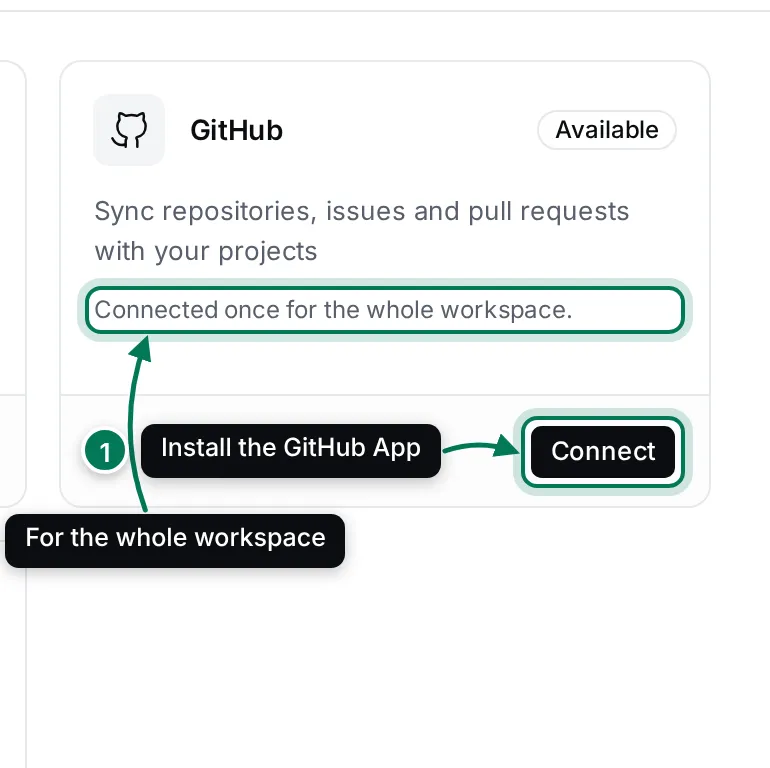
The GitHub integration links repositories to projects. The GitHub service then keeps the repository’s issues and the project’s issues in sync: a GitHub issue appears in its project, and changes you make in Maxint Work go back to GitHub. GitHub is connected once for the whole workspace.
Install the GitHub App
Section titled “Install the GitHub App”-
Open Settings › Integrations and click Connect on the GitHub card.
-
In the dialog, click Connect. You go to GitHub to choose the account or organization and the repositories to sync.
-
Approve the installation on GitHub. You come back to Settings, which says Finishing the GitHub connection… and then GitHub is connected.
If you cancel on GitHub, Settings says GitHub wasn’t connected. Start again with Connect on this page.
Once installed, the card is Integrated and lists each account or organization (https://github.com/<name>) with a
dot that shows whether it is Syncing or Not syncing, and its repositories.
Link a repository to a project
Section titled “Link a repository to a project”- Click Configure on the GitHub card. The dialog has two tabs.
- Your GitHub account shows the GitHub account you authorized: name, login, followers, repositories, issues, pull requests, company and email.
- GitHub repositories lists every repository the App can see, grouped by account. Use Search repositories to find one. Each repository says whether it is private or public, Connected with a project or Not connected to a project, and shows its description, stars, forks and last update.
- Click Connect to a project next to a repository and pick the project its issues should go to.
To stop syncing a repository, click Disconnect next to it. What was already synced stays.
What syncs
Section titled “What syncs”- Issues in a linked repository become issues in the project, and changes to them go both ways.
- The GitHub service also syncs pull requests. Projects don’t list them on their own page in Maxint Work yet.
Turning the Github module off in Settings › Configure stops the sync for the whole workspace.
GitHub events can notify you: see the GitHub group in notification settings.
Manage the connection
Section titled “Manage the connection”In Configure:
- Add an account or organization installs the App on another GitHub account.
- Re-authorize GitHub App renews your own authorization, for example after you changed permissions on GitHub.
- Uninstall from … removes the App from that account, on GitHub too. Its repositories stop syncing; issues already synced stay.
- Disconnect next to your account removes your authorization. What was synced stays.