Documents overview
Documents is where your team writes things down: product briefs, specs, checklists, meeting notes and guides. Documents live in teamspaces, can hold other documents inside them, and everyone in the teamspace can edit them at the same time.
A quick tour
Section titled “A quick tour”Open Documents from the left rail. The navigator on the left lists your teamspaces and the documents in each.
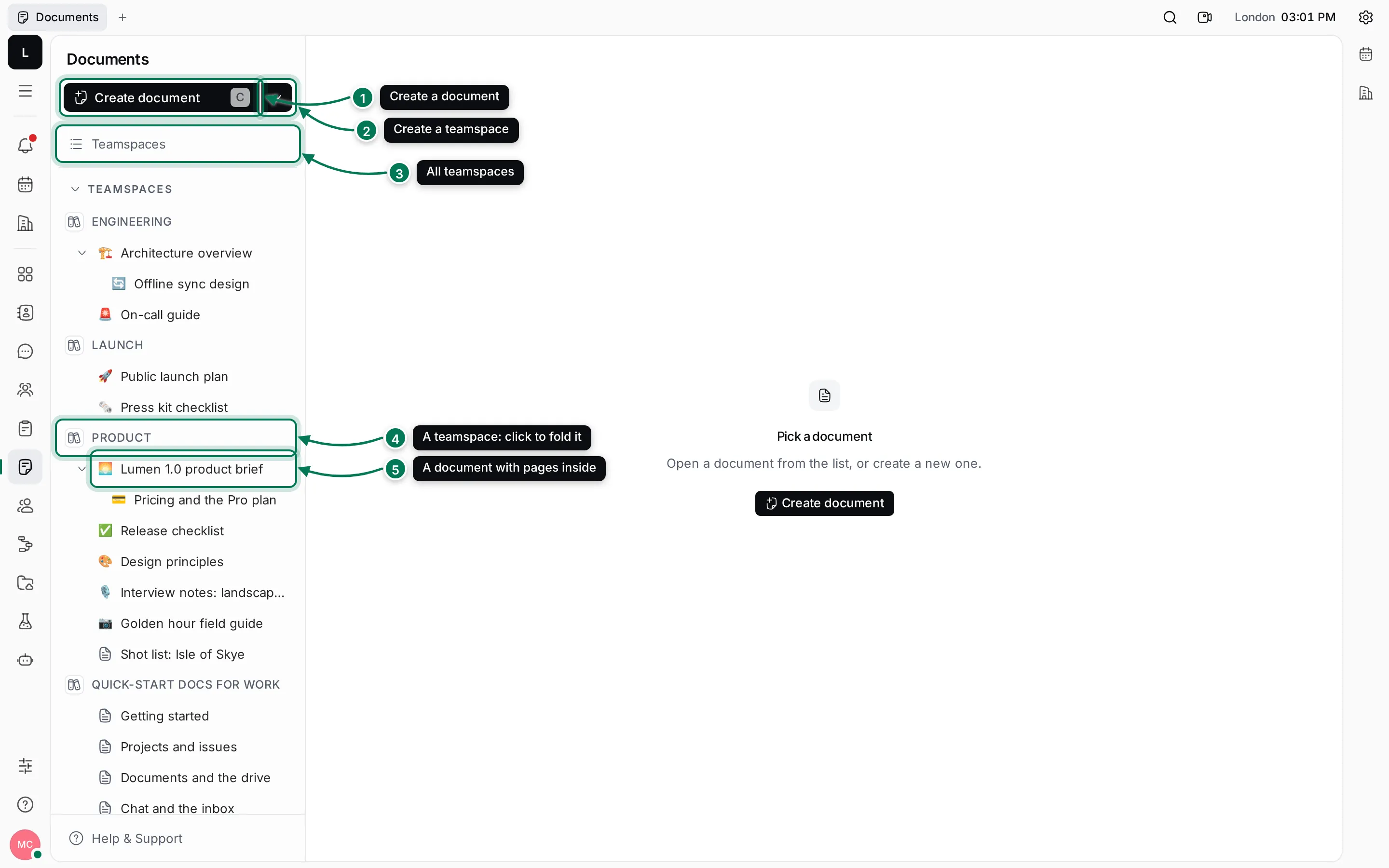
- Create document starts a new document. Press C anywhere in Documents to do the same.
- The arrow next to it opens Create teamspace.
- Teamspaces lists every teamspace in the workspace, including ones you have not joined.
- Each teamspace you belong to is a heading in small capitals. Click it to fold or unfold its documents.
- Documents with pages inside them have an arrow to fold those pages.
When a document is open, its page shows where it lives, its actions, and a table of contents for its headings.
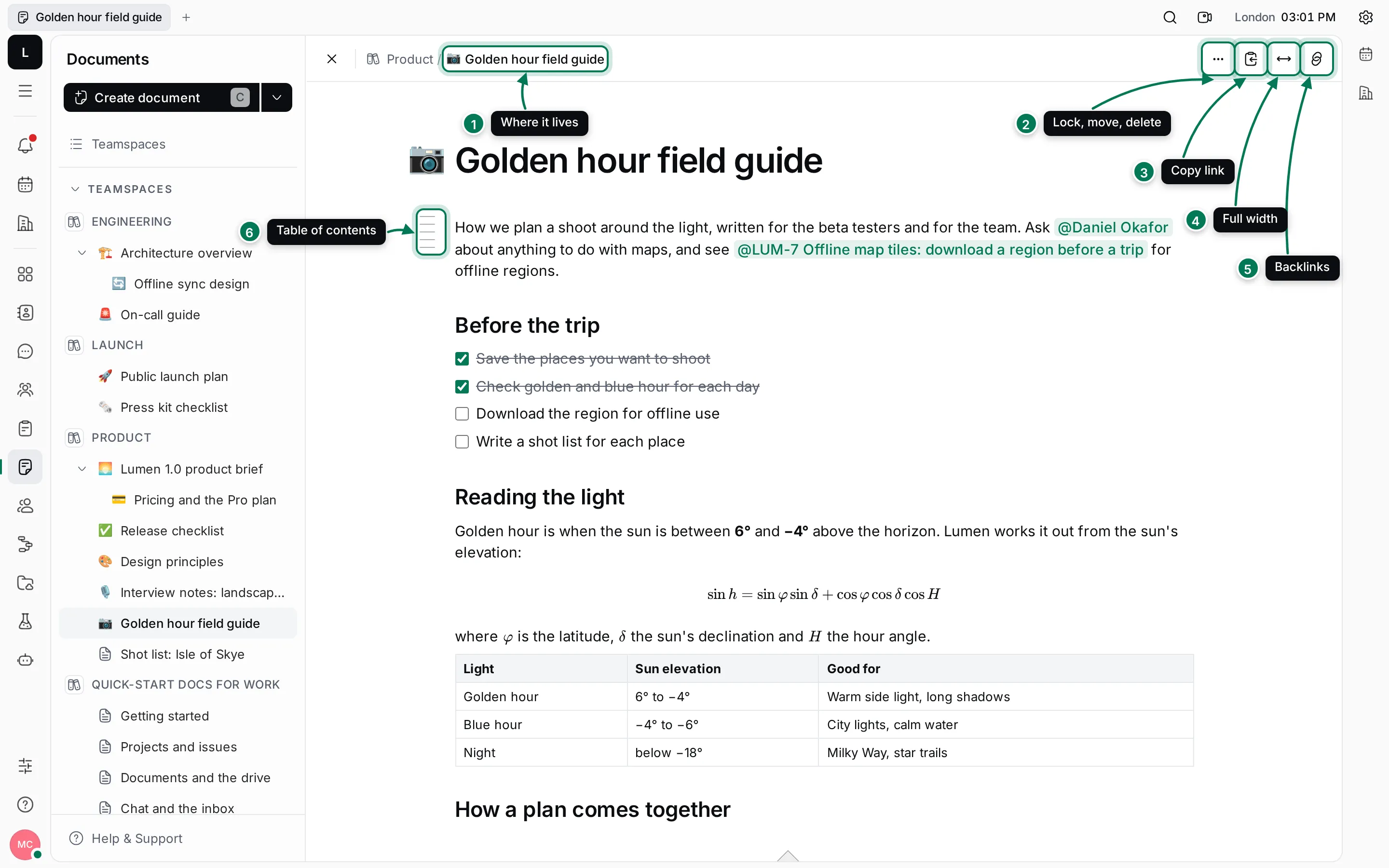
- The location shows the teamspace and any parent documents. Click a part to go there.
- More actions has Create document inside, Lock, Add relation, Move, Copy link and Delete.
- Copy document URL to clipboard copies a link you can paste anywhere.
- Max width switches between a comfortable reading width and the full width of the window.
- Backlinks shows where other people mention this document.
- The short lines beside the text are the table of contents. Click them to jump to a heading.
There is no save button. Changes are saved as you type, and the status under the text says Saved.
In this section
Section titled “In this section”TeamspacesGroup documents, choose who can see them, and star the ones you use most.
Create and organize documentsCreate documents and pages inside them, move, lock and delete them.
Write and formatHeadings, lists, to-dos, tables, code, maths, diagrams and images.
Mentions, links and backlinksMention people, issues and documents, add links, and see what links here.
Work togetherEdit at the same time, comment, attach files, lock and relate documents.
Files that are not documents, such as images, PDFs and exports, belong in Drive.