Appearance and language
Make Maxint Work comfortable to look at: light or dark, your favourite accent colour, more or less space, and the language you read best. These choices are saved in your browser, so each device can look different.
Quick changes from the top bar
Section titled “Quick changes from the top bar”Click Appearance (the gear) at the right of the top bar.
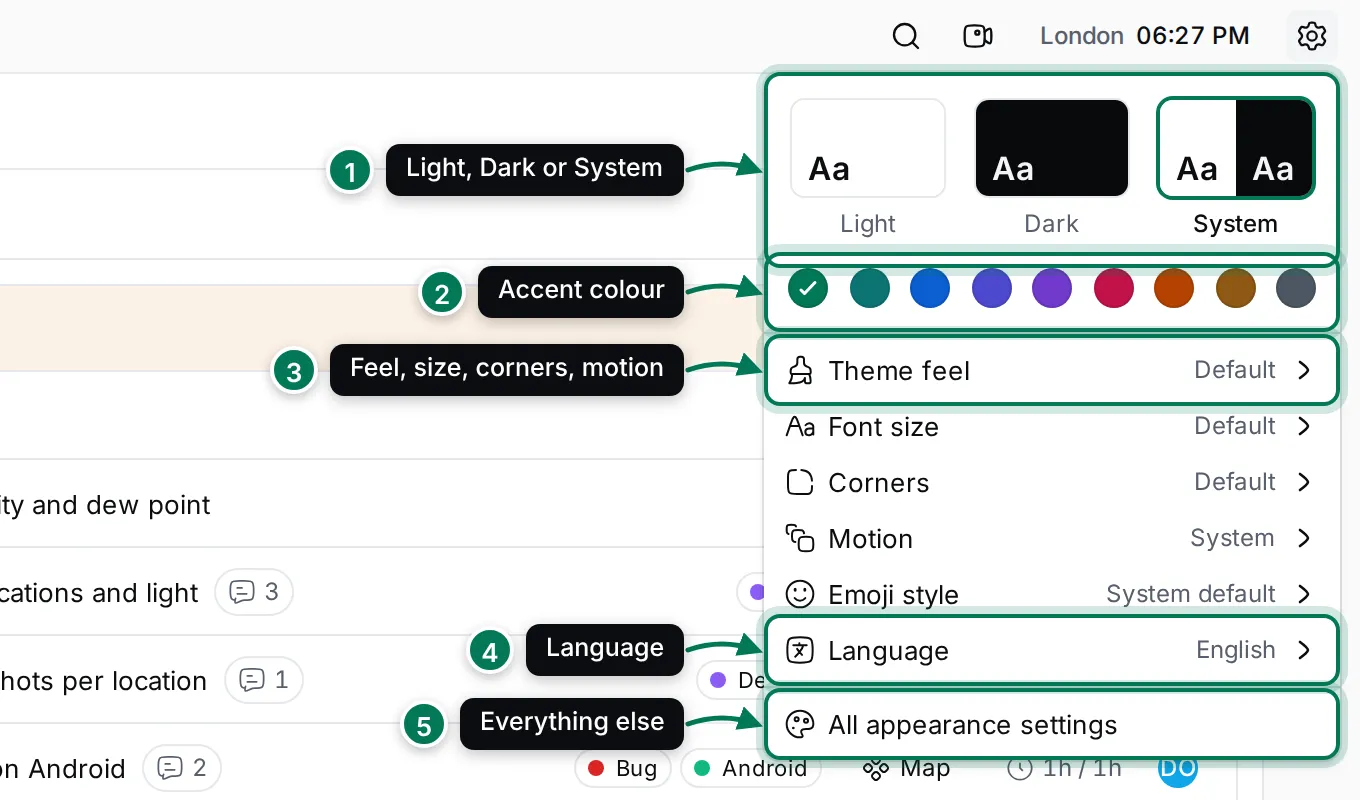
- Light, Dark or System, which follows your device.
- Accent colour: Emerald, Teal, Blue, Indigo, Violet, Rose, Orange, Amber or Graphite.
- Theme feel, Font size, Corners, Motion and Emoji style each open a short list.
- Language lists the languages.
- All appearance settings opens Settings › Appearance.
Changes apply at once; there is nothing to save.
You can also switch theme with the Switch theme command in the command palette.
All appearance settings
Section titled “All appearance settings”Settings › Appearance has every option, with a Preview that updates as you choose. Reset to defaults puts everything back.
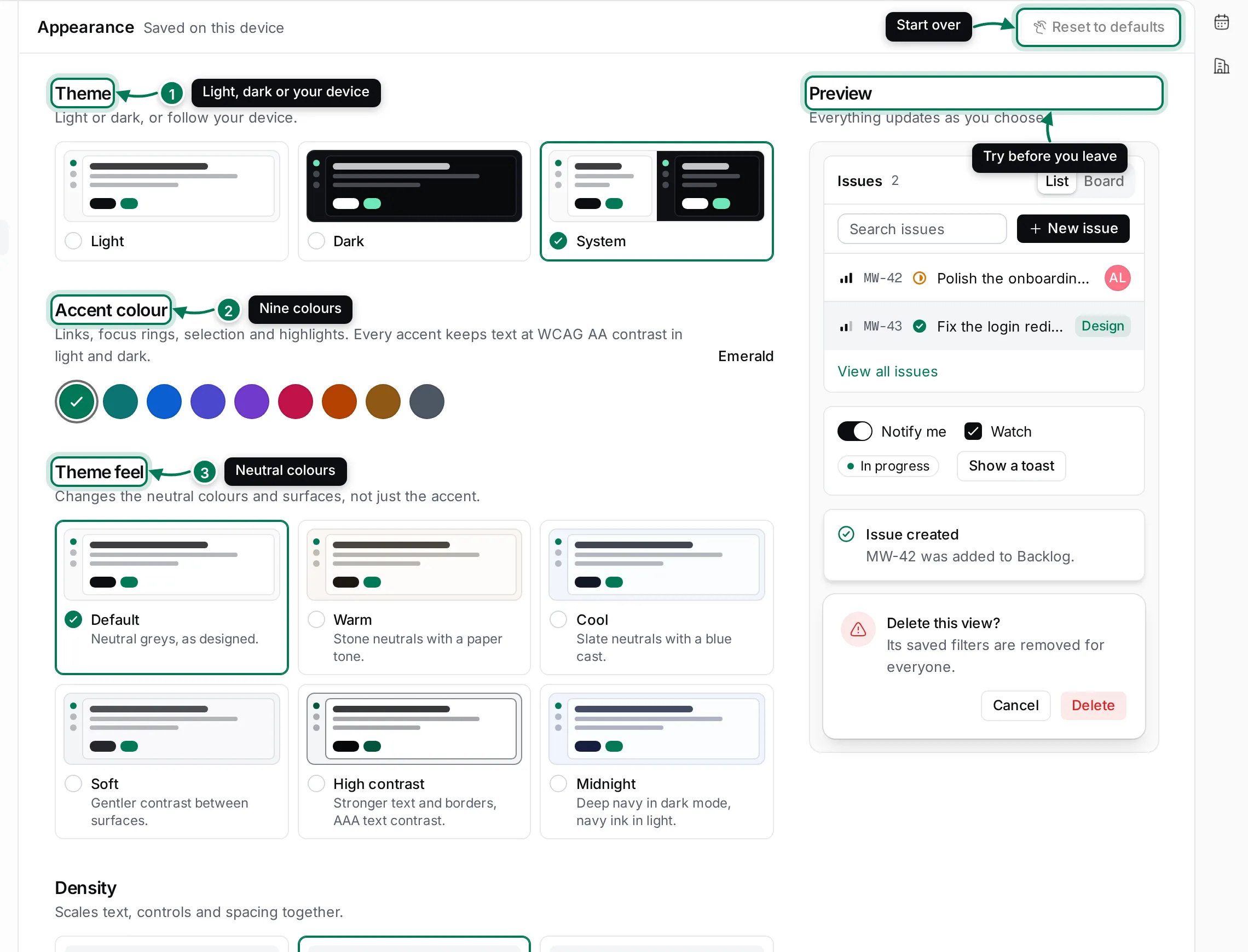
- Theme: light, dark, or your device’s setting.
- Accent colour: used for links, focus rings, selection and highlights. Every accent keeps text readable in light and dark.
- Theme feel: changes the neutral colours, not only the accent.
- Default: neutral greys.
- Warm: stone neutrals with a paper tone.
- Cool: slate neutrals with a blue cast.
- Soft: gentler contrast between surfaces.
- High contrast: stronger text and borders.
- Midnight: deep navy in dark mode, navy ink in light.
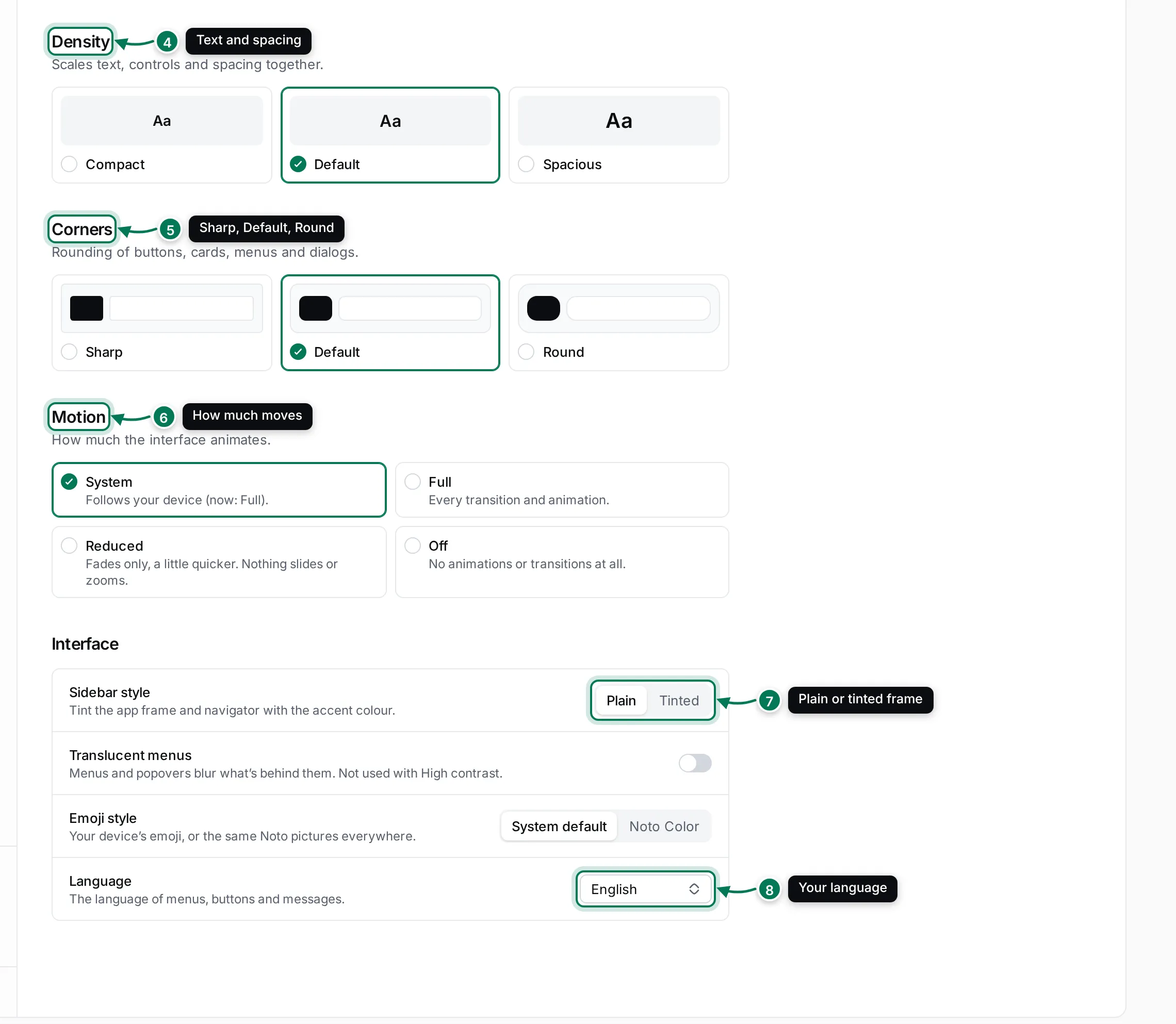
- Density: Compact, Default or Spacious scales text, controls and spacing together. The top bar’s Font size offers the same three choices.
- Corners: Sharp, Default or Round buttons, cards, menus and dialogs.
- Motion: System follows your device, Full animates everything, Reduced keeps only quick fades, and Off turns animations off.
- Sidebar style: Plain, or Tinted to tint the app frame and navigator with your accent colour. Below it, Translucent menus blurs what’s behind menus, and Emoji style chooses your device’s emoji or the same Noto Color emoji on every device.
- Language: the language of menus, buttons and messages.
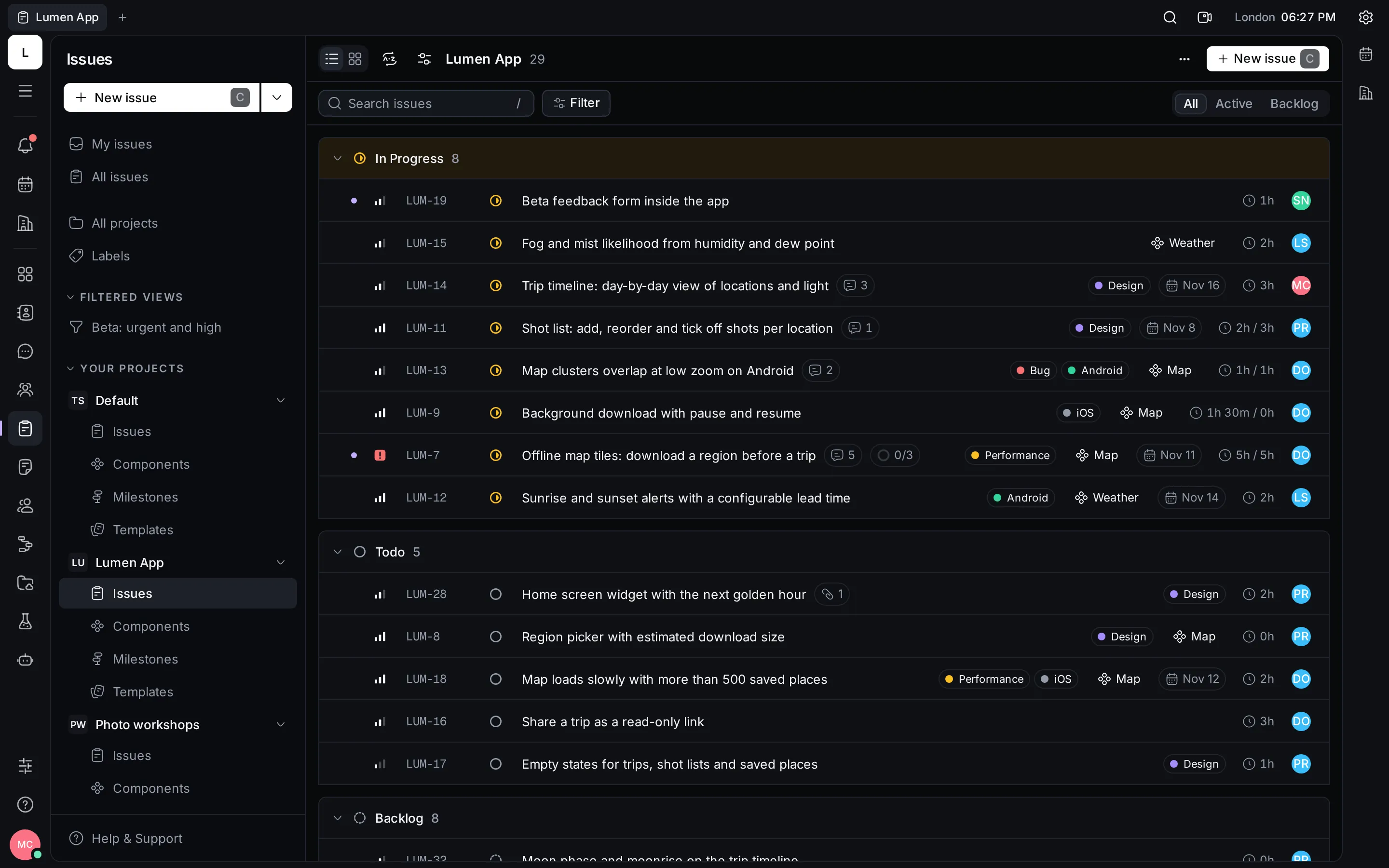
Here is Maxint Work in the dark theme with a violet accent:
Change the language
Section titled “Change the language”- Click Appearance in the top bar and point to Language, or open Settings › Appearance and use Language.
- Pick your language. Maxint Work switches straight away.
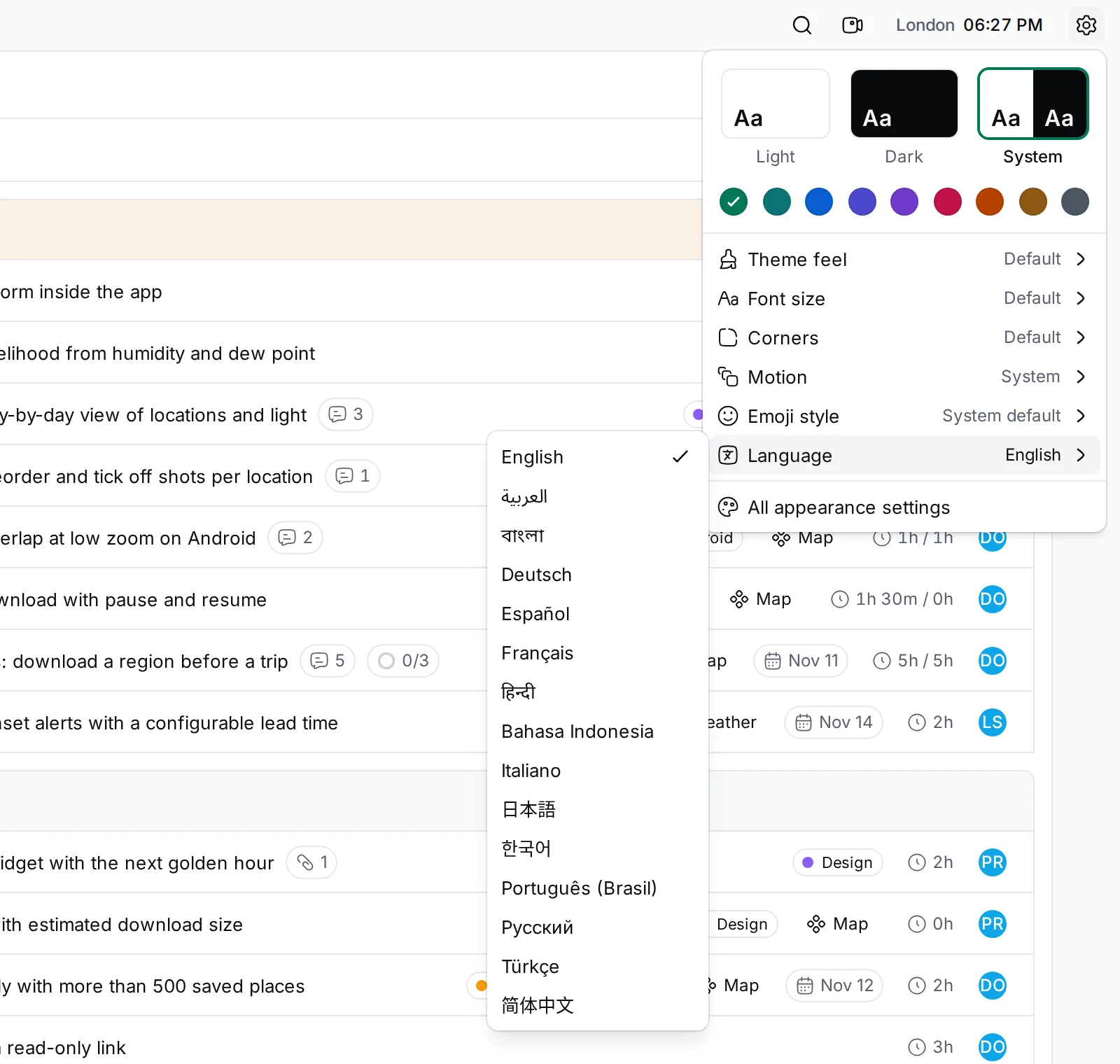
Maxint Work speaks 15 languages: English, العربية (Arabic), বাংলা (Bengali), Deutsch, Español, Français, हिन्दी (Hindi), Bahasa Indonesia, Italiano, 日本語 (Japanese), 한국어 (Korean), Português (Brasil), Русский, Türkçe and 简体中文 (Simplified Chinese). In Arabic the whole interface reads right to left.
The first time you open Maxint Work, it uses your browser’s language when it’s one of these, and English otherwise.
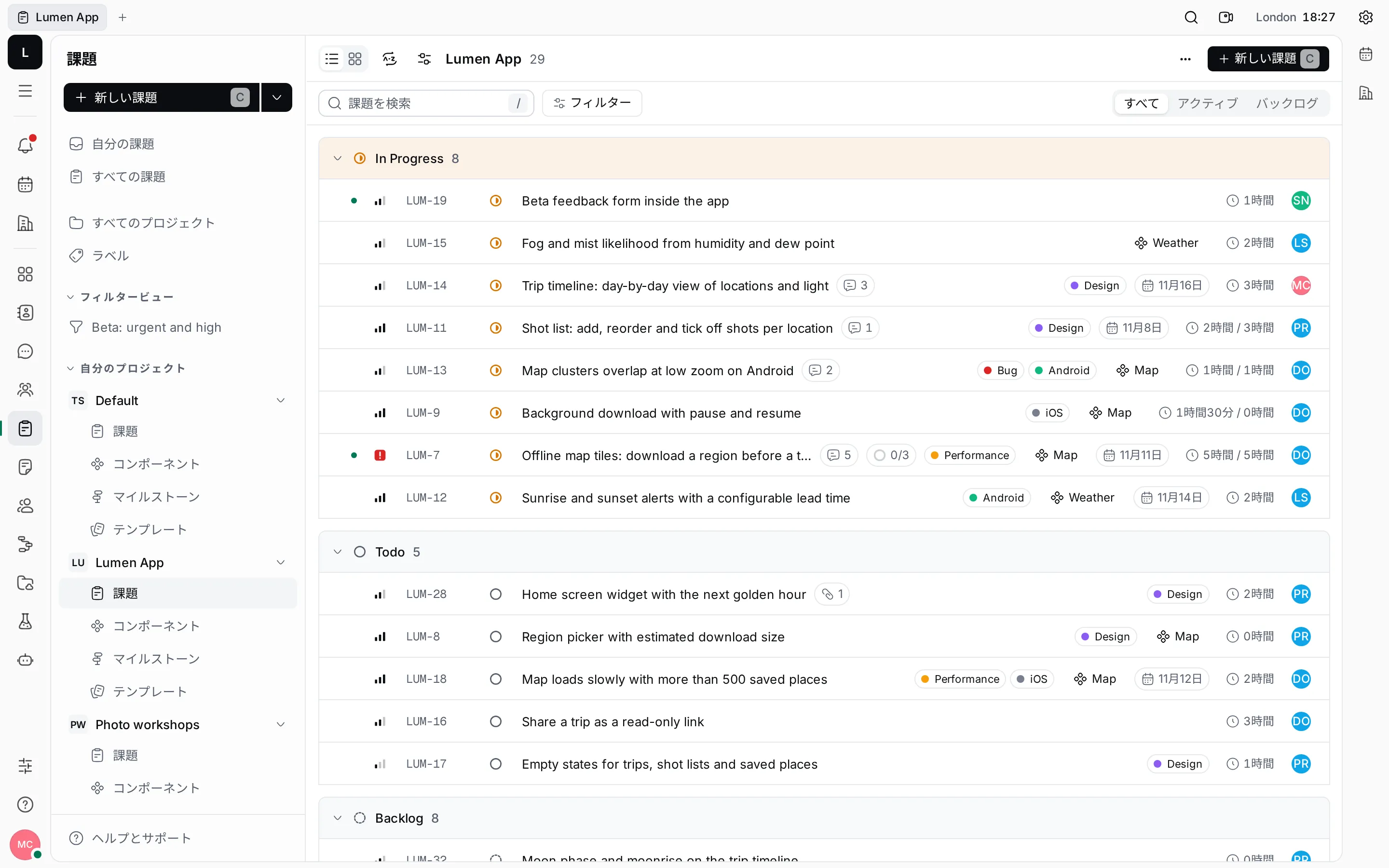
The language changes the interface only. Issues, documents and messages stay in the language your team wrote them in.