Members and roles
Everyone in a workspace has a role. The role decides which settings they can change and, for guests, which apps they can use. Roles are set in Settings › Members. For what each role can see and do in every app, see Roles and permissions.
| Role | What they can do |
|---|---|
| Owner | Everything. Only owners see Billing, Backup, Guests and Configure, connect Slack, turn role-based access control off and delete the workspace. Owners change anyone’s role. |
| Maintainer | Run the workspace day to day: rename it, manage Spaces admins, Classes, Relations, Invite settings, Office settings and card Types. Maintainers change roles up to Maintainer. |
| User | A regular member: works in every app, connects their own integrations, and manages Text Templates, Enums, Custom Emojis, Related issues and their own API Tokens. |
| Guest | Someone from outside, such as a client or contractor. Uses only the apps that owners allow in Guests and sees only the spaces they are added to. |
| Readonly | Can look but not change anything. Anonymous visitors use this role when read-only access is on. |
Within a project, teamspace or drive, people can also have space roles (for example Admin of every space, see Spaces). Those come from the space’s type: see Space types.
AI Workers such as Maxima are listed as members too, with the User role.
See who is in the workspace
Section titled “See who is in the workspace”Open Settings › Members.
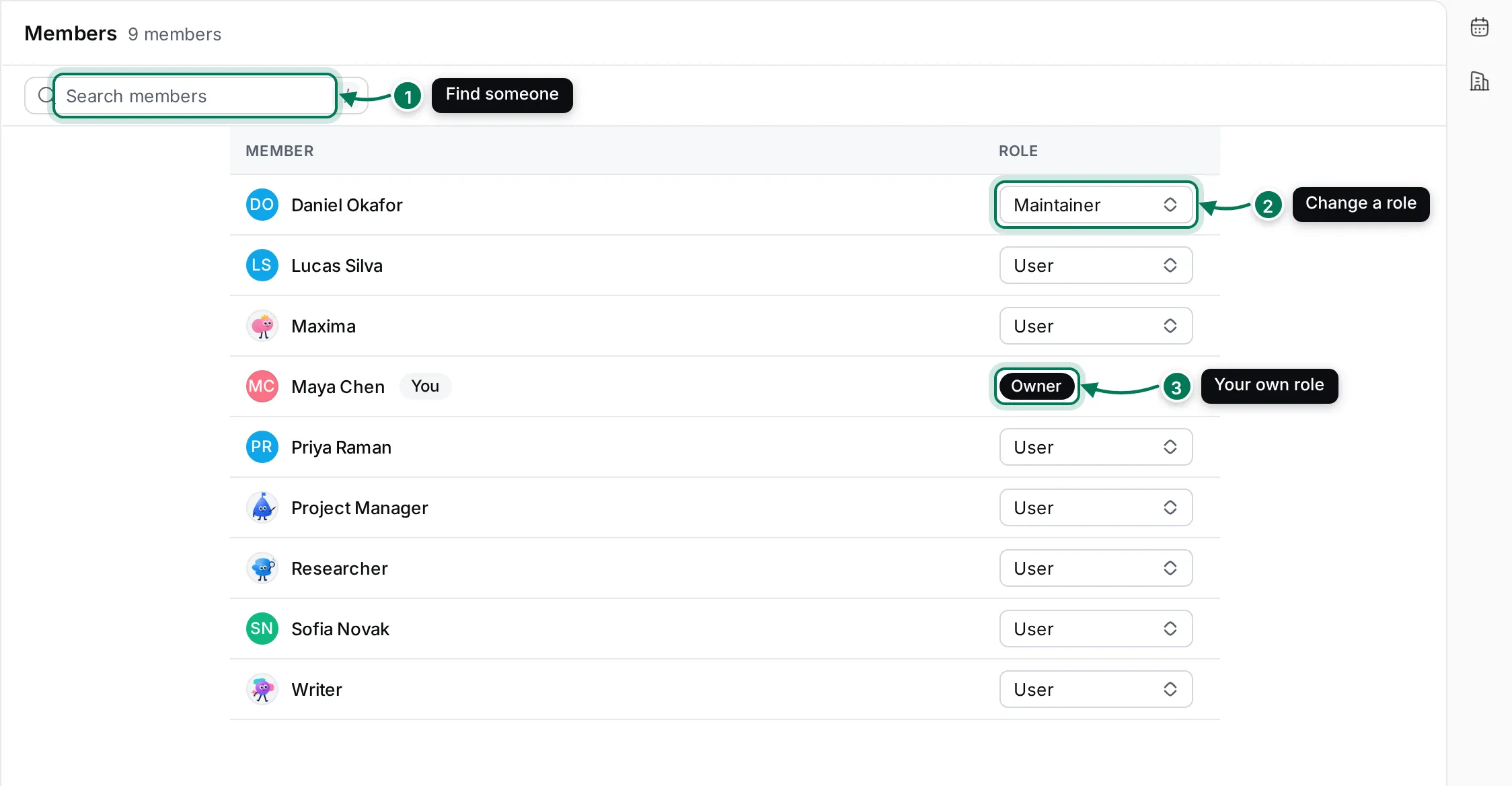
- Search members finds someone by name. Press / to jump to it.
- The Role column shows each person’s role. Click it to change it.
- Your own row is marked You. You can’t change your own role.
Change someone’s role
Section titled “Change someone’s role”-
In Settings › Members, find the person.
-
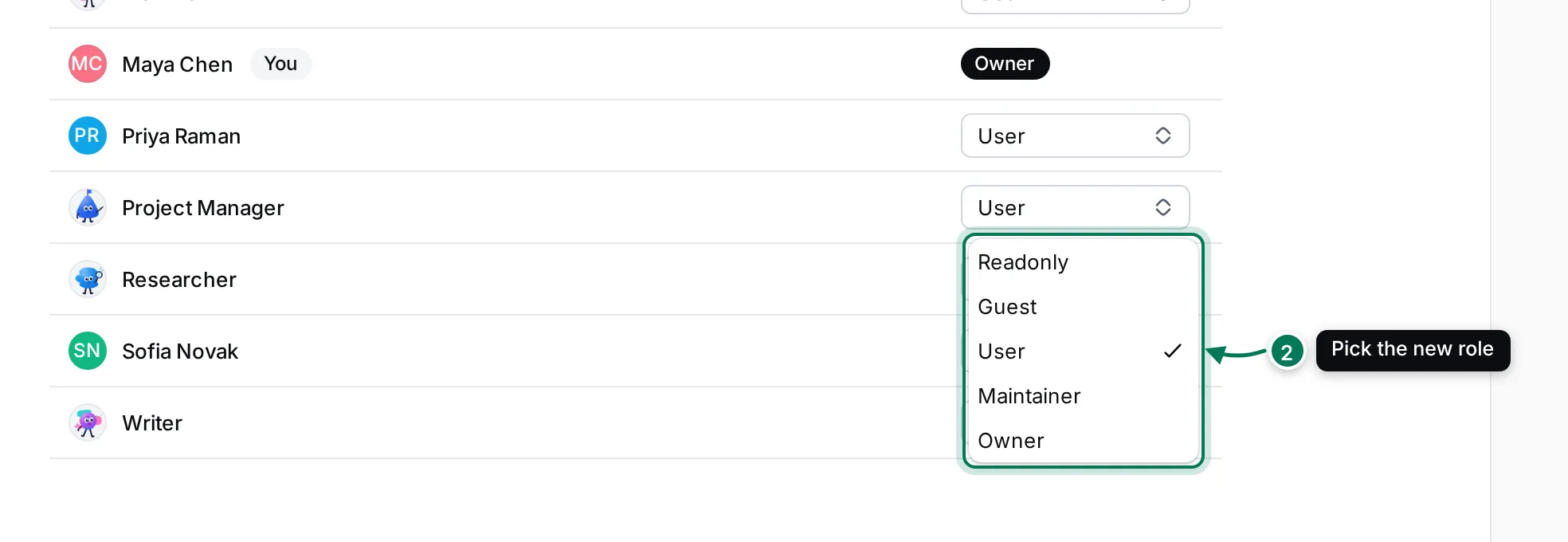
Click their role and pick the new one.
-
The change saves at once and a message confirms it.
Only Maintainers and Owners can change roles, and only up to their own: a Maintainer can make someone a Maintainer but not an Owner, and can’t change an Owner’s role. Users see the roles but can’t change them. A workspace always keeps at least one owner.
Invite people
Section titled “Invite people”Anyone allowed by your invite settings can create an invite link.
-
Click Invite to workspace at the bottom of the Settings navigator (it is also in your avatar’s menu).
-
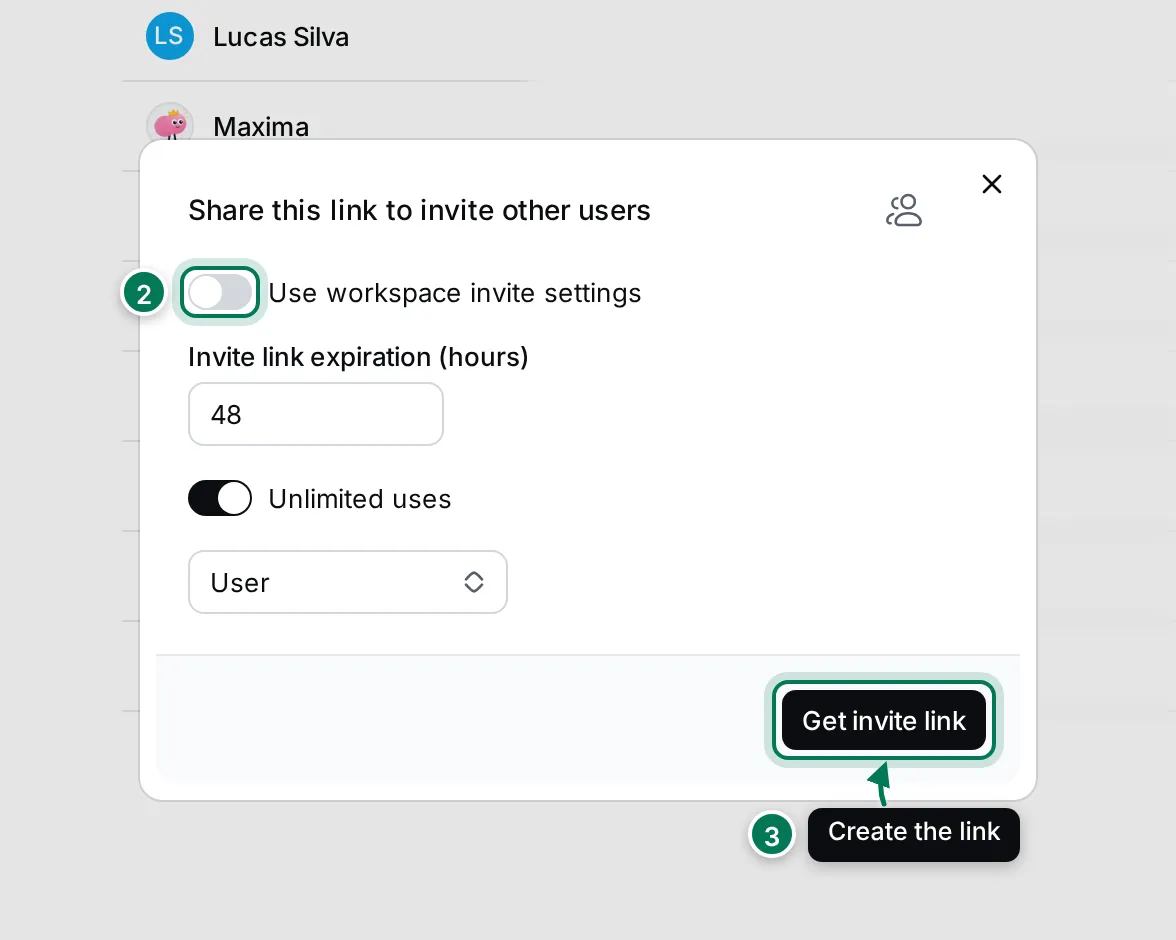
Leave Use workspace invite settings on to use the workspace’s defaults, or turn it off to set this link’s expiry, number of uses and role yourself.
-
Click Get invite link, then Copy, and send the link to the people you want to invite.
People who open the link sign in or create a Maxint account and join with the link’s role.
Invite settings
Section titled “Invite settings”Settings › Invite settings (Maintainers and Owners) sets the defaults for every invite link.
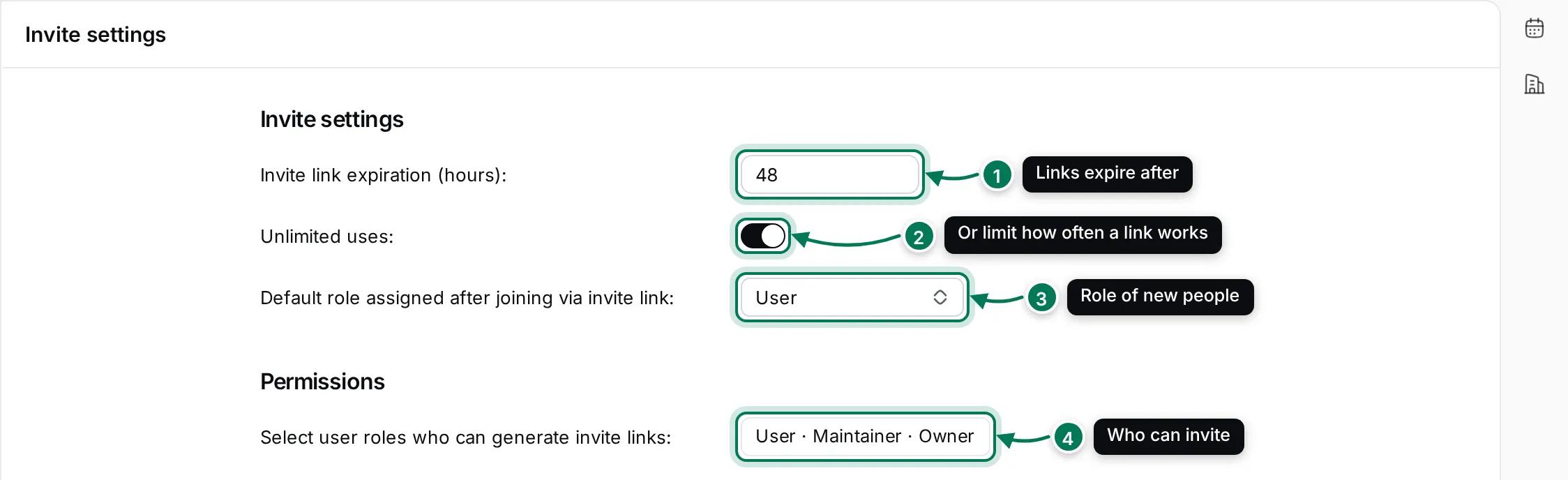
- Invite link expiration (hours): how long a link works. The default is 48 hours.
- Unlimited uses: turn it off to set Maximum uses per invite link.
- Default role assigned after joining via invite link: Guest or User.
- Select user roles who can generate invite links: any of User, Maintainer and Owner.
Each field saves when you leave it or press Enter.