Drives
A drive is a shared space for files, like “Lumen Design” for brand files and app screens or “Engineering” for specs and data exports. Its members see it in their Drive navigator. A private drive is visible only to its members.
Create a drive
Section titled “Create a drive”In Drive, click Create drive. When a drive is open, the button says Upload files: click its arrow and choose Create drive. Then, in the Create drive dialog:
- Type a Name and, if you like, a Description.
- Check Owners (who can change the drive’s settings) and Members (who can use it). Click either field to add or remove people.
- Turn on Make private if only members should see the drive.
- Click Create, or press Ctrl + Enter. The new drive opens.
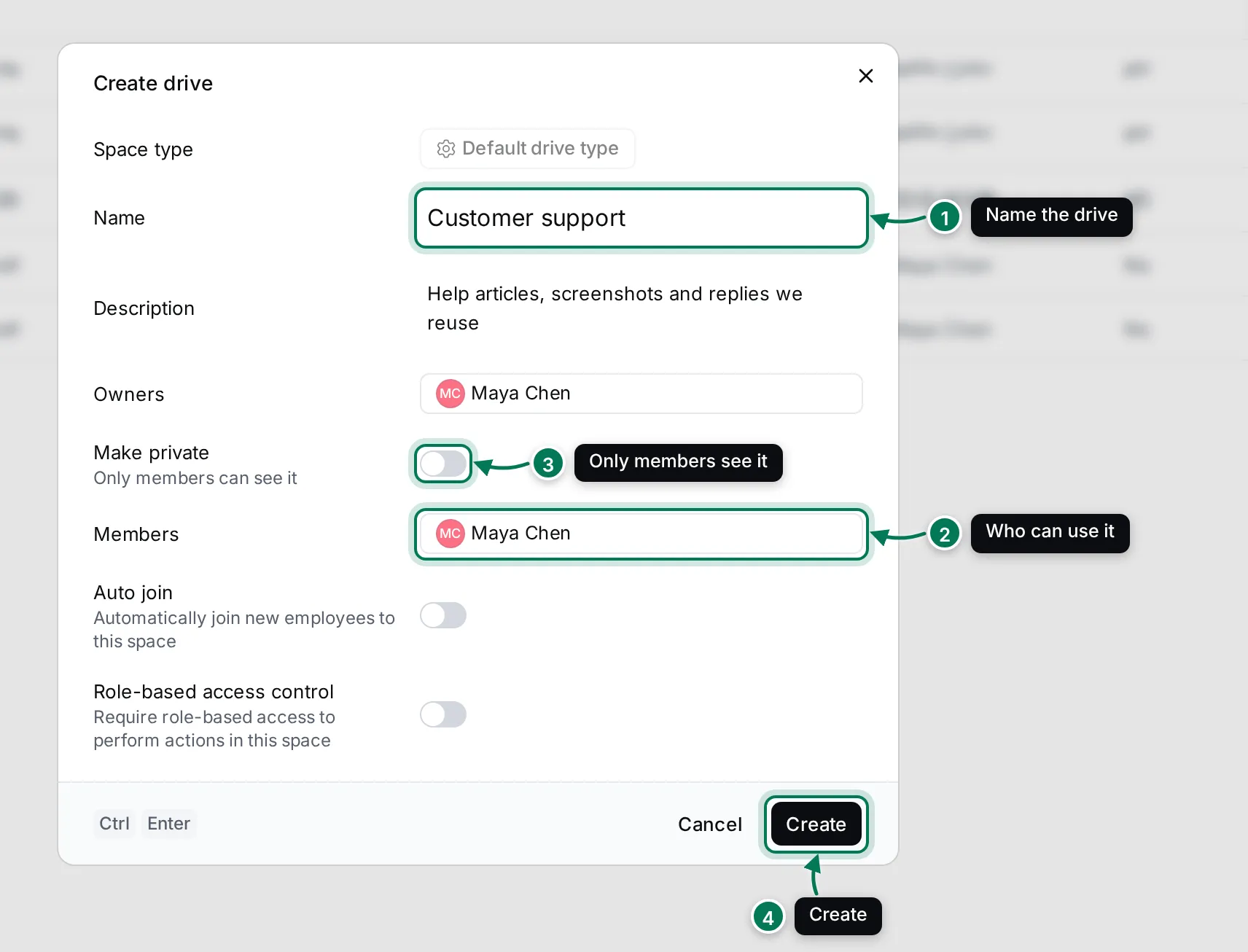
Two more switches are there for workspace-wide drives:
- Auto join adds every new employee to the drive when they join the workspace.
- Role-based access control limits what members can do in the drive to what their role allows.
See all drives
Section titled “See all drives”Click Drives at the top of the navigator for a table of every drive in the workspace.
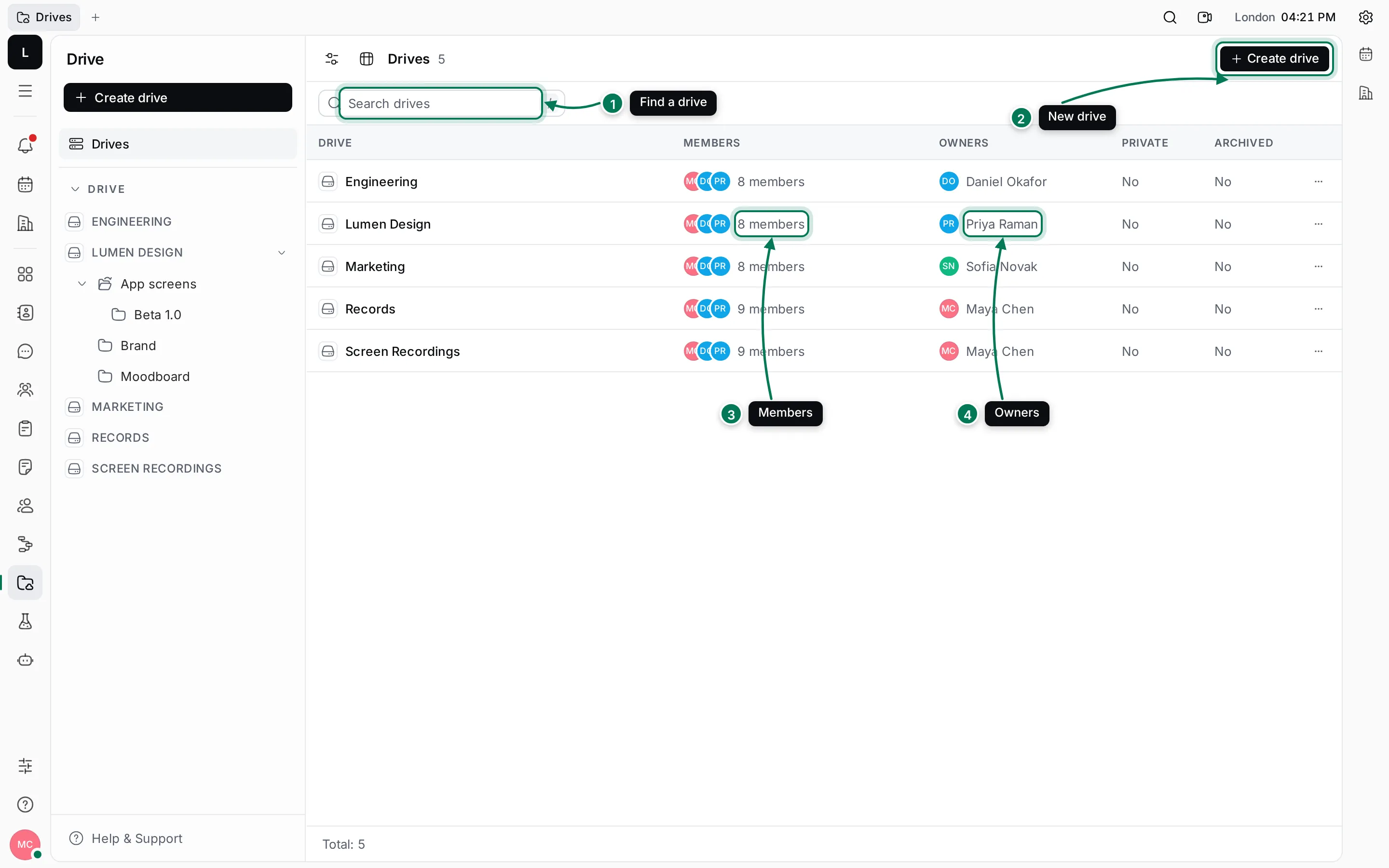
- Search drives finds a drive by name. Press / to jump to it.
- Create drive opens the dialog above.
- Members shows who is in each drive.
- Owners shows who manages it.
Click a row to open the drive. Right-click a row, or use ⋯ at its end, for Create folder, Edit drive, Add relation, Archive, Leave or Join, and Copy link. The buttons at the top left choose the columns (such as Created date or Auto join) and whether archived drives are hidden.
Change, star, archive or leave a drive
Section titled “Change, star, archive or leave a drive”Right-click a drive in the navigator, or hover it and click ⋯.
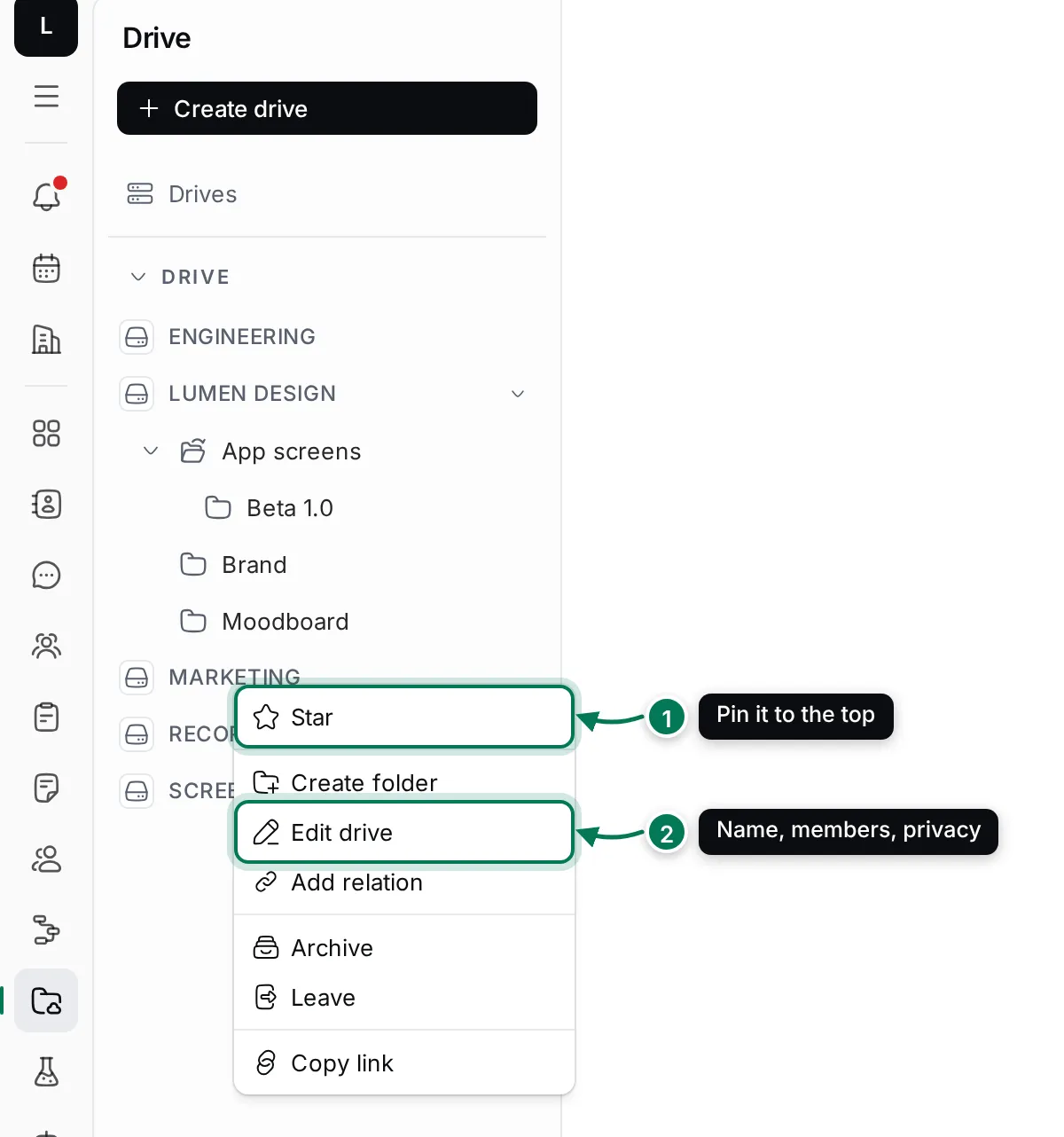
- Star pins the drive to a Starred section at the top of the navigator. Stars are personal.
- Edit drive opens the drive’s settings. Change the name, description, people or privacy and click Save.
- Create folder adds a folder at the drive’s top level.
- Archive hides the drive from everyone’s navigator after you confirm. Its files are kept.
- Leave takes you out of the drive straight away.
- Copy link copies a link to the drive.
Change settings in Details
Section titled “Change settings in Details”You can also change a drive’s settings without opening a dialog. Open the drive and click Details at the top right.
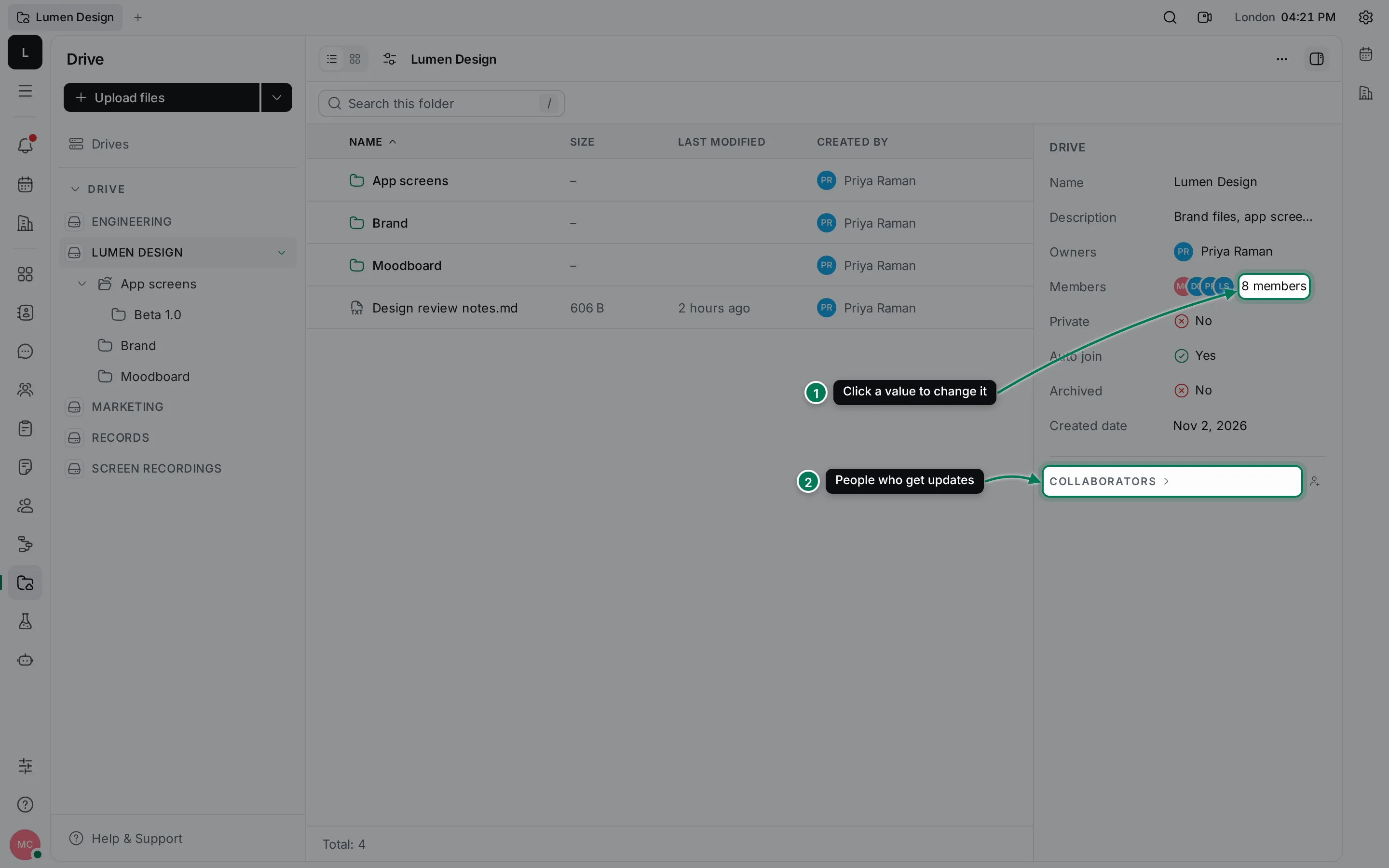
- Click a value, such as Members, Owners, Private or Auto join, to change it in place.
- Collaborators lists the people who get updates about the drive. Click the arrow to see them, or the person icon to add or remove someone.
Next: upload and organize files.