Invite your team
People join a workspace through an invite link. You make a link, send it in an email or a chat message, and everyone who opens it can sign in or create a Maxint account and join. The link decides which role they get and how long it works.
Get an invite link
Section titled “Get an invite link”-
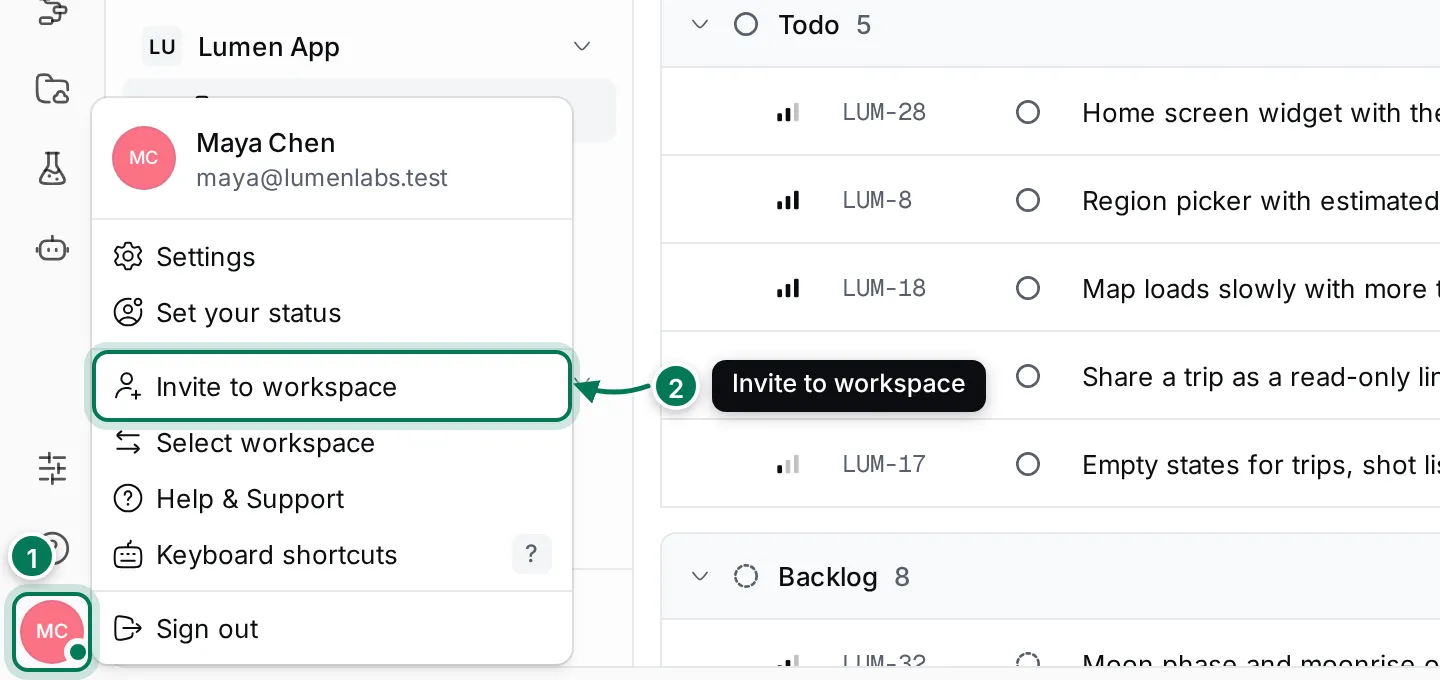
Click your avatar at the bottom of the rail (1) and choose Invite to workspace (2).
-
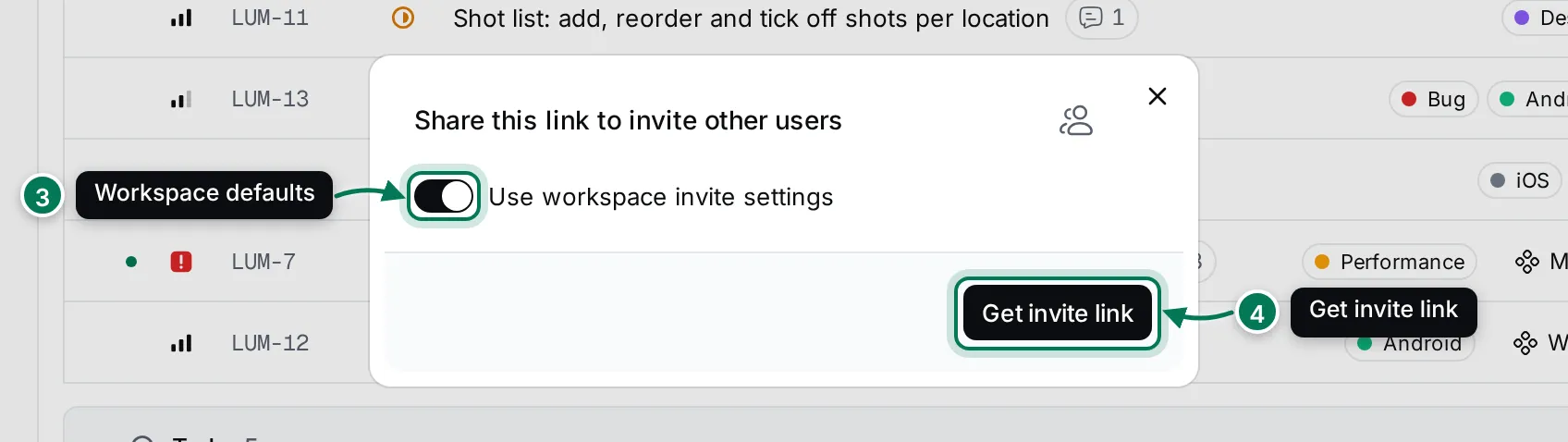
Leave Use workspace invite settings on (3) to use your workspace’s defaults, and click Get invite link (4).
-
Click Copy link (6) and send the link to the people you want to invite.
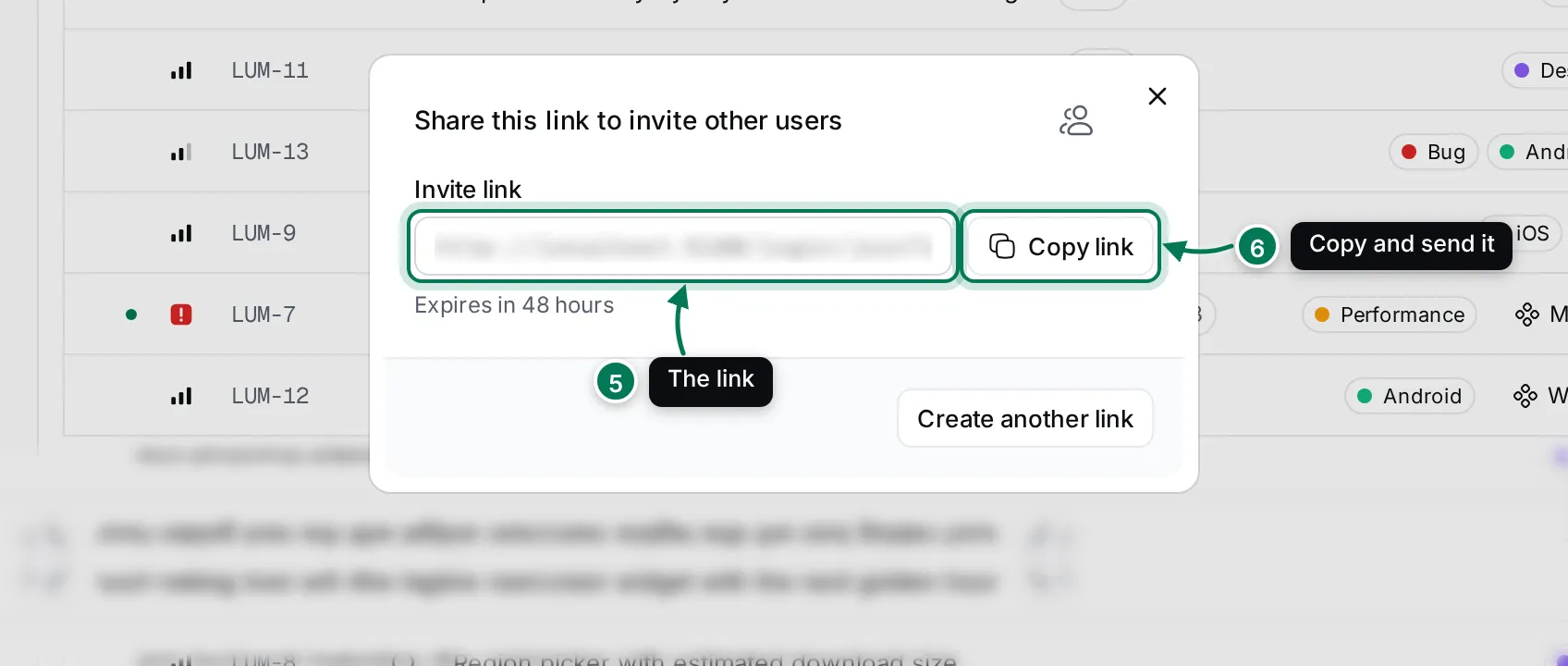
The dialog says when the link expires. Create another link starts over, for example to invite someone with a different role. You can also open the same dialog from Invite to workspace at the bottom of the Settings navigator, or with the Invite to workspace command in the command palette.
Choose the role, expiry and number of uses
Section titled “Choose the role, expiry and number of uses”Turn Use workspace invite settings off to set this link up yourself:
- Invite link expiration (hours): how long the link works.
- Unlimited uses: on, anyone with the link can join until it expires; off, type how many people can use it.
- Role: what people who join get: Guest, User, Maintainer or Owner.
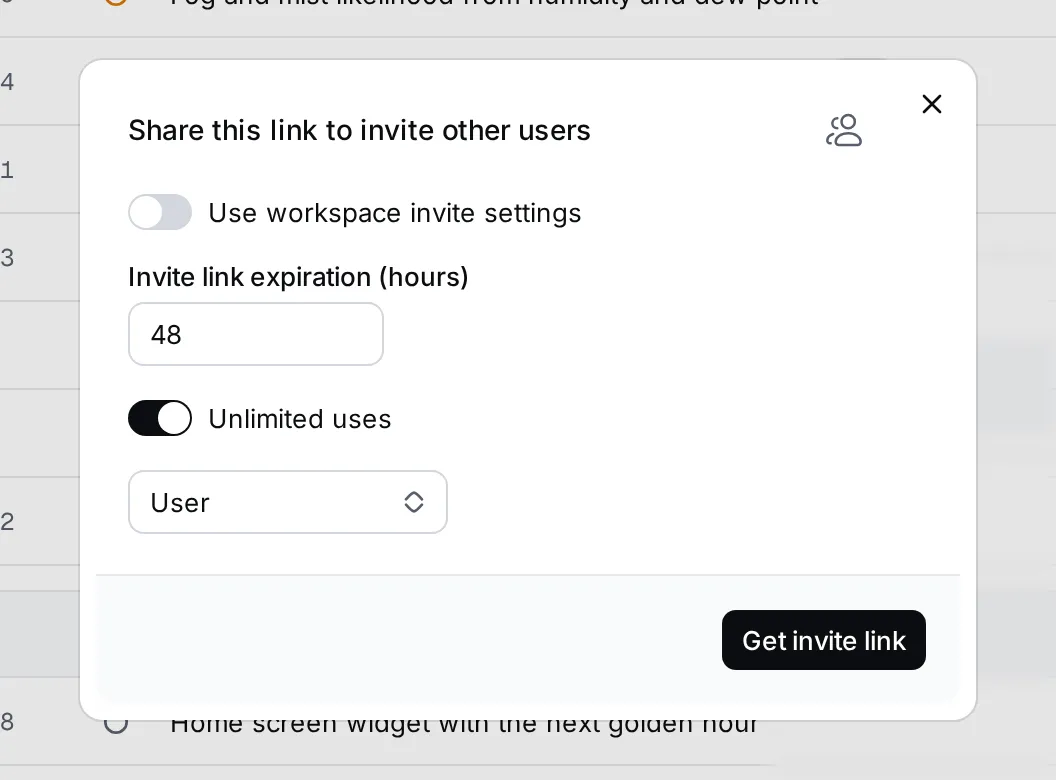
When the switch is on, the link uses the workspace’s defaults from Settings › Invite settings: 48 hours, unlimited uses and the User role unless a maintainer changed them. Invite settings also decide which roles may create links. See Invite settings.
Join from an invite link
Section titled “Join from an invite link”When someone sends you a link, open it in your browser.
-
The page says which workspace invited you.
-
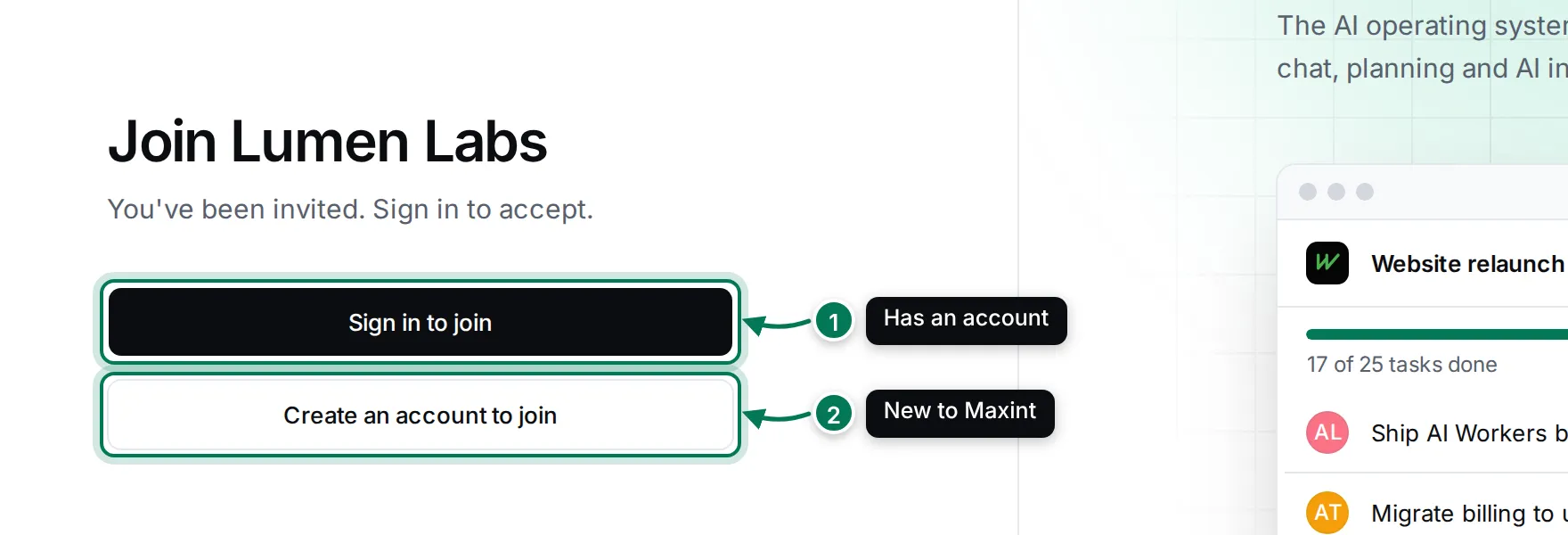
Click Sign in to join if you have a Maxint account (1), or Create an account to join if you don’t (2).
-
Sign in or create your account. You come back and join the workspace with the link’s role.
If you are already signed in, the page offers Join as with your email, or Use another account. If the link was made for a different email address, sign out and sign in with that address. A link that expired or ran out of uses says so: ask for a new one.
Other ways to add people
Section titled “Other ways to add people”- Contacts › Employee invites a colleague by name and email. See Invite employees and guests.
- Settings › Members shows everyone in the workspace and lets owners and maintainers change roles. See Members and roles.
- AI Workers join the workspace as members too, without an invite.