Day and week calendar
The Calendar view of the Team planner has a row for every member of the project, including the AI Workers in it. The corner says how many members there are. Switch between a Day timeline and a Week overview.
The day timeline
Section titled “The day timeline”- Open Team, pick a project and click Calendar at the top right.
- Choose Day in the range menu (2).
- Choose the scale (1): 1 hour, 30 mins or 15 mins per column.
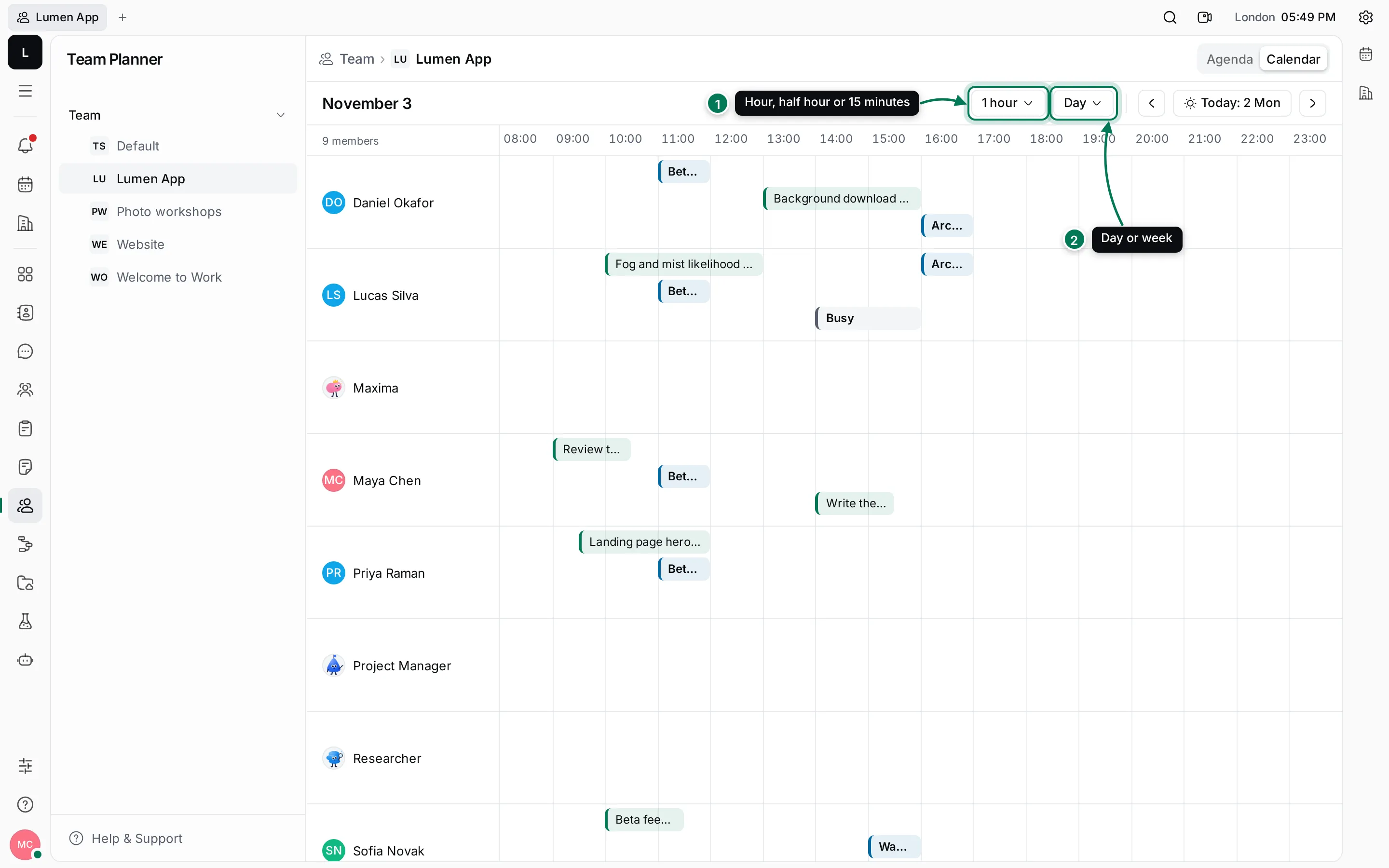
Each slot and event is a bar on its person’s row, from its start to its end. Green bars are time slots for action items, blue bars are events, and Busy bars are items a person shares as FreeBusy. The timeline starts at the first busy hour, or at 8:00 at the latest, and runs to midnight.
Hover over a bar to see its full title and times.
The week overview
Section titled “The week overview”Choose Week in the range menu. Each person gets a cell for every day of the week. Weekends are shaded, and today’s column is tinted.
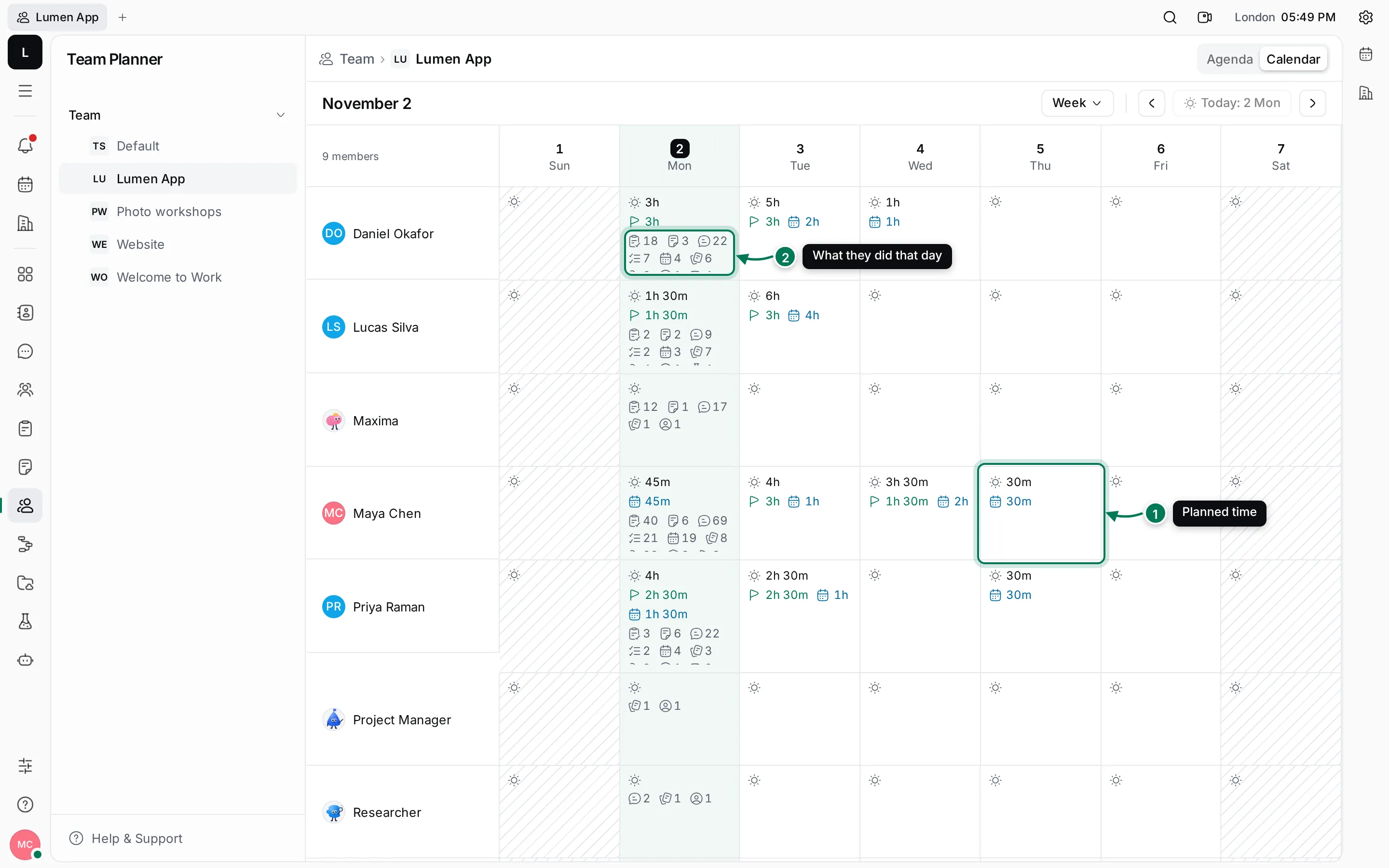
- Planned time: the sun icon shows the total planned that day. Below it, the flag shows the time in action item slots and the calendar icon the time in events. Hover over the total to list the items.
- Activity: what the person did in Maxint Work that day. Each icon has a count: issues, documents, messages, action items, events and slots, cards, files, components, milestones, contacts, companies, meeting minutes, and test cases and runs. Hover over the icons to see what each one is.
The activity counts help when you want to know what someone worked on, not only what they planned. They count the things each person created or changed that day.
Use ‹ and › to move a week at a time.
Set the first day of the week
Section titled “Set the first day of the week”The week starts on the day set for your device. To change it:
- Open Settings › General.
- Under Calendar, pick a day in Start of the week (1). System setup follows your computer’s settings.

The setting is for this device only. It also changes the month calendar in the Planner and the date pickers.